> ## Documentation Index
> Fetch the complete documentation index at: https://docs.useinvent.com/llms.txt
> Use this file to discover all available pages before exploring further.
# Agents
> Manage team members who handle conversations handed off from AI assistants
Agents handle conversations when customers ask to speak with a human or when the assistant encounters something it can't handle. Your assistant automatically hands off these conversations to available agents, or assigns them manually from the Inbox.
Access agent assignments at [useinvent.com/o/settings/agents](https://useinvent.com/o/settings/agents).
 ## How It Works
When a customer requests human help or the assistant encounters something it can't handle, the conversation is automatically handed off:
1. Conversation appears in Inbox under "Waiting for Human"
2. System assigns to an active agent (if available)
3. If no active agents, conversation remains unassigned for manual assignment
## Agent Status
Toggle your status to control automatic assignments:
**Active**: Receives automatic handoff assignments
**Inactive**: Skipped for auto-assignments, but can still manually take over conversations
Members toggle status in their profile settings.
## Manual Assignment
Assign conversations from the Inbox sidebar:
1. Open a conversation
2. Click the agent dropdown (shows "Unassigned" if unassigned)
3. Search and select a team member
Or click **Take Over** to claim any conversation yourself.
## Restricting Assistant Access
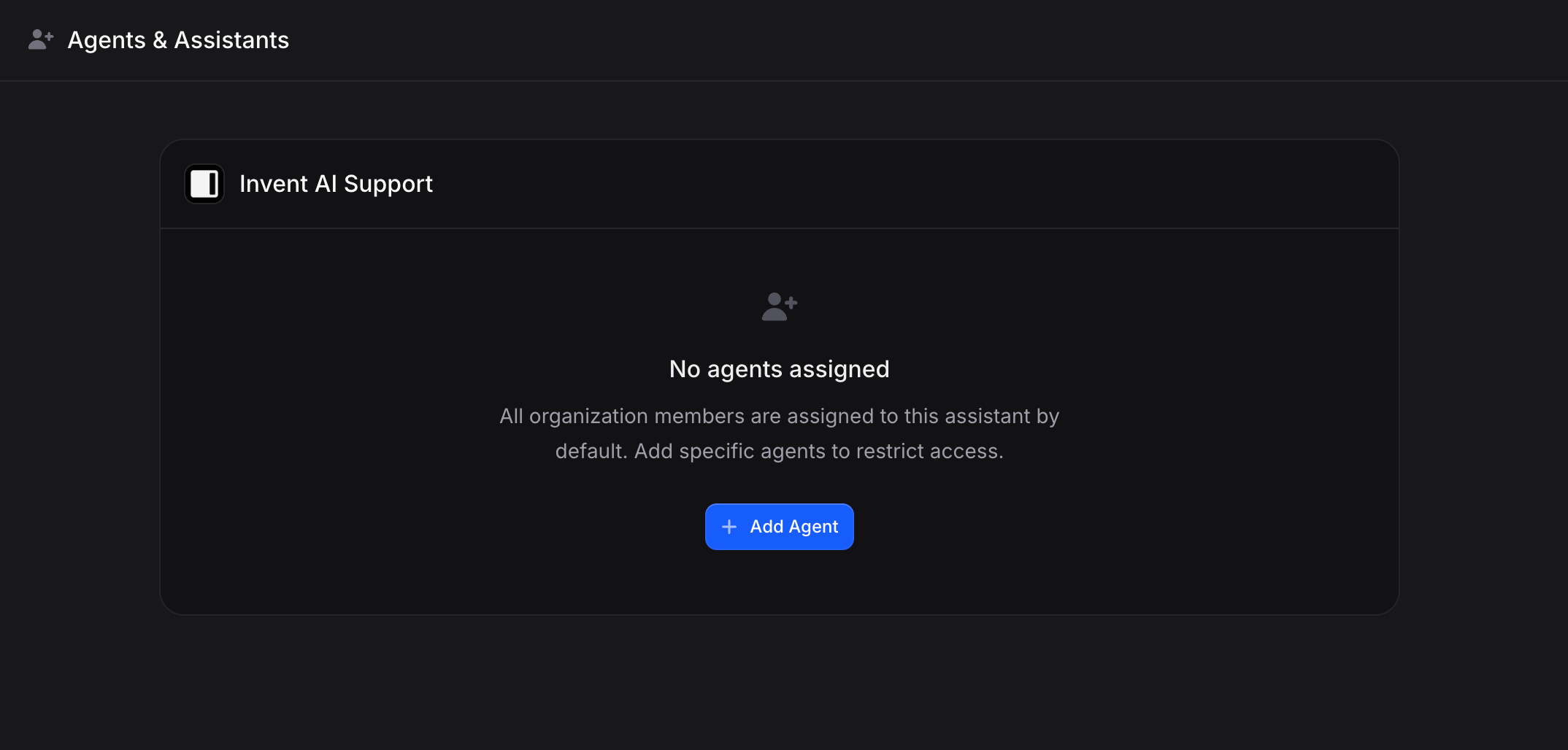
By default, all members access conversations from any assistant. To restrict:
1. Go to **Settings** → **Agents**
2. Find the assistant
3. Click **Add Agent** and select specific members
4. Only selected members see that assistant's conversations
## How It Works
When a customer requests human help or the assistant encounters something it can't handle, the conversation is automatically handed off:
1. Conversation appears in Inbox under "Waiting for Human"
2. System assigns to an active agent (if available)
3. If no active agents, conversation remains unassigned for manual assignment
## Agent Status
Toggle your status to control automatic assignments:
**Active**: Receives automatic handoff assignments
**Inactive**: Skipped for auto-assignments, but can still manually take over conversations
Members toggle status in their profile settings.
## Manual Assignment
Assign conversations from the Inbox sidebar:
1. Open a conversation
2. Click the agent dropdown (shows "Unassigned" if unassigned)
3. Search and select a team member
Or click **Take Over** to claim any conversation yourself.
## Restricting Assistant Access
By default, all members access conversations from any assistant. To restrict:
1. Go to **Settings** → **Agents**
2. Find the assistant
3. Click **Add Agent** and select specific members
4. Only selected members see that assistant's conversations
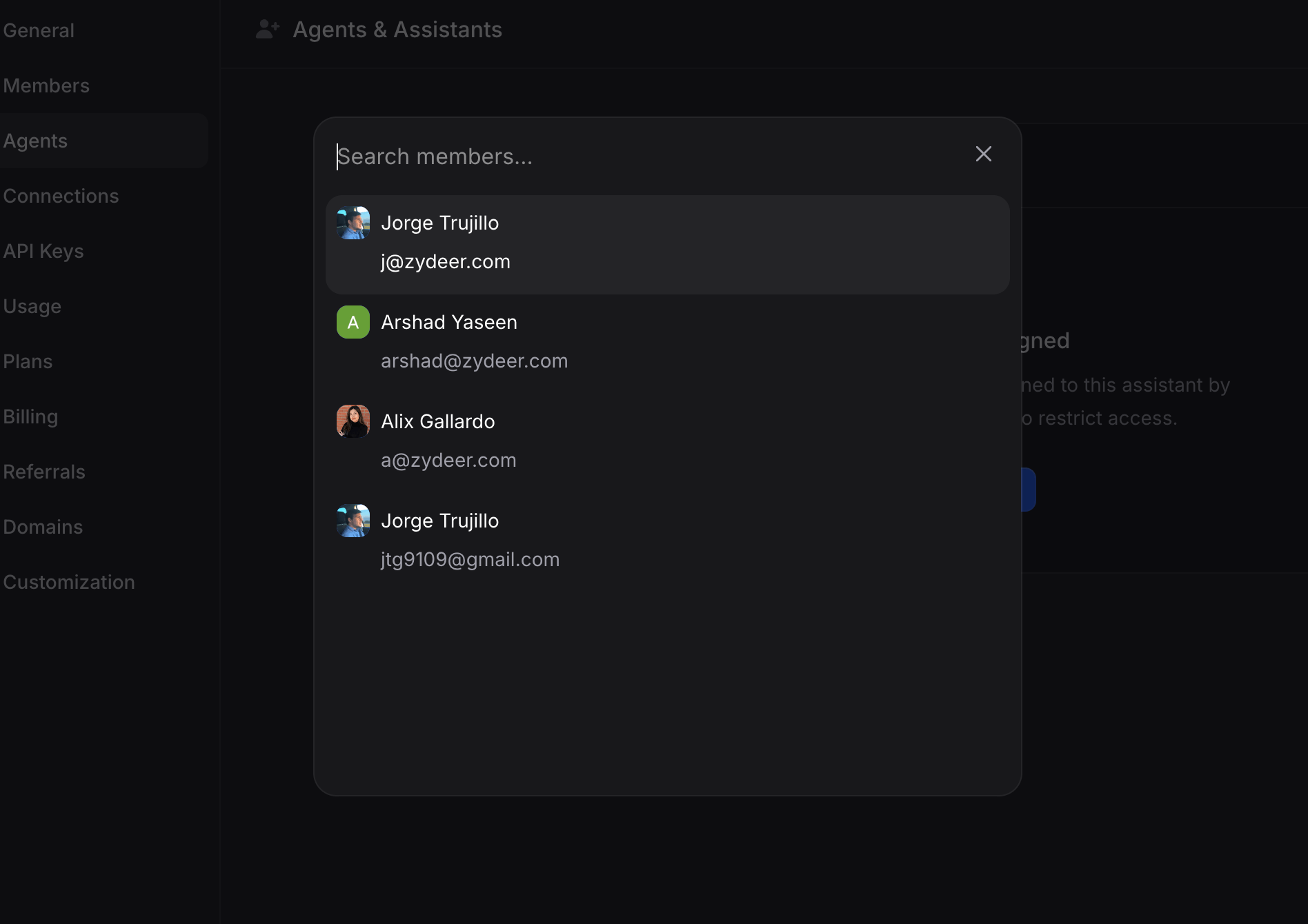 **Example**: Assign support team to "Support Assistant" and sales team to "Sales Assistant".
### Managing Assignments
* **Add Agent**: Assign additional members
* **Remove Agent**: Revoke access (trash icon)
* **Enable/Disable**: Toggle without removing
## Agent Roles
**Can be assigned as agents:**
* Manager
* Agent
**Always access all conversations:**
* Admin
* Developer
## Use Cases
**Support Teams**: Route customer service to support agents
**Specialized Assistants**: Assign subject matter experts to relevant assistants
**Regional Teams**: Assign by language or time zone
**Workload Management**: Set status inactive when at capacity
## Resolving Conversations
After helping a customer:
* Click **Resolve** to mark complete
* Click **Hand Over to AI** to return conversation to assistant
* If customer replies, resolved conversations reopen automatically
## Inbox Filters
Find conversations needing attention:
* **All**: Every conversation
* **Unread**: New messages you haven't seen
* **Unresolved**: Open conversations (AI handling or awaiting response)
* **Resolved**: Completed conversations
* **Assigned to me**: Conversations assigned to you
* **Unassigned**: Conversations without an assigned agent
You can also filter by specific assistant using the assistant dropdown.
## Next Steps
Manage conversations and monitor handoffs in the Inbox
Invite team members and assign roles for agent access
**Example**: Assign support team to "Support Assistant" and sales team to "Sales Assistant".
### Managing Assignments
* **Add Agent**: Assign additional members
* **Remove Agent**: Revoke access (trash icon)
* **Enable/Disable**: Toggle without removing
## Agent Roles
**Can be assigned as agents:**
* Manager
* Agent
**Always access all conversations:**
* Admin
* Developer
## Use Cases
**Support Teams**: Route customer service to support agents
**Specialized Assistants**: Assign subject matter experts to relevant assistants
**Regional Teams**: Assign by language or time zone
**Workload Management**: Set status inactive when at capacity
## Resolving Conversations
After helping a customer:
* Click **Resolve** to mark complete
* Click **Hand Over to AI** to return conversation to assistant
* If customer replies, resolved conversations reopen automatically
## Inbox Filters
Find conversations needing attention:
* **All**: Every conversation
* **Unread**: New messages you haven't seen
* **Unresolved**: Open conversations (AI handling or awaiting response)
* **Resolved**: Completed conversations
* **Assigned to me**: Conversations assigned to you
* **Unassigned**: Conversations without an assigned agent
You can also filter by specific assistant using the assistant dropdown.
## Next Steps
Manage conversations and monitor handoffs in the Inbox
Invite team members and assign roles for agent access