> ## Documentation Index
> Fetch the complete documentation index at: https://docs.useinvent.com/llms.txt
> Use this file to discover all available pages before exploring further.
# TikTok Direct Messages
> Connect a TikTok Business Account to your assistant and reply to DMs automatically
New to channels? Start with the [Channels Overview](/assistants/channels) to see the universal connect flow that every channel shares. This guide walks through the TikTok-specific parts on top of that flow.
Connecting TikTok puts your assistant inside the direct messages of your TikTok Business Account. Someone who taps **Message** on your profile, clicks a Click-to-Message ad, shares one of your videos, or opens a `tiktok.me` link lands in a conversation your assistant answers instantly. Everything appears in the same [Inbox](/guides/inbox) as your other channels, with the same assistant, the same [Knowledge](/guides/knowledge), and the same [Memory](/guides/memory).
TikTok has stricter entry rules than any other channel. Read **Before You Start** carefully. If your account does not meet all three conditions, the connection is created but no message ever arrives.
## Before You Start
You need three things:
1. **A TikTok Business Account.** Personal and Creator accounts cannot be connected. You can switch for free in the TikTok app under **Settings and privacy → Account → Switch to Business Account**. Your username, videos, and followers stay exactly as they are.
2. **An account registered outside the United States, the European Economic Area, Switzerland, and the United Kingdom.** TikTok decides this by where the account was signed up, not where you or your customers are today. Accounts registered in those places cannot use TikTok messaging through any third-party tool yet.
3. **Direct messages open to everyone.** In the TikTok app, go to **Settings and privacy → Privacy → Direct messages** and allow messages from **Everyone**. If this is left on "Friends", customer messages sit in a request folder and never reach your assistant.
Customers in the European Economic Area, Switzerland, and the United Kingdom can still message you, but TikTok removes the text before it leaves their servers. Those conversations arrive empty, so your assistant cannot answer them. This is a TikTok restriction and applies to every tool, not only Invent.
**TikTok Shop messages are separate.** This channel covers direct messages sent to your TikTok profile. Messages from TikTok Shop orders run on a different TikTok system and are not included.
## Step 1: Open the TikTok Connect Dialog
From your assistant's **Channels** tab, find **TikTok Direct Messages** in the list and click **Connect**.
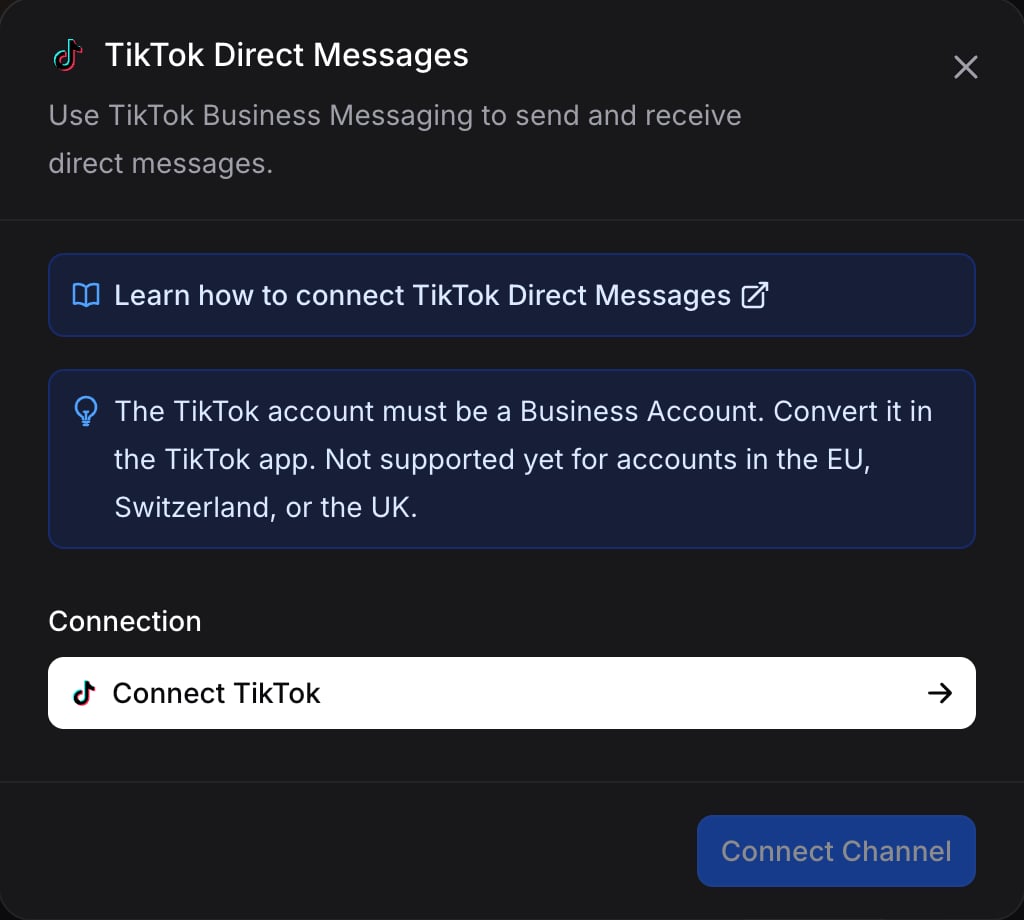 The reminder inside the dialog repeats the two rules that block most connections: the account has to be a Business Account, and it cannot be registered in the EU, Switzerland, or the UK.
The dialog has one field:
* **Connection**: the authenticated link to a TikTok Business Account. If this is your first TikTok connection, the dropdown holds a **+ Connect TikTok** button that starts the sign-in. If you already connected TikTok for another assistant, pick that connection and skip to [Step 4](#step-4-pick-the-connection).
## Step 2: Sign In to TikTok
Open the **Connection** dropdown and click **+ Connect TikTok**. TikTok's authorization page opens.
This page runs entirely on `tiktok.com`. Your password is only ever entered on TikTok's own domain, never on Invent's.
Sign in with the account that owns the messages you want the assistant to handle, then review the permissions TikTok lists. The assistant needs all of them to read incoming messages and send replies.
Sign in with the **business owner's** TikTok account, not a personal employee account. Access follows whoever signed in. If that account is deleted, has its password changed, or removes Invent from its authorized apps, the channel stops working until someone reconnects it.
## Step 3: Name the Connection in Invent
TikTok sends you back to Invent and asks you to label the new connection, for example "Brand TikTok DMs". This name is only used inside Invent.
Click **Create**. The connection is stored in [Settings → Connections](/assistants/connections), where you can rename or disconnect it later.
## Step 4: Pick the Connection
Back on the TikTok dialog, your new connection is already selected. Click **Connect Channel**.
**One TikTok account, one assistant.** A TikTok account can only be bound to one assistant at a time. If two assistants need the same account, [AI routing](/assistants/routing) is usually a better fit than splitting the inbox.
## Step 5: Send a Test Message
Click the connected TikTok channel to open the test dialog. It shows the connected profile, a QR code to your TikTok page, and an **Open TikTok** button.
The reminder inside the dialog repeats the two rules that block most connections: the account has to be a Business Account, and it cannot be registered in the EU, Switzerland, or the UK.
The dialog has one field:
* **Connection**: the authenticated link to a TikTok Business Account. If this is your first TikTok connection, the dropdown holds a **+ Connect TikTok** button that starts the sign-in. If you already connected TikTok for another assistant, pick that connection and skip to [Step 4](#step-4-pick-the-connection).
## Step 2: Sign In to TikTok
Open the **Connection** dropdown and click **+ Connect TikTok**. TikTok's authorization page opens.
This page runs entirely on `tiktok.com`. Your password is only ever entered on TikTok's own domain, never on Invent's.
Sign in with the account that owns the messages you want the assistant to handle, then review the permissions TikTok lists. The assistant needs all of them to read incoming messages and send replies.
Sign in with the **business owner's** TikTok account, not a personal employee account. Access follows whoever signed in. If that account is deleted, has its password changed, or removes Invent from its authorized apps, the channel stops working until someone reconnects it.
## Step 3: Name the Connection in Invent
TikTok sends you back to Invent and asks you to label the new connection, for example "Brand TikTok DMs". This name is only used inside Invent.
Click **Create**. The connection is stored in [Settings → Connections](/assistants/connections), where you can rename or disconnect it later.
## Step 4: Pick the Connection
Back on the TikTok dialog, your new connection is already selected. Click **Connect Channel**.
**One TikTok account, one assistant.** A TikTok account can only be bound to one assistant at a time. If two assistants need the same account, [AI routing](/assistants/routing) is usually a better fit than splitting the inbox.
## Step 5: Send a Test Message
Click the connected TikTok channel to open the test dialog. It shows the connected profile, a QR code to your TikTok page, and an **Open TikTok** button.
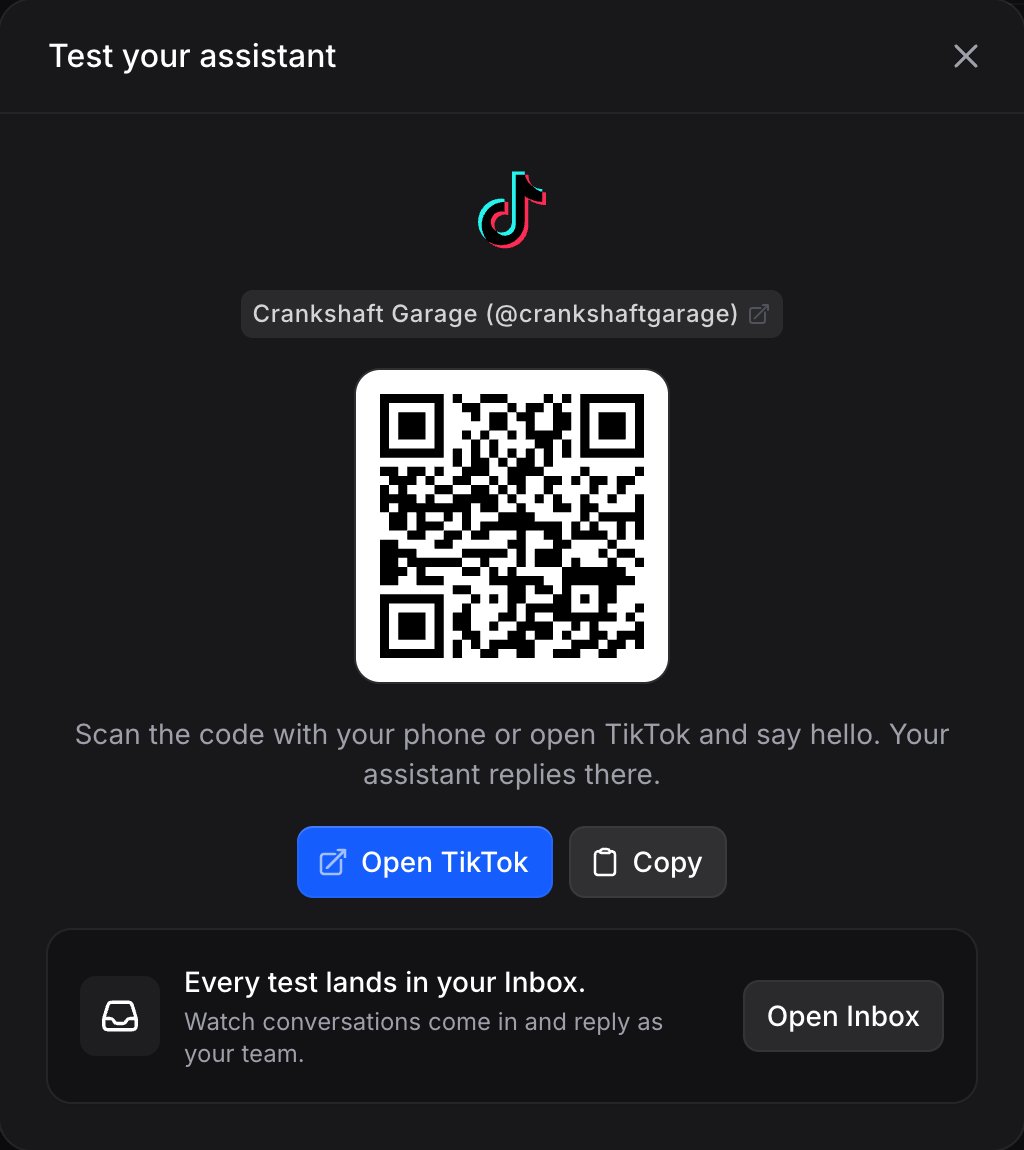 Scan the code with your phone, using a different account from the one you connected, and send a direct message. Your assistant should reply within a few seconds, and the conversation appears in your [Inbox](/guides/inbox), with a TikTok badge on the contact and their handle under their name.
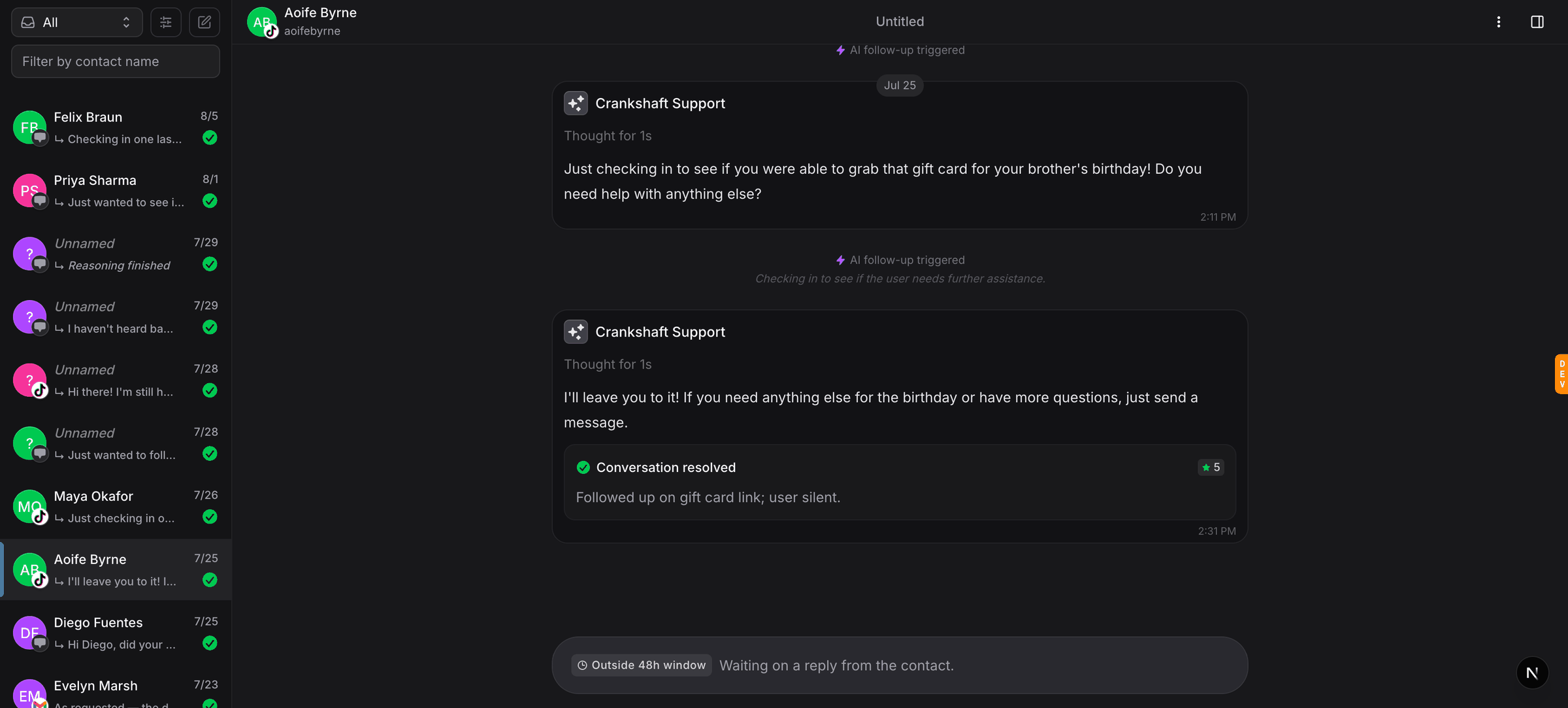 That is it, the assistant is live on TikTok.
## What Goes Through, Each Way
TikTok is not symmetric: customers can send you more than your assistant can send back. Plan your Instructions around this table.
| | Your assistant sends | Customers send |
| :------------------------------ | :------------------------------------ | :---------------------------------------- |
| Text | Yes, up to 6,000 characters | Yes |
| Photos | Yes, JPG, PNG, GIF and BMP up to 3 MB | Yes |
| Video | No | Yes |
| Voice notes and audio | No | No |
| iPhone Live Photos | Not applicable | No, they arrive empty |
| Documents and files | No | No |
| Stickers and emojis | No | Yes |
| Shared TikTok posts | No | Yes |
| Reply buttons | Yes, up to 3 on a question card | Tapping one sends its text as their reply |
| Text and a photo in one message | No, they go as two messages | Not applicable |
| Bold, italic, links as buttons | No, everything is plain text | Not applicable |
| Starting the conversation | No, the customer always writes first | Yes, always |
| Broadcasts | No | Not applicable |
**Voice notes and iPhone Live Photos never arrive.** TikTok's messaging API has no audio message type at all, and it cannot hand over a Live Photo even though it records that one was sent. Both reach us empty, with no file to download, so you will not see them in the Inbox and neither will your assistant. The customer sees the message as delivered, so they may think you have it. Ask them to type the question or send a normal photo, or open the TikTok app yourself to look. This applies to every tool built on TikTok messaging, not only Invent.
Write links as plain addresses like `https://example.com`. TikTok shows the raw text, so a formatted link would reach the customer as unreadable markup.
Referrals are captured as well, so you can see when a conversation started from an ad, a shared video, or a `tiktok.me` link.
## The 48-Hour Reply Window
TikTok lets you reply for **48 hours** after the customer's last message, and every reply from them opens a fresh window. Once 48 hours pass with no reply, you get three more messages before sends are blocked until they write again.
This is twice as long as WhatsApp, Messenger, and Instagram allow, but it still means a conversation left alone over a long weekend can close. Use [Auto Follow-ups](/guides/auto-follow-ups) to re-engage while the window is open.
## Reusing a Connection Across Assistants
Once a TikTok connection exists in your workspace, any assistant can pick it from the **Connection** dropdown without signing in again.
Manage every connection from [Settings → Connections](/assistants/connections):
* **Rename** a connection to keep the list readable as you add more.
* **Reconnect** with **Edit** then **Reconnect** if TikTok's session expires or someone removes Invent from the account's authorized apps.
* **Disconnect** to remove the link. Any assistant still using it stops sending and receiving.
## Troubleshooting
Check the three entry rules in [Before You Start](#before-you-start), in this order. First, confirm the account is a Business Account, not Personal or Creator. Second, confirm direct messages are open to **Everyone** in the TikTok app, since messages from strangers otherwise wait in a request folder. Third, check where the account was registered, because accounts signed up in the US, the EEA, Switzerland, or the UK cannot use TikTok messaging through any third-party tool.
The customer's TikTok account is registered in the European Economic Area, Switzerland, or the United Kingdom. TikTok removes the message text for those regions before it reaches any third-party tool. You will see that a conversation started, but there is nothing to answer. Reply from the TikTok app directly if you need to reach that customer.
Three limits apply. The file has to be a JPG, PNG, GIF or BMP, it has to be under 3 MB, and both you and the customer have to be in regions where TikTok allows image messages. Text still goes through when an image is rejected, so the customer receives the reply without the picture.
TikTok only allows replies to customers who messaged you first, and only within 48 hours of their last message. There is no template or paid message to reopen a conversation the way WhatsApp allows. Run campaigns that invite people to message you, for example a Click-to-Message ad or a `tiktok.me` link, rather than trying to message first.
TikTok's access expired or was revoked. Common reasons are a password change, or someone removing Invent from the account's authorized apps. Open [Settings → Connections](/assistants/connections), find the TikTok connection, click **Fix** or **Edit**, then **Reconnect**.
They should not. Welcome messages, suggested questions, and keyword replies configured in TikTok Business Suite are filtered out before your assistant sees them, so it never answers your own automation. If you do see one, report it to support with the conversation link.
## Next Steps
See the universal connection flow that every channel uses
Manage every authenticated link, including TikTok, in one place
See everything your assistant can send and receive
Capture referrals from TikTok ads, shared posts, and short links on every conversation
That is it, the assistant is live on TikTok.
## What Goes Through, Each Way
TikTok is not symmetric: customers can send you more than your assistant can send back. Plan your Instructions around this table.
| | Your assistant sends | Customers send |
| :------------------------------ | :------------------------------------ | :---------------------------------------- |
| Text | Yes, up to 6,000 characters | Yes |
| Photos | Yes, JPG, PNG, GIF and BMP up to 3 MB | Yes |
| Video | No | Yes |
| Voice notes and audio | No | No |
| iPhone Live Photos | Not applicable | No, they arrive empty |
| Documents and files | No | No |
| Stickers and emojis | No | Yes |
| Shared TikTok posts | No | Yes |
| Reply buttons | Yes, up to 3 on a question card | Tapping one sends its text as their reply |
| Text and a photo in one message | No, they go as two messages | Not applicable |
| Bold, italic, links as buttons | No, everything is plain text | Not applicable |
| Starting the conversation | No, the customer always writes first | Yes, always |
| Broadcasts | No | Not applicable |
**Voice notes and iPhone Live Photos never arrive.** TikTok's messaging API has no audio message type at all, and it cannot hand over a Live Photo even though it records that one was sent. Both reach us empty, with no file to download, so you will not see them in the Inbox and neither will your assistant. The customer sees the message as delivered, so they may think you have it. Ask them to type the question or send a normal photo, or open the TikTok app yourself to look. This applies to every tool built on TikTok messaging, not only Invent.
Write links as plain addresses like `https://example.com`. TikTok shows the raw text, so a formatted link would reach the customer as unreadable markup.
Referrals are captured as well, so you can see when a conversation started from an ad, a shared video, or a `tiktok.me` link.
## The 48-Hour Reply Window
TikTok lets you reply for **48 hours** after the customer's last message, and every reply from them opens a fresh window. Once 48 hours pass with no reply, you get three more messages before sends are blocked until they write again.
This is twice as long as WhatsApp, Messenger, and Instagram allow, but it still means a conversation left alone over a long weekend can close. Use [Auto Follow-ups](/guides/auto-follow-ups) to re-engage while the window is open.
## Reusing a Connection Across Assistants
Once a TikTok connection exists in your workspace, any assistant can pick it from the **Connection** dropdown without signing in again.
Manage every connection from [Settings → Connections](/assistants/connections):
* **Rename** a connection to keep the list readable as you add more.
* **Reconnect** with **Edit** then **Reconnect** if TikTok's session expires or someone removes Invent from the account's authorized apps.
* **Disconnect** to remove the link. Any assistant still using it stops sending and receiving.
## Troubleshooting
Check the three entry rules in [Before You Start](#before-you-start), in this order. First, confirm the account is a Business Account, not Personal or Creator. Second, confirm direct messages are open to **Everyone** in the TikTok app, since messages from strangers otherwise wait in a request folder. Third, check where the account was registered, because accounts signed up in the US, the EEA, Switzerland, or the UK cannot use TikTok messaging through any third-party tool.
The customer's TikTok account is registered in the European Economic Area, Switzerland, or the United Kingdom. TikTok removes the message text for those regions before it reaches any third-party tool. You will see that a conversation started, but there is nothing to answer. Reply from the TikTok app directly if you need to reach that customer.
Three limits apply. The file has to be a JPG, PNG, GIF or BMP, it has to be under 3 MB, and both you and the customer have to be in regions where TikTok allows image messages. Text still goes through when an image is rejected, so the customer receives the reply without the picture.
TikTok only allows replies to customers who messaged you first, and only within 48 hours of their last message. There is no template or paid message to reopen a conversation the way WhatsApp allows. Run campaigns that invite people to message you, for example a Click-to-Message ad or a `tiktok.me` link, rather than trying to message first.
TikTok's access expired or was revoked. Common reasons are a password change, or someone removing Invent from the account's authorized apps. Open [Settings → Connections](/assistants/connections), find the TikTok connection, click **Fix** or **Edit**, then **Reconnect**.
They should not. Welcome messages, suggested questions, and keyword replies configured in TikTok Business Suite are filtered out before your assistant sees them, so it never answers your own automation. If you do see one, report it to support with the conversation link.
## Next Steps
See the universal connection flow that every channel uses
Manage every authenticated link, including TikTok, in one place
See everything your assistant can send and receive
Capture referrals from TikTok ads, shared posts, and short links on every conversation