> ## Documentation Index
> Fetch the complete documentation index at: https://docs.useinvent.com/llms.txt
> Use this file to discover all available pages before exploring further.
# WhatsApp Business
> Connect a WhatsApp Business phone number to your assistant and reply to chats automatically, with or without keeping your existing WhatsApp Business app
New to channels? Start with the [Channels Overview](/assistants/channels) to see the universal connect flow that every channel shares. This guide walks through the WhatsApp-specific screens on top of that flow.
Connecting WhatsApp puts your assistant on the most important messaging channel for most businesses. Anyone who taps a WhatsApp click-to-chat ad, opens a `wa.me` link, scans a QR code on your storefront, or just messages your number directly lands in a conversation that your assistant answers instantly, 24/7. Everything appears in the same [Inbox](/guides/inbox) as your other channels, with the same assistant, the same [Knowledge](/guides/knowledge), and the same [Memory](/guides/memory).
This guide is longer than the other channel guides on purpose. WhatsApp is the only channel where you have to make a structural decision (Coexistence vs API-only) inside Meta's signup flow, and the rest of the steps look completely different from there. If you have not connected WhatsApp before, read [How a WhatsApp connection is structured](#how-a-whatsapp-connection-is-structured) and [Pick your connection path](#pick-your-connection-path) first, then jump into the steps.
## How a WhatsApp connection is structured
Before you click anywhere, four Meta concepts you will see throughout the flow:
* **Meta Business Portfolio** (formerly Business Manager). The top-level container for your company on Meta. It owns Pages, ad accounts, and WhatsApp accounts. Think of it as your company's main folder.
* **WhatsApp Business Account (WABA)**. The cloud container that holds one or more phone numbers connected to the WhatsApp Cloud API. This is the "engine" that lets your assistant send and receive on a number. One Business Portfolio can hold multiple WABAs.
* **Phone Number**. The actual line customers message. One WABA can hold multiple phone numbers, each with its own display name and profile.
* **WhatsApp Business app**. Meta's mobile app for small businesses, separate from the personal WhatsApp app. Coexistence requires a number that is already active on this app, not the personal app.
The nesting is always **Business Portfolio → WhatsApp Business Account → Phone Number**. When you see a dropdown labeled "Business portfolio" pre-filled with something like *Acme Primary*, that is your existing portfolio (Meta detected it from your Facebook account). You can pick it, or create a new one in the same dropdown.
## Pick your connection path
There are two ways to connect a number, chosen on a single screen during Meta's Embedded Signup. Pick now, before you start:
### Coexistence: Connect a WhatsApp Business app
`Recommended for most businesses`
Keep using the **WhatsApp Business app** on your phone alongside Invent. Your team can still reply manually from the app, and your assistant answers automatically through the API. Up to 6 months of past chat history syncs to Invent so the assistant has context from day one.
Pick this when:
* The number is already in active use on the WhatsApp Business app and you want to keep that workflow.
* You want manual replies (from the app) and automated replies (from the assistant) on the same number.
* You want existing chat history available to the assistant immediately.
### API-only: Create a WhatsApp Business account
A dedicated, "bot-only" line that lives entirely on the WhatsApp Cloud API. No mobile app, no manual replies through the app. All conversations happen in the Invent Inbox.
Pick this when:
* You are setting up a brand-new number purely for automation.
* You do not need the WhatsApp Business app at all.
* You want a high-volume support or sales line with no per-device dependency.
### What if my number is already on another tool?
If the number is already registered somewhere else, on a personal WhatsApp account, on the WhatsApp Business app, or with another BSP / Cloud API instance, Meta will block both Coexistence and API-only with a *"this phone number is already registered"* error. The release flow lives outside Invent and depends on where the number currently lives. Skip to [If Meta says "this phone number is already registered"](#if-meta-says-this-phone-number-is-already-registered) below, run the release flow that matches your situation, and then come back to Coexistence or API-only.
### At a glance
| | **Coexistence** | **API-only** |
| ------------------ | --------------------------------------------------------- | ---------------------------------- |
| **Use case** | Keep mobile app, add the assistant alongside | Bot-only / brand-new number |
| **Number must be** | Active on the **WhatsApp Business app** | Not in use on any WhatsApp account |
| **Chat history** | Last 6 months sync | Starts fresh |
| **Manual replies** | Yes (from the WhatsApp Business app and the Invent Inbox) | Yes (from the Invent Inbox only) |
| **Verification** | QR code or 6-digit access code from inside the app | SMS or phone call to the number |
| **Maintenance** | Open the app at least every **14 days** | None |
| **Group chats** | Stay in the app, do not sync | N/A (no app) |
| **Status updates** | Stay in the app, do not sync | N/A (no app) |
When in doubt, pick **Coexistence**. It is reversible (you can migrate to API-only later from WhatsApp Manager) and it preserves your team's existing manual workflow on day one.
## Before You Start
You need:
1. **A Facebook account** that is an admin on (or can create) the Business Portfolio you want to use. The signup flow uses Facebook for authentication; your password is only entered on `facebook.com`.
2. **A phone number**, in one of these states depending on your path:
* **Coexistence**: the number must already be registered on the **WhatsApp Business app** on a phone you have access to. Personal-WhatsApp numbers will not work.
* **API-only**: the number must **not** be in active use on any WhatsApp account, and it must be able to receive an SMS or a phone call for verification. Landline or toll-free numbers must use the phone-call option.
3. **For coexistence only**: physical access to the phone with the WhatsApp Business app installed, so you can scan the QR code or enter the access code Meta shows during setup.
4. **(If reusing a number that is registered somewhere else)**: admin access wherever the number currently lives. For another BSP or Cloud API instance, that means admin access on the Meta Business Portfolio that owns the WABA. For a number on the WhatsApp Business app or personal WhatsApp, that means physical access to the phone. Covered in [If Meta says "this phone number is already registered"](#if-meta-says-this-phone-number-is-already-registered).
**Coexistence does not work on personal WhatsApp.** If your number is on the regular WhatsApp app (the green icon, not the WhatsApp Business app), you have two choices: install the WhatsApp Business app and migrate the number into it first, or use API-only with a different number.
## Step 1: Open the WhatsApp Connect Dialog
From your assistant's **Channels** tab, find **WhatsApp Business** in the list and click **Connect**. The WhatsApp connect dialog opens.
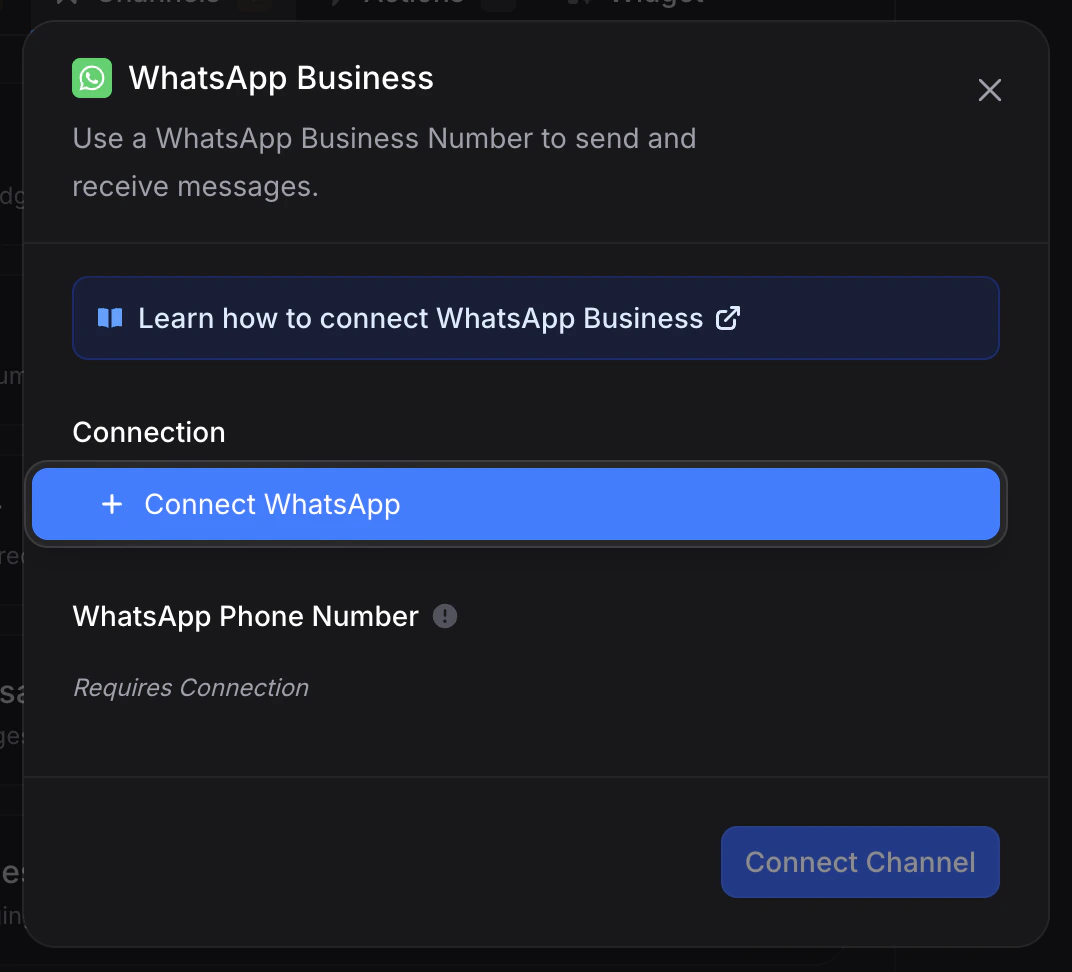 The dialog has two fields:
* **Connection**: the authenticated link to your Meta Business Portfolio and WhatsApp Business Account. If this is your first WhatsApp connection, the dropdown is empty apart from a blue **+ Connect WhatsApp** button you use to start the embedded signup (covered in the next steps). If you have already connected WhatsApp for another assistant, your existing connections are listed here and you can reuse any of them, in which case you can skip to [Step 4](#step-4-name-the-connection-in-invent).
* **WhatsApp Phone Number**: the specific number on that connection that this assistant should send and receive on. Disabled with *Requires Connection* until a connection is selected, then populated automatically with every number Invent has access to under that connection.
You can attach more than one WhatsApp connection to your workspace. After you add the first one, opening the **Connection** dropdown again shows all existing connections plus a **+ Connect WhatsApp** button at the top to add another. Pick whichever fits this assistant's use case.
## Step 2: Start the Embedded Signup
Open the **Connection** dropdown and click **+ Connect WhatsApp**. Meta's Embedded Signup popup opens, beginning with Facebook's standard login.
The dialog has two fields:
* **Connection**: the authenticated link to your Meta Business Portfolio and WhatsApp Business Account. If this is your first WhatsApp connection, the dropdown is empty apart from a blue **+ Connect WhatsApp** button you use to start the embedded signup (covered in the next steps). If you have already connected WhatsApp for another assistant, your existing connections are listed here and you can reuse any of them, in which case you can skip to [Step 4](#step-4-name-the-connection-in-invent).
* **WhatsApp Phone Number**: the specific number on that connection that this assistant should send and receive on. Disabled with *Requires Connection* until a connection is selected, then populated automatically with every number Invent has access to under that connection.
You can attach more than one WhatsApp connection to your workspace. After you add the first one, opening the **Connection** dropdown again shows all existing connections plus a **+ Connect WhatsApp** button at the top to add another. Pick whichever fits this assistant's use case.
## Step 2: Start the Embedded Signup
Open the **Connection** dropdown and click **+ Connect WhatsApp**. Meta's Embedded Signup popup opens, beginning with Facebook's standard login.
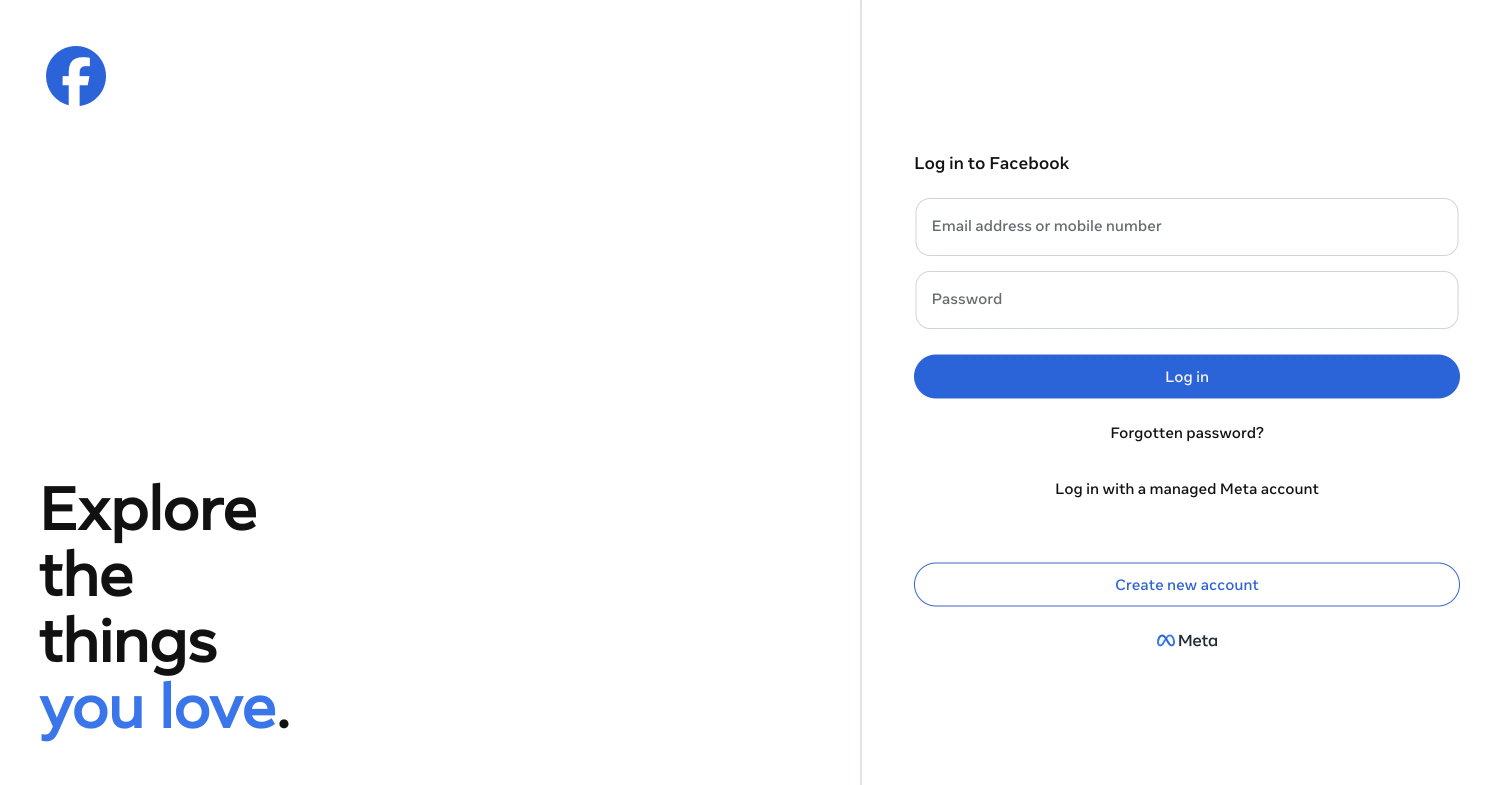 This is Facebook's standard sign-in, run entirely on `facebook.com`. Sign in with the Facebook account that is an admin on the Business Portfolio you want to use.
Sign in with the **business owner's** Facebook account (or a permanent admin account), not a personal employee account that may leave the company later. Access to the connection follows whoever signed in: if that account is removed from the Business Portfolio or revokes the Invent integration, the connection breaks until it is re-authenticated.
After login, Meta shows a one-screen onboarding intro that explains what the integration will do.
This is Facebook's standard sign-in, run entirely on `facebook.com`. Sign in with the Facebook account that is an admin on the Business Portfolio you want to use.
Sign in with the **business owner's** Facebook account (or a permanent admin account), not a personal employee account that may leave the company later. Access to the connection follows whoever signed in: if that account is removed from the Business Portfolio or revokes the Invent integration, the connection breaks until it is re-authenticated.
After login, Meta shows a one-screen onboarding intro that explains what the integration will do.
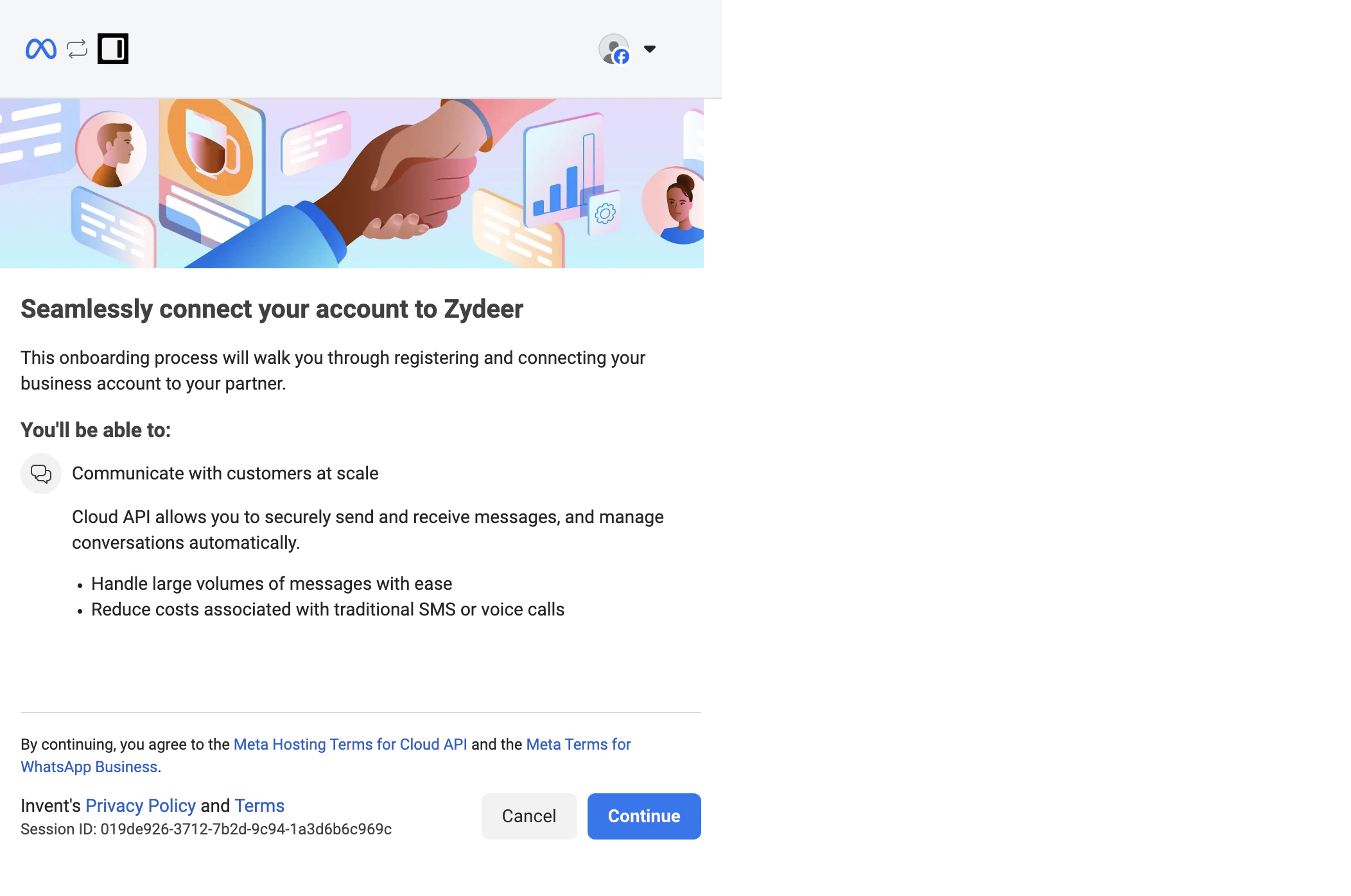 Click **Continue** to proceed.
## Step 3: Choose Your Path
This is the most important screen in the entire WhatsApp setup. Meta asks you to pick a Business portfolio and a WhatsApp Business account.
Click **Continue** to proceed.
## Step 3: Choose Your Path
This is the most important screen in the entire WhatsApp setup. Meta asks you to pick a Business portfolio and a WhatsApp Business account.
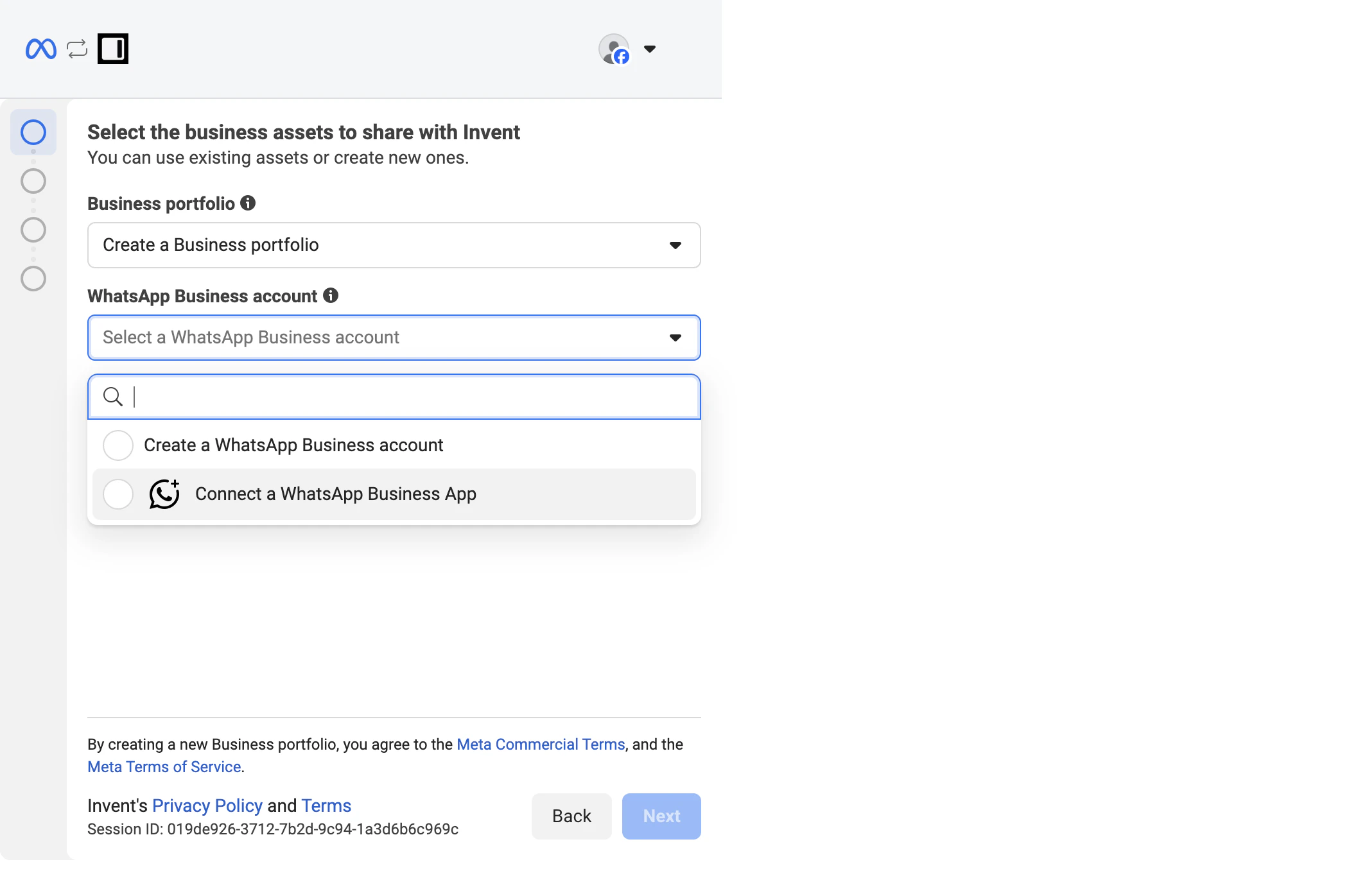 The first dropdown, **Business portfolio**, is usually pre-filled with your existing portfolio (something like *Acme Primary*). Meta auto-detects it from the Facebook account you signed in with. Pick it, or open the dropdown to **Create a Business portfolio** if you do not have one yet or want to keep WhatsApp under a different one.
The second dropdown, **WhatsApp Business account**, is where the path splits. Open it and you will see two options:
* **Connect a WhatsApp Business App** → this is the **Coexistence** path. Pick this to keep your existing mobile-app number and add API access on top of it. Continue with [Path A](#path-a-coexistence-connect-your-whatsapp-business-app) below.
* **Create a WhatsApp Business account** → this is the **API-only** path. Pick this to set up a fresh, bot-only number. Continue with [Path B](#path-b-api-only-create-a-new-whatsapp-business-account) below.
The two options are different kinds of "account." Picking **Connect a WhatsApp Business App** links your existing app number to a *new* WABA created automatically inside your portfolio. Picking **Create a WhatsApp Business account** creates a fresh WABA from scratch with no app behind it. Either way you end up with a WABA inside your Business Portfolio, just reached two different ways.
Pick the option you want, then click **Next**.
## Path A: Coexistence (Connect Your WhatsApp Business App)
Use this path if you picked **Connect a WhatsApp Business App** in the previous step. Skip ahead to [Path B](#path-b-api-only-create-a-new-whatsapp-business-account) if you picked the other option.
### Step A1: Confirm or fill in business information
Meta asks for the basic business information that will be attached to your assets. If your Business Portfolio already has these fields filled in, they are pre-populated; otherwise enter them now.
The first dropdown, **Business portfolio**, is usually pre-filled with your existing portfolio (something like *Acme Primary*). Meta auto-detects it from the Facebook account you signed in with. Pick it, or open the dropdown to **Create a Business portfolio** if you do not have one yet or want to keep WhatsApp under a different one.
The second dropdown, **WhatsApp Business account**, is where the path splits. Open it and you will see two options:
* **Connect a WhatsApp Business App** → this is the **Coexistence** path. Pick this to keep your existing mobile-app number and add API access on top of it. Continue with [Path A](#path-a-coexistence-connect-your-whatsapp-business-app) below.
* **Create a WhatsApp Business account** → this is the **API-only** path. Pick this to set up a fresh, bot-only number. Continue with [Path B](#path-b-api-only-create-a-new-whatsapp-business-account) below.
The two options are different kinds of "account." Picking **Connect a WhatsApp Business App** links your existing app number to a *new* WABA created automatically inside your portfolio. Picking **Create a WhatsApp Business account** creates a fresh WABA from scratch with no app behind it. Either way you end up with a WABA inside your Business Portfolio, just reached two different ways.
Pick the option you want, then click **Next**.
## Path A: Coexistence (Connect Your WhatsApp Business App)
Use this path if you picked **Connect a WhatsApp Business App** in the previous step. Skip ahead to [Path B](#path-b-api-only-create-a-new-whatsapp-business-account) if you picked the other option.
### Step A1: Confirm or fill in business information
Meta asks for the basic business information that will be attached to your assets. If your Business Portfolio already has these fields filled in, they are pre-populated; otherwise enter them now.
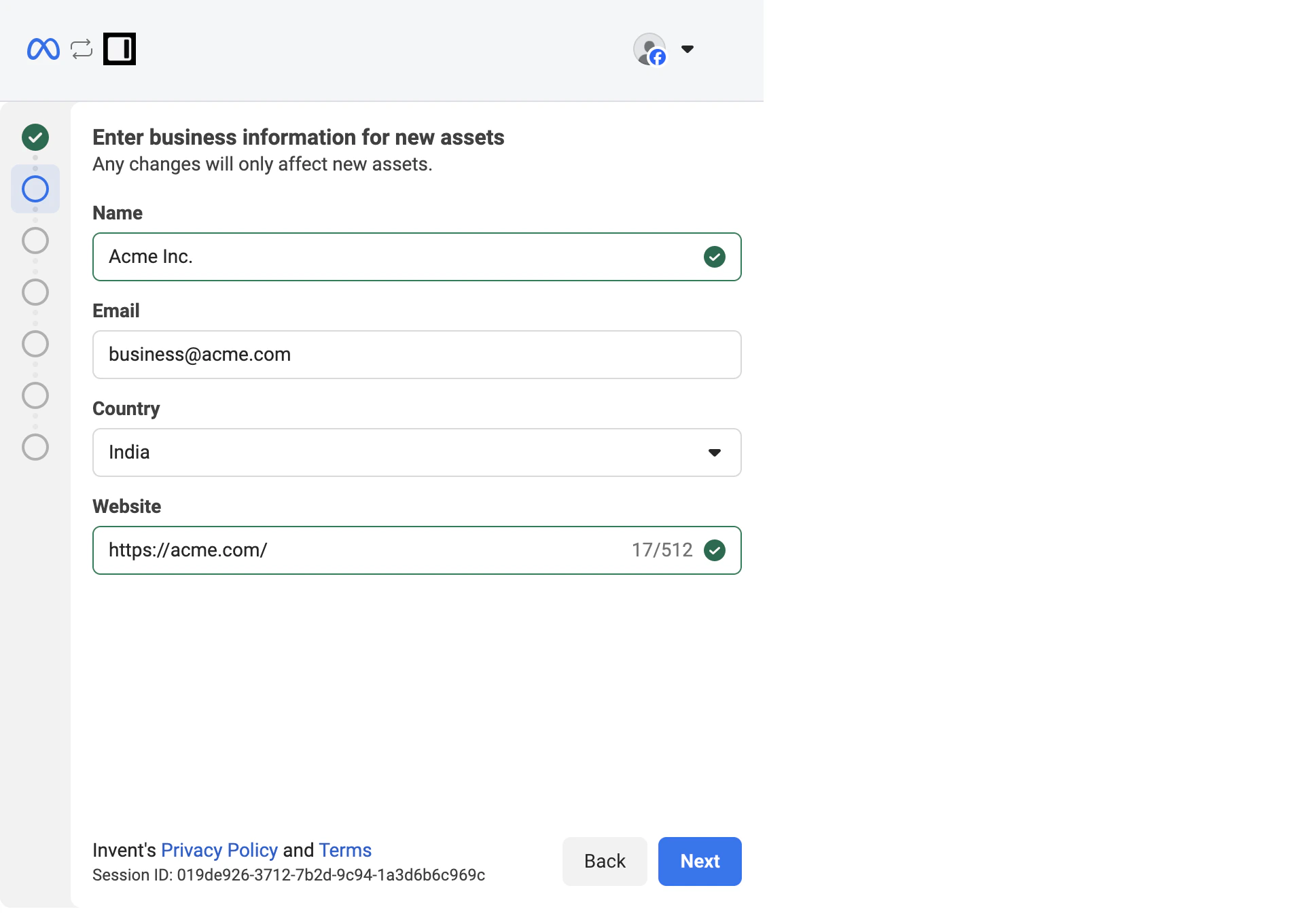 Click **Next**.
### Step A2: Enter your WhatsApp Business app number
Pick your country code, then enter the phone number that is currently active on your WhatsApp Business app.
Click **Next**.
### Step A2: Enter your WhatsApp Business app number
Pick your country code, then enter the phone number that is currently active on your WhatsApp Business app.
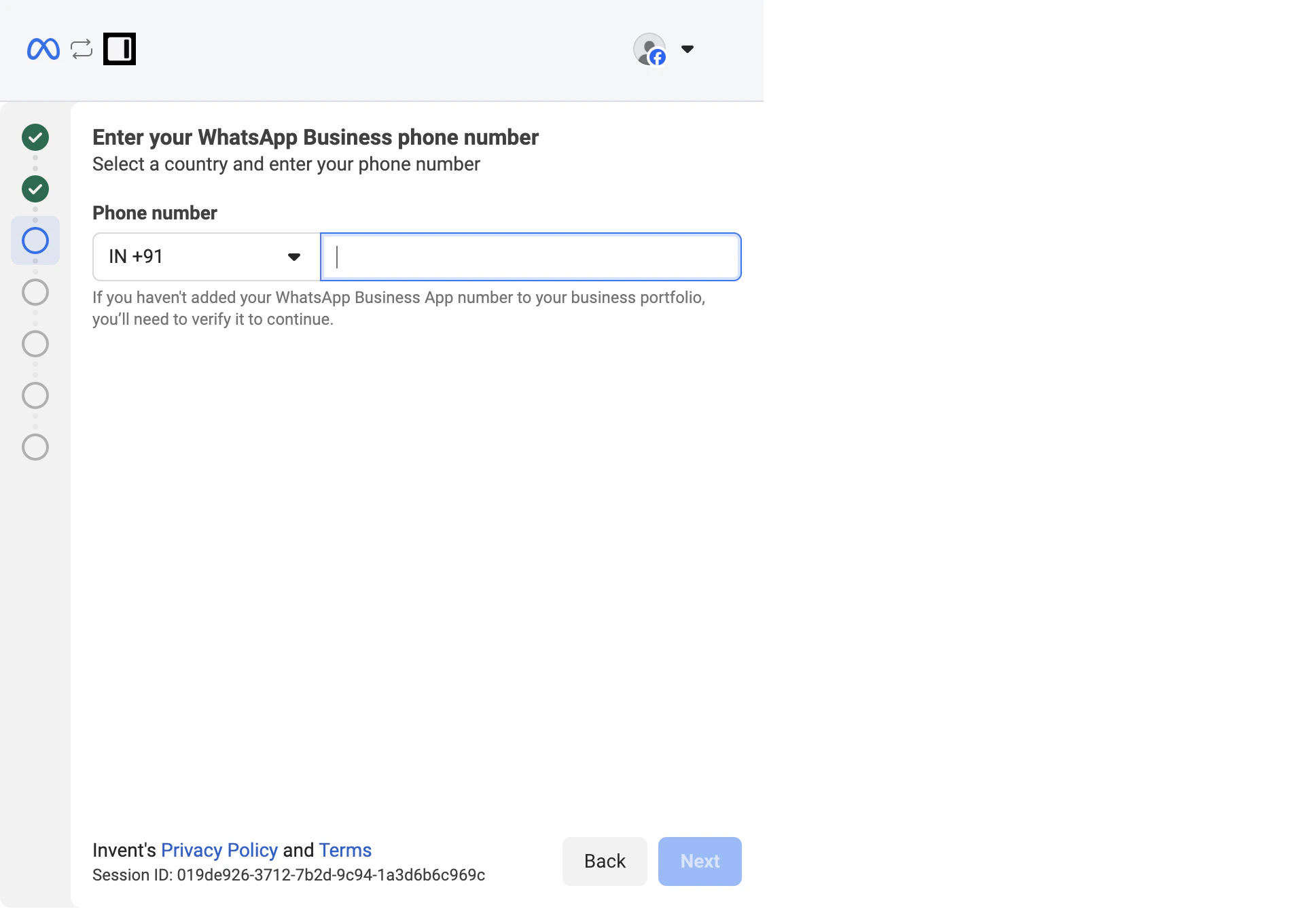 Once you enter a valid number, Meta shows an information panel summarizing what coexistence will do:
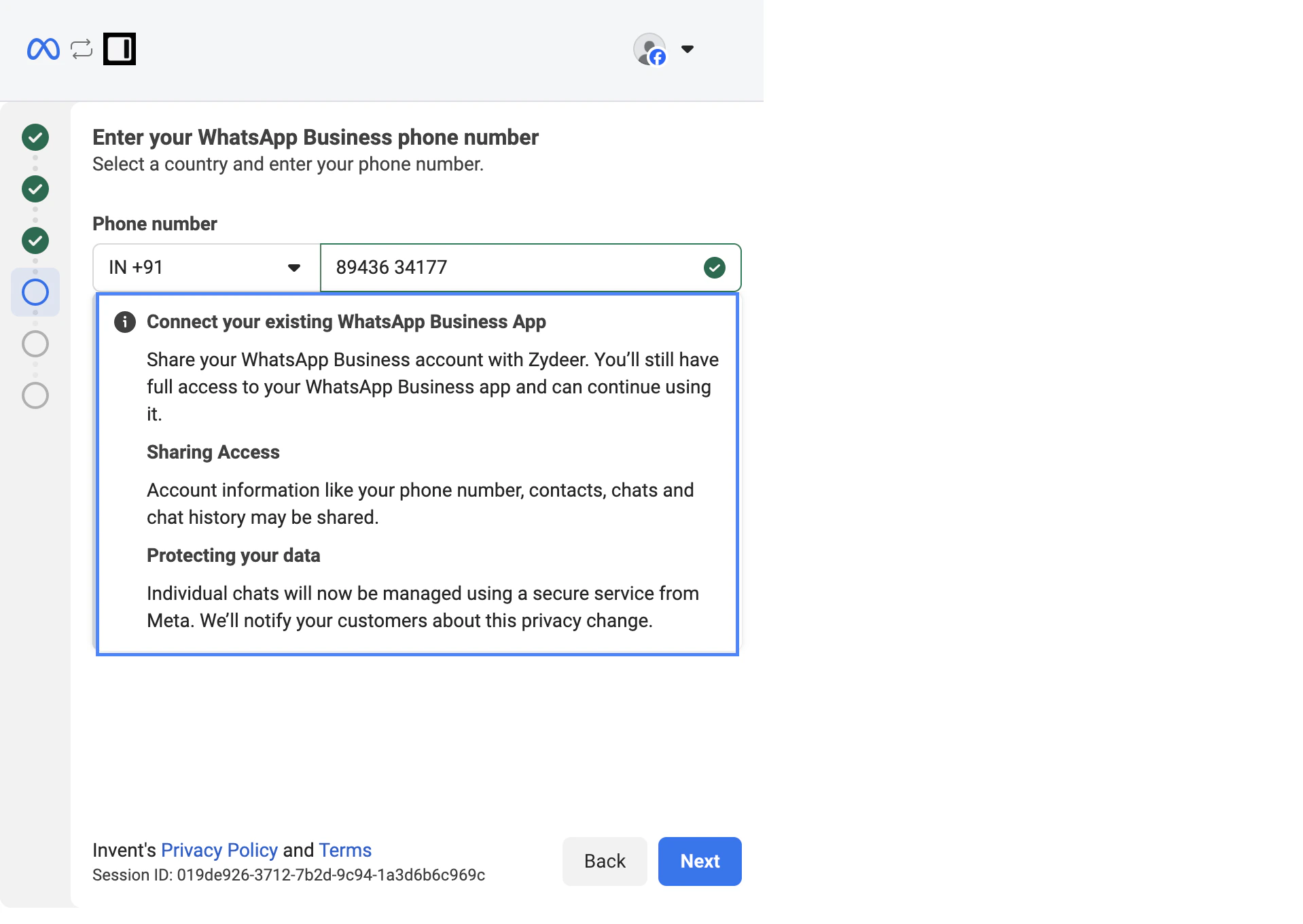 The three points are worth reading once:
* **Connect your existing WhatsApp Business App**: you keep full access to the app and can continue using it as before.
* **Sharing Access**: phone number, contacts, chats, and chat history may be shared with Invent.
* **Protecting your data**: 1:1 chats are managed using a secure service from Meta. A short notice is sent to your customers explaining the privacy change the first time they message you.
Click **Next**.
### Step A3: Get the QR code or access code
Meta now generates a one-time QR code that you will scan from inside the WhatsApp Business app on your phone.
The three points are worth reading once:
* **Connect your existing WhatsApp Business App**: you keep full access to the app and can continue using it as before.
* **Sharing Access**: phone number, contacts, chats, and chat history may be shared with Invent.
* **Protecting your data**: 1:1 chats are managed using a secure service from Meta. A short notice is sent to your customers explaining the privacy change the first time they message you.
Click **Next**.
### Step A3: Get the QR code or access code
Meta now generates a one-time QR code that you will scan from inside the WhatsApp Business app on your phone.
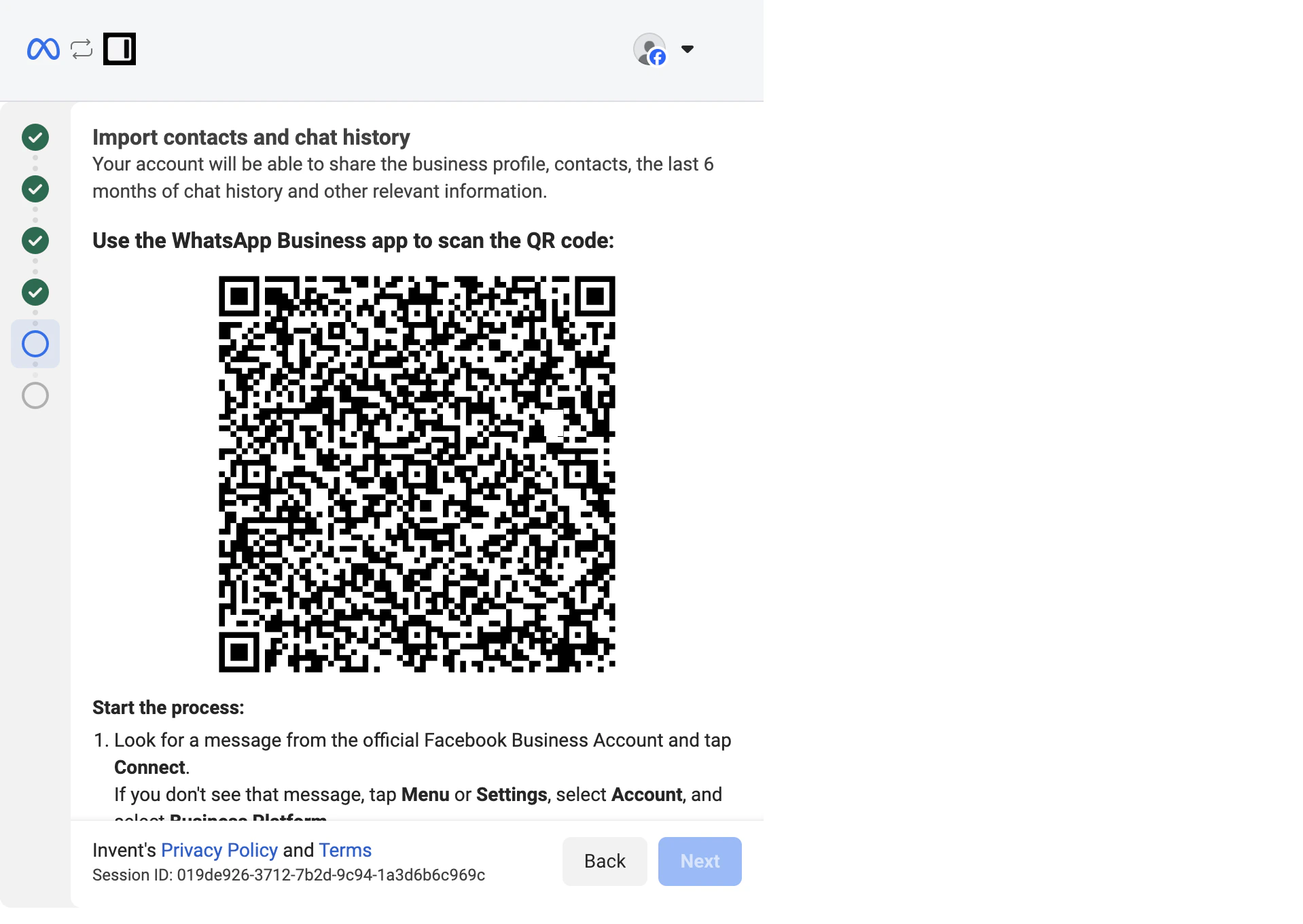 Below the QR code (just out of view in the screenshot above) Meta also shows an option to display a **numeric access code** instead of the QR. Use it when scanning is awkward, for example when the camera on your phone is hard to point at your computer screen, you are setting things up over a video call, or you would simply rather type the code into the app. Once switched, you type the same code into the **Enter Access code** field on the phone (covered in [Step A6](#step-a6-scan-the-qr-code-or-paste-the-access-code)).
Leave this screen open on your computer. You will scan or paste from the phone in the next step.
### Step A4: On your phone, open the Business Platform connection
You have two ways into the connect screen on the WhatsApp Business app side:
**Option 1 (recommended): tap the system message from Facebook Business.** When you reach the QR-code step on your computer, the WhatsApp Business app on your phone receives a chat from the verified **Facebook Business** account. Open it and you will see a **Manage messages** card with a **Connect** button.
Below the QR code (just out of view in the screenshot above) Meta also shows an option to display a **numeric access code** instead of the QR. Use it when scanning is awkward, for example when the camera on your phone is hard to point at your computer screen, you are setting things up over a video call, or you would simply rather type the code into the app. Once switched, you type the same code into the **Enter Access code** field on the phone (covered in [Step A6](#step-a6-scan-the-qr-code-or-paste-the-access-code)).
Leave this screen open on your computer. You will scan or paste from the phone in the next step.
### Step A4: On your phone, open the Business Platform connection
You have two ways into the connect screen on the WhatsApp Business app side:
**Option 1 (recommended): tap the system message from Facebook Business.** When you reach the QR-code step on your computer, the WhatsApp Business app on your phone receives a chat from the verified **Facebook Business** account. Open it and you will see a **Manage messages** card with a **Connect** button.
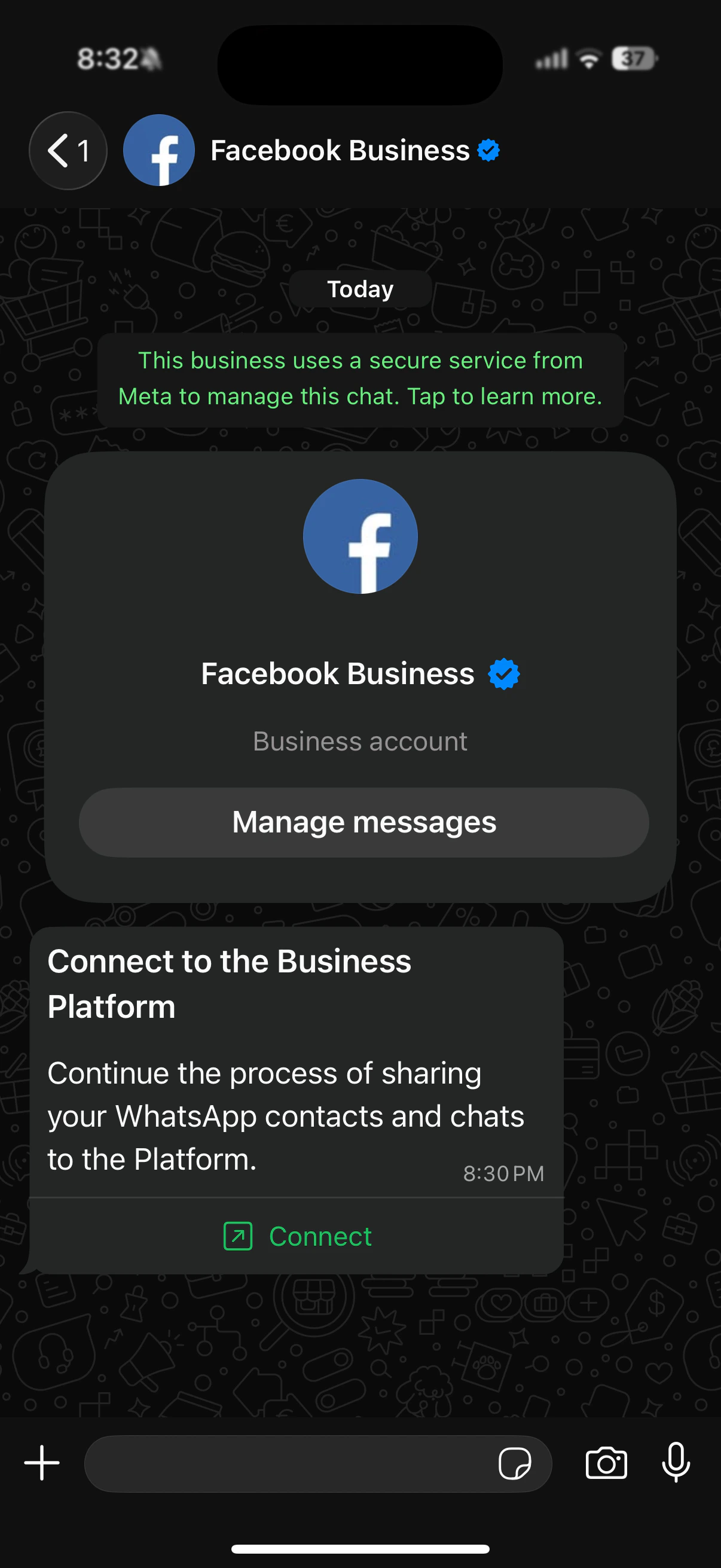 Tap the **Connect** link inside the message.
**Option 2: open it from Settings.** Tap the **three dots** (or **Settings**), then **Account** → **Business Platform**, then **Connect to the Business Platform**.
Either route lands you on the same screen, which explains what is about to happen:
Tap the **Connect** link inside the message.
**Option 2: open it from Settings.** Tap the **three dots** (or **Settings**), then **Account** → **Business Platform**, then **Connect to the Business Platform**.
Either route lands you on the same screen, which explains what is about to happen:
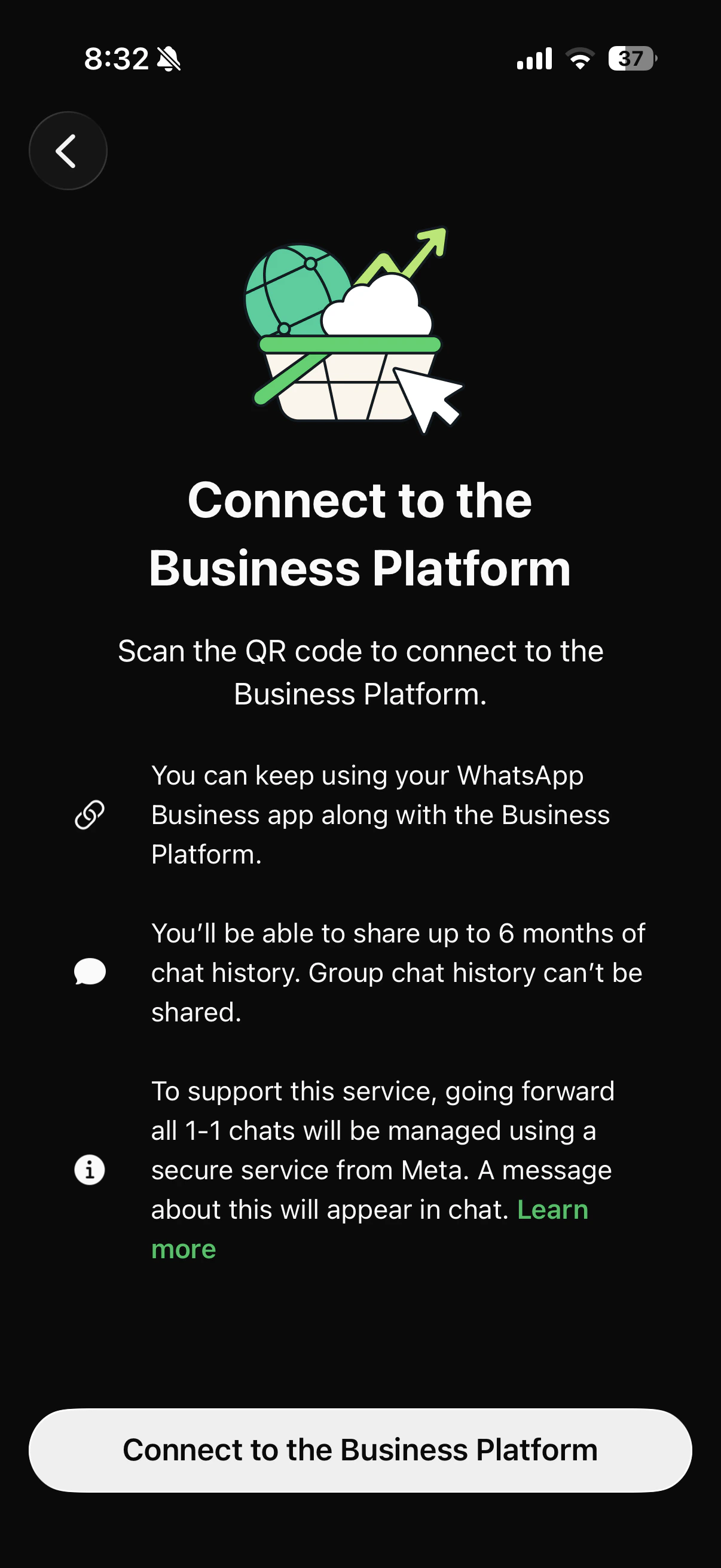 Tap **Connect to the Business Platform**.
### Step A5: Choose what chat history to share
The app asks whether to share existing chat history with the assistant.
Tap **Connect to the Business Platform**.
### Step A5: Choose what chat history to share
The app asks whether to share existing chat history with the assistant.
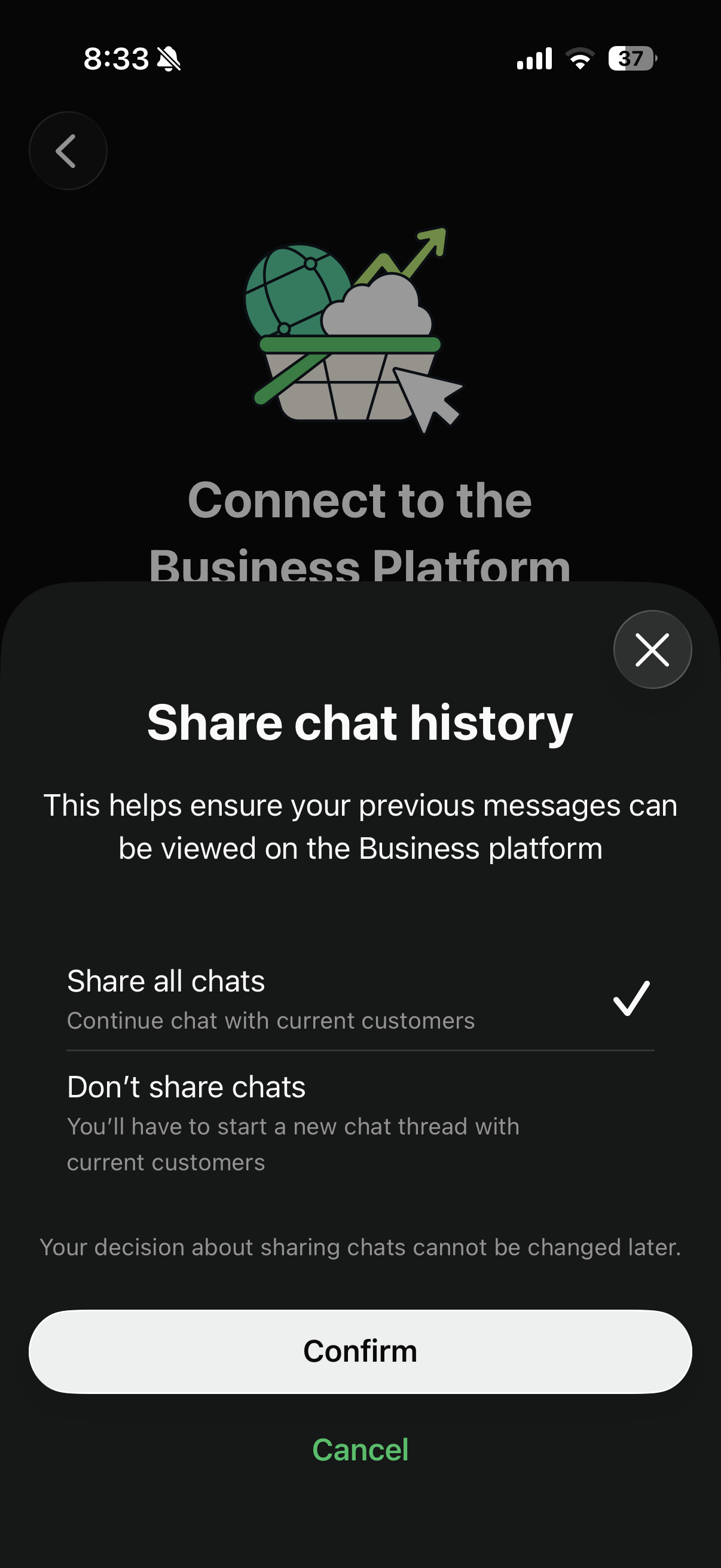 | Option | What it does |
| --------------------- | --------------------------------------------------------------------------------------------------------------------------------------------------------------------------------------------------------------------------------------------------------------- |
| **Share all chats** | The last 6 months of 1:1 chats sync to Invent and the assistant continues the same threads with your existing customers. Recommended for most businesses. |
| **Don't share chats** | Existing customers start a fresh thread with the assistant. Older history stays only in the WhatsApp Business app and is invisible to Invent. Pick this if your previous conversations contain sensitive information you do not want surfaced to the assistant. |
This decision is **permanent**. You cannot change which option you picked later without disconnecting and re-running the entire flow.
Tap **Confirm**.
### Step A6: Scan the QR code (or paste the access code)
The phone now opens its scanner. Hold the phone up to your computer screen and scan the QR code from [Step A3](#step-a3-get-the-qr-code-or-access-code).
| Option | What it does |
| --------------------- | --------------------------------------------------------------------------------------------------------------------------------------------------------------------------------------------------------------------------------------------------------------- |
| **Share all chats** | The last 6 months of 1:1 chats sync to Invent and the assistant continues the same threads with your existing customers. Recommended for most businesses. |
| **Don't share chats** | Existing customers start a fresh thread with the assistant. Older history stays only in the WhatsApp Business app and is invisible to Invent. Pick this if your previous conversations contain sensitive information you do not want surfaced to the assistant. |
This decision is **permanent**. You cannot change which option you picked later without disconnecting and re-running the entire flow.
Tap **Confirm**.
### Step A6: Scan the QR code (or paste the access code)
The phone now opens its scanner. Hold the phone up to your computer screen and scan the QR code from [Step A3](#step-a3-get-the-qr-code-or-access-code).
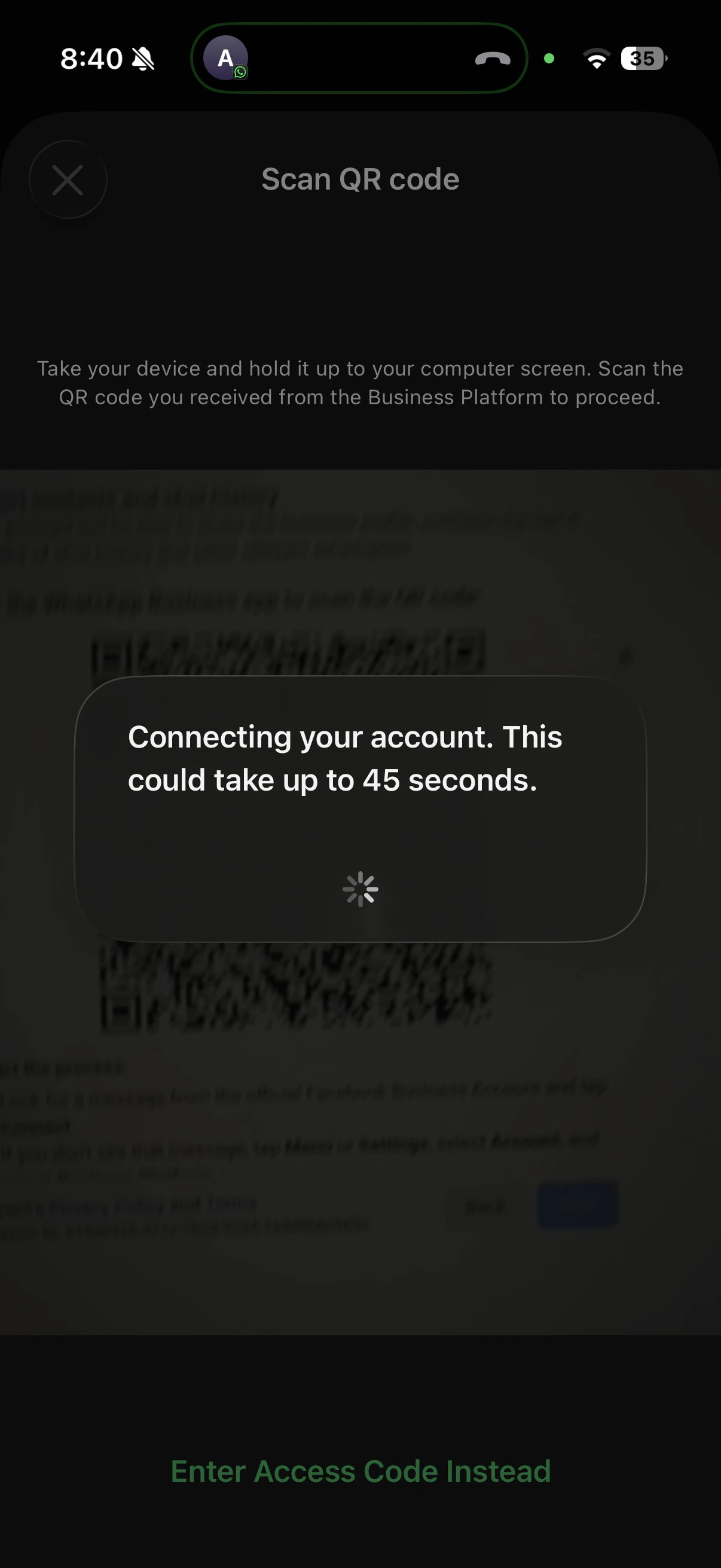 If scanning is awkward (low-light setup, two phones, accessibility), tap **Enter Access Code Instead** and type the 6-digit code shown next to the QR code on the computer.
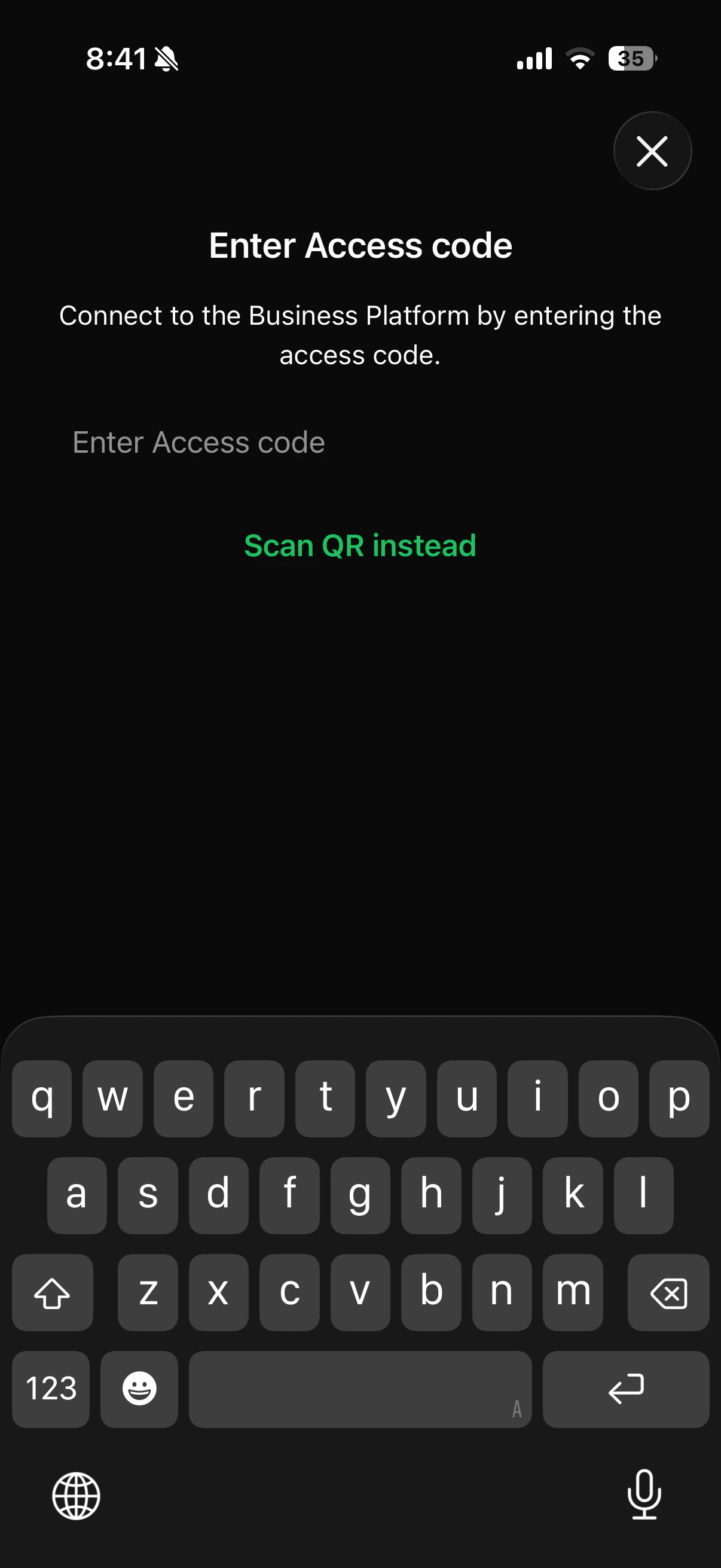 The phone shows *Connecting your account. This could take up to 45 seconds.* When it succeeds, you see a confirmation screen with **Connected platform** and the partner's name (Zydeer, the underlying platform that powers Invent's WhatsApp integration):
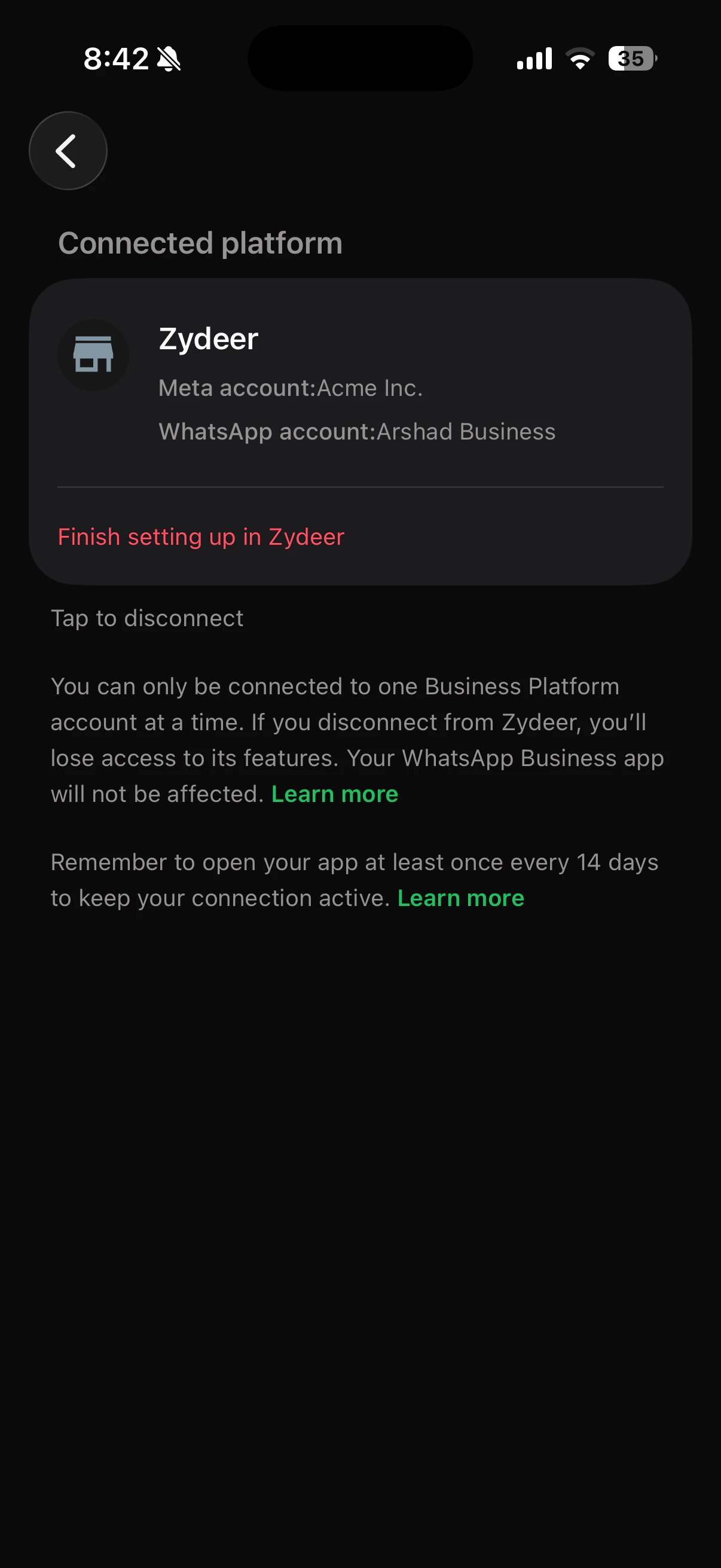 You can leave this page on the phone. The setup now continues on the computer side automatically.
If your computer screen never advances after the phone shows **Connected platform**, you have hit the most common WhatsApp setup glitch. Solution: on the phone, tap **Tap to disconnect** on this exact screen, then re-run the connect flow in Invent from [Step 1](#step-1-open-the-whatsapp-connect-dialog). The second attempt almost always completes cleanly. Full details in [Troubleshooting](#troubleshooting).
### Step A7: Confirm the WhatsApp Business account name and timezone
Back on the computer, Meta confirms the WhatsApp Business Account it just created or linked, and asks for a timezone.
You can leave this page on the phone. The setup now continues on the computer side automatically.
If your computer screen never advances after the phone shows **Connected platform**, you have hit the most common WhatsApp setup glitch. Solution: on the phone, tap **Tap to disconnect** on this exact screen, then re-run the connect flow in Invent from [Step 1](#step-1-open-the-whatsapp-connect-dialog). The second attempt almost always completes cleanly. Full details in [Troubleshooting](#troubleshooting).
### Step A7: Confirm the WhatsApp Business account name and timezone
Back on the computer, Meta confirms the WhatsApp Business Account it just created or linked, and asks for a timezone.
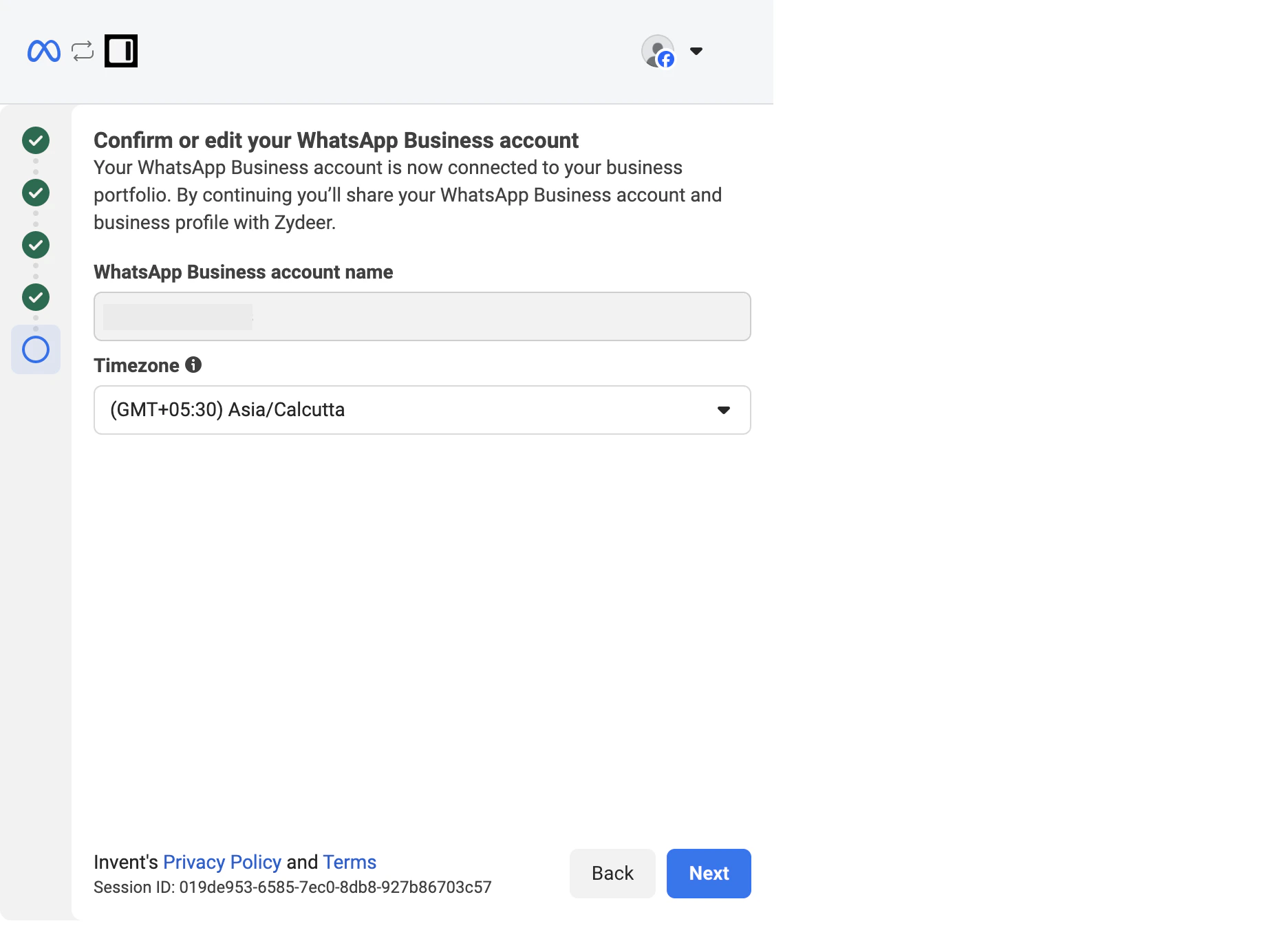 The WABA name is internal-only (it does not show to customers; the customer-facing label is the **display name** on the number itself). Pick the right timezone for the team that owns this number, then click **Next**.
### Step A8: Review permissions and confirm
Meta lists what Invent will be able to do on the WABA.
The WABA name is internal-only (it does not show to customers; the customer-facing label is the **display name** on the number itself). Pick the right timezone for the team that owns this number, then click **Next**.
### Step A8: Review permissions and confirm
Meta lists what Invent will be able to do on the WABA.
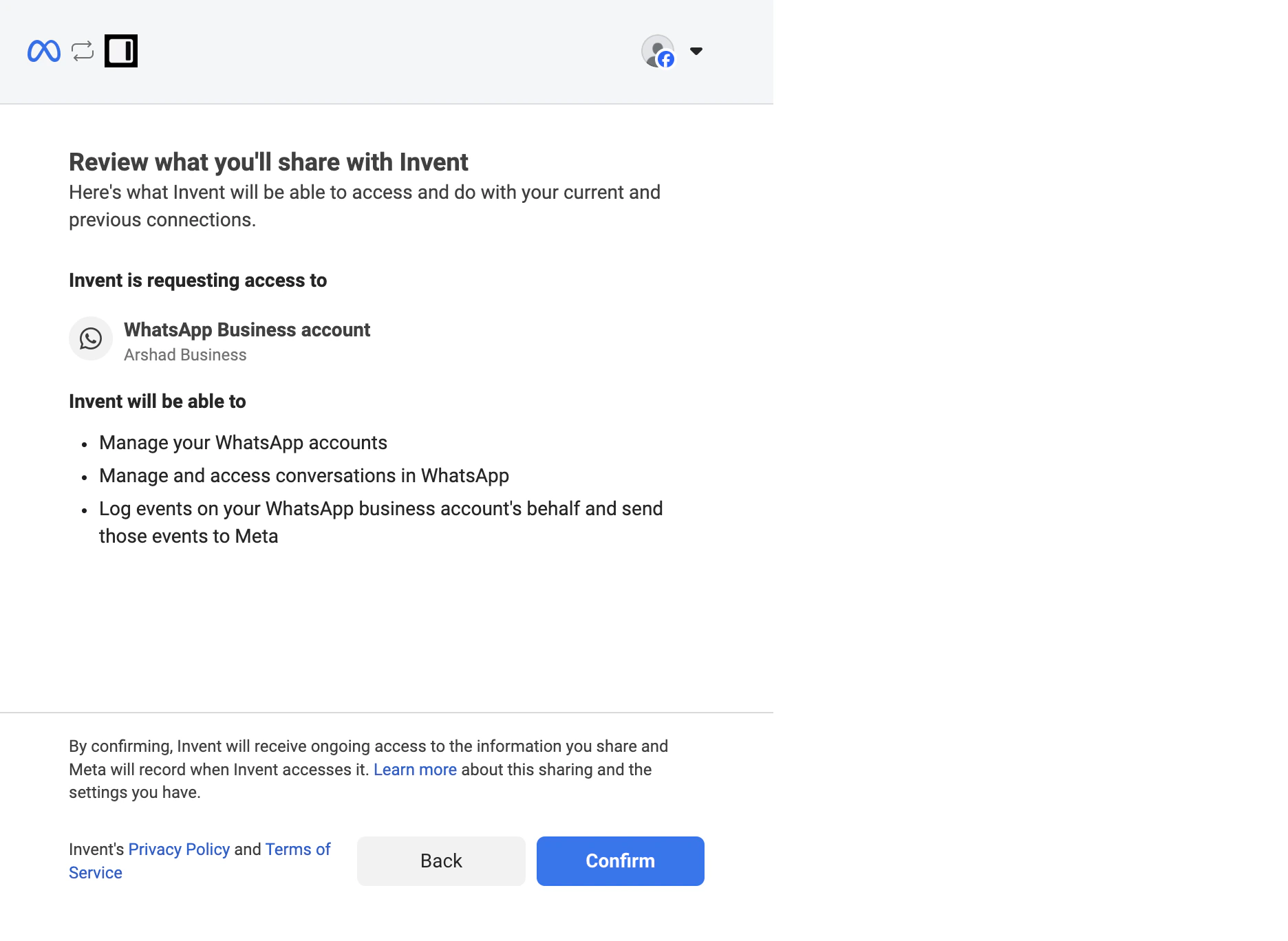 Invent requests the minimum set of permissions required to run a WhatsApp assistant:
* **Manage your WhatsApp accounts**: list and bind the WABAs and phone numbers in your portfolio so the right one shows up in Invent's dropdown.
* **Manage and access conversations in WhatsApp**: receive incoming messages and send replies on behalf of the number. This is the core capability that powers the assistant.
* **Log events on your WhatsApp business account's behalf**: send Meta the analytics events (delivery, read receipts, broadcast metrics) that drive the [Inbox](/guides/inbox) and [Broadcasts](/guides/broadcasts/introduction) reports.
Click **Confirm** to grant access.
### Step A9: Wait for the connection to finalize
Meta shows a short *Connecting your account* spinner while it finalizes the binding.
Invent requests the minimum set of permissions required to run a WhatsApp assistant:
* **Manage your WhatsApp accounts**: list and bind the WABAs and phone numbers in your portfolio so the right one shows up in Invent's dropdown.
* **Manage and access conversations in WhatsApp**: receive incoming messages and send replies on behalf of the number. This is the core capability that powers the assistant.
* **Log events on your WhatsApp business account's behalf**: send Meta the analytics events (delivery, read receipts, broadcast metrics) that drive the [Inbox](/guides/inbox) and [Broadcasts](/guides/broadcasts/introduction) reports.
Click **Confirm** to grant access.
### Step A9: Wait for the connection to finalize
Meta shows a short *Connecting your account* spinner while it finalizes the binding.
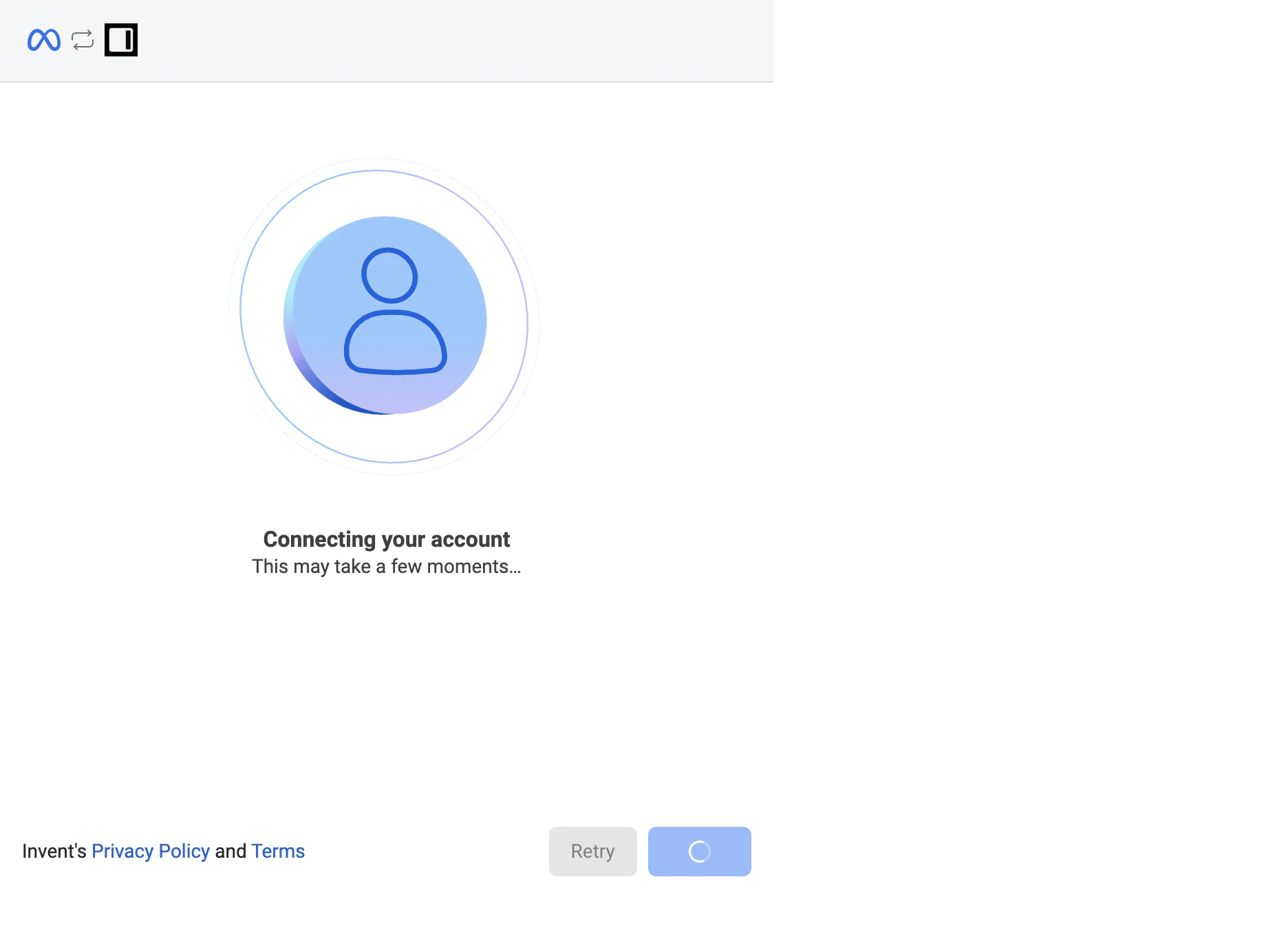 When it finishes, you see the success screen.
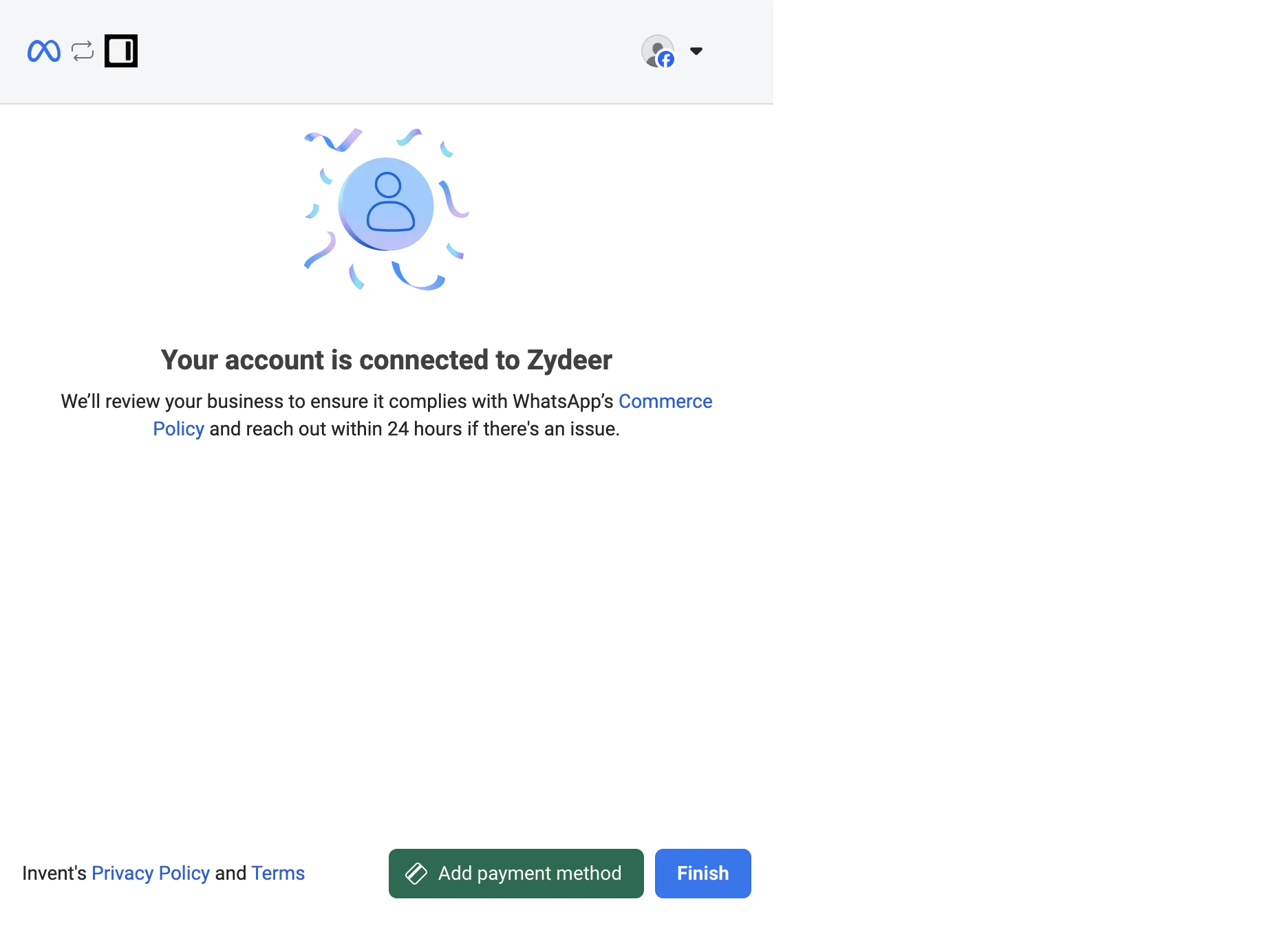 Click **Finish**. Coexistence numbers do not require a payment method to start receiving and sending messages, so you can ignore **Add payment method** for now and revisit it from WhatsApp Manager when you start sending volume.
Now skip ahead to [Step 4: Name the Connection in Invent](#step-4-name-the-connection-in-invent).
## Path B: API-only (Create a New WhatsApp Business Account)
Use this path if you picked **Create a WhatsApp Business account** at [Step 3](#step-3-choose-your-path). Skip back to [Path A](#path-a-coexistence-connect-your-whatsapp-business-app) if you picked the other option.
### Step B1: Enter business information
Meta asks for business details that will be attached to the new WhatsApp Business Account. Compared to coexistence, this form has an extra **Category** field because you are creating a fresh WABA.
Click **Finish**. Coexistence numbers do not require a payment method to start receiving and sending messages, so you can ignore **Add payment method** for now and revisit it from WhatsApp Manager when you start sending volume.
Now skip ahead to [Step 4: Name the Connection in Invent](#step-4-name-the-connection-in-invent).
## Path B: API-only (Create a New WhatsApp Business Account)
Use this path if you picked **Create a WhatsApp Business account** at [Step 3](#step-3-choose-your-path). Skip back to [Path A](#path-a-coexistence-connect-your-whatsapp-business-app) if you picked the other option.
### Step B1: Enter business information
Meta asks for business details that will be attached to the new WhatsApp Business Account. Compared to coexistence, this form has an extra **Category** field because you are creating a fresh WABA.
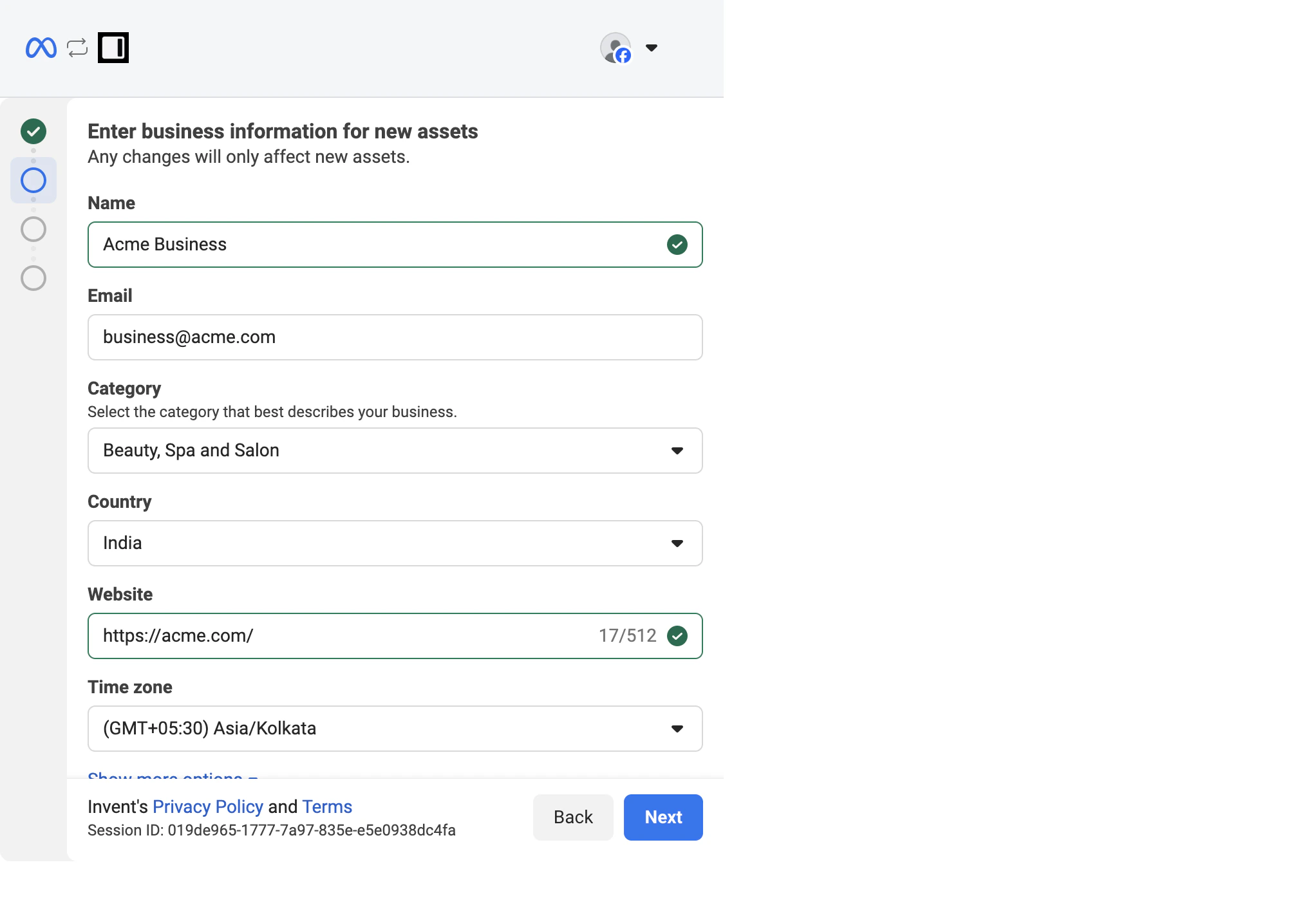 Pick the category that best describes the business that owns the number. The category is used by Meta for moderation and discovery; it does not affect what the assistant can do.
Click **Next**.
### Step B2: Add the phone number, display name, and verification method
This is the screen where you commit a brand-new number to the API.
Pick the category that best describes the business that owns the number. The category is used by Meta for moderation and discovery; it does not affect what the assistant can do.
Click **Next**.
### Step B2: Add the phone number, display name, and verification method
This is the screen where you commit a brand-new number to the API.
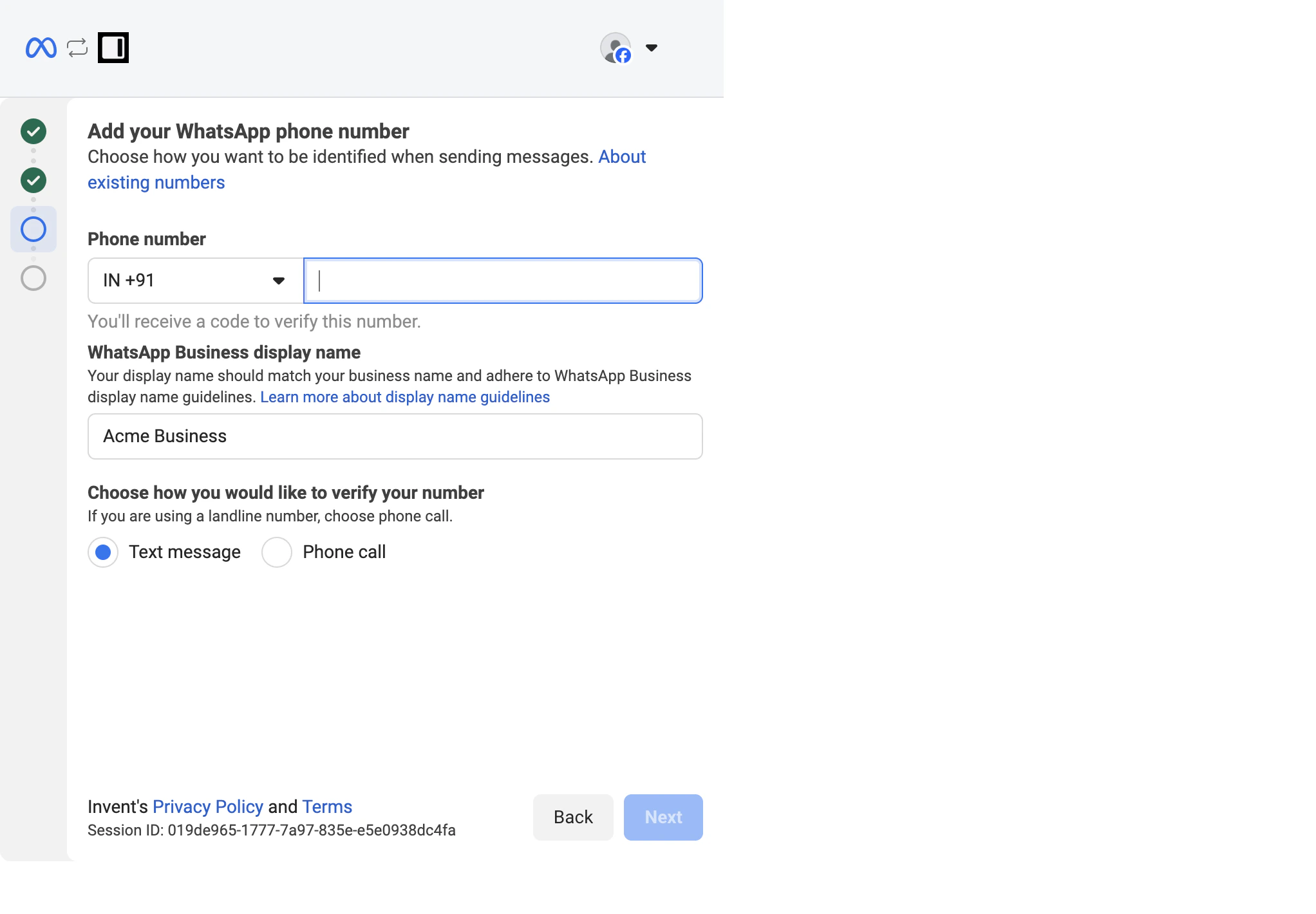 Three things to fill in:
| Field | Notes |
| ---------------------------------- | ---------------------------------------------------------------------------------------------------------------------------------------------------------------------------------------------------------------------------------------------------------------------------------------------------------------------------------------- |
| **Phone number** | The number you want customers to message. It must **not** be in active use on any WhatsApp account (personal or Business app). If it is, Meta blocks this step with the *already registered* error; jump to [If Meta says "this phone number is already registered"](#if-meta-says-this-phone-number-is-already-registered) for the fix. |
| **WhatsApp Business display name** | The name that appears at the top of the chat for customers. Meta moderates display names for accuracy and brand misuse. Use your real business name, no all-caps, no emojis. See Meta's [display name guidelines](https://www.facebook.com/business/help/757569725593362). |
| **Verification method** | **Text message** for any mobile number that can receive SMS. **Phone call** for landlines, toll-free numbers, or any number where SMS is unreliable. |
Picking a number that is in use on the standard WhatsApp app or the WhatsApp Business app on this path will **wipe** that account from the device when verification completes. If you want to keep the mobile app, do not use API-only for that number; use [Coexistence](#path-a-coexistence-connect-your-whatsapp-business-app) instead.
Click **Next**.
### Step B3: Verify with the 6-digit code
Meta sends a 6-digit code to the number using the method you picked.
Three things to fill in:
| Field | Notes |
| ---------------------------------- | ---------------------------------------------------------------------------------------------------------------------------------------------------------------------------------------------------------------------------------------------------------------------------------------------------------------------------------------- |
| **Phone number** | The number you want customers to message. It must **not** be in active use on any WhatsApp account (personal or Business app). If it is, Meta blocks this step with the *already registered* error; jump to [If Meta says "this phone number is already registered"](#if-meta-says-this-phone-number-is-already-registered) for the fix. |
| **WhatsApp Business display name** | The name that appears at the top of the chat for customers. Meta moderates display names for accuracy and brand misuse. Use your real business name, no all-caps, no emojis. See Meta's [display name guidelines](https://www.facebook.com/business/help/757569725593362). |
| **Verification method** | **Text message** for any mobile number that can receive SMS. **Phone call** for landlines, toll-free numbers, or any number where SMS is unreliable. |
Picking a number that is in use on the standard WhatsApp app or the WhatsApp Business app on this path will **wipe** that account from the device when verification completes. If you want to keep the mobile app, do not use API-only for that number; use [Coexistence](#path-a-coexistence-connect-your-whatsapp-business-app) instead.
Click **Next**.
### Step B3: Verify with the 6-digit code
Meta sends a 6-digit code to the number using the method you picked.
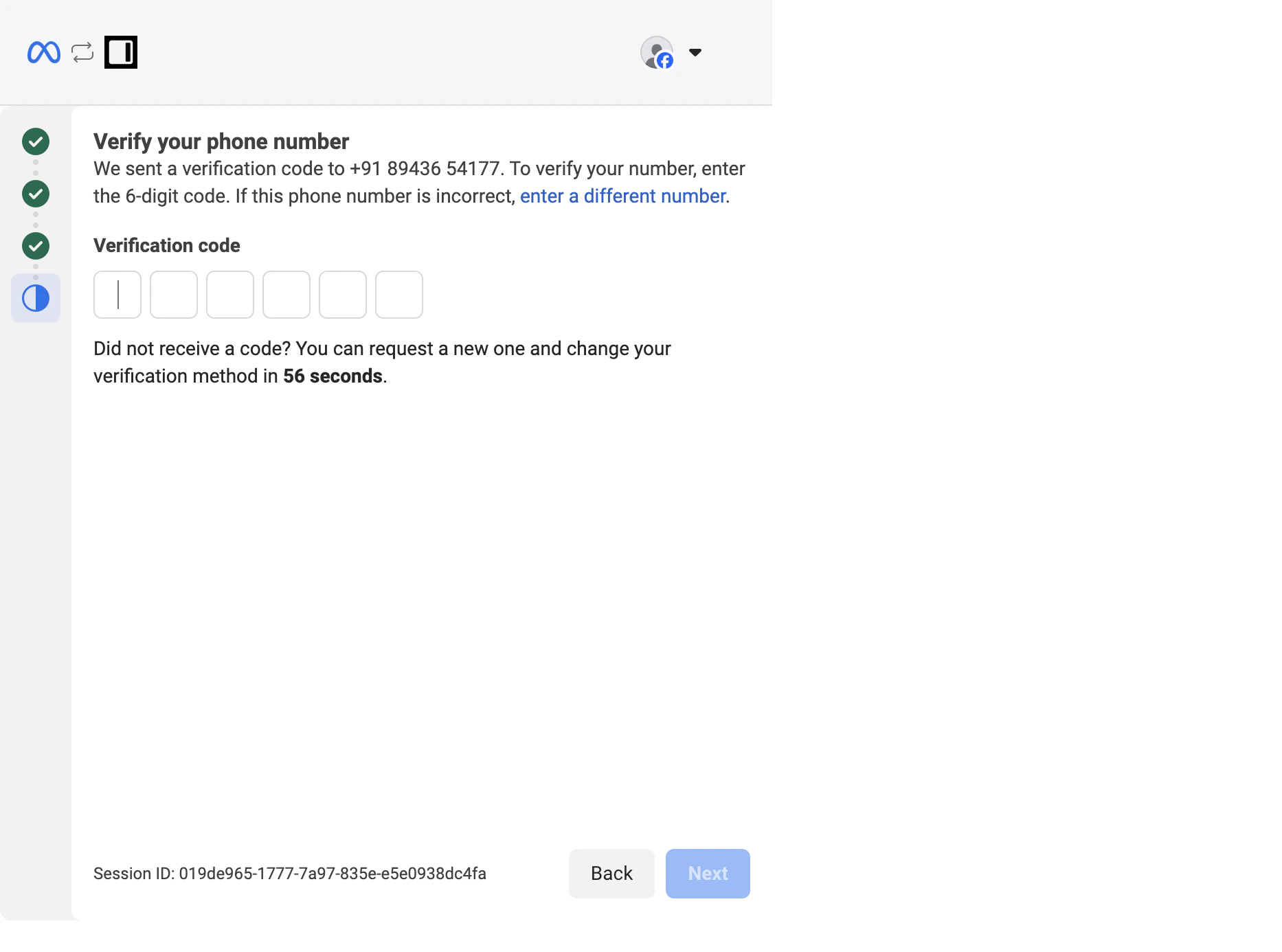 Enter the code and click **Next**. If it never arrives, wait for the countdown to finish, then use the option Meta shows to request a new code or switch delivery method (SMS to call, or call to SMS).
### Step B4: Review permissions and confirm
Meta shows the same permissions screen as coexistence, listing what Invent will be able to do on the new WABA.
Click **Confirm**.
### Step B5: Wait for the connection to finalize
You see the same *Connecting your account* spinner.
When it finishes, the success screen lists the assets that were created.
Enter the code and click **Next**. If it never arrives, wait for the countdown to finish, then use the option Meta shows to request a new code or switch delivery method (SMS to call, or call to SMS).
### Step B4: Review permissions and confirm
Meta shows the same permissions screen as coexistence, listing what Invent will be able to do on the new WABA.
Click **Confirm**.
### Step B5: Wait for the connection to finalize
You see the same *Connecting your account* spinner.
When it finishes, the success screen lists the assets that were created.
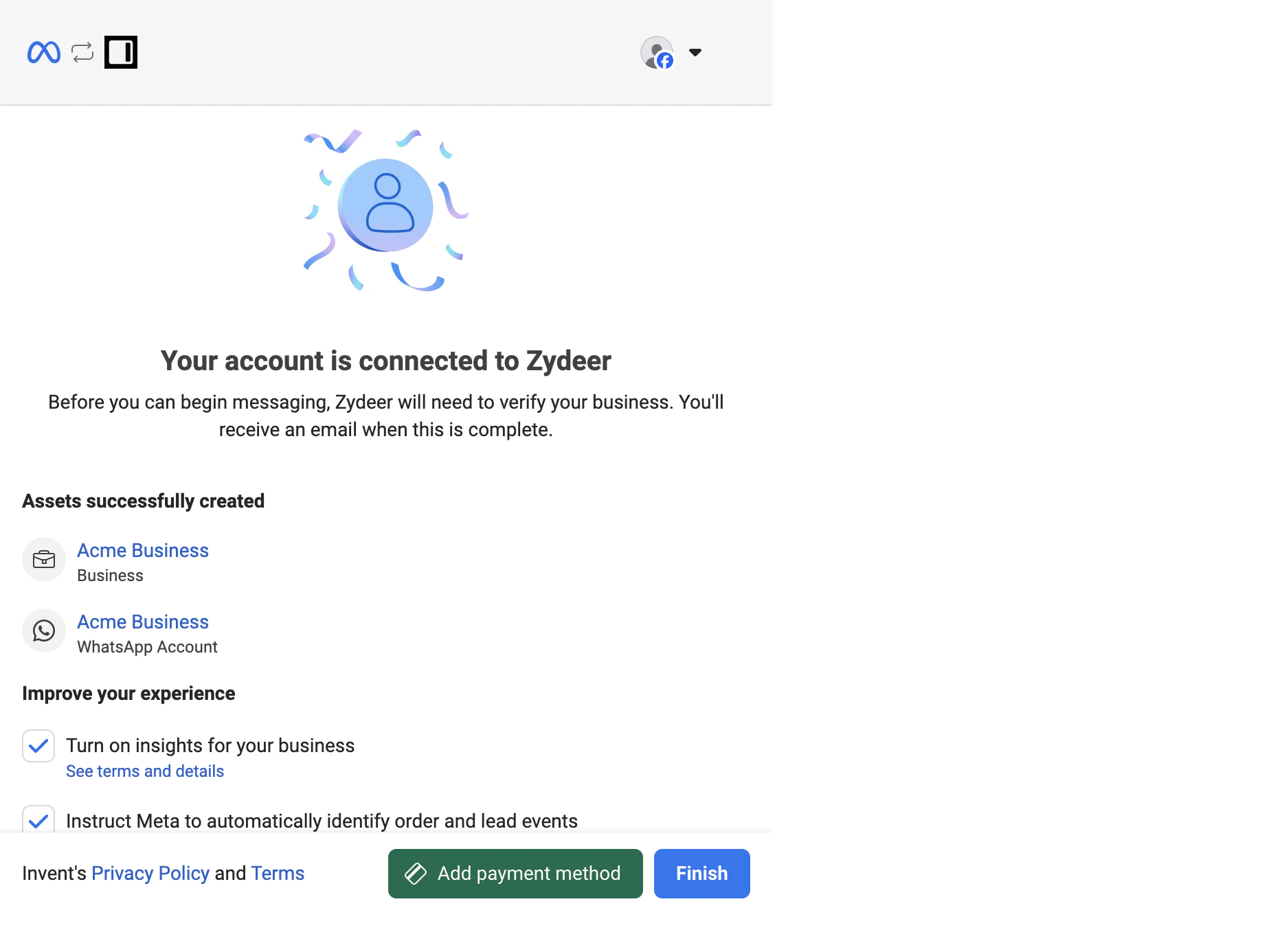 Click **Finish**.
**API-only numbers may show as Pending until business verification completes.** Meta requires Business Verification on the parent Business Portfolio before a brand-new WABA can send marketing templates at scale. Inbound messages and 1:1 customer service replies still work during the Pending period; only [Broadcasts](/guides/broadcasts/introduction) and high-volume outbound are gated. Complete verification from [WhatsApp Manager](https://business.facebook.com/wa/manage/) when prompted.
## Step 4: Name the Connection in Invent
Whichever path you took, Meta now redirects you back to Invent and prompts you to label the new connection (for example, *Acme Business* or *EU Sales WhatsApp*).
Click **Finish**.
**API-only numbers may show as Pending until business verification completes.** Meta requires Business Verification on the parent Business Portfolio before a brand-new WABA can send marketing templates at scale. Inbound messages and 1:1 customer service replies still work during the Pending period; only [Broadcasts](/guides/broadcasts/introduction) and high-volume outbound are gated. Complete verification from [WhatsApp Manager](https://business.facebook.com/wa/manage/) when prompted.
## Step 4: Name the Connection in Invent
Whichever path you took, Meta now redirects you back to Invent and prompts you to label the new connection (for example, *Acme Business* or *EU Sales WhatsApp*).
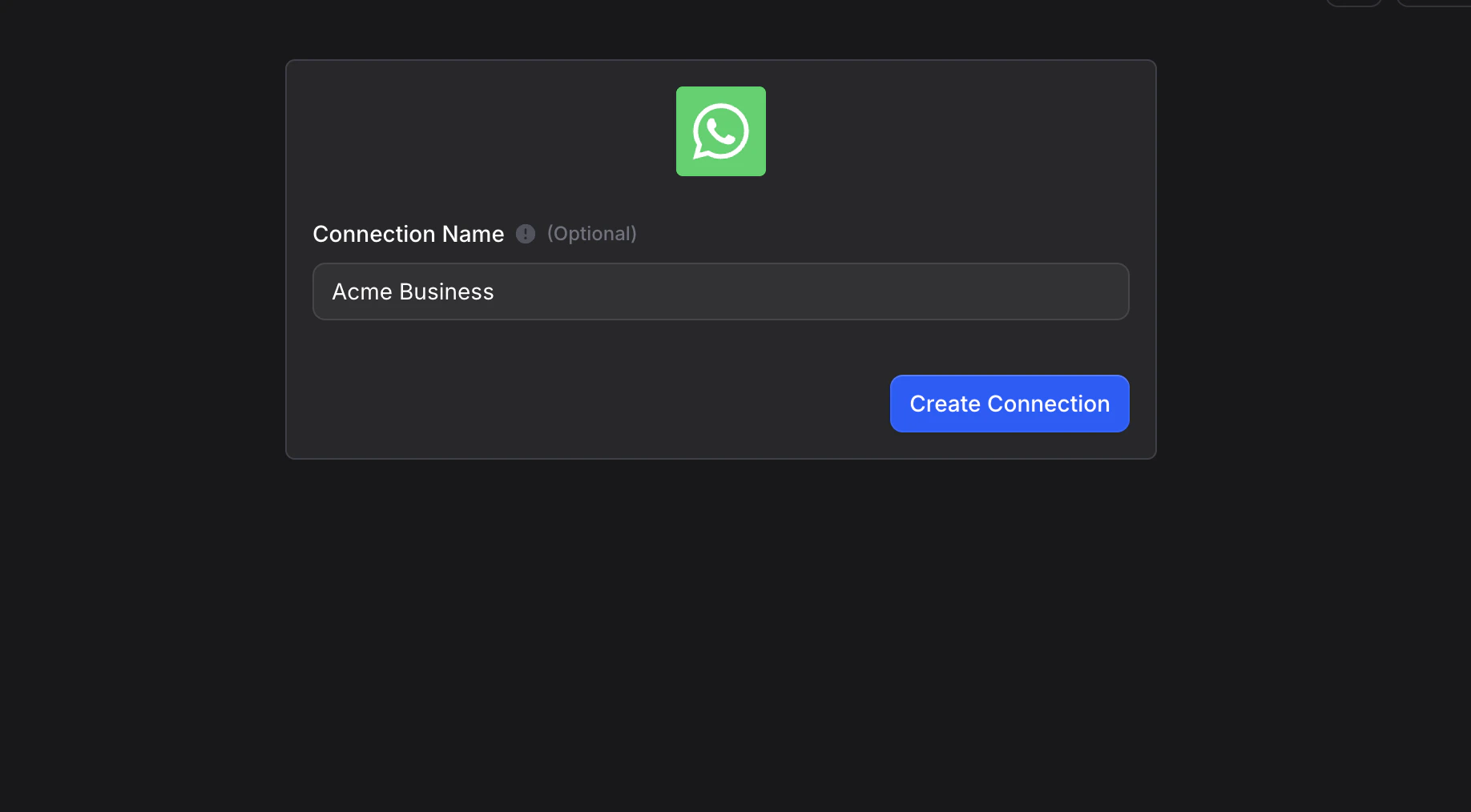 This is the name you will see inside Invent. It does not change anything on Meta's side.
Click **Create Connection** and Invent stores the connection in [Settings → Connections](/workspace-management/connections), where you can rename it or disconnect it at any time.
Pick a name that describes *which numbers this connection covers*, not who signed in. *Acme WhatsApp* or *EU Sales WhatsApp* reads better in the channel list a year from now than *Alice's Facebook*.
## Step 5: Pick the Number and Connect Channel
Back on the WhatsApp connect dialog, your new connection is already selected. The **WhatsApp Phone Number** dropdown now lists every number that connection has access to.
This is the name you will see inside Invent. It does not change anything on Meta's side.
Click **Create Connection** and Invent stores the connection in [Settings → Connections](/workspace-management/connections), where you can rename it or disconnect it at any time.
Pick a name that describes *which numbers this connection covers*, not who signed in. *Acme WhatsApp* or *EU Sales WhatsApp* reads better in the channel list a year from now than *Alice's Facebook*.
## Step 5: Pick the Number and Connect Channel
Back on the WhatsApp connect dialog, your new connection is already selected. The **WhatsApp Phone Number** dropdown now lists every number that connection has access to.
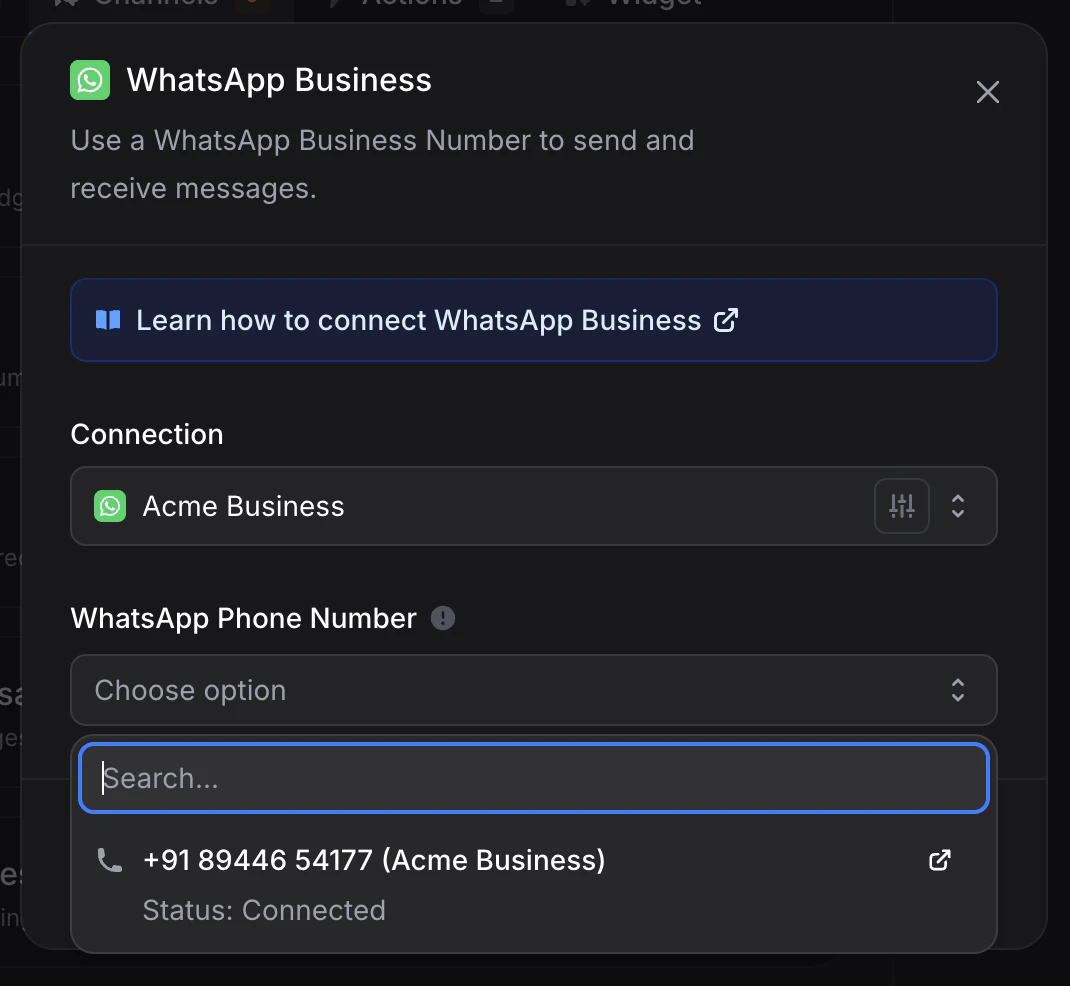 Each option shows the phone number, a label, and its current status:
* **Connected**: ready to send and receive immediately. This is the normal state for coexistence numbers and for verified API-only numbers.
* **Pending**: Meta is still finalizing the WABA. Inbound messages still work; high-volume outbound (Broadcasts) is gated until Meta clears it. This is normal for new API-only numbers in the first hour or two.
Pick the number this assistant should own.
**One number, one assistant.** A WhatsApp number can only be bound to **one** assistant at a time inside Invent. If two assistants need to share the same number, [transfer to human](/assistants/agents) is usually a better pattern than splitting the number. Binding a number that is already attached to another Invent assistant overrides the previous binding and the new assistant takes over from the next message onwards.
Click **Connect Channel**. Behind the scenes Invent subscribes its webhook to the number, validates that the messaging permissions are healthy, and turns the channel on. WhatsApp now shows up in the assistant's Channels tab with an **Enabled** toggle, a **Manage** button, and the connected phone number as its identifier.
## Step 6: Send a Test Message
Open WhatsApp on your personal device, message the connected number directly (or open `wa.me/` from a browser to deep-link into the chat), and send a message. You should see your assistant reply within a few seconds. The conversation also appears in your [Inbox](/guides/inbox) immediately, with the originating number and the WhatsApp channel shown on the conversation.
That is it, the assistant is live on WhatsApp.
## The 14-Day Rule (Coexistence Only)
**For coexistence numbers, you must open the WhatsApp Business app on the registered phone at least once every 14 days.** If 14 days pass without the app opening on the phone, Meta automatically severs the API connection and your assistant stops replying until you re-link.
This is a Meta platform rule, not an Invent limitation. The reason is straightforward: coexistence is a shared-control mode, and Meta uses the periodic app open as a signal that the number is still legitimately operated by the original owner. Without that signal, the API binding is treated as orphaned and revoked.
In practice, for any business with active staff using the app, this is invisible. The risk shows up when:
* The phone the number is registered on is sitting in a drawer.
* The original owner left the company and nobody is opening the app anymore.
* The number is purely receiving and the team replies exclusively from the Invent Inbox, never from the app.
Two ways to handle it:
* **Have someone open the app every couple of weeks.** Even briefly counts. Set a recurring calendar reminder if your team is light.
* **Migrate to API-only.** If nobody actually needs the mobile app, the 14-day rule is pure overhead. Open [WhatsApp Manager](https://business.facebook.com/wa/manage/), find the number, and migrate it from coexistence to API-only. After migration the number stops requiring the periodic app open.
If the rule has already triggered and your assistant has stopped replying, just rerun the connect flow from [Step 1](#step-1-open-the-whatsapp-connect-dialog). Meta will issue a fresh QR code and the previous binding is replaced.
## What Syncs and What Stays in the App (Coexistence)
When a number is on coexistence, Meta splits message types between the app and the API. Knowing which is which avoids surprises in the [Inbox](/guides/inbox).
| Message type | Where it lives | Visible in Invent Inbox? |
| -------------------------------------------------------------- | ------------------------ | ----------------------------------------------------------------------------- |
| **1:1 chats with customers** | Both the app and the API | Yes. Manual replies sent from the app appear in the Inbox after a short delay |
| **Up to 6 months of past 1:1 history** (if you opted to share) | Backfilled into the API | Yes, on first sync |
| **Group chats** | App only | No. Group conversations stay in the app and are not surfaced to the assistant |
| **Status (Stories) replies** | App only | No. Status replies are not part of the API surface |
| **Broadcasts and outbound templates** | API only | Yes, sent from [Broadcasts](/guides/broadcasts/introduction) |
If you need group-chat support, transfer those conversations to a 1:1 thread with the relevant customer, or handle them manually in the app.
## If Meta says "this phone number is already registered"
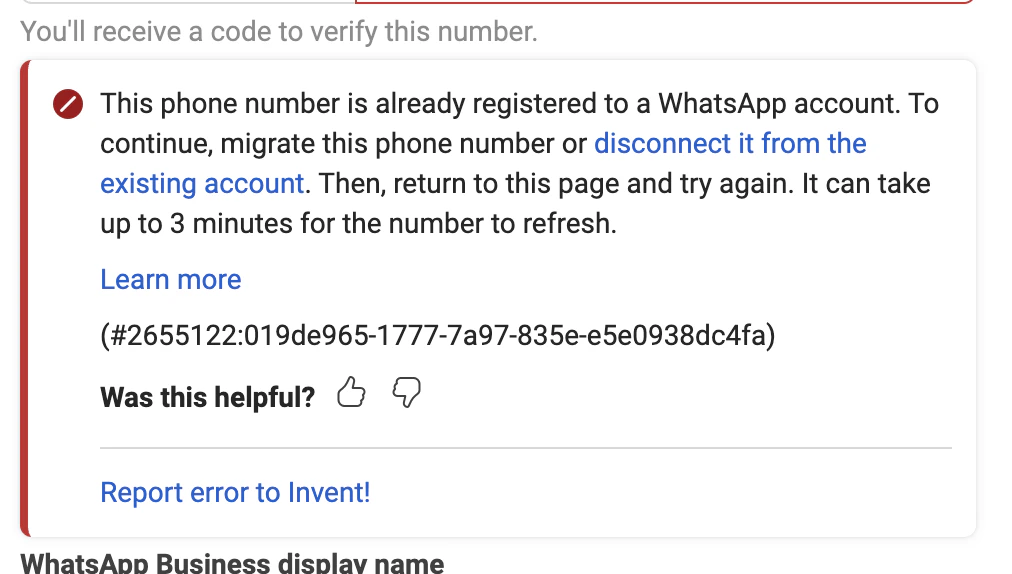
This error fires whenever the number you typed in is **already in use somewhere else on WhatsApp**. It can show up on either path: Coexistence and API-only both go through Meta's number verification, and Meta blocks both with the same inline message:
Each option shows the phone number, a label, and its current status:
* **Connected**: ready to send and receive immediately. This is the normal state for coexistence numbers and for verified API-only numbers.
* **Pending**: Meta is still finalizing the WABA. Inbound messages still work; high-volume outbound (Broadcasts) is gated until Meta clears it. This is normal for new API-only numbers in the first hour or two.
Pick the number this assistant should own.
**One number, one assistant.** A WhatsApp number can only be bound to **one** assistant at a time inside Invent. If two assistants need to share the same number, [transfer to human](/assistants/agents) is usually a better pattern than splitting the number. Binding a number that is already attached to another Invent assistant overrides the previous binding and the new assistant takes over from the next message onwards.
Click **Connect Channel**. Behind the scenes Invent subscribes its webhook to the number, validates that the messaging permissions are healthy, and turns the channel on. WhatsApp now shows up in the assistant's Channels tab with an **Enabled** toggle, a **Manage** button, and the connected phone number as its identifier.
## Step 6: Send a Test Message
Open WhatsApp on your personal device, message the connected number directly (or open `wa.me/` from a browser to deep-link into the chat), and send a message. You should see your assistant reply within a few seconds. The conversation also appears in your [Inbox](/guides/inbox) immediately, with the originating number and the WhatsApp channel shown on the conversation.
That is it, the assistant is live on WhatsApp.
## The 14-Day Rule (Coexistence Only)
**For coexistence numbers, you must open the WhatsApp Business app on the registered phone at least once every 14 days.** If 14 days pass without the app opening on the phone, Meta automatically severs the API connection and your assistant stops replying until you re-link.
This is a Meta platform rule, not an Invent limitation. The reason is straightforward: coexistence is a shared-control mode, and Meta uses the periodic app open as a signal that the number is still legitimately operated by the original owner. Without that signal, the API binding is treated as orphaned and revoked.
In practice, for any business with active staff using the app, this is invisible. The risk shows up when:
* The phone the number is registered on is sitting in a drawer.
* The original owner left the company and nobody is opening the app anymore.
* The number is purely receiving and the team replies exclusively from the Invent Inbox, never from the app.
Two ways to handle it:
* **Have someone open the app every couple of weeks.** Even briefly counts. Set a recurring calendar reminder if your team is light.
* **Migrate to API-only.** If nobody actually needs the mobile app, the 14-day rule is pure overhead. Open [WhatsApp Manager](https://business.facebook.com/wa/manage/), find the number, and migrate it from coexistence to API-only. After migration the number stops requiring the periodic app open.
If the rule has already triggered and your assistant has stopped replying, just rerun the connect flow from [Step 1](#step-1-open-the-whatsapp-connect-dialog). Meta will issue a fresh QR code and the previous binding is replaced.
## What Syncs and What Stays in the App (Coexistence)
When a number is on coexistence, Meta splits message types between the app and the API. Knowing which is which avoids surprises in the [Inbox](/guides/inbox).
| Message type | Where it lives | Visible in Invent Inbox? |
| -------------------------------------------------------------- | ------------------------ | ----------------------------------------------------------------------------- |
| **1:1 chats with customers** | Both the app and the API | Yes. Manual replies sent from the app appear in the Inbox after a short delay |
| **Up to 6 months of past 1:1 history** (if you opted to share) | Backfilled into the API | Yes, on first sync |
| **Group chats** | App only | No. Group conversations stay in the app and are not surfaced to the assistant |
| **Status (Stories) replies** | App only | No. Status replies are not part of the API surface |
| **Broadcasts and outbound templates** | API only | Yes, sent from [Broadcasts](/guides/broadcasts/introduction) |
If you need group-chat support, transfer those conversations to a 1:1 thread with the relevant customer, or handle them manually in the app.
## If Meta says "this phone number is already registered"
This error fires whenever the number you typed in is **already in use somewhere else on WhatsApp**. It can show up on either path: Coexistence and API-only both go through Meta's number verification, and Meta blocks both with the same inline message:
 There are three places a phone number can already live. Pick the one that matches yours, run the release flow, then come back and re-run [Path A](#path-a-coexistence-connect-your-whatsapp-business-app) or [Path B](#path-b-api-only-create-a-new-whatsapp-business-account) in Invent.
### A. The number is on a regular WhatsApp account (the green app)
The number is in active use on the personal WhatsApp app on someone's phone. Coexistence does not work for personal WhatsApp, so the only way to reuse the number is to delete the personal account first, then run [Path B](#path-b-api-only-create-a-new-whatsapp-business-account).
On the phone, open WhatsApp → Settings → **Chats** → **Chat backup**, and back up to iCloud or Google Drive. Deletion is irreversible and the backup is your only path to retrieve the chats later.
Open the WhatsApp app → **Settings** → **Account** → **Delete my account**. Enter the country code and the full phone number to confirm, then follow the prompts.
Meta caches the registration for up to **3 minutes** after deletion. Until that cache expires, retrying the Invent flow can still resurface the *already registered* error.
Go back to your assistant's **Channels** tab and run [Path B](#path-b-api-only-create-a-new-whatsapp-business-account). Personal-WhatsApp numbers cannot use Coexistence; they only work on API-only.
### B. The number is on the WhatsApp Business app
The number is registered on the **WhatsApp Business** app (the dark-green icon, not the personal one). You have two ways forward:
* **Best option for most teams: switch to Coexistence.** If you originally picked *Create a WhatsApp Business account* at [Step 3](#step-3-choose-your-path) and hit this error, the cleanest fix is usually to go back and pick *Connect a WhatsApp Business App* instead. Coexistence is built exactly for this case: it links your existing WhatsApp Business app number to a WABA without you having to delete anything, and it preserves the last 6 months of chat history. Run [Path A](#path-a-coexistence-connect-your-whatsapp-business-app) instead of Path B.
* **API-only by deletion.** If you genuinely do not want the WhatsApp Business app on this number anymore (purely automated, no manual mobile replies), open the **WhatsApp Business** app on the registered phone, go to **Settings → Account → Delete my account**, enter the number to confirm, and follow the prompts. Wait up to **3 minutes**, then re-run [Path B](#path-b-api-only-create-a-new-whatsapp-business-account).
**Deleting the WhatsApp Business app account erases all chats, media, and backups on that device permanently.** If you have history you care about, choose Coexistence instead and let Meta sync up to 6 months of past chats into Invent automatically. Backing up from inside the app (Settings → Chats → Chat backup) preserves a copy you can restore later, but only into the same WhatsApp Business app on the same number.
### C. The number is on another BSP or Cloud API instance
The number is currently bound to a different platform's webhook (Twilio, Wati, 360dialog, MessageBird, an old in-house integration, or another Invent workspace). Only one BSP can hold the active webhook on a number at a time, so you have to release it from that platform first.
Go to [business.facebook.com](https://business.facebook.com) and sign in with the Facebook account that has admin access on the Business Portfolio that owns the WABA. If you do not have admin access, ask whoever does to run this flow.
In the left sidebar open **Settings → Accounts → WhatsApp accounts**, then click the WhatsApp Business Account that holds the number you want to move.
Switch to the **Partners** tab. You will see every Business Solution Provider that currently has access to this WABA (sometimes labeled by the vendor's product name, sometimes by their parent company). Click **Manage** next to the BSP you want to remove, then click **Remove access** in the dialog Meta opens.
If the partner is unfamiliar (you inherited the WABA, the previous vendor was renamed, or the original setup is undocumented), the master list of business integrations attached to your portfolio is at [facebook.com/settings/business\_integrations](https://www.facebook.com/settings/business_integrations); revoke any extra entries from there too.
If the previous BSP was running on **Coexistence**, the connection also has a phone-side half. On the registered phone, open the **WhatsApp Business** app → **Settings → Account → Business platform**, tap the partner you just removed, and tap **Disconnect**. Numbers that were on a pure API-only BSP have no app-side connection to remove and you can skip this step.
Meta will not let you re-register a number with 2FA still active. Open [WhatsApp Manager](https://business.facebook.com/wa/manage/), pick the WABA, go to **Account tools → Phone numbers**, click the **gear icon** next to the row, switch to the **Two-step verification** tab, and turn it off. If your previous BSP set the PIN and you do not know it, you may need to contact them to disable 2FA on their side first.
If the previous BSP charged a monthly fee for the number (360dialog, Wati, Twilio, and similar), cancel that subscription on their side. Removing access in Meta Business Suite stops the webhook routing but does not always cancel the billing relationship; that has to happen in the BSP's own dashboard.
Meta caches the BSP binding for up to **3 minutes** after revocation. Click **+ Connect WhatsApp** too quickly and you can still see the same error even though the release went through. Wait three minutes, then run [Path A](#path-a-coexistence-connect-your-whatsapp-business-app) or [Path B](#path-b-api-only-create-a-new-whatsapp-business-account) as appropriate.
**Migration is also an option, but it is more complex.** Meta supports a formal phone-number migration flow that preserves display name, quality rating, message templates, Official Business Account status, and messaging limits across BSPs, but only when both source and destination WABAs sit under the same Meta Business Portfolio. See Meta's [migration documentation](https://developers.facebook.com/docs/whatsapp/cloud-api/get-started/migrate-existing-whatsapp-number-to-a-business-account/) for the full prerequisites. Most teams just release-and-re-register, which is the flow above.
If the previous platform stored chat history that you want preserved, export it from that platform **before** revoking access. Once the binding is severed, the API-side history on the previous BSP becomes inaccessible. Coexistence on the Invent side will sync any 1:1 history that is still on the WhatsApp Business app, but the API-side archive on the previous BSP will not transfer.
## Connecting More Numbers
You can add additional WhatsApp numbers to the same assistant at any time. From the Channels tab, click **+ Add another** under the WhatsApp section and either:
* **Pick another number from the same connection** (when your existing connection's WABA already has more than one number registered), or
* **Connect a new number** by opening the Connection dropdown and choosing **+ Connect WhatsApp** again. Run [Path A](#path-a-coexistence-connect-your-whatsapp-business-app) or [Path B](#path-b-api-only-create-a-new-whatsapp-business-account) for the new number, or [release it](#if-meta-says-this-phone-number-is-already-registered) first if it is already registered somewhere else.
Each number runs in parallel under the same assistant, sharing the same Instructions, Knowledge, Memory, and Actions. Conversations are tagged with the originating number in the Inbox so your team always knows which brand or region a message belongs to. See [Multiple Connections Per Channel](/assistants/channels#multiple-connections-per-channel) for common patterns.
## Reusing a Connection Across Assistants
Once a WhatsApp connection exists in your workspace, any assistant can pick it up from the **Connection** dropdown without going through Meta's Embedded Signup again. Authenticate once, reuse everywhere.
Manage every connection centrally from [Settings → Connections](/workspace-management/connections):
* **Rename** a connection to keep the list readable as you add more.
* **Reconnect** if Meta's session expires, an admin removes the integration from `facebook.com/settings/business_integrations`, or the underlying Business Portfolio is reorganized.
* **Disconnect** to remove the link entirely. Any assistant still using that connection stops sending and receiving until it is pointed at a new one.
## Troubleshooting
Hit a numeric error code when sending (something like `130497` or `131047`)? See the [WhatsApp error codes reference](/assistants/channels/whatsapp-error-codes) for every Cloud API code explained with its fix.
This is the most common WhatsApp setup glitch. The phone-side binding completed, but the web-side handshake silently dropped (often because the popup lost focus, the browser tab was switched, or the network blipped during the 45-second window).
**Fix:**
1. On the phone, open the WhatsApp Business app, go to **Settings → Account → Business Platform**.
2. You will see the **Connected platform** card with **Tap to disconnect** at the bottom.
3. Tap **Tap to disconnect** and confirm.
4. Close the Invent setup popup if it is still open.
5. Re-run the connect flow in Invent from [Step 1](#step-1-open-the-whatsapp-connect-dialog).
The second attempt almost always completes cleanly because the previous half-bound state is now cleared.
The number is registered somewhere else: on a personal WhatsApp account, on the WhatsApp Business app, or with another BSP. The fix depends on which one. Jump to [If Meta says "this phone number is already registered"](#if-meta-says-this-phone-number-is-already-registered) and run the sub-flow that matches your case (A, B, or C). The same error also fires when you pick API-only for a number that is currently on the WhatsApp Business app, in which case [Coexistence](#path-a-coexistence-connect-your-whatsapp-business-app) is usually the better fix because it does not delete your app history.
This is a Meta-side restriction on **cross-country messaging**, not a problem with your connection or your number. Meta blocks business-initiated messages that cross a border into **Brazil (BR)** or **Indonesia (ID)**. Your message fails to send and the API returns error code **130497**.
The rule, in one line: a business can only message recipients in Brazil or Indonesia if its own WhatsApp Business account is registered in that same country.
| Your WhatsApp Business account is in | You message a user in | Result |
| ----------------------------------------------- | -------------------------------- | ------------------ |
| Any country (for example the US, Spain, Mexico) | Brazil | ❌ Blocked (130497) |
| Any country (for example the US, Spain, Mexico) | Indonesia | ❌ Blocked (130497) |
| Brazil | Brazil | ✅ Works |
| Brazil | Any country other than Brazil | ❌ Blocked (130497) |
| Indonesia | Indonesia | ✅ Works |
| Indonesia | Any country other than Indonesia | ❌ Blocked (130497) |
| Any other country | Any other country | ✅ Works |
Receiving messages is never affected. Users in Brazil and Indonesia can still message your business, and you can reply within the [customer service window](/assistants/channels/whatsapp). Only business-initiated sends (the first message, and template / broadcast sends) hit this restriction.
**What you can do:**
* **Confirm it is the cross-country rule.** If the recipient is in Brazil or Indonesia and your account is registered elsewhere, this is expected and there is no override.
* **Register a local WhatsApp Business account.** To message users inside Brazil or Indonesia, the only reliable path is a separate WABA whose business is registered in that country. Run [Path B (API-only)](#path-b-api-only-create-a-new-whatsapp-business-account) for a locally-registered business.
* **Keep your Business Manager profile complete.** A missing business address or incomplete profile on the Business Portfolio, WABA, or linked Facebook Page can widen the restriction. Fill these in at [WhatsApp Manager](https://business.facebook.com/wa/manage/).
* **Watch for policy changes.** Meta has described this as a temporary measure. The affected-country list can change, so check Meta's announcements before assuming it is permanent.
Two common causes:
1. The Embedded Signup popup closed before the success screen. Nothing is saved until Meta shows *Your account is connected to Zydeer*. Re-run [Step 1](#step-1-open-the-whatsapp-connect-dialog).
2. The number is in a different WABA on the same Business Portfolio that Invent did not pick up. Open [Settings → Connections](/workspace-management/connections), click **Reconnect** on the WhatsApp connection, and finish the prompt. The dropdown refreshes with every visible number.
Three things to check:
1. **Wait for the 60-second countdown to finish**, then use the option Meta shows on the verify-code screen to request a new code or switch delivery method (SMS to call, or call to SMS). Some carriers silently drop SMS from short codes; voice calls usually go through.
2. **Use Phone call for landlines and toll-free numbers.** SMS does not exist for landlines.
3. **Check the number you typed has the right country code**, including for numbers that locally drop the leading zero. Meta uses the international format.
If a third attempt fails, the number may be ineligible (some virtual or premium-rate numbers cannot host WABAs). Try a different number, or contact Meta support from [WhatsApp Manager](https://business.facebook.com/wa/manage/).
Meta moderates display names to prevent brand impersonation, generic names, and misleading branding. Common rejection reasons:
* All caps (use *Acme Support*, not *ACME SUPPORT*).
* Emojis or special characters.
* Generic terms like *Support*, *Sales*, *Customer Service* without the business name attached.
* A brand the Facebook account is not authorized to represent.
Read Meta's [display name guidelines](https://www.facebook.com/business/help/757569725593362), pick a name that matches your real business name closely, and resubmit from [WhatsApp Manager → Phone numbers](https://business.facebook.com/wa/manage/phone-numbers/).
Because Meta auto-detected an existing Business Portfolio you are an admin on, based on your Facebook account. *Acme Primary* (or whatever name yours has) is your **portfolio**, not a WABA yet. The portfolio is the parent container; the WABA gets created or linked inside it on the next screen.
If the pre-selected portfolio is the right one, leave it. If you want a separate portfolio for this WhatsApp setup, open the dropdown and pick **Create a Business portfolio**. The two options in the *WhatsApp Business account* dropdown below (*Create a WhatsApp Business account* and *Connect a WhatsApp Business App*) operate within whichever portfolio is selected here.
They produce two structurally different setups, even though both end up with a WABA inside your portfolio. Quick recap:
| | **Connect a WhatsApp Business App** | **Create a WhatsApp Business account** |
| ----------------------- | ------------------------------------ | -------------------------------------- |
| Path name | Coexistence | API-only |
| Number must be | Active on the WhatsApp Business app | Not on any WhatsApp account |
| Verification | QR / access code from inside the app | SMS or phone call |
| Mobile app stays usable | Yes | No |
| Existing chat history | Up to 6 months sync | Starts fresh |
| Maintenance | Open the app every 14 days | None |
See [Pick your connection path](#pick-your-connection-path) for the full comparison.
The 14-day rule has triggered. The WhatsApp Business app on the registered phone has not been opened recently, and Meta severed the API binding as a result. Re-run the connect flow from [Step 1](#step-1-open-the-whatsapp-connect-dialog); Meta will issue a fresh QR code and you will be back in service in about a minute. To prevent it from happening again, set a recurring reminder for someone on your team to open the app at least every two weeks, or migrate the number to API-only from [WhatsApp Manager](https://business.facebook.com/wa/manage/). Full context in [The 14-Day Rule](#the-14-day-rule-coexistence-only).
Expected behavior on coexistence. Meta's API only surfaces 1:1 chats; group conversations and Status replies stay inside the WhatsApp Business app and are not visible to the assistant. Handle group conversations manually in the app, or invite the relevant customer into a 1:1 thread that the assistant can see. Full breakdown in [What Syncs and What Stays in the App](#what-syncs-and-what-stays-in-the-app-coexistence).
No. Meta only allows one BSP webhook per number at a time. The most recent platform to bind the number wins, and the previous one immediately stops receiving messages. If you need redundancy or a parallel setup, use a second WhatsApp number; if you are evaluating Invent against another platform, use a sandbox number for the comparison and keep production on the existing platform until you decide.
WhatsApp blocks free-form business-initiated messages outside the 24-hour customer-service window. To re-engage a customer who went quiet for longer than that, your message must use an **approved WhatsApp Template**. Send tagged outbound at scale through [Broadcasts → WhatsApp](/guides/broadcasts/channels/whatsapp), and rely on [Auto Follow-ups](/guides/auto-follow-ups) for in-window re-engagement.
Open [WhatsApp Manager](https://business.facebook.com/wa/manage/phone-numbers/), find the number, and start the migration to Cloud API. Meta walks you through detaching the WhatsApp Business app from the number; the app will stop working on that number once migration completes. After migration finishes, run the Invent connect flow again as if the number were brand-new (it now matches [Path B](#path-b-api-only-create-a-new-whatsapp-business-account)). Existing 1:1 history that already synced through coexistence stays available in the Inbox; new history begins immediately on the API side.
## Next Steps
See the universal connection flow that every channel uses
Manage every authenticated link, including WhatsApp, in one place
See everything your assistant can send and receive on WhatsApp
Send approved Template messages to your audience at scale
There are three places a phone number can already live. Pick the one that matches yours, run the release flow, then come back and re-run [Path A](#path-a-coexistence-connect-your-whatsapp-business-app) or [Path B](#path-b-api-only-create-a-new-whatsapp-business-account) in Invent.
### A. The number is on a regular WhatsApp account (the green app)
The number is in active use on the personal WhatsApp app on someone's phone. Coexistence does not work for personal WhatsApp, so the only way to reuse the number is to delete the personal account first, then run [Path B](#path-b-api-only-create-a-new-whatsapp-business-account).
On the phone, open WhatsApp → Settings → **Chats** → **Chat backup**, and back up to iCloud or Google Drive. Deletion is irreversible and the backup is your only path to retrieve the chats later.
Open the WhatsApp app → **Settings** → **Account** → **Delete my account**. Enter the country code and the full phone number to confirm, then follow the prompts.
Meta caches the registration for up to **3 minutes** after deletion. Until that cache expires, retrying the Invent flow can still resurface the *already registered* error.
Go back to your assistant's **Channels** tab and run [Path B](#path-b-api-only-create-a-new-whatsapp-business-account). Personal-WhatsApp numbers cannot use Coexistence; they only work on API-only.
### B. The number is on the WhatsApp Business app
The number is registered on the **WhatsApp Business** app (the dark-green icon, not the personal one). You have two ways forward:
* **Best option for most teams: switch to Coexistence.** If you originally picked *Create a WhatsApp Business account* at [Step 3](#step-3-choose-your-path) and hit this error, the cleanest fix is usually to go back and pick *Connect a WhatsApp Business App* instead. Coexistence is built exactly for this case: it links your existing WhatsApp Business app number to a WABA without you having to delete anything, and it preserves the last 6 months of chat history. Run [Path A](#path-a-coexistence-connect-your-whatsapp-business-app) instead of Path B.
* **API-only by deletion.** If you genuinely do not want the WhatsApp Business app on this number anymore (purely automated, no manual mobile replies), open the **WhatsApp Business** app on the registered phone, go to **Settings → Account → Delete my account**, enter the number to confirm, and follow the prompts. Wait up to **3 minutes**, then re-run [Path B](#path-b-api-only-create-a-new-whatsapp-business-account).
**Deleting the WhatsApp Business app account erases all chats, media, and backups on that device permanently.** If you have history you care about, choose Coexistence instead and let Meta sync up to 6 months of past chats into Invent automatically. Backing up from inside the app (Settings → Chats → Chat backup) preserves a copy you can restore later, but only into the same WhatsApp Business app on the same number.
### C. The number is on another BSP or Cloud API instance
The number is currently bound to a different platform's webhook (Twilio, Wati, 360dialog, MessageBird, an old in-house integration, or another Invent workspace). Only one BSP can hold the active webhook on a number at a time, so you have to release it from that platform first.
Go to [business.facebook.com](https://business.facebook.com) and sign in with the Facebook account that has admin access on the Business Portfolio that owns the WABA. If you do not have admin access, ask whoever does to run this flow.
In the left sidebar open **Settings → Accounts → WhatsApp accounts**, then click the WhatsApp Business Account that holds the number you want to move.
Switch to the **Partners** tab. You will see every Business Solution Provider that currently has access to this WABA (sometimes labeled by the vendor's product name, sometimes by their parent company). Click **Manage** next to the BSP you want to remove, then click **Remove access** in the dialog Meta opens.
If the partner is unfamiliar (you inherited the WABA, the previous vendor was renamed, or the original setup is undocumented), the master list of business integrations attached to your portfolio is at [facebook.com/settings/business\_integrations](https://www.facebook.com/settings/business_integrations); revoke any extra entries from there too.
If the previous BSP was running on **Coexistence**, the connection also has a phone-side half. On the registered phone, open the **WhatsApp Business** app → **Settings → Account → Business platform**, tap the partner you just removed, and tap **Disconnect**. Numbers that were on a pure API-only BSP have no app-side connection to remove and you can skip this step.
Meta will not let you re-register a number with 2FA still active. Open [WhatsApp Manager](https://business.facebook.com/wa/manage/), pick the WABA, go to **Account tools → Phone numbers**, click the **gear icon** next to the row, switch to the **Two-step verification** tab, and turn it off. If your previous BSP set the PIN and you do not know it, you may need to contact them to disable 2FA on their side first.
If the previous BSP charged a monthly fee for the number (360dialog, Wati, Twilio, and similar), cancel that subscription on their side. Removing access in Meta Business Suite stops the webhook routing but does not always cancel the billing relationship; that has to happen in the BSP's own dashboard.
Meta caches the BSP binding for up to **3 minutes** after revocation. Click **+ Connect WhatsApp** too quickly and you can still see the same error even though the release went through. Wait three minutes, then run [Path A](#path-a-coexistence-connect-your-whatsapp-business-app) or [Path B](#path-b-api-only-create-a-new-whatsapp-business-account) as appropriate.
**Migration is also an option, but it is more complex.** Meta supports a formal phone-number migration flow that preserves display name, quality rating, message templates, Official Business Account status, and messaging limits across BSPs, but only when both source and destination WABAs sit under the same Meta Business Portfolio. See Meta's [migration documentation](https://developers.facebook.com/docs/whatsapp/cloud-api/get-started/migrate-existing-whatsapp-number-to-a-business-account/) for the full prerequisites. Most teams just release-and-re-register, which is the flow above.
If the previous platform stored chat history that you want preserved, export it from that platform **before** revoking access. Once the binding is severed, the API-side history on the previous BSP becomes inaccessible. Coexistence on the Invent side will sync any 1:1 history that is still on the WhatsApp Business app, but the API-side archive on the previous BSP will not transfer.
## Connecting More Numbers
You can add additional WhatsApp numbers to the same assistant at any time. From the Channels tab, click **+ Add another** under the WhatsApp section and either:
* **Pick another number from the same connection** (when your existing connection's WABA already has more than one number registered), or
* **Connect a new number** by opening the Connection dropdown and choosing **+ Connect WhatsApp** again. Run [Path A](#path-a-coexistence-connect-your-whatsapp-business-app) or [Path B](#path-b-api-only-create-a-new-whatsapp-business-account) for the new number, or [release it](#if-meta-says-this-phone-number-is-already-registered) first if it is already registered somewhere else.
Each number runs in parallel under the same assistant, sharing the same Instructions, Knowledge, Memory, and Actions. Conversations are tagged with the originating number in the Inbox so your team always knows which brand or region a message belongs to. See [Multiple Connections Per Channel](/assistants/channels#multiple-connections-per-channel) for common patterns.
## Reusing a Connection Across Assistants
Once a WhatsApp connection exists in your workspace, any assistant can pick it up from the **Connection** dropdown without going through Meta's Embedded Signup again. Authenticate once, reuse everywhere.
Manage every connection centrally from [Settings → Connections](/workspace-management/connections):
* **Rename** a connection to keep the list readable as you add more.
* **Reconnect** if Meta's session expires, an admin removes the integration from `facebook.com/settings/business_integrations`, or the underlying Business Portfolio is reorganized.
* **Disconnect** to remove the link entirely. Any assistant still using that connection stops sending and receiving until it is pointed at a new one.
## Troubleshooting
Hit a numeric error code when sending (something like `130497` or `131047`)? See the [WhatsApp error codes reference](/assistants/channels/whatsapp-error-codes) for every Cloud API code explained with its fix.
This is the most common WhatsApp setup glitch. The phone-side binding completed, but the web-side handshake silently dropped (often because the popup lost focus, the browser tab was switched, or the network blipped during the 45-second window).
**Fix:**
1. On the phone, open the WhatsApp Business app, go to **Settings → Account → Business Platform**.
2. You will see the **Connected platform** card with **Tap to disconnect** at the bottom.
3. Tap **Tap to disconnect** and confirm.
4. Close the Invent setup popup if it is still open.
5. Re-run the connect flow in Invent from [Step 1](#step-1-open-the-whatsapp-connect-dialog).
The second attempt almost always completes cleanly because the previous half-bound state is now cleared.
The number is registered somewhere else: on a personal WhatsApp account, on the WhatsApp Business app, or with another BSP. The fix depends on which one. Jump to [If Meta says "this phone number is already registered"](#if-meta-says-this-phone-number-is-already-registered) and run the sub-flow that matches your case (A, B, or C). The same error also fires when you pick API-only for a number that is currently on the WhatsApp Business app, in which case [Coexistence](#path-a-coexistence-connect-your-whatsapp-business-app) is usually the better fix because it does not delete your app history.
This is a Meta-side restriction on **cross-country messaging**, not a problem with your connection or your number. Meta blocks business-initiated messages that cross a border into **Brazil (BR)** or **Indonesia (ID)**. Your message fails to send and the API returns error code **130497**.
The rule, in one line: a business can only message recipients in Brazil or Indonesia if its own WhatsApp Business account is registered in that same country.
| Your WhatsApp Business account is in | You message a user in | Result |
| ----------------------------------------------- | -------------------------------- | ------------------ |
| Any country (for example the US, Spain, Mexico) | Brazil | ❌ Blocked (130497) |
| Any country (for example the US, Spain, Mexico) | Indonesia | ❌ Blocked (130497) |
| Brazil | Brazil | ✅ Works |
| Brazil | Any country other than Brazil | ❌ Blocked (130497) |
| Indonesia | Indonesia | ✅ Works |
| Indonesia | Any country other than Indonesia | ❌ Blocked (130497) |
| Any other country | Any other country | ✅ Works |
Receiving messages is never affected. Users in Brazil and Indonesia can still message your business, and you can reply within the [customer service window](/assistants/channels/whatsapp). Only business-initiated sends (the first message, and template / broadcast sends) hit this restriction.
**What you can do:**
* **Confirm it is the cross-country rule.** If the recipient is in Brazil or Indonesia and your account is registered elsewhere, this is expected and there is no override.
* **Register a local WhatsApp Business account.** To message users inside Brazil or Indonesia, the only reliable path is a separate WABA whose business is registered in that country. Run [Path B (API-only)](#path-b-api-only-create-a-new-whatsapp-business-account) for a locally-registered business.
* **Keep your Business Manager profile complete.** A missing business address or incomplete profile on the Business Portfolio, WABA, or linked Facebook Page can widen the restriction. Fill these in at [WhatsApp Manager](https://business.facebook.com/wa/manage/).
* **Watch for policy changes.** Meta has described this as a temporary measure. The affected-country list can change, so check Meta's announcements before assuming it is permanent.
Two common causes:
1. The Embedded Signup popup closed before the success screen. Nothing is saved until Meta shows *Your account is connected to Zydeer*. Re-run [Step 1](#step-1-open-the-whatsapp-connect-dialog).
2. The number is in a different WABA on the same Business Portfolio that Invent did not pick up. Open [Settings → Connections](/workspace-management/connections), click **Reconnect** on the WhatsApp connection, and finish the prompt. The dropdown refreshes with every visible number.
Three things to check:
1. **Wait for the 60-second countdown to finish**, then use the option Meta shows on the verify-code screen to request a new code or switch delivery method (SMS to call, or call to SMS). Some carriers silently drop SMS from short codes; voice calls usually go through.
2. **Use Phone call for landlines and toll-free numbers.** SMS does not exist for landlines.
3. **Check the number you typed has the right country code**, including for numbers that locally drop the leading zero. Meta uses the international format.
If a third attempt fails, the number may be ineligible (some virtual or premium-rate numbers cannot host WABAs). Try a different number, or contact Meta support from [WhatsApp Manager](https://business.facebook.com/wa/manage/).
Meta moderates display names to prevent brand impersonation, generic names, and misleading branding. Common rejection reasons:
* All caps (use *Acme Support*, not *ACME SUPPORT*).
* Emojis or special characters.
* Generic terms like *Support*, *Sales*, *Customer Service* without the business name attached.
* A brand the Facebook account is not authorized to represent.
Read Meta's [display name guidelines](https://www.facebook.com/business/help/757569725593362), pick a name that matches your real business name closely, and resubmit from [WhatsApp Manager → Phone numbers](https://business.facebook.com/wa/manage/phone-numbers/).
Because Meta auto-detected an existing Business Portfolio you are an admin on, based on your Facebook account. *Acme Primary* (or whatever name yours has) is your **portfolio**, not a WABA yet. The portfolio is the parent container; the WABA gets created or linked inside it on the next screen.
If the pre-selected portfolio is the right one, leave it. If you want a separate portfolio for this WhatsApp setup, open the dropdown and pick **Create a Business portfolio**. The two options in the *WhatsApp Business account* dropdown below (*Create a WhatsApp Business account* and *Connect a WhatsApp Business App*) operate within whichever portfolio is selected here.
They produce two structurally different setups, even though both end up with a WABA inside your portfolio. Quick recap:
| | **Connect a WhatsApp Business App** | **Create a WhatsApp Business account** |
| ----------------------- | ------------------------------------ | -------------------------------------- |
| Path name | Coexistence | API-only |
| Number must be | Active on the WhatsApp Business app | Not on any WhatsApp account |
| Verification | QR / access code from inside the app | SMS or phone call |
| Mobile app stays usable | Yes | No |
| Existing chat history | Up to 6 months sync | Starts fresh |
| Maintenance | Open the app every 14 days | None |
See [Pick your connection path](#pick-your-connection-path) for the full comparison.
The 14-day rule has triggered. The WhatsApp Business app on the registered phone has not been opened recently, and Meta severed the API binding as a result. Re-run the connect flow from [Step 1](#step-1-open-the-whatsapp-connect-dialog); Meta will issue a fresh QR code and you will be back in service in about a minute. To prevent it from happening again, set a recurring reminder for someone on your team to open the app at least every two weeks, or migrate the number to API-only from [WhatsApp Manager](https://business.facebook.com/wa/manage/). Full context in [The 14-Day Rule](#the-14-day-rule-coexistence-only).
Expected behavior on coexistence. Meta's API only surfaces 1:1 chats; group conversations and Status replies stay inside the WhatsApp Business app and are not visible to the assistant. Handle group conversations manually in the app, or invite the relevant customer into a 1:1 thread that the assistant can see. Full breakdown in [What Syncs and What Stays in the App](#what-syncs-and-what-stays-in-the-app-coexistence).
No. Meta only allows one BSP webhook per number at a time. The most recent platform to bind the number wins, and the previous one immediately stops receiving messages. If you need redundancy or a parallel setup, use a second WhatsApp number; if you are evaluating Invent against another platform, use a sandbox number for the comparison and keep production on the existing platform until you decide.
WhatsApp blocks free-form business-initiated messages outside the 24-hour customer-service window. To re-engage a customer who went quiet for longer than that, your message must use an **approved WhatsApp Template**. Send tagged outbound at scale through [Broadcasts → WhatsApp](/guides/broadcasts/channels/whatsapp), and rely on [Auto Follow-ups](/guides/auto-follow-ups) for in-window re-engagement.
Open [WhatsApp Manager](https://business.facebook.com/wa/manage/phone-numbers/), find the number, and start the migration to Cloud API. Meta walks you through detaching the WhatsApp Business app from the number; the app will stop working on that number once migration completes. After migration finishes, run the Invent connect flow again as if the number were brand-new (it now matches [Path B](#path-b-api-only-create-a-new-whatsapp-business-account)). Existing 1:1 history that already synced through coexistence stays available in the Inbox; new history begins immediately on the API side.
## Next Steps
See the universal connection flow that every channel uses
Manage every authenticated link, including WhatsApp, in one place
See everything your assistant can send and receive on WhatsApp
Send approved Template messages to your audience at scale