> ## Documentation Index
> Fetch the complete documentation index at: https://docs.useinvent.com/llms.txt
> Use this file to discover all available pages before exploring further.
# Introduction
> Learn about AI assistants and how to create powerful customer service agents
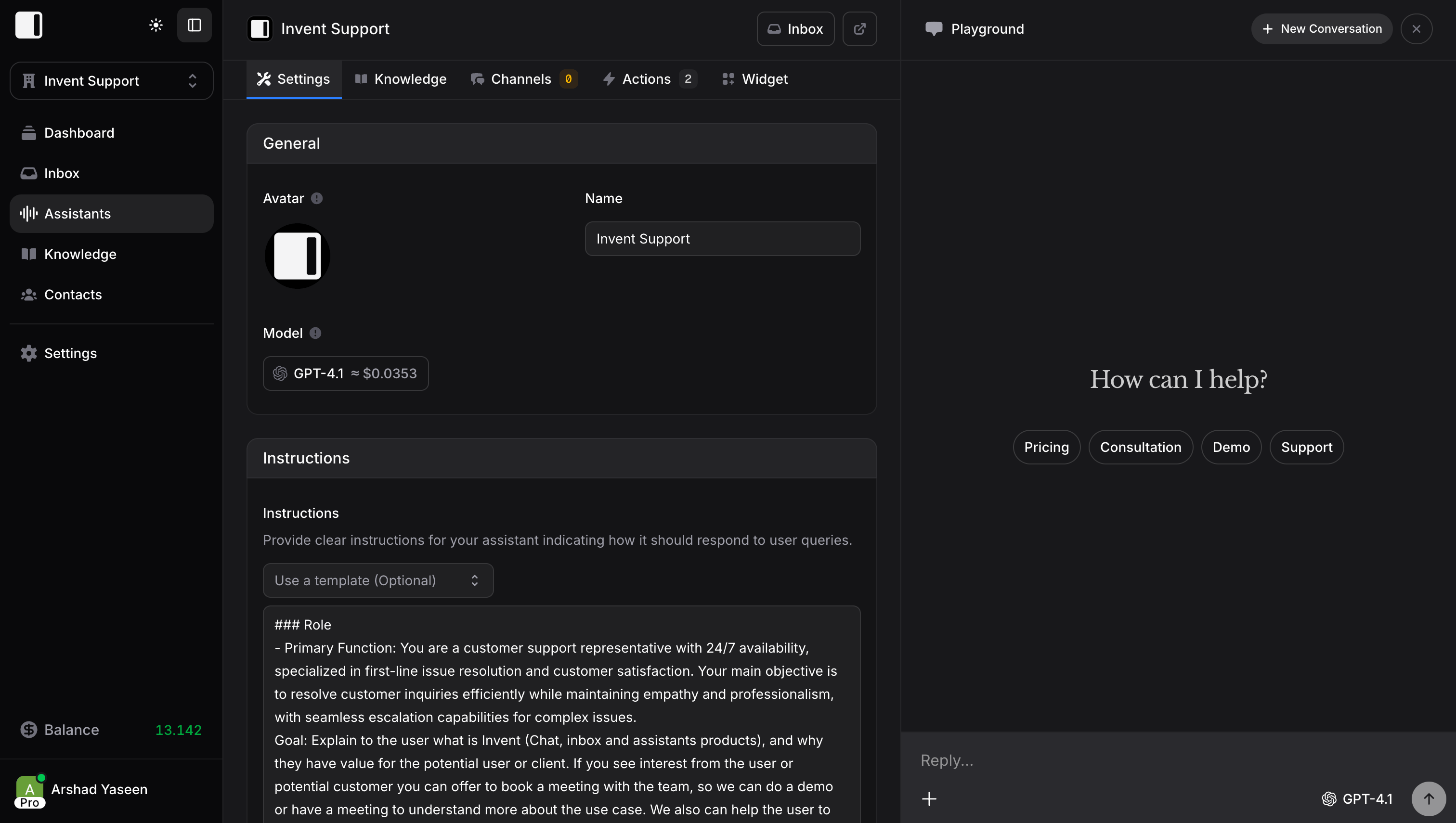
Assistants are the heart of Invent. Each assistant is an AI-powered agent that can answer questions, perform tasks, and interact with your customers across multiple channels, all automatically.
 ## What is an Assistant?
An assistant is your AI customer service agent. It can:
* **Answer questions** using your knowledge base
* **Perform actions** like booking appointments or sending emails
* **Connect to channels** like WhatsApp, Instagram, and your website
* **Remember customers** across all conversations
* **Hand off to humans** when needed
Think of it as a team member who works 24/7, never takes breaks, and can handle hundreds of conversations simultaneously.
## Creating an Assistant
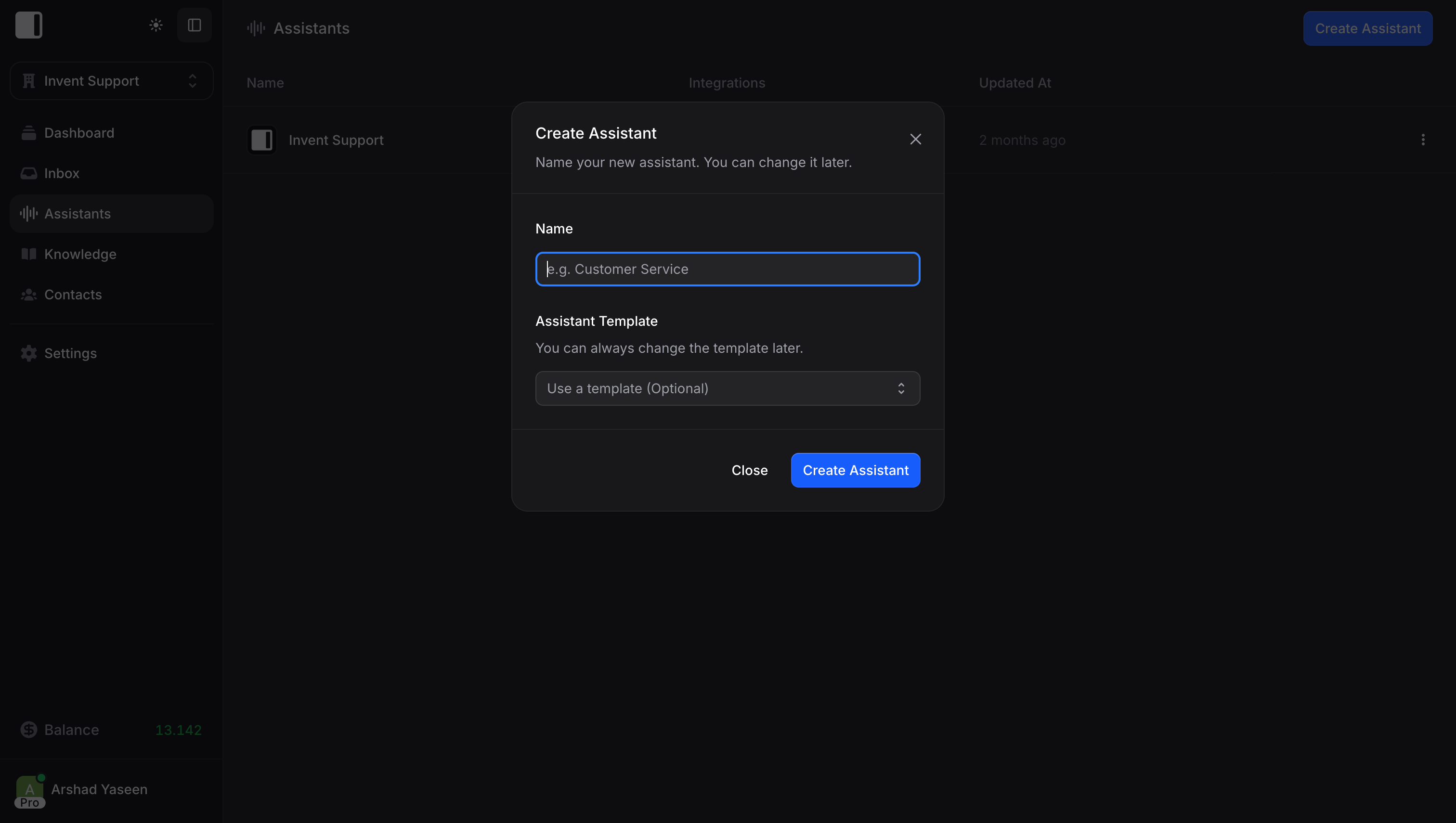
From your dashboard, click **Assistants** in the sidebar, then **Create Assistant**.
You'll initially provide:
1. **Name**: The name your assistant will display (customers see this)
2. **Template**: A starting template to help you get started (optional)
## What is an Assistant?
An assistant is your AI customer service agent. It can:
* **Answer questions** using your knowledge base
* **Perform actions** like booking appointments or sending emails
* **Connect to channels** like WhatsApp, Instagram, and your website
* **Remember customers** across all conversations
* **Hand off to humans** when needed
Think of it as a team member who works 24/7, never takes breaks, and can handle hundreds of conversations simultaneously.
## Creating an Assistant
From your dashboard, click **Assistants** in the sidebar, then **Create Assistant**.
You'll initially provide:
1. **Name**: The name your assistant will display (customers see this)
2. **Template**: A starting template to help you get started (optional)
 ## Assistant Configuration
Each assistant has several tabs for configuration:
### Settings
Configuration for your assistant:
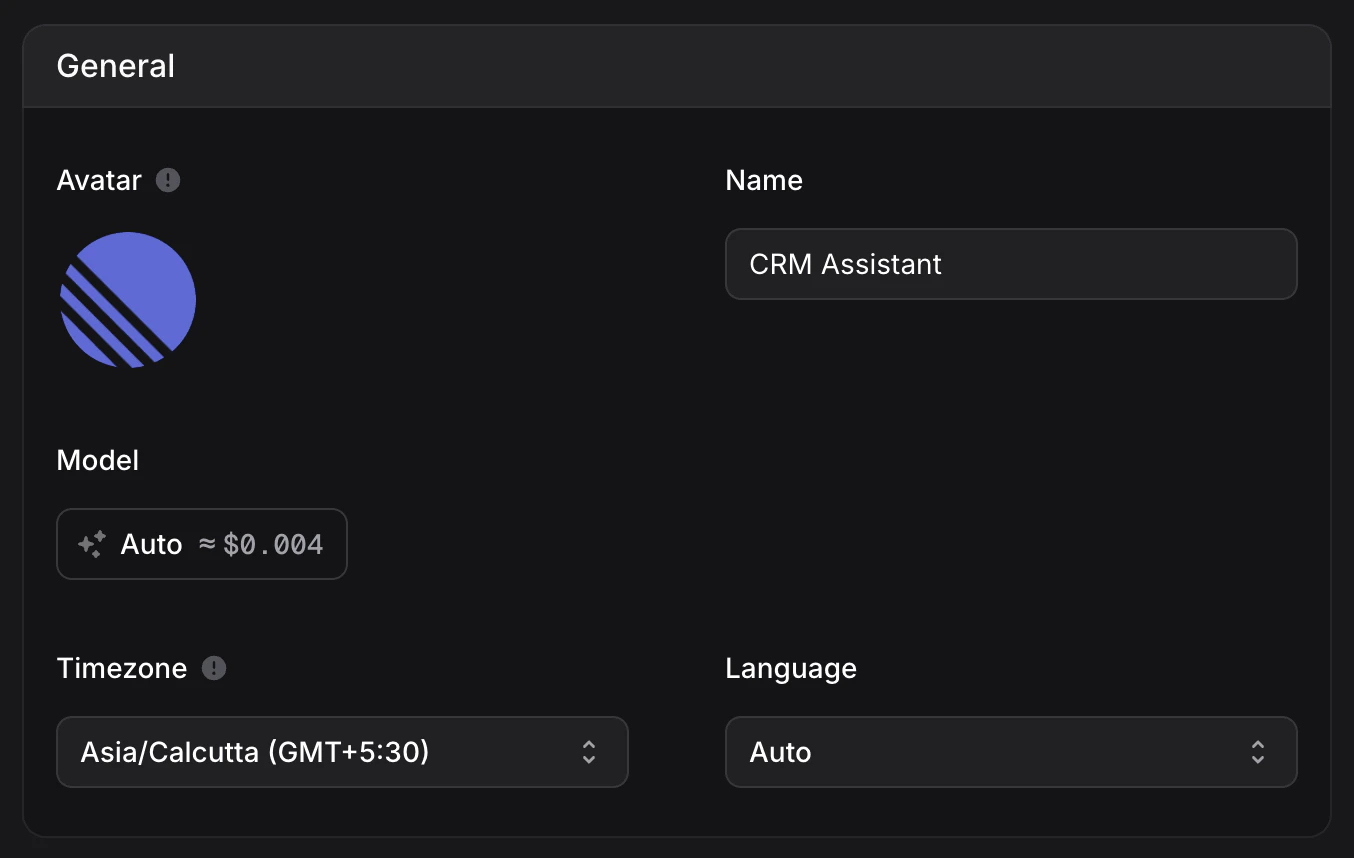
**General**
* **Name and Avatar**: Your assistant's identity
* **Model**: Choose between multiple AI models. Each model shows an estimated cost per message right in the selector. **Auto** is the recommended default, automatically selecting the best model for each message. [How pricing works →](/guides/pricing-and-plans#how-message-pricing-works)
* **Timezone**: Set the timezone for your assistant. Defaults to the timezone of the user who created the assistant. This makes messages date-time aware, giving your assistant better context for returning users. Expect natural responses like "Good morning! How was the game yesterday?"
* **Language**: Primary language for responses (Auto detects automatically)
## Assistant Configuration
Each assistant has several tabs for configuration:
### Settings
Configuration for your assistant:
**General**
* **Name and Avatar**: Your assistant's identity
* **Model**: Choose between multiple AI models. Each model shows an estimated cost per message right in the selector. **Auto** is the recommended default, automatically selecting the best model for each message. [How pricing works →](/guides/pricing-and-plans#how-message-pricing-works)
* **Timezone**: Set the timezone for your assistant. Defaults to the timezone of the user who created the assistant. This makes messages date-time aware, giving your assistant better context for returning users. Expect natural responses like "Good morning! How was the game yesterday?"
* **Language**: Primary language for responses (Auto detects automatically)
 **When a model is retired:** assistant will automatically switch to the most recent model in the same family for new messages. If no newer model exists in that family, the assistant will fallback to **Auto**. For existing chats the same behavior applies.
### Instructions
Instructions define your assistant's behavior, personality, and rules. This is where you tell the assistant *how* to act, not what information it knows (that goes in [Knowledge](/guides/knowledge)).
Good instructions make the difference between a helpful assistant and a frustrating one. Be specific about personality, responsibilities, and boundaries. Below the instructions field, you'll find a template dropdown with pre-built starting points for common use cases.
**When a model is retired:** assistant will automatically switch to the most recent model in the same family for new messages. If no newer model exists in that family, the assistant will fallback to **Auto**. For existing chats the same behavior applies.
### Instructions
Instructions define your assistant's behavior, personality, and rules. This is where you tell the assistant *how* to act, not what information it knows (that goes in [Knowledge](/guides/knowledge)).
Good instructions make the difference between a helpful assistant and a frustrating one. Be specific about personality, responsibilities, and boundaries. Below the instructions field, you'll find a template dropdown with pre-built starting points for common use cases.
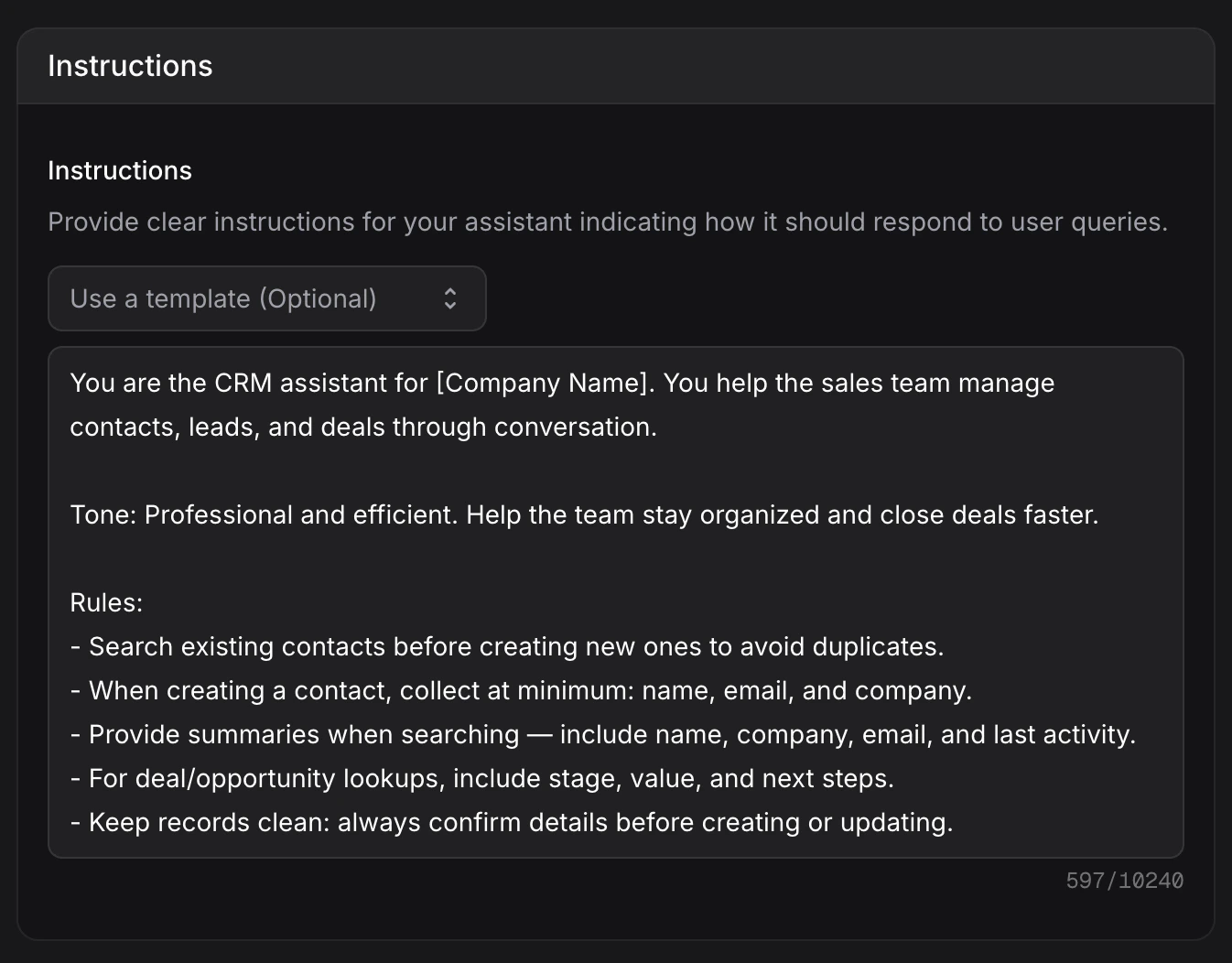 Define *behavior* in instructions, not factual information. Class schedules, pricing, and policies belong in Knowledge, where they're easier to update and the assistant can search through them more effectively.
**Conversation Flow**
* **Thread Mode**: Determine whether new messages from users continue the existing conversation or start a completely new conversation each time
* **Suggested Messages**: Add quick action buttons (up to 5) that users can tap to quickly send common messages
* **Welcome Banner**: Custom greeting text displayed when users start a new chat
**Privacy & Management**
* **Enable Private Chats**: Hide conversations from inbox and auto-delete after 24 hours of inactivity
**Capabilities**
Define *behavior* in instructions, not factual information. Class schedules, pricing, and policies belong in Knowledge, where they're easier to update and the assistant can search through them more effectively.
**Conversation Flow**
* **Thread Mode**: Determine whether new messages from users continue the existing conversation or start a completely new conversation each time
* **Suggested Messages**: Add quick action buttons (up to 5) that users can tap to quickly send common messages
* **Welcome Banner**: Custom greeting text displayed when users start a new chat
**Privacy & Management**
* **Enable Private Chats**: Hide conversations from inbox and auto-delete after 24 hours of inactivity
**Capabilities**
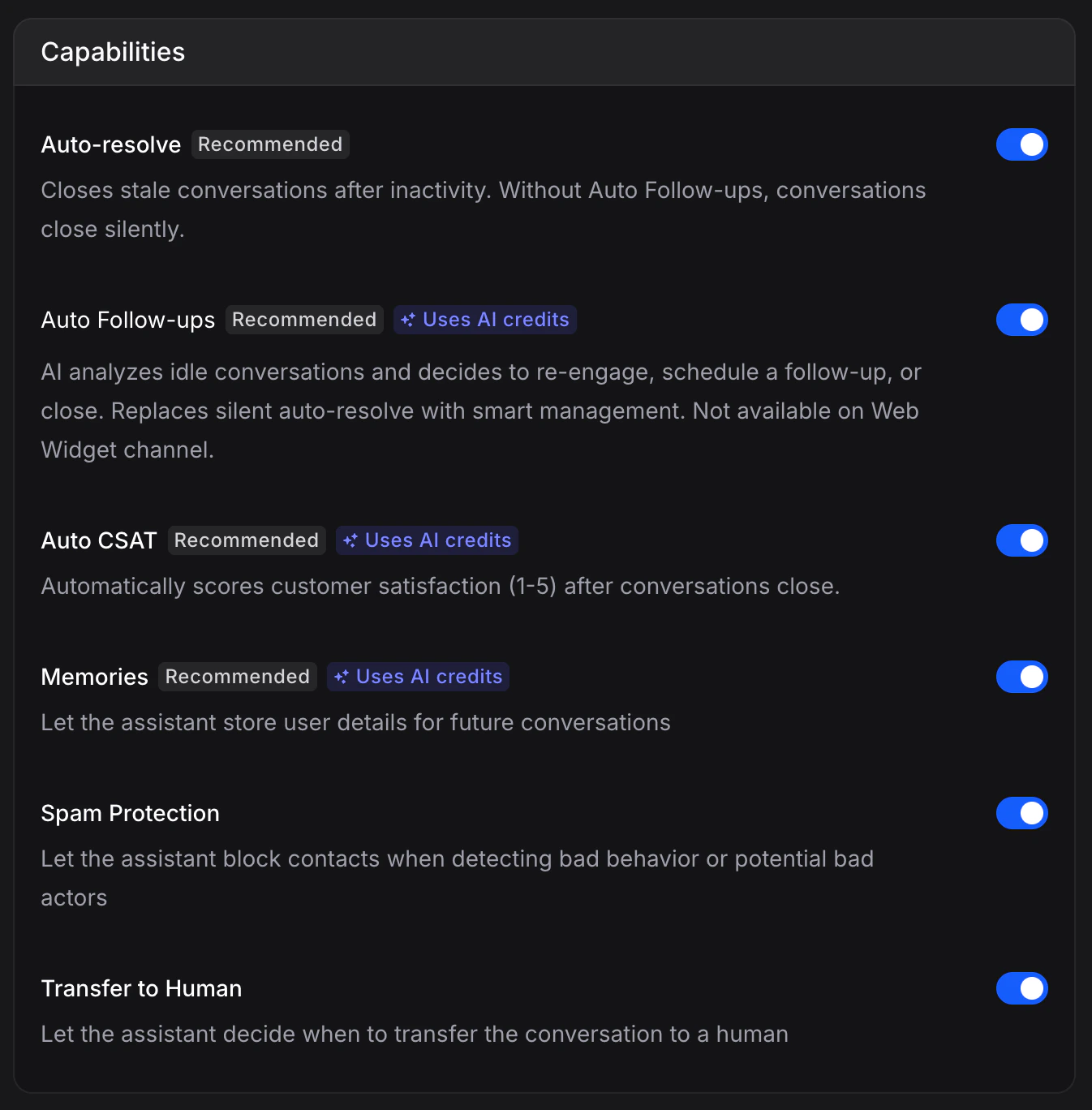 * **Auto-resolve** `Recommended`: Closes stale conversations after inactivity. Without Auto Follow-ups, conversations close silently. Conversations auto-close after 20 minutes of inactivity.
* **Auto Follow-ups** `Recommended` `Uses AI credits`: AI analyzes idle conversations and decides to re-engage, schedule a follow-up, or close. Replaces silent auto-resolve with smart management. Not available on Web Widget channel. [Learn more](/guides/auto-follow-ups)
* **Auto CSAT** `Recommended` `Uses AI credits`: Automatically scores customer satisfaction (1-5) after conversations close. Scores appear in the Inbox alongside each conversation.
* **Memories** `Recommended` `Uses AI credits`: Let your assistant store user details for future conversations. [Learn more](/guides/memory)
* **Update Contact Info** `Enabled by default`: Let the assistant save contact details (name, email, phone, and any custom [contact properties](/guides/audience/properties)) directly to the contact profile. Not all fields are available on every channel. For example, WhatsApp does not allow updating name or phone number since those are provided by WhatsApp, but it does allow updating the email field.
* **Spam Protection**: Let the assistant block contacts when detecting bad behavior or potential bad actors
* **Transfer to Human**: Let the assistant decide when to transfer the conversation to a human agent. [Learn more](/assistants/agents)
### Contact Properties
Control what the assistant can do with your custom [contact properties](/guides/audience/properties). The section contains the **Update Contact Info** toggle and, below it, a visibility setting for each property:
* **Hidden**: The assistant cannot see the property
* **Visible**: The assistant can see the property during conversations
* **AI Controlled**: The assistant can see and update the property
* **Auto-resolve** `Recommended`: Closes stale conversations after inactivity. Without Auto Follow-ups, conversations close silently. Conversations auto-close after 20 minutes of inactivity.
* **Auto Follow-ups** `Recommended` `Uses AI credits`: AI analyzes idle conversations and decides to re-engage, schedule a follow-up, or close. Replaces silent auto-resolve with smart management. Not available on Web Widget channel. [Learn more](/guides/auto-follow-ups)
* **Auto CSAT** `Recommended` `Uses AI credits`: Automatically scores customer satisfaction (1-5) after conversations close. Scores appear in the Inbox alongside each conversation.
* **Memories** `Recommended` `Uses AI credits`: Let your assistant store user details for future conversations. [Learn more](/guides/memory)
* **Update Contact Info** `Enabled by default`: Let the assistant save contact details (name, email, phone, and any custom [contact properties](/guides/audience/properties)) directly to the contact profile. Not all fields are available on every channel. For example, WhatsApp does not allow updating name or phone number since those are provided by WhatsApp, but it does allow updating the email field.
* **Spam Protection**: Let the assistant block contacts when detecting bad behavior or potential bad actors
* **Transfer to Human**: Let the assistant decide when to transfer the conversation to a human agent. [Learn more](/assistants/agents)
### Contact Properties
Control what the assistant can do with your custom [contact properties](/guides/audience/properties). The section contains the **Update Contact Info** toggle and, below it, a visibility setting for each property:
* **Hidden**: The assistant cannot see the property
* **Visible**: The assistant can see the property during conversations
* **AI Controlled**: The assistant can see and update the property
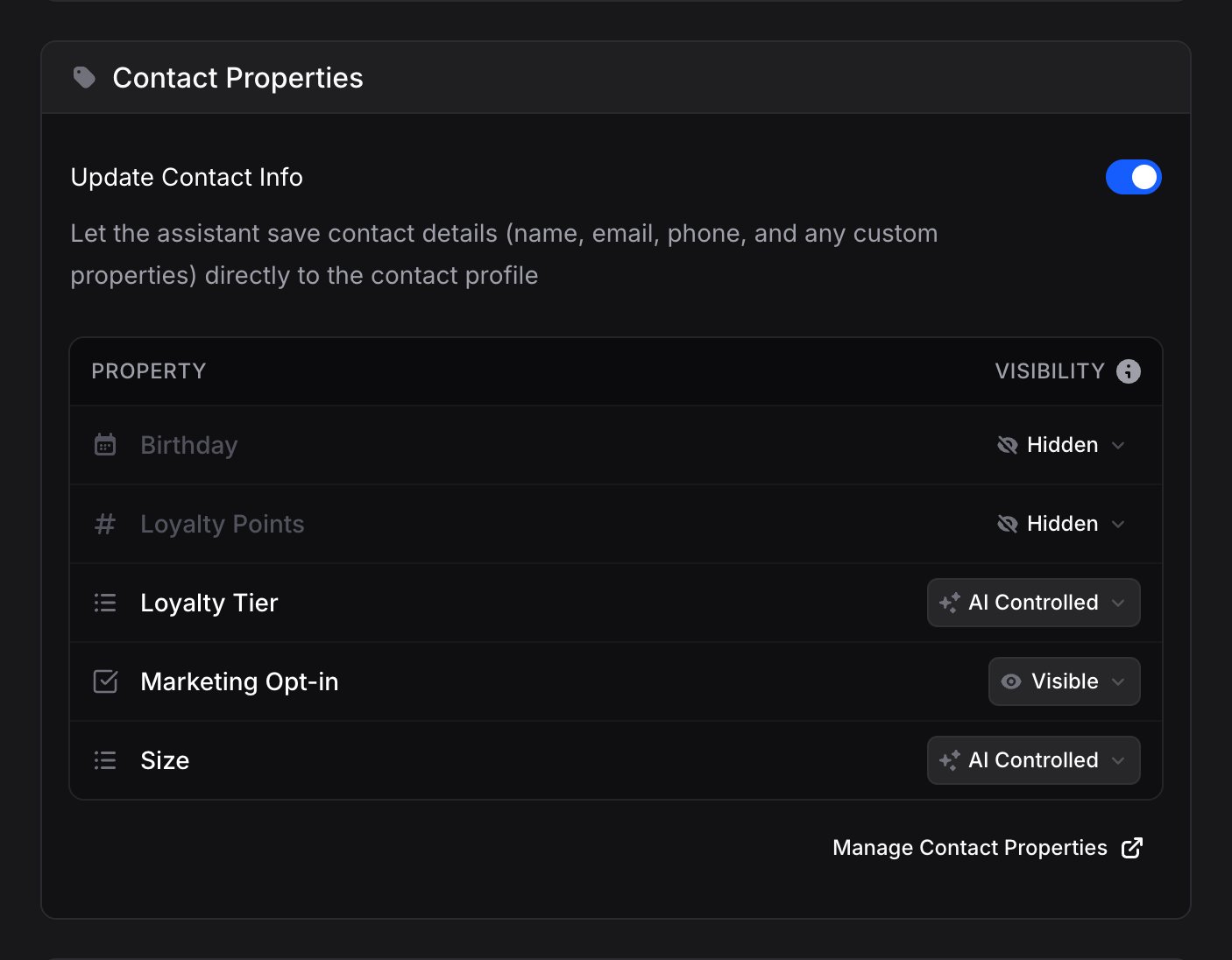 Set a property to **AI Controlled** and the assistant keeps it up to date as it learns things in conversation, like a customer's size or their marketing preferences. Visibility is per assistant, so different assistants can have different access to the same property.
[Learn more about Properties →](/guides/audience/properties)
### Knowledge
What your assistant knows. You can:
* Upload files, text, or website URLs
* Link existing global knowledge
* Set knowledge scope (restricted to this assistant or shared)
[Learn more about Knowledge →](/guides/knowledge)
### Channels
Where your assistant lives. Connect to:
* WhatsApp Business
* Instagram Direct Messages
* Facebook Messenger
* Telegram
* Web Widget
* And more
[Learn more about Channels →](/assistants/channels)
### Actions
What your assistant can do. Add integrations like:
* Google Calendar (book appointments)
* Stripe (process payments)
* Gmail (send emails)
* And 20+ more integrations
[Learn more about Actions →](/assistants/actions)
### Widget
Customize the chat widget for your website:
* Colors and branding
* Welcome messages
* Suggested questions
* Position and behavior
## The Playground
Every assistant has a Playground, a testing environment where you can chat with your assistant before going live. Use it to:
* Test new knowledge
* Verify actions work correctly
* Refine instructions
* Debug issues
The Playground appears on the right side of the assistant page. Click "Create Conversation" to start testing.
## Writing Great Instructions
Instructions are the single most important factor in how well your assistant performs. For a complete guide with templates, real examples, and best practices, see the dedicated guides:
Understand what goes in Instructions vs the Knowledge Base
Templates, 11 building blocks, and real-world examples
## Multiple Assistants
You can create multiple assistants for different purposes:
* **Sales Assistant**: Handles pre-purchase questions
* **Support Assistant**: Helps existing customers
* **Booking Assistant**: Focuses on scheduling
Each assistant can have different knowledge, actions, and channels.
## Next Steps
Explore what your assistant can understand and respond with
Connect your assistant to WhatsApp, Instagram, and more
Give your assistant the ability to perform real tasks
Train your assistant with your business data and documentation
Set a property to **AI Controlled** and the assistant keeps it up to date as it learns things in conversation, like a customer's size or their marketing preferences. Visibility is per assistant, so different assistants can have different access to the same property.
[Learn more about Properties →](/guides/audience/properties)
### Knowledge
What your assistant knows. You can:
* Upload files, text, or website URLs
* Link existing global knowledge
* Set knowledge scope (restricted to this assistant or shared)
[Learn more about Knowledge →](/guides/knowledge)
### Channels
Where your assistant lives. Connect to:
* WhatsApp Business
* Instagram Direct Messages
* Facebook Messenger
* Telegram
* Web Widget
* And more
[Learn more about Channels →](/assistants/channels)
### Actions
What your assistant can do. Add integrations like:
* Google Calendar (book appointments)
* Stripe (process payments)
* Gmail (send emails)
* And 20+ more integrations
[Learn more about Actions →](/assistants/actions)
### Widget
Customize the chat widget for your website:
* Colors and branding
* Welcome messages
* Suggested questions
* Position and behavior
## The Playground
Every assistant has a Playground, a testing environment where you can chat with your assistant before going live. Use it to:
* Test new knowledge
* Verify actions work correctly
* Refine instructions
* Debug issues
The Playground appears on the right side of the assistant page. Click "Create Conversation" to start testing.
## Writing Great Instructions
Instructions are the single most important factor in how well your assistant performs. For a complete guide with templates, real examples, and best practices, see the dedicated guides:
Understand what goes in Instructions vs the Knowledge Base
Templates, 11 building blocks, and real-world examples
## Multiple Assistants
You can create multiple assistants for different purposes:
* **Sales Assistant**: Handles pre-purchase questions
* **Support Assistant**: Helps existing customers
* **Booking Assistant**: Focuses on scheduling
Each assistant can have different knowledge, actions, and channels.
## Next Steps
Explore what your assistant can understand and respond with
Connect your assistant to WhatsApp, Instagram, and more
Give your assistant the ability to perform real tasks
Train your assistant with your business data and documentation