> ## Documentation Index
> Fetch the complete documentation index at: https://docs.useinvent.com/llms.txt
> Use this file to discover all available pages before exploring further.
# Suppression List
> One do-not-contact list for your workspace, covering email addresses and phone numbers
The suppression list is your workspace's do-not-contact list. Anything on it never receives a broadcast or an automated message again, on any channel, from any assistant.
Open **Audience → Suppression List** in the sidebar.
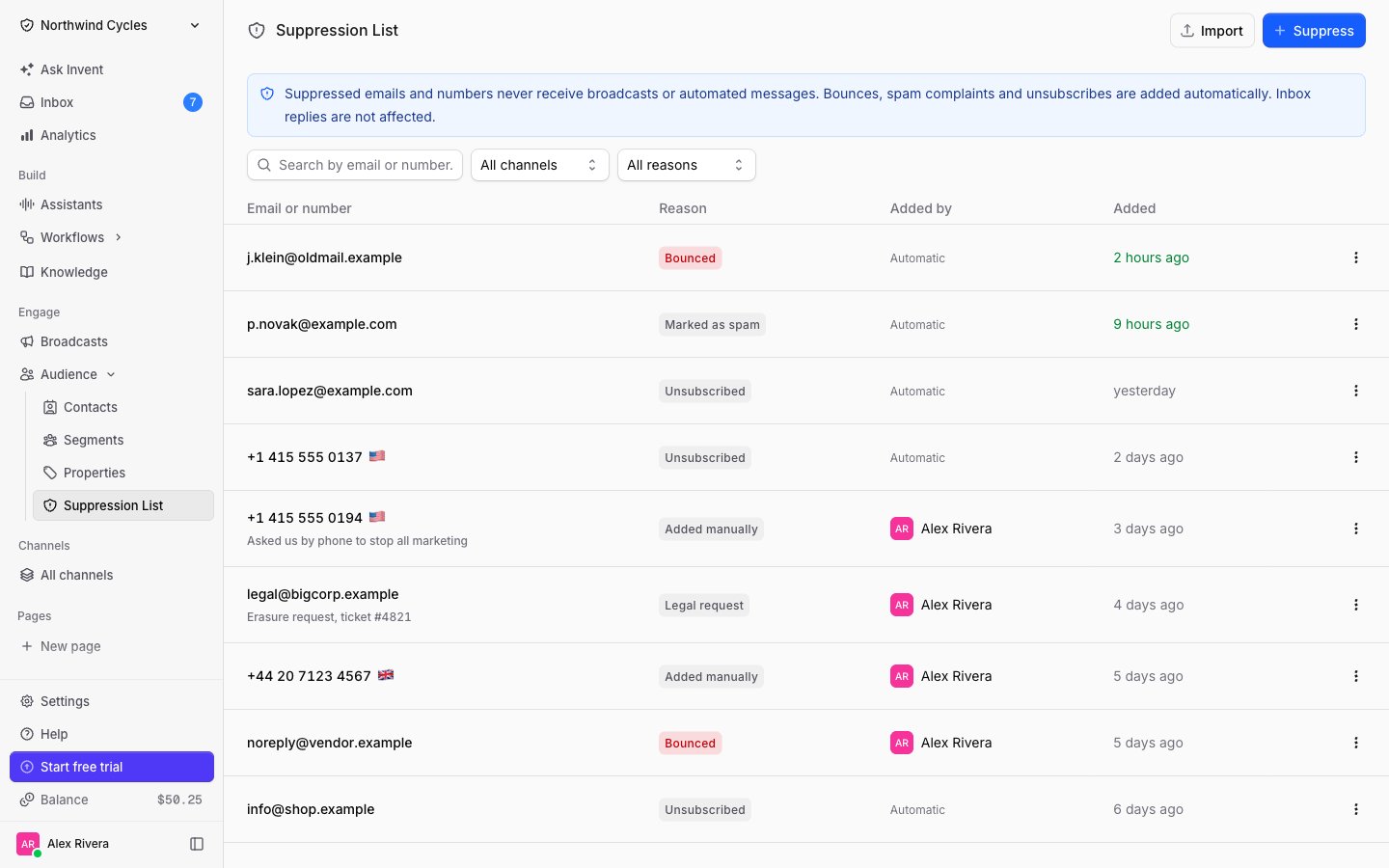 The list is keyed by the **email address or phone number itself**, not by contact. That has three consequences worth knowing:
* If two contacts share the same address, suppressing it stops both.
* Deleting a contact does not bring the address back into circulation.
* You can suppress an address that has no contact record at all, for example one a customer gave you by phone.
## What lands on the list automatically
You rarely have to add anything by hand. Invent adds entries as it learns about them:
| Reason | Added when |
| :----------------- | :----------------------------------------------------------------------------- |
| **Bounced** | The address hard-bounced, so the mailbox does not exist or refused the message |
| **Marked as spam** | The recipient reported one of your emails as spam |
| **Unsubscribed** | The recipient used the unsubscribe link in an email |
| **Added manually** | Someone on your team added it in the app, imported it, or the API did |
| **Legal request** | You added it to satisfy an erasure or do-not-contact request |
The **Source** of each entry (visible in the detail panel) tells you how it arrived: a delivery event, an unsubscribe link, someone in the app, an import, or the API.
## What suppression blocks
Suppression stops **outbound, automated messaging**. It never stops a conversation.
| Message | Blocked |
| :-------------------------------------------------------------- | :---------------------------------------------------------------- |
| Marketing broadcasts | ✅ Always |
| Transactional broadcasts (order confirmations, codes, receipts) | ⚠️ Only for **Bounced**, **Marked as spam** and **Legal request** |
| An agent replying in the Inbox | ❌ Never |
| Account emails (sign-in, password reset, invites) | ❌ Never |
The middle row is the important one. "Stop sending me your newsletter" is not "never send me my one-time code", so an **Unsubscribed** or **Added manually** entry leaves transactional sends alone. An address that bounced, complained, or is under a legal request is blocked everywhere, because a message to it either cannot arrive or must not be sent.
A suppressed recipient is not silently dropped from a broadcast. The send is skipped at delivery time and recorded as skipped in the broadcast's recipients, so you can see exactly who was left out and why.
## Finding an entry
Use the search box to look up an exact address or number, and the two filters to narrow by **channel** (email or phone) or by **reason**.
Click any row to open its details.
The list is keyed by the **email address or phone number itself**, not by contact. That has three consequences worth knowing:
* If two contacts share the same address, suppressing it stops both.
* Deleting a contact does not bring the address back into circulation.
* You can suppress an address that has no contact record at all, for example one a customer gave you by phone.
## What lands on the list automatically
You rarely have to add anything by hand. Invent adds entries as it learns about them:
| Reason | Added when |
| :----------------- | :----------------------------------------------------------------------------- |
| **Bounced** | The address hard-bounced, so the mailbox does not exist or refused the message |
| **Marked as spam** | The recipient reported one of your emails as spam |
| **Unsubscribed** | The recipient used the unsubscribe link in an email |
| **Added manually** | Someone on your team added it in the app, imported it, or the API did |
| **Legal request** | You added it to satisfy an erasure or do-not-contact request |
The **Source** of each entry (visible in the detail panel) tells you how it arrived: a delivery event, an unsubscribe link, someone in the app, an import, or the API.
## What suppression blocks
Suppression stops **outbound, automated messaging**. It never stops a conversation.
| Message | Blocked |
| :-------------------------------------------------------------- | :---------------------------------------------------------------- |
| Marketing broadcasts | ✅ Always |
| Transactional broadcasts (order confirmations, codes, receipts) | ⚠️ Only for **Bounced**, **Marked as spam** and **Legal request** |
| An agent replying in the Inbox | ❌ Never |
| Account emails (sign-in, password reset, invites) | ❌ Never |
The middle row is the important one. "Stop sending me your newsletter" is not "never send me my one-time code", so an **Unsubscribed** or **Added manually** entry leaves transactional sends alone. An address that bounced, complained, or is under a legal request is blocked everywhere, because a message to it either cannot arrive or must not be sent.
A suppressed recipient is not silently dropped from a broadcast. The send is skipped at delivery time and recorded as skipped in the broadcast's recipients, so you can see exactly who was left out and why.
## Finding an entry
Use the search box to look up an exact address or number, and the two filters to narrow by **channel** (email or phone) or by **reason**.
Click any row to open its details.
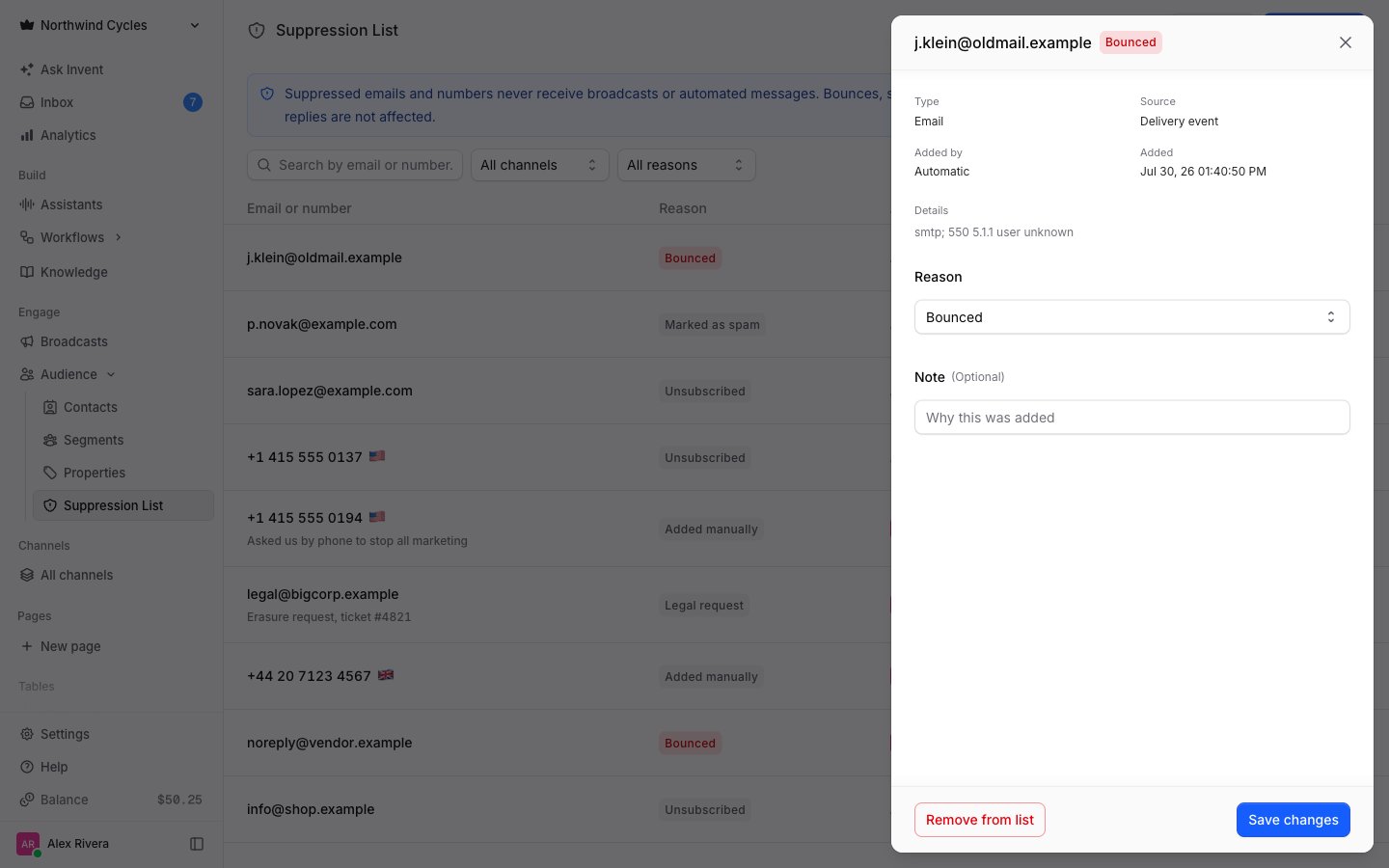 The panel shows the type, source, who added it, when, and any diagnostic detail the provider returned (the bounce code, the complaint type, or the feedback a recipient left when unsubscribing). You can change the **reason**, leave a **note** for your team, or **remove the entry from the list**.
## Adding an address or number
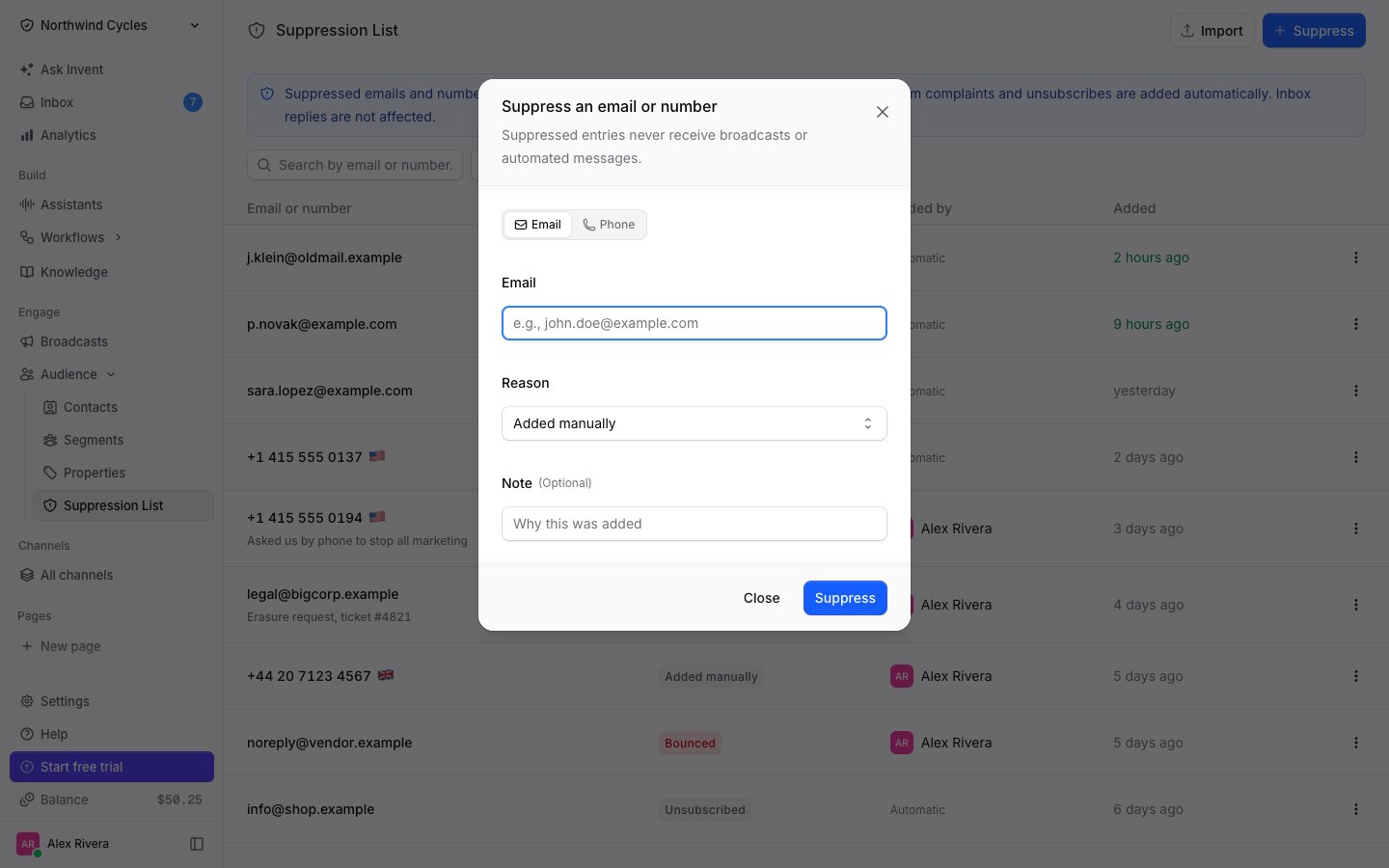
Pick **Email** or **Phone** at the top of the dialog.
Emails are lowercased and numbers are stored in international format, so the entry matches however it was written elsewhere.
The reason decides how strictly the entry is enforced (see the table above). The note is free text for your team, for example a ticket number.
The panel shows the type, source, who added it, when, and any diagnostic detail the provider returned (the bounce code, the complaint type, or the feedback a recipient left when unsubscribing). You can change the **reason**, leave a **note** for your team, or **remove the entry from the list**.
## Adding an address or number
Pick **Email** or **Phone** at the top of the dialog.
Emails are lowercased and numbers are stored in international format, so the entry matches however it was written elsewhere.
The reason decides how strictly the entry is enforced (see the table above). The note is free text for your team, for example a ticket number.
 ## Importing a list
Migrating from another tool? Bring its suppression list with you before your first broadcast, so you never email an address that already opted out elsewhere.
Click **Import**, then upload a `.csv`, `.xlsx`, `.xls`, `.numbers`, or `.ods` file with one email or phone number per row, and map the column.
## Importing a list
Migrating from another tool? Bring its suppression list with you before your first broadcast, so you never email an address that already opted out elsewhere.
Click **Import**, then upload a `.csv`, `.xlsx`, `.xls`, `.numbers`, or `.ods` file with one email or phone number per row, and map the column.
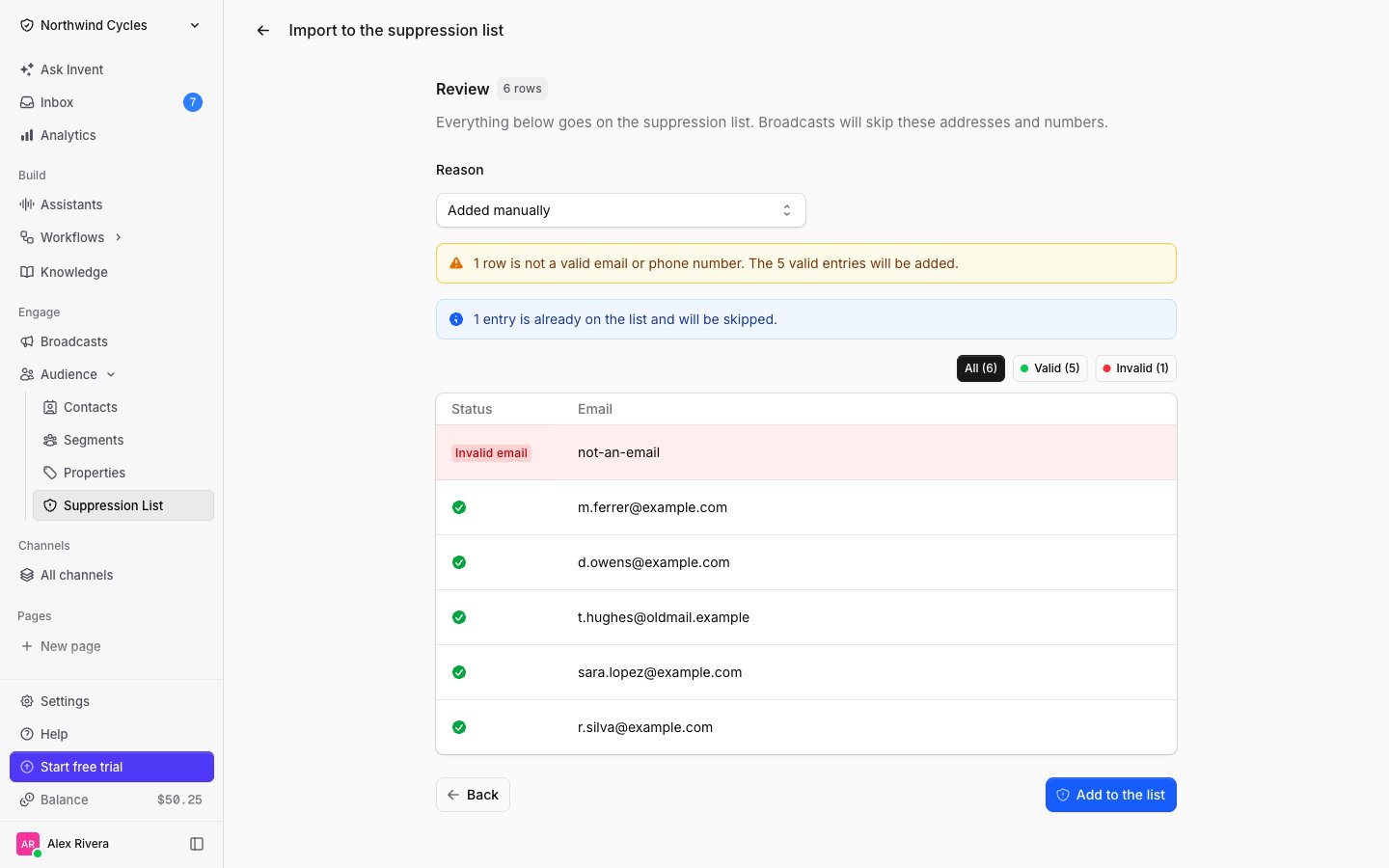
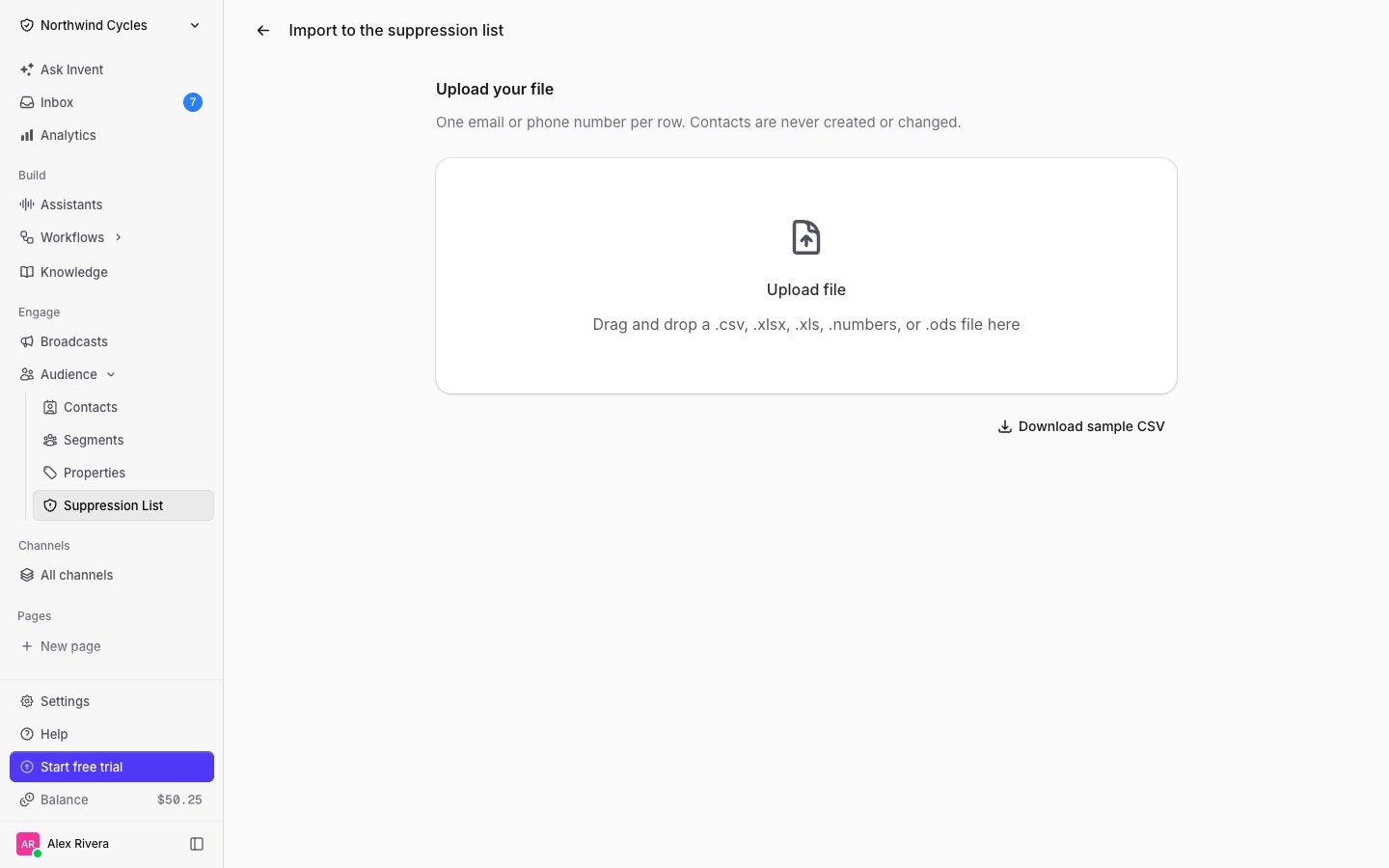 The review step tells you exactly what will happen before anything is written: how many rows are valid, which ones are not a usable email or number, and which are already on the list and will be skipped.
 Importing never creates or changes contacts. It only adds entries to this list.
## Removing an entry
Open the entry and click **Remove from list**. Broadcasts and automated messages can reach that address or number again from that moment on.
Remove an entry only when you know the person asked to hear from you again. Sending to an address that bounced or complained hurts the deliverability of every email your workspace sends.
## Suppression and a contact's subscribed status
These are two different things and both apply:
* **Suppression** is about an address or number. It is workspace-wide and survives the contact.
* A contact's **subscribed status** is about that one contact record.
When you open a contact whose email or phone is suppressed, the contact card shows an alert saying so, so you are never surprised when they are missing from a send.
## Next Steps
See how suppression is applied to marketing and transactional sends
Mirror bounces, complaints and opt-outs into your own systems
Importing never creates or changes contacts. It only adds entries to this list.
## Removing an entry
Open the entry and click **Remove from list**. Broadcasts and automated messages can reach that address or number again from that moment on.
Remove an entry only when you know the person asked to hear from you again. Sending to an address that bounced or complained hurts the deliverability of every email your workspace sends.
## Suppression and a contact's subscribed status
These are two different things and both apply:
* **Suppression** is about an address or number. It is workspace-wide and survives the contact.
* A contact's **subscribed status** is about that one contact record.
When you open a contact whose email or phone is suppressed, the contact card shows an alert saying so, so you are never surprised when they are missing from a send.
## Next Steps
See how suppression is applied to marketing and transactional sends
Mirror bounces, complaints and opt-outs into your own systems