> ## Documentation Index
> Fetch the complete documentation index at: https://docs.useinvent.com/llms.txt
> Use this file to discover all available pages before exploring further.
# WhatsApp
> Send broadcast messages at scale through approved WhatsApp Templates
New to broadcasts? Start with the [Broadcasts Overview](/guides/broadcasts/introduction) for the audience, properties, scheduling, and analytics flow that every channel shares. This guide focuses on the WhatsApp-specific setup.
**Read the [WhatsApp Best Practices](/guides/broadcasts/whatsapp-best-practices) page before you send your first broadcast.** WhatsApp is the highest-impact channel we support and also the easiest to lose: a single campaign to an unsolicited audience can pause a template, ban a number, or take down an entire Business Portfolio. Customers who follow the playbook send hundreds of thousands of messages without incident; those who skip it can lose the channel on day one.
WhatsApp broadcasts let you message your audience at scale using **WhatsApp Templates**, pre-approved message templates that comply with Meta's policies. Once configured, a single broadcast can deliver a personalised template to thousands of recipients in seconds.
## Prerequisites
Three things need to be in place before you can configure a WhatsApp broadcast channel:
1. **A connected WhatsApp Business number in Invent.** Connections live at the workspace level, so the same number you set up for an assistant is automatically available for broadcasts. If you have not connected WhatsApp yet, follow the [WhatsApp channel guide](/assistants/channels/whatsapp), it walks through Coexistence vs API-only, Meta's Embedded Signup, and how to attach a number. You can also manage every connection (rename, reconnect, disconnect) from [Settings → Connections](/workspace-management/connections).
2. **At least one approved template** in your [WhatsApp Manager](https://business.facebook.com/wa/manage/message-templates/). Templates are created and approved on Meta's side; Invent reads them but cannot create them. See [WhatsApp Templates](#whatsapp-templates) below.
3. **A broadcast in Draft state with an Audience configured.** Open the [Broadcasts](https://useinvent.com/o/broadcasts) page, click **+ Create Broadcast**, and pick the segments or contacts you want to reach.
## WhatsApp Templates
Outbound, business-initiated WhatsApp messages must use **templates**. A template is a pre-approved message structure with optional variables, buttons, and media. Meta reviews and approves each template before it can be sent.
### Template Categories
Every template is created in one of three categories. Picking the right one is essential, sending marketing content under a non-marketing category is one of the most common reasons for template rejection or pausing.
| Category | Use it for | Examples |
| ------------------ | ------------------------------------------------------------------------- | ----------------------------------------------------------------------------- |
| **Marketing** | Promotional content, offers, product launches, re-engagement, newsletters | "20% off this weekend", "New collection just dropped" |
| **Utility** | Updates and notifications tied to an action the customer already took | Order confirmations, shipping updates, appointment reminders, password resets |
| **Authentication** | One-time passcodes (OTP) and verification codes | Login codes, two-factor authentication codes |
Utility and Authentication templates have **significantly lower ban risk** than Marketing templates because the recipient is always expecting them. Use them whenever the content qualifies. See [WhatsApp Best Practices](/guides/broadcasts/whatsapp-best-practices#3-match-the-template-category-to-the-content) for why this matters.
### Creating a Template
Templates are created inside Meta Business Suite, not inside Invent. Once approved, they appear automatically in Invent's template dropdown.
Go to [business.facebook.com/wa/manage/message-templates](https://business.facebook.com/wa/manage/message-templates/) and select the WhatsApp Business Account that owns the number you want to send from. If you have multiple WABAs, double-check you are on the correct one before creating.
Click **Create template** in the top-right.
Choose **Marketing**, **Utility**, or **Authentication**. Pick the language the body is written in. If you support multiple languages, create one template per language with the same name; Invent and WhatsApp deliver the version that matches the recipient's locale.
Use lowercase letters, numbers, and underscores only (e.g. `order_confirmation`, `weekend_sale_2026`). The name is how you and Invent identify the template; it is never shown to the recipient.
Write the message text. Use `{{1}}`, `{{2}}`, etc. for variables that change per recipient. Each variable must have an example value Meta can review.
Optional building blocks:
* **Header**: text, image, video, document, or location
* **Footer**: a single line of static text (e.g. "Reply STOP to opt out")
* **Buttons**: quick-reply buttons, URL buttons, phone-number buttons, and a "Stop promotions" opt-out button for Marketing templates
Click **Submit**. Meta reviews most templates within 24 hours; many approve in minutes. You can see the status in the templates list.
| Status | Meaning |
| ------------ | ---------------------------------------------------------------------------------------------------------------------------------------------------------------------------------------------- |
| **Approved** | Ready to use. Available immediately in Invent's template dropdown. |
| **Pending** | Under Meta review. The template does not yet appear in Invent. |
| **Rejected** | Meta declined the template. Click the row to see the rejection reason and resubmit a corrected version. |
| **Paused** | A live template that Meta has paused due to quality signals. Sending stops until Meta reinstates it. See [Best Practices](/guides/broadcasts/whatsapp-best-practices#types-of-meta-sanctions). |
Templates are reviewed against Meta's [WhatsApp Business Messaging Policy](https://business.whatsapp.com/policy). Common rejection reasons: prohibited content (alcohol, gambling in restricted regions, regulated services), misleading copy, marketing language inside a Utility template, missing example values for variables, or formatting issues.
### Where Templates Live
Templates live on the WhatsApp Business Account (WABA) that owns the phone number, not on the assistant or on Invent. This means:
* Templates created on WABA A are not visible from a number on WABA B.
* Deleting a template on Meta's side removes it from Invent's dropdown immediately.
* Editing an approved template on Meta's side may return it to **Pending** until re-approved (Meta now allows in-place edits for some categories).
## Adding the WhatsApp Channel to a Broadcast
Once you have a template approved and a [WhatsApp connection](/assistants/channels/whatsapp) wired up, you can add the channel to any broadcast in Draft state.
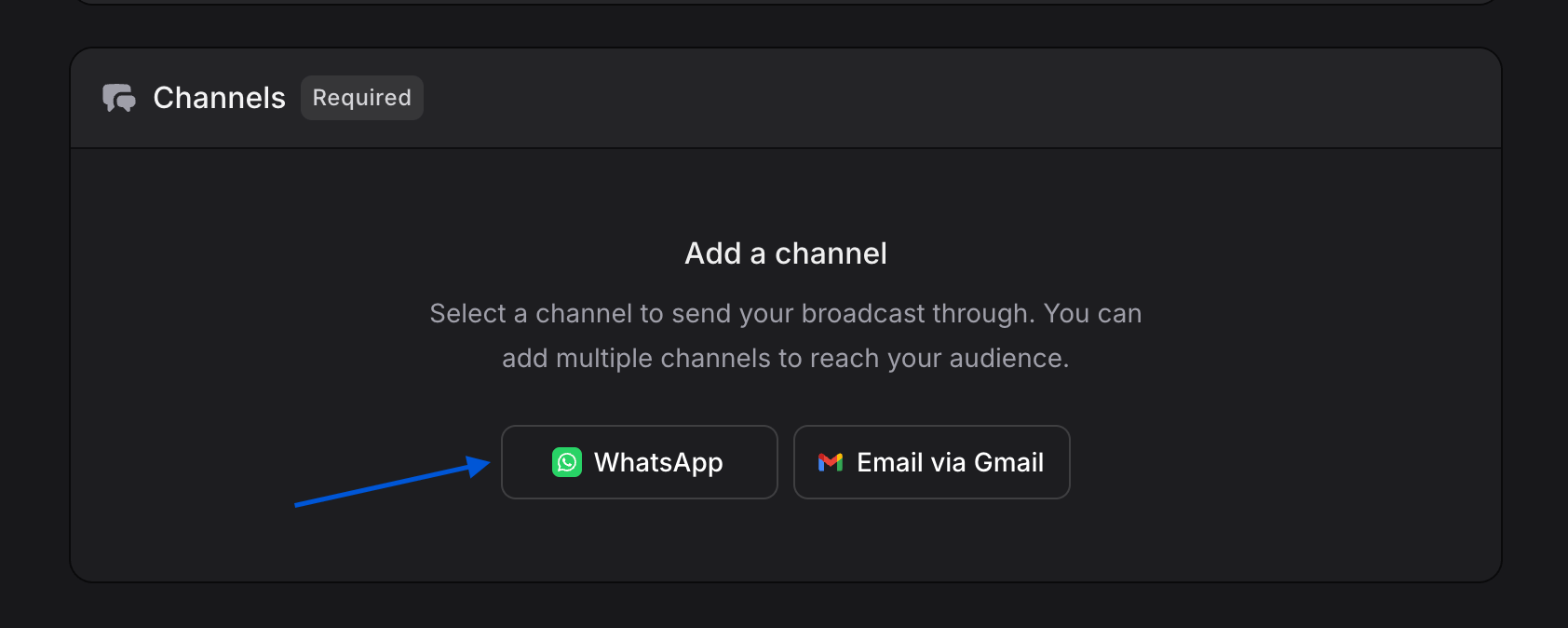
From inside a broadcast, scroll to the **Channels** section and click **WhatsApp**. The configuration dialog opens.
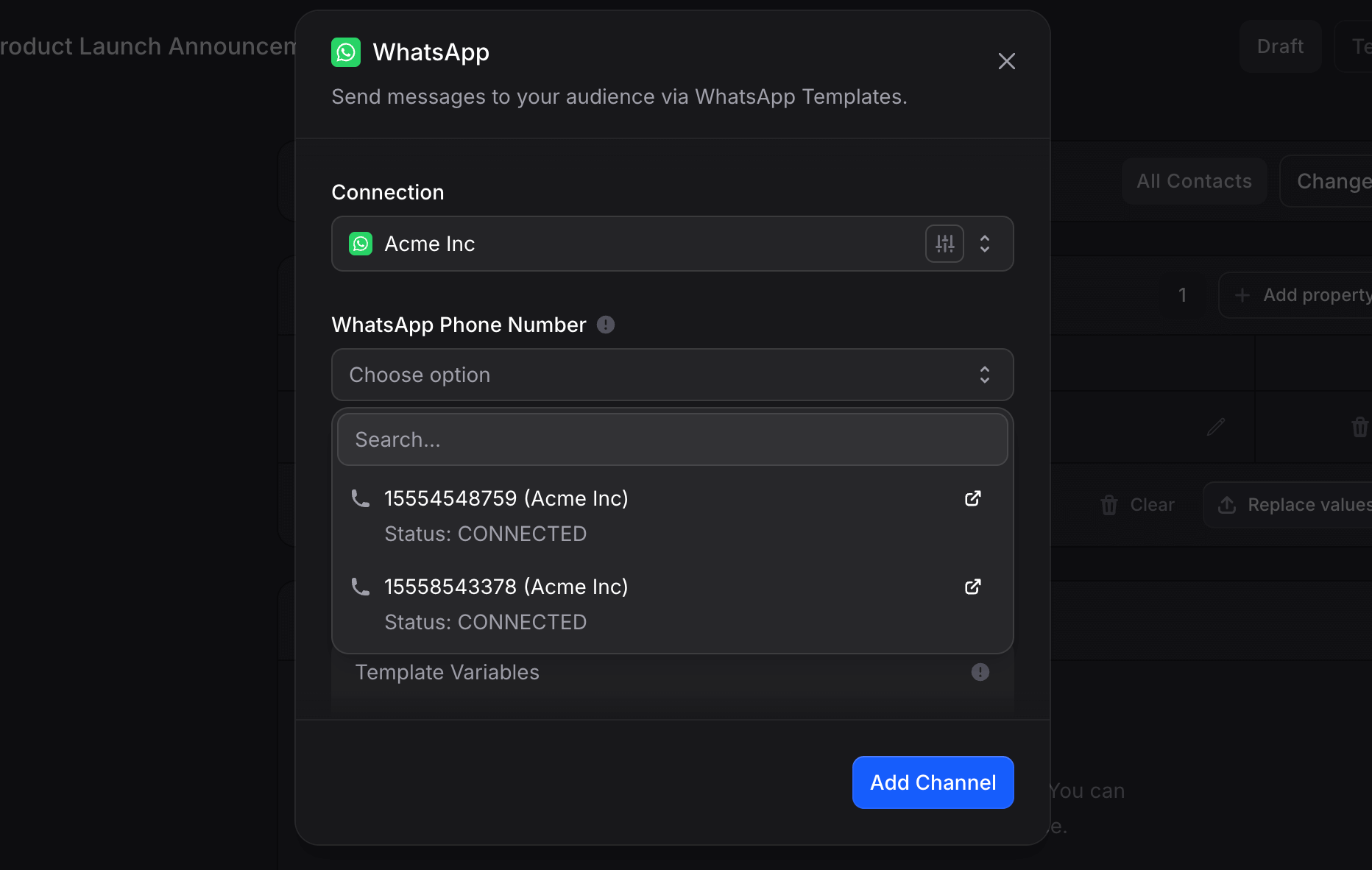
 Pick the WhatsApp Business connection to send from. Connections are workspace-level and shared with your assistants, you do not need to authenticate again here. If your workspace has more than one WhatsApp connection, choose the one whose WABA owns the template you plan to use.
Manage every WhatsApp connection (rename, reconnect, disconnect) from [Settings → Connections](/workspace-management/connections).
Choose which phone number on that connection sends the broadcast. The dropdown shows each number with its connection name. Click the external-link icon to manage the number directly in WhatsApp Manager.
Pick the WhatsApp Business connection to send from. Connections are workspace-level and shared with your assistants, you do not need to authenticate again here. If your workspace has more than one WhatsApp connection, choose the one whose WABA owns the template you plan to use.
Manage every WhatsApp connection (rename, reconnect, disconnect) from [Settings → Connections](/workspace-management/connections).
Choose which phone number on that connection sends the broadcast. The dropdown shows each number with its connection name. Click the external-link icon to manage the number directly in WhatsApp Manager.
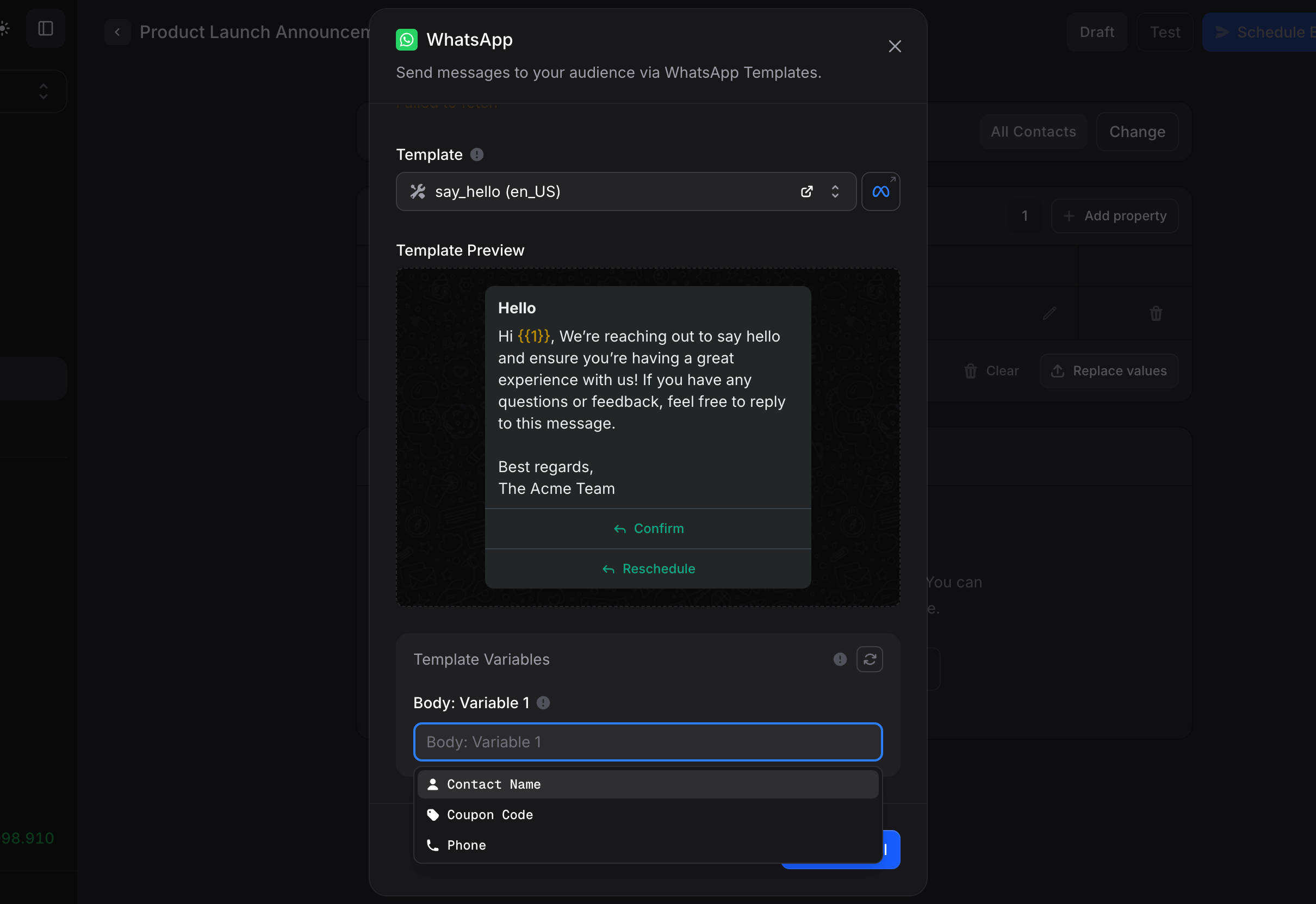
 Templates are scoped to the WABA, not to a specific phone number. Every approved template on the parent WABA shows up here regardless of which number you pick.
Pick a template from the searchable dropdown. Each row shows:
* The template name (e.g. `weekend_sale_2026`)
* A preview of the body
* An icon for the category (Marketing, Utility, Authentication)
Once selected, a full **Template Preview** renders below, exactly how recipients will see it, including media headers, body, footer, and any buttons.
Click the link icon next to the template dropdown to jump straight into Meta Business Suite to edit, pause, or delete the template.
Templates are scoped to the WABA, not to a specific phone number. Every approved template on the parent WABA shows up here regardless of which number you pick.
Pick a template from the searchable dropdown. Each row shows:
* The template name (e.g. `weekend_sale_2026`)
* A preview of the body
* An icon for the category (Marketing, Utility, Authentication)
Once selected, a full **Template Preview** renders below, exactly how recipients will see it, including media headers, body, footer, and any buttons.
Click the link icon next to the template dropdown to jump straight into Meta Business Suite to edit, pause, or delete the template.
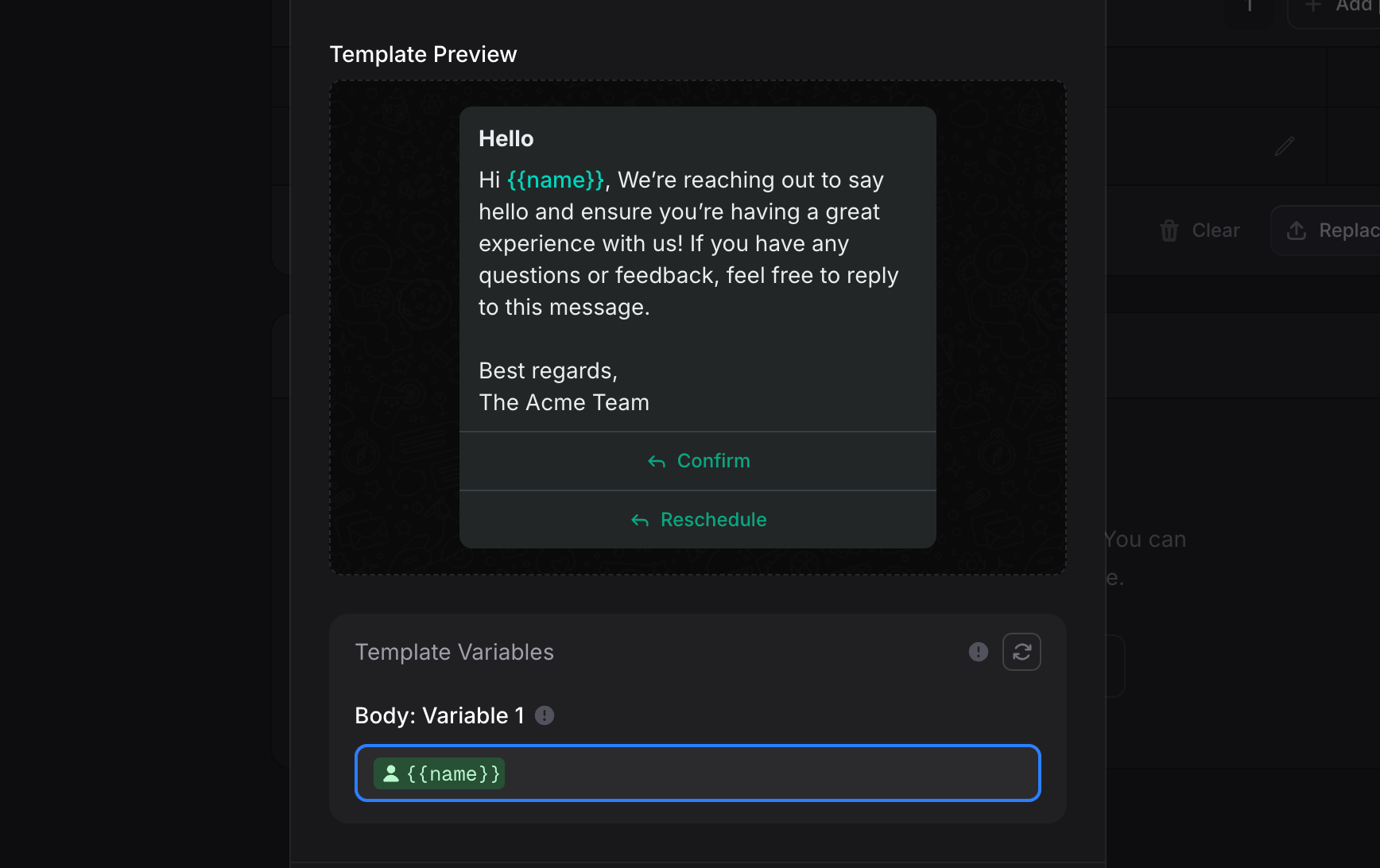
 If the template contains `{{1}}`, `{{2}}`, header media, or button URLs, map each one. For every variable you can choose:
* **Contact Name**: the recipient's name from their contact record.
* **Phone**: the recipient's phone number.
* **Custom property**: any [property](/guides/broadcasts/introduction#properties) you added to this broadcast (for example `coupon_code`, `order_id`).
* **Static value**: a fixed string used for every recipient.
The variable dropdown is searchable. Custom properties are the right pick whenever the value differs per recipient (unique discount code, account balance, last-order ID).
If the template contains `{{1}}`, `{{2}}`, header media, or button URLs, map each one. For every variable you can choose:
* **Contact Name**: the recipient's name from their contact record.
* **Phone**: the recipient's phone number.
* **Custom property**: any [property](/guides/broadcasts/introduction#properties) you added to this broadcast (for example `coupon_code`, `order_id`).
* **Static value**: a fixed string used for every recipient.
The variable dropdown is searchable. Custom properties are the right pick whenever the value differs per recipient (unique discount code, account balance, last-order ID).
 Bulk-import per-recipient values from a spreadsheet using [Import values](/guides/broadcasts/introduction#importing-property-values). This is the cleanest way to handle thousands of unique coupon codes or order IDs without filling them in by hand.
The WhatsApp channel is saved and shows up in the broadcast's Channels section with the template name, recipient count, and **Edit** / **x** controls.
## Test Before You Send
Always test the broadcast before scheduling it to your real audience. Click **Test** in the top-right of the broadcast editor and enter your own phone number. The template renders with the variables mapped to a single test recipient, exactly the way customers will see it.
[See the full testing flow →](/guides/broadcasts/marketing#test-your-broadcast)
Testing sends a real message billed at the regular per-message rate. Use your own number, not a customer's.
## Costs
Two costs combine on every WhatsApp broadcast message:
* **Invent fee**: about **\$0.004 per message**, drawn from your Invent credit balance. [Full pricing breakdown →](/guides/pricing-and-plans#broadcasts)
* **Meta conversation fee**: charged by Meta directly based on the conversation category (Marketing, Utility, Authentication) and the destination country. Meta bills this on your WABA's payment method, not through Invent. Country-by-country rates live on Meta's [WhatsApp Business Pricing](https://developers.facebook.com/docs/whatsapp/pricing) page.
## Tracking Delivery and Engagement
Once a broadcast is sent, the editor turns into an analytics dashboard:
* **Sent / Delivered / Read** percentages at the top.
* A per-recipient table with delivery status and timestamps for each event.
A high read rate (typically **70%+** for WhatsApp) is healthy. A high block rate, low read rate, or high opt-out rate is a signal to slow down and review your audience. See [Best Practices → Red Flags Meta Is Watching For](/guides/broadcasts/whatsapp-best-practices#red-flags-meta-is-watching-for) for what each signal means and how to react.
## Troubleshooting
Three common causes:
1. **The template is still Pending review.** Open WhatsApp Manager and confirm the status is **Approved**. Pending and Rejected templates do not appear in Invent.
2. **Wrong WABA.** A template lives on a specific WhatsApp Business Account. Make sure the connection you picked owns the same WABA as the template.
3. **Template was paused or deleted by Meta.** Open the templates list in WhatsApp Manager and check the status. If paused, wait for Meta to reinstate. If deleted, recreate it.
Click the rejected template in WhatsApp Manager to see Meta's specific reason. The most common are:
* **Wrong category**: marketing copy submitted as Utility or Authentication. Resubmit under the right category.
* **Prohibited content**: regulated industries, misleading promises, or sensitive topics. Rewrite to remove the flagged content.
* **Variable example mismatch**: the example values you provided do not match the variable placement. Add realistic examples for every `{{N}}` and resubmit.
* **Brand impersonation**: header or body language that suggests you are someone you are not.
Resubmit a corrected version with a slightly different name (e.g. `weekend_sale_2026_v2`) so you can track which version is which.
Meta enforces per-day messaging limits based on your number's **messaging tier** (visible in WhatsApp Manager). New numbers start at the lowest tier (1,000 unique recipients per 24 hours) and unlock higher tiers automatically as quality stays high. If you are sending a 50,000-recipient broadcast on a Tier 1 number, the queue throttles to fit the daily cap.
To raise your tier: maintain a high quality rating for several days and Meta upgrades automatically. There is no manual escalation path.
Hover the failure icon for the specific reason. The most common are:
* **Invalid phone number** (wrong country code, missing digits).
* **Recipient does not have WhatsApp** on that number.
* **Recipient blocked your business** previously.
* **Recipient is in a country your WABA is not approved to send to.**
Failed deliveries do not count toward your messaging tier but do count toward Invent's per-message fee, since the message was attempted.
Meta paused it because of recent quality signals (reports, blocks, low read rate). This is the **early-warning** sanction. Follow [What to Do if You Get a Warning](/guides/broadcasts/whatsapp-best-practices#what-to-do-if-you-get-a-warning): stop sending, audit the recent audience, fix the consent or content issue, and resume only with your most-engaged segment.
Phone-number bans are issued by automated systems and almost never reversed on appeal. Practically, the affected number is permanently lost on WhatsApp Cloud API. The other numbers on your Business Portfolio remain active. Going forward:
* Do not import the same number into another tool. The ban follows the number, not the tool.
* For a fresh start, register a new number on the same portfolio and apply the [Best Practices](/guides/broadcasts/whatsapp-best-practices) playbook from day one.
* If your entire **portfolio** is banned, contact Meta support and Invent support; recovery is rare but the process exists.
## Next Steps
The playbook for keeping your number, templates, and Business Portfolio in good standing
Create, schedule, and analyse broadcasts across every channel
Connect a WhatsApp Business number through Meta's Embedded Signup
Manage your contacts and organise them into segments for targeted broadcasts
Bulk-import per-recipient values from a spreadsheet using [Import values](/guides/broadcasts/introduction#importing-property-values). This is the cleanest way to handle thousands of unique coupon codes or order IDs without filling them in by hand.
The WhatsApp channel is saved and shows up in the broadcast's Channels section with the template name, recipient count, and **Edit** / **x** controls.
## Test Before You Send
Always test the broadcast before scheduling it to your real audience. Click **Test** in the top-right of the broadcast editor and enter your own phone number. The template renders with the variables mapped to a single test recipient, exactly the way customers will see it.
[See the full testing flow →](/guides/broadcasts/marketing#test-your-broadcast)
Testing sends a real message billed at the regular per-message rate. Use your own number, not a customer's.
## Costs
Two costs combine on every WhatsApp broadcast message:
* **Invent fee**: about **\$0.004 per message**, drawn from your Invent credit balance. [Full pricing breakdown →](/guides/pricing-and-plans#broadcasts)
* **Meta conversation fee**: charged by Meta directly based on the conversation category (Marketing, Utility, Authentication) and the destination country. Meta bills this on your WABA's payment method, not through Invent. Country-by-country rates live on Meta's [WhatsApp Business Pricing](https://developers.facebook.com/docs/whatsapp/pricing) page.
## Tracking Delivery and Engagement
Once a broadcast is sent, the editor turns into an analytics dashboard:
* **Sent / Delivered / Read** percentages at the top.
* A per-recipient table with delivery status and timestamps for each event.
A high read rate (typically **70%+** for WhatsApp) is healthy. A high block rate, low read rate, or high opt-out rate is a signal to slow down and review your audience. See [Best Practices → Red Flags Meta Is Watching For](/guides/broadcasts/whatsapp-best-practices#red-flags-meta-is-watching-for) for what each signal means and how to react.
## Troubleshooting
Three common causes:
1. **The template is still Pending review.** Open WhatsApp Manager and confirm the status is **Approved**. Pending and Rejected templates do not appear in Invent.
2. **Wrong WABA.** A template lives on a specific WhatsApp Business Account. Make sure the connection you picked owns the same WABA as the template.
3. **Template was paused or deleted by Meta.** Open the templates list in WhatsApp Manager and check the status. If paused, wait for Meta to reinstate. If deleted, recreate it.
Click the rejected template in WhatsApp Manager to see Meta's specific reason. The most common are:
* **Wrong category**: marketing copy submitted as Utility or Authentication. Resubmit under the right category.
* **Prohibited content**: regulated industries, misleading promises, or sensitive topics. Rewrite to remove the flagged content.
* **Variable example mismatch**: the example values you provided do not match the variable placement. Add realistic examples for every `{{N}}` and resubmit.
* **Brand impersonation**: header or body language that suggests you are someone you are not.
Resubmit a corrected version with a slightly different name (e.g. `weekend_sale_2026_v2`) so you can track which version is which.
Meta enforces per-day messaging limits based on your number's **messaging tier** (visible in WhatsApp Manager). New numbers start at the lowest tier (1,000 unique recipients per 24 hours) and unlock higher tiers automatically as quality stays high. If you are sending a 50,000-recipient broadcast on a Tier 1 number, the queue throttles to fit the daily cap.
To raise your tier: maintain a high quality rating for several days and Meta upgrades automatically. There is no manual escalation path.
Hover the failure icon for the specific reason. The most common are:
* **Invalid phone number** (wrong country code, missing digits).
* **Recipient does not have WhatsApp** on that number.
* **Recipient blocked your business** previously.
* **Recipient is in a country your WABA is not approved to send to.**
Failed deliveries do not count toward your messaging tier but do count toward Invent's per-message fee, since the message was attempted.
Meta paused it because of recent quality signals (reports, blocks, low read rate). This is the **early-warning** sanction. Follow [What to Do if You Get a Warning](/guides/broadcasts/whatsapp-best-practices#what-to-do-if-you-get-a-warning): stop sending, audit the recent audience, fix the consent or content issue, and resume only with your most-engaged segment.
Phone-number bans are issued by automated systems and almost never reversed on appeal. Practically, the affected number is permanently lost on WhatsApp Cloud API. The other numbers on your Business Portfolio remain active. Going forward:
* Do not import the same number into another tool. The ban follows the number, not the tool.
* For a fresh start, register a new number on the same portfolio and apply the [Best Practices](/guides/broadcasts/whatsapp-best-practices) playbook from day one.
* If your entire **portfolio** is banned, contact Meta support and Invent support; recovery is rare but the process exists.
## Next Steps
The playbook for keeping your number, templates, and Business Portfolio in good standing
Create, schedule, and analyse broadcasts across every channel
Connect a WhatsApp Business number through Meta's Embedded Signup
Manage your contacts and organise them into segments for targeted broadcasts