> ## Documentation Index
> Fetch the complete documentation index at: https://docs.useinvent.com/llms.txt
> Use this file to discover all available pages before exploring further.
# Audit Logs
> Track and monitor all activity across your workspace
Audit Logs require a **Business** or **Enterprise** plan. [View plans](/guides/pricing-and-plans)
Audit Logs give you a detailed record of every action taken in your workspace. Use them to track changes, monitor team activity, and maintain accountability across your organization.
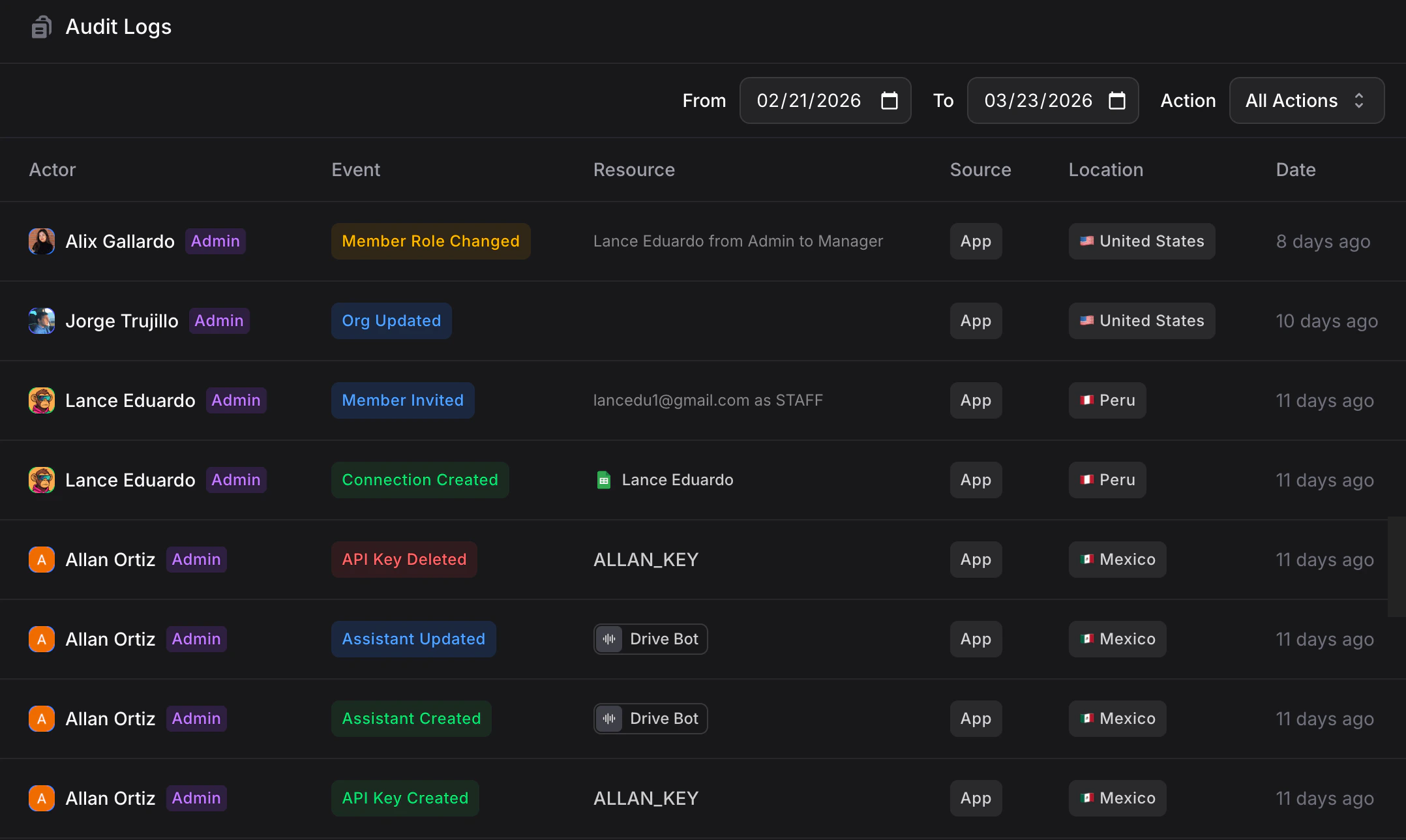 ## Understanding the Log Table
Each audit log entry contains the following information:
| Column | Description |
| ------------ | ------------------------------------------------------------------------------------------------- |
| **Actor** | The team member who performed the action, along with their role (e.g. Admin, Developer) |
| **Event** | The type of action that was performed (e.g. Assistant Updated, Action Deleted, Assistant Created) |
| **Resource** | The resource that was affected, such as an assistant name |
| **Source** | Where the action originated from (e.g. App, Web Search) |
| **Location** | The geographic location of the actor at the time of the action |
| **Date** | When the action occurred, shown as a relative timestamp |
## Filtering Logs
You can narrow down your audit logs using the filters at the top of the page:
* **Date Range**: Set a **From** and **To** date to view activity within a specific time period
* **Action**: Use the action dropdown to filter by a specific event type, or select **All Actions** to view everything
## Event Types
Audit logs capture a wide range of events across your workspace, grouped by category:
* **Organization**: Updated, Deleted, Disabled, Enabled, Restored, Transferred, Transferred To, Detached, Detached From, Sub-Organization Created, Sub-Organization Updated, Sub-Organization Member Joined, Sub-Organization Member Role Changed
* **Members**: Invited, Joined, Removed, Left, Role Changed
* **Assistants**: Created, Updated, Deleted, Restored, Duplicated, Duplicated From
* **Actions**: Created, Deleted, Enabled, Disabled
* **Integrations**: Created, Deleted, Updated, Enabled, Disabled
* **Connections**: Created, Updated, Deleted
* **Broadcasts**: Created, Deleted
* **Workflows**: Created, Deleted, Restored
* **Domains**: Domain Created, Domain Deleted, Email Domain Created, Email Domain Deleted, Email Identity Created, Email Identity Deleted
* **Conversations**: Chat Deleted
* **API Keys**: Created, Deleted
## Who Can View Audit Logs
Audit Logs are available to **Admin** users. You can access them by navigating to **Settings** → **Audit Logs** ([useinvent.com/o/settings/audit-logs](https://useinvent.com/o/settings/audit-logs)).
## Best Practices
1. **Review regularly**: Check audit logs periodically to stay aware of changes in your workspace
2. **Investigate unexpected changes**: If something looks off, use the filters to trace who made the change and when
3. **Use date filters for incidents**: When troubleshooting, narrow down to the specific time window to quickly find relevant activity
## Understanding the Log Table
Each audit log entry contains the following information:
| Column | Description |
| ------------ | ------------------------------------------------------------------------------------------------- |
| **Actor** | The team member who performed the action, along with their role (e.g. Admin, Developer) |
| **Event** | The type of action that was performed (e.g. Assistant Updated, Action Deleted, Assistant Created) |
| **Resource** | The resource that was affected, such as an assistant name |
| **Source** | Where the action originated from (e.g. App, Web Search) |
| **Location** | The geographic location of the actor at the time of the action |
| **Date** | When the action occurred, shown as a relative timestamp |
## Filtering Logs
You can narrow down your audit logs using the filters at the top of the page:
* **Date Range**: Set a **From** and **To** date to view activity within a specific time period
* **Action**: Use the action dropdown to filter by a specific event type, or select **All Actions** to view everything
## Event Types
Audit logs capture a wide range of events across your workspace, grouped by category:
* **Organization**: Updated, Deleted, Disabled, Enabled, Restored, Transferred, Transferred To, Detached, Detached From, Sub-Organization Created, Sub-Organization Updated, Sub-Organization Member Joined, Sub-Organization Member Role Changed
* **Members**: Invited, Joined, Removed, Left, Role Changed
* **Assistants**: Created, Updated, Deleted, Restored, Duplicated, Duplicated From
* **Actions**: Created, Deleted, Enabled, Disabled
* **Integrations**: Created, Deleted, Updated, Enabled, Disabled
* **Connections**: Created, Updated, Deleted
* **Broadcasts**: Created, Deleted
* **Workflows**: Created, Deleted, Restored
* **Domains**: Domain Created, Domain Deleted, Email Domain Created, Email Domain Deleted, Email Identity Created, Email Identity Deleted
* **Conversations**: Chat Deleted
* **API Keys**: Created, Deleted
## Who Can View Audit Logs
Audit Logs are available to **Admin** users. You can access them by navigating to **Settings** → **Audit Logs** ([useinvent.com/o/settings/audit-logs](https://useinvent.com/o/settings/audit-logs)).
## Best Practices
1. **Review regularly**: Check audit logs periodically to stay aware of changes in your workspace
2. **Investigate unexpected changes**: If something looks off, use the filters to trace who made the change and when
3. **Use date filters for incidents**: When troubleshooting, narrow down to the specific time window to quickly find relevant activity