> ## Documentation Index
> Fetch the complete documentation index at: https://docs.useinvent.com/llms.txt
> Use this file to discover all available pages before exploring further.
# Connection Links
> Send a link so a client or teammate connects an app to your workspace, with no account and no login
Connection links require a **Business** or **Enterprise** plan. A sub-organization uses its parent's plan. [View plans](/guides/pricing-and-plans)
A connection link lets someone else connect an app to your workspace. They open the link, sign in to the app (for example WhatsApp with Facebook), and the connection lands in your workspace. They don't need an Invent account, and you don't need to give them access to your workspace.
Agencies use this to onboard a client: create the client's sub-organization, send the client a link, and the client connects their own WhatsApp number or Instagram account in a couple of clicks.
## Sending a Link
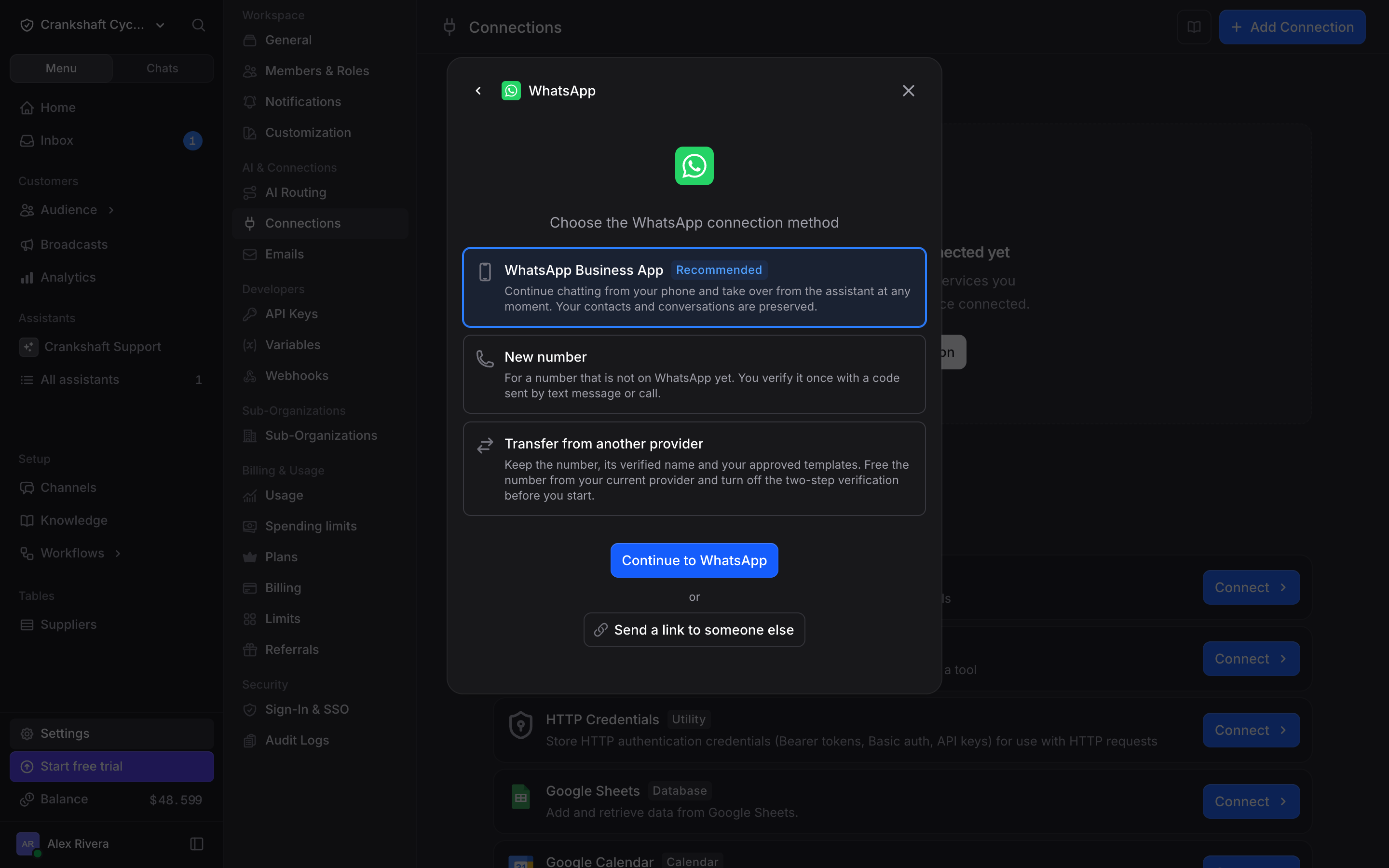 1. Go to [**Settings → Connections**](https://www.useinvent.com/o/settings/connections).
2. Click **+ Add Connection**, then **Send a connection link**, and pick the app. You can also open any app and click **Send a link to someone else** under its connect button.
3. Choose how long the link works: **1 hour**, **24 hours** or **7 days** (the default).
4. Click **Create link**, then copy it or share it by WhatsApp or email.
1. Go to [**Settings → Connections**](https://www.useinvent.com/o/settings/connections).
2. Click **+ Add Connection**, then **Send a connection link**, and pick the app. You can also open any app and click **Send a link to someone else** under its connect button.
3. Choose how long the link works: **1 hour**, **24 hours** or **7 days** (the default).
4. Click **Create link**, then copy it or share it by WhatsApp or email.
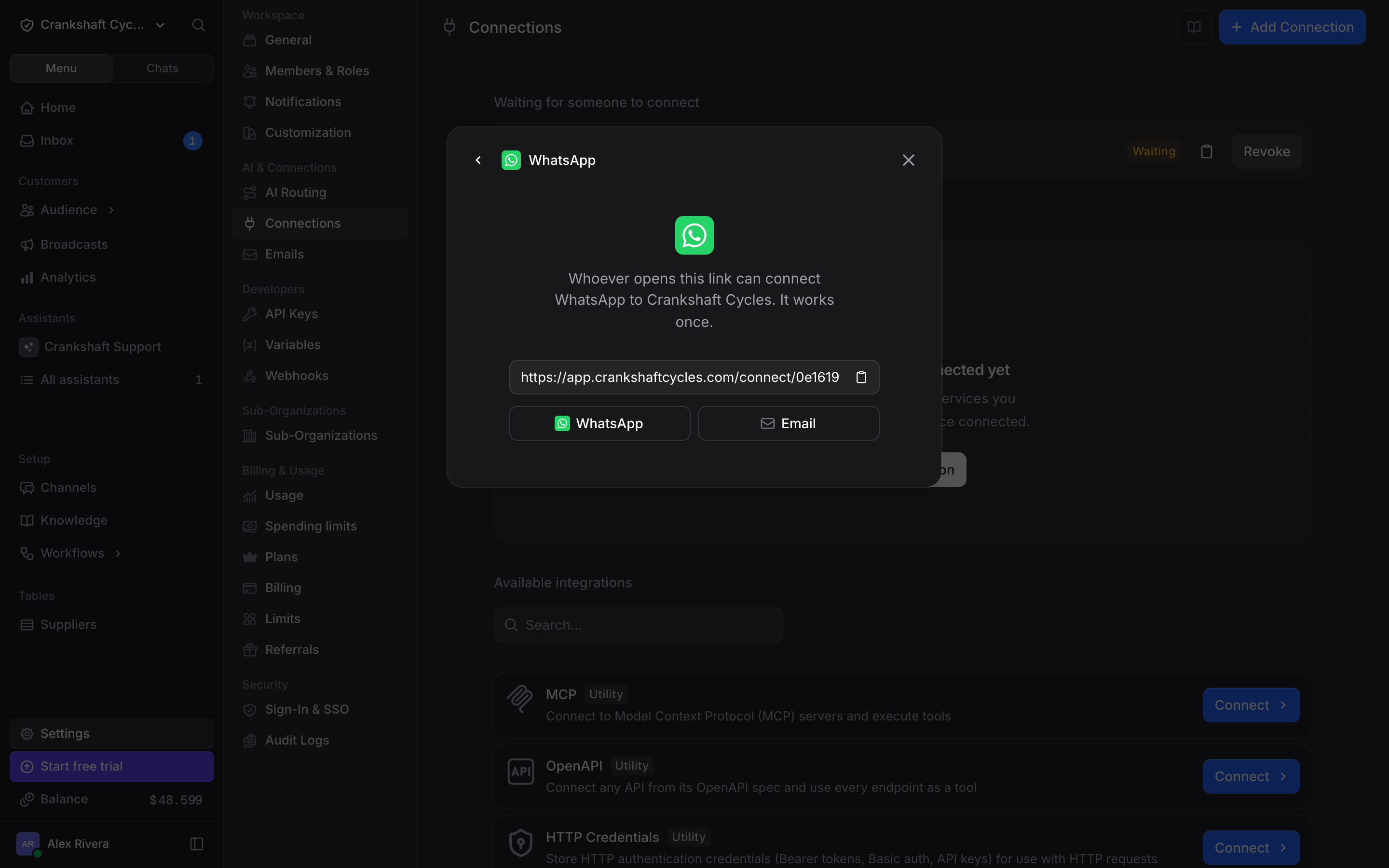 The link opens on your own domain when you have one, so clients see your brand. A sub-organization's links open on its parent's domain.
## What the Person Sees
The link opens on your own domain when you have one, so clients see your brand. A sub-organization's links open on its parent's domain.
## What the Person Sees
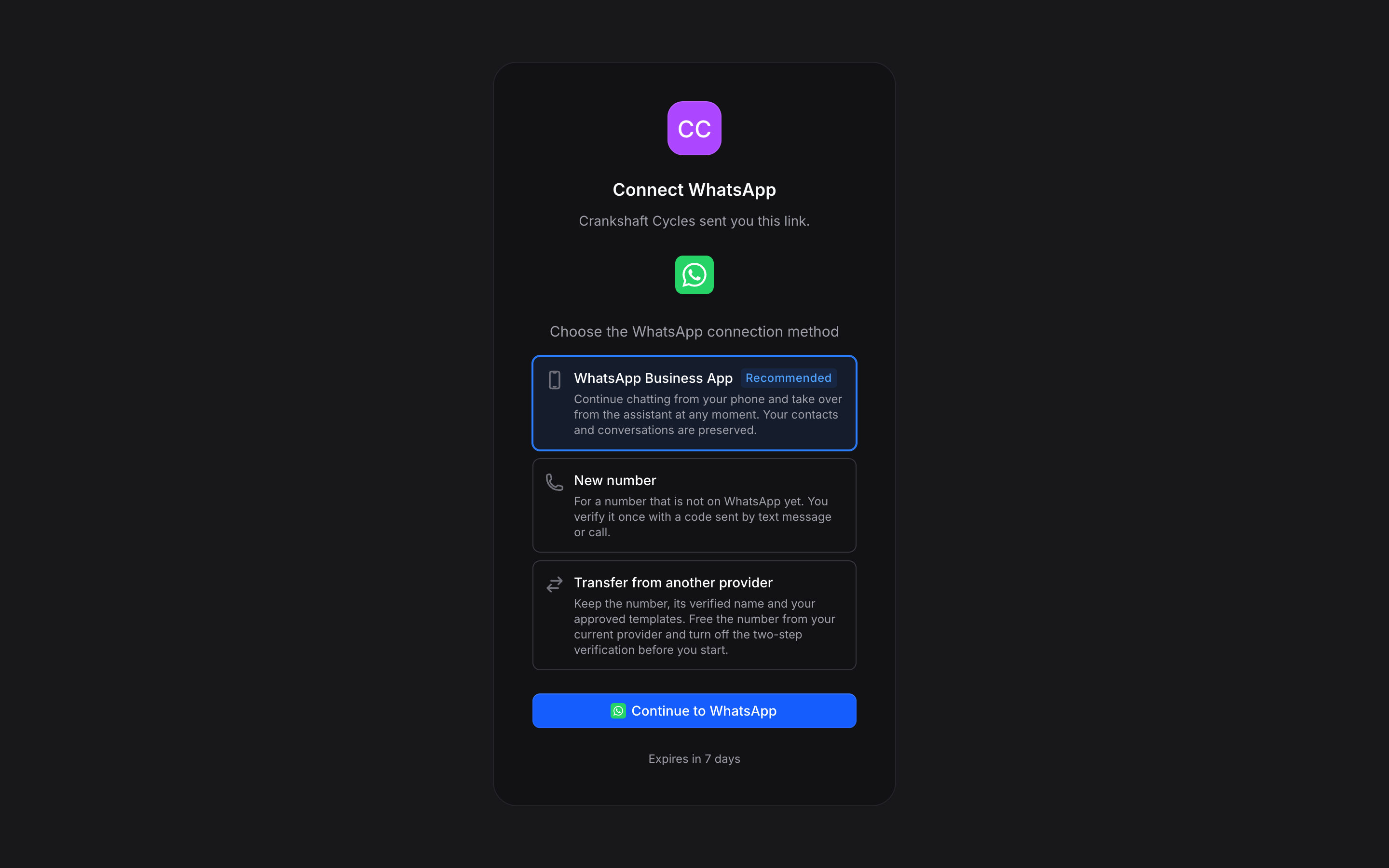 The link opens a short page with your logo: **Connect WhatsApp**, a **Continue** button, and when the link expires. After they sign in to the app, the page shows that the app is connected and they can close it. For an app that connects with a key, such as Telegram, the page shows that app's key field instead, and the key is checked before the connection is saved.
## Waiting Links
The link opens a short page with your logo: **Connect WhatsApp**, a **Continue** button, and when the link expires. After they sign in to the app, the page shows that the app is connected and they can close it. For an app that connects with a key, such as Telegram, the page shows that app's key field instead, and the key is checked before the connection is saved.
## Waiting Links
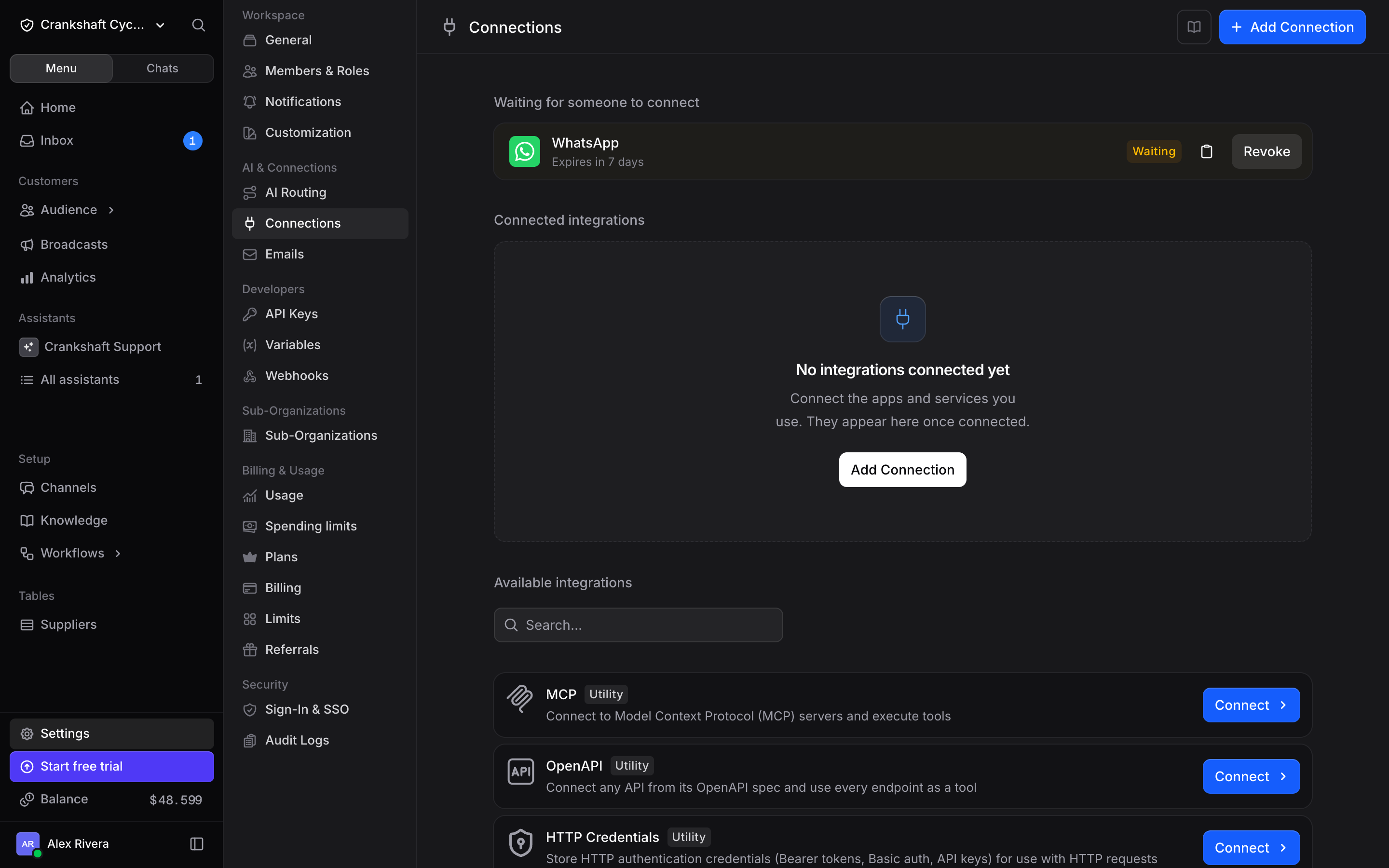 Links nobody has used yet appear under **Waiting for someone to connect** at the top of the Connections page. From each row you can copy the link again or **Revoke** it.
## Rules
| Rule | Detail |
| - | - |
| **Single use** | A link stops working once someone connects with it |
| **Expiry** | 1 hour, 24 hours or 7 days, chosen when you create it |
| **Revoke** | Revoke a waiting link at any time from the Connections page |
| **Who can send** | Members who can manage connections |
| **Email** | Members who can manage connections get an email when someone connects with a link |
| **Apps** | Apps that connect by signing in (WhatsApp, Instagram, Messenger, Gmail, Google, Microsoft, Shopify and more) and apps that connect with a key (Telegram, Twilio, Telnyx, WooCommerce and Odoo). MCP, OpenAPI, HTTP Credentials and SMPP are not supported |
## Reconnecting
When a connection needs fixing, click **Fix**, then **Reconnect**, then **Send a link to someone else**. To refresh a connection that still works, open it and use the arrow next to **Reconnect**. For an app that connects with a key, open the connection and click **Send a link to someone else**. The link repairs that connection: the person signs in again or enters a new key, and no new connection is created.
## API
You can create, list and revoke connection links with the API under `/orgs/{org_id}/connections/links`. See the [API reference](/api-reference/getting-started/introduction).
This documentation is built and hosted on [Mintlify](https://mintlify.com), a developer documentation platform.
Links nobody has used yet appear under **Waiting for someone to connect** at the top of the Connections page. From each row you can copy the link again or **Revoke** it.
## Rules
| Rule | Detail |
| - | - |
| **Single use** | A link stops working once someone connects with it |
| **Expiry** | 1 hour, 24 hours or 7 days, chosen when you create it |
| **Revoke** | Revoke a waiting link at any time from the Connections page |
| **Who can send** | Members who can manage connections |
| **Email** | Members who can manage connections get an email when someone connects with a link |
| **Apps** | Apps that connect by signing in (WhatsApp, Instagram, Messenger, Gmail, Google, Microsoft, Shopify and more) and apps that connect with a key (Telegram, Twilio, Telnyx, WooCommerce and Odoo). MCP, OpenAPI, HTTP Credentials and SMPP are not supported |
## Reconnecting
When a connection needs fixing, click **Fix**, then **Reconnect**, then **Send a link to someone else**. To refresh a connection that still works, open it and use the arrow next to **Reconnect**. For an app that connects with a key, open the connection and click **Send a link to someone else**. The link repairs that connection: the person signs in again or enters a new key, and no new connection is created.
## API
You can create, list and revoke connection links with the API under `/orgs/{org_id}/connections/links`. See the [API reference](/api-reference/getting-started/introduction).
This documentation is built and hosted on [Mintlify](https://mintlify.com), a developer documentation platform.