> ## Documentation Index
> Fetch the complete documentation index at: https://docs.useinvent.com/llms.txt
> Use this file to discover all available pages before exploring further.
# Connections
> Connect apps and services once, then reuse them everywhere in Actions, Channels, and across your workspace
**Connections** are your workspace’s saved links to the outside world. When you sign in to Google, connect WhatsApp, paste a Telegram bot token, or point an MCP server at Invent, you create a **connection**. That same connection can power **many** [Actions](/assistants/actions) on **many** assistants and **many** [Channels](/assistants/channels), without asking you to authenticate again for every single use.
This page is the **single hub** to see everything you have connected, add new integrations, test them, rename them, reconnect when tokens expire, and disconnect safely.
 ## Why the Connections page exists
Invent splits the problem in two:
1. **Connection**: *Who are we, as a workspace, on this provider?* (the authenticated account, bot token, MCP URL, etc.)
2. **Where it is used**: *Which assistant uses this for which Action or Channel?*
If those were the same step, you would re-run OAuth or re-paste tokens every time you added a new action or channel. Instead you **connect once**, pick that connection from a dropdown wherever it is needed, and manage it centrally here.
Each action that needs an external service chooses a **Connection**. Several actions can share one Google or Stripe account.
Messaging channels reuse the same pattern: a **Connection** to Meta, Telegram, etc., then a per-assistant binding (phone number, Page, bot).
Both [Actions](/assistants/actions) and [Channels](/assistants/channels) read from the **same** connection list, which is why adding Gmail for one assistant makes it available when you configure another.
**Adding a connection from elsewhere still shows up here.** If you start from an assistant’s **Actions** or **Channels** tab and click **Connect** (or the equivalent), Invent creates the connection and lists it on **Settings → Connections** automatically. You do not maintain two different “integration lists.” This page is always the source of truth.
## Open Connections
Go to **Settings** → **Connections** ([useinvent.com/o/settings/connections](https://www.useinvent.com/o/settings/connections)).
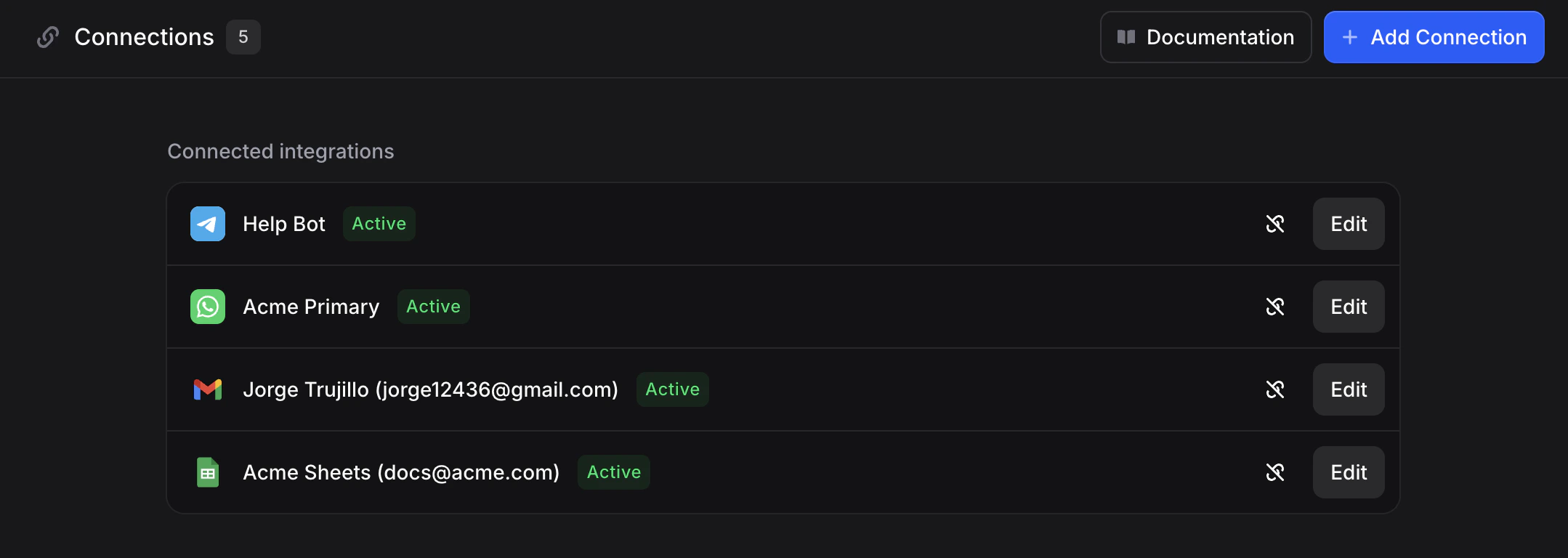
At the top you will see:
* **Connections** with a **count badge** (how many integrations are connected)
* **Documentation**: quick access to this guide
* **Add integration**: opens the integration picker (same idea as starting a new connection from scratch)
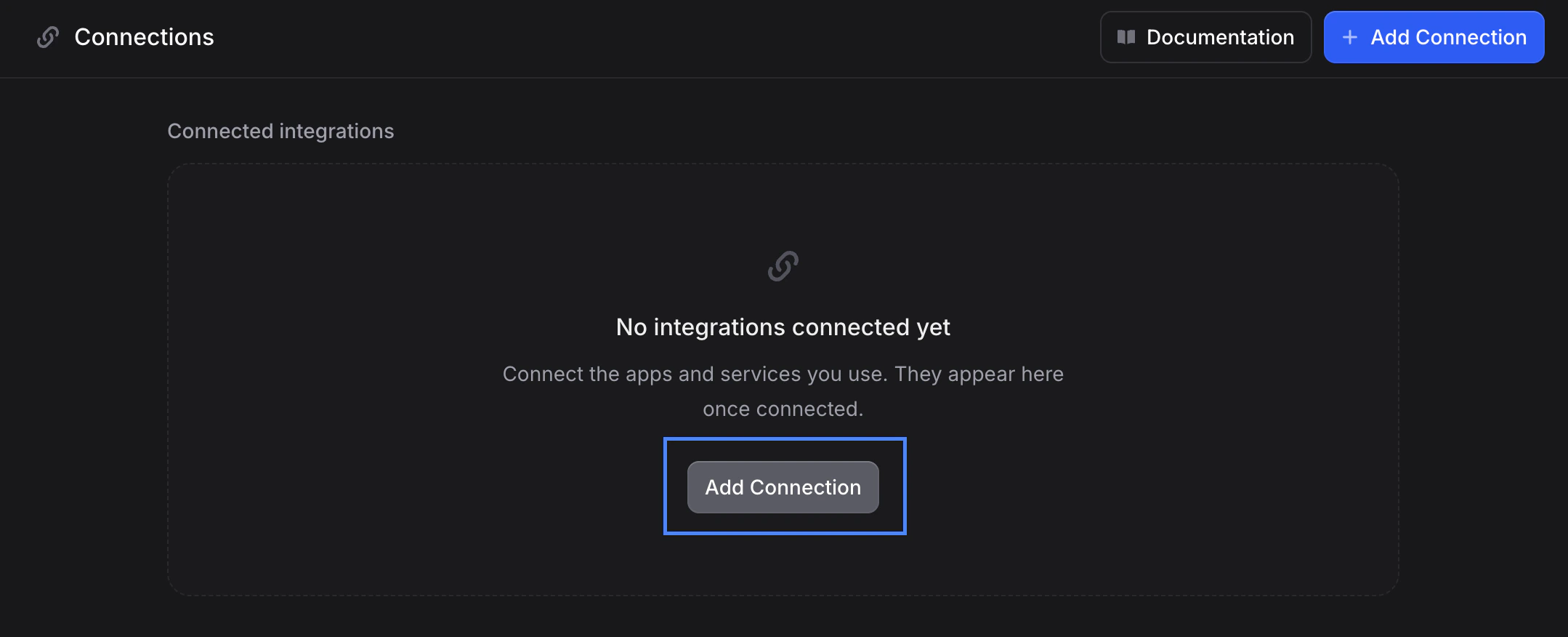
The main area is **Connected integrations**: either your list of connections or an empty state if none exist yet.
## Why the Connections page exists
Invent splits the problem in two:
1. **Connection**: *Who are we, as a workspace, on this provider?* (the authenticated account, bot token, MCP URL, etc.)
2. **Where it is used**: *Which assistant uses this for which Action or Channel?*
If those were the same step, you would re-run OAuth or re-paste tokens every time you added a new action or channel. Instead you **connect once**, pick that connection from a dropdown wherever it is needed, and manage it centrally here.
Each action that needs an external service chooses a **Connection**. Several actions can share one Google or Stripe account.
Messaging channels reuse the same pattern: a **Connection** to Meta, Telegram, etc., then a per-assistant binding (phone number, Page, bot).
Both [Actions](/assistants/actions) and [Channels](/assistants/channels) read from the **same** connection list, which is why adding Gmail for one assistant makes it available when you configure another.
**Adding a connection from elsewhere still shows up here.** If you start from an assistant’s **Actions** or **Channels** tab and click **Connect** (or the equivalent), Invent creates the connection and lists it on **Settings → Connections** automatically. You do not maintain two different “integration lists.” This page is always the source of truth.
## Open Connections
Go to **Settings** → **Connections** ([useinvent.com/o/settings/connections](https://www.useinvent.com/o/settings/connections)).
At the top you will see:
* **Connections** with a **count badge** (how many integrations are connected)
* **Documentation**: quick access to this guide
* **Add integration**: opens the integration picker (same idea as starting a new connection from scratch)
The main area is **Connected integrations**: either your list of connections or an empty state if none exist yet.
 ## Two ways to connect
Not every provider works the same way. Invent supports:
### Sign-in connections (OAuth / “Continue to …”)
For services like Google Calendar, Gmail, Google Sheets, WhatsApp (via Meta), and many others, Invent sends you through the provider’s **normal sign-in screen** in a popup or new tab. You approve access on **their** domain; Invent never sees your password.
Flow in practice:
1. You pick the integration (from **Add integration** or from an Action/Channel dialog).
2. Invent shows a short screen that you will be redirected to authorize (example below).
3. You complete the provider flow and return to Invent.
4. You **name the connection** if prompted. That label is only for you inside Invent (same idea as in [Channels → The Universal Connection Flow](/assistants/channels#the-universal-connection-flow)).
5. The connection appears on this page and in dropdowns across the workspace.
## Two ways to connect
Not every provider works the same way. Invent supports:
### Sign-in connections (OAuth / “Continue to …”)
For services like Google Calendar, Gmail, Google Sheets, WhatsApp (via Meta), and many others, Invent sends you through the provider’s **normal sign-in screen** in a popup or new tab. You approve access on **their** domain; Invent never sees your password.
Flow in practice:
1. You pick the integration (from **Add integration** or from an Action/Channel dialog).
2. Invent shows a short screen that you will be redirected to authorize (example below).
3. You complete the provider flow and return to Invent.
4. You **name the connection** if prompted. That label is only for you inside Invent (same idea as in [Channels → The Universal Connection Flow](/assistants/channels#the-universal-connection-flow)).
5. The connection appears on this page and in dropdowns across the workspace.
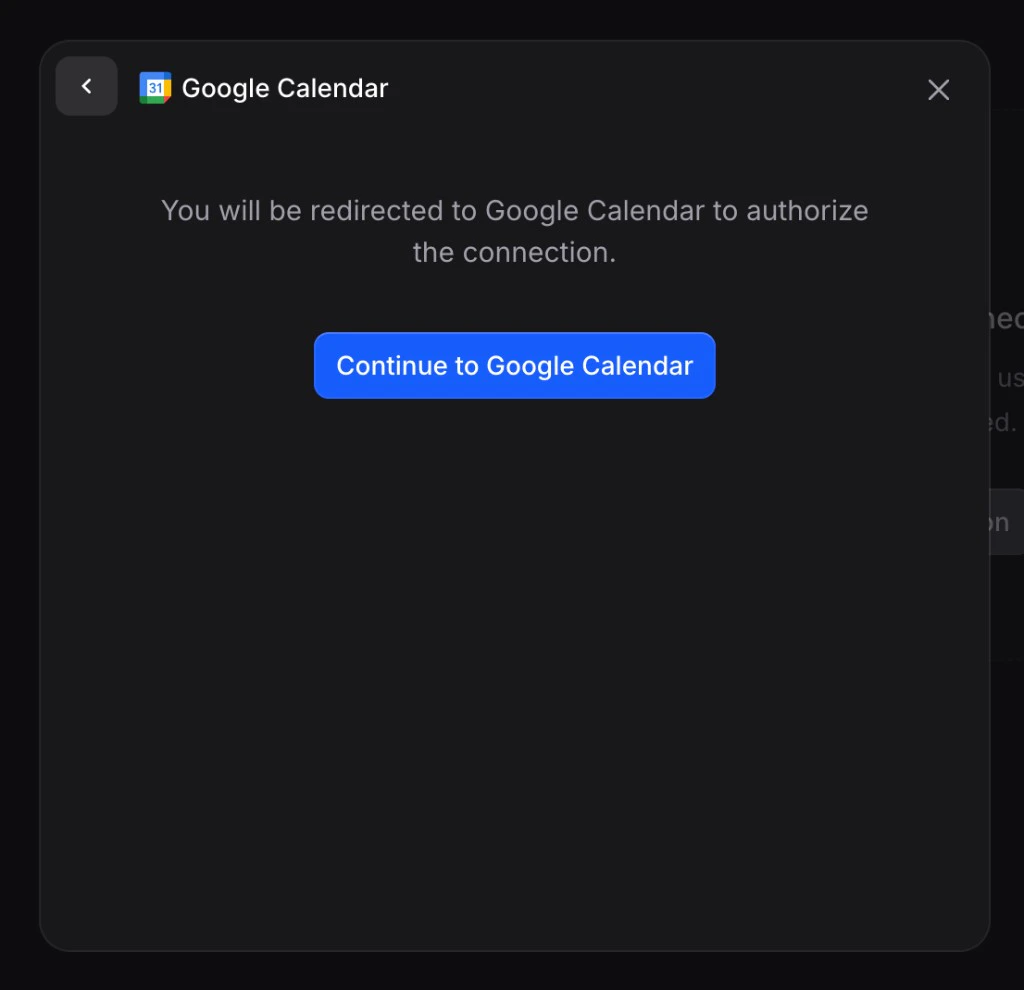 This matches the **universal connection flow** described for channels: authenticate with the provider, then name the connection, then use it wherever Invent asks for a Connection. See [Channels → The universal connection flow](/assistants/channels#the-universal-connection-flow) for the channel-specific steps (picking a phone number, Page, etc.).
### Form connections (credentials in Invent)
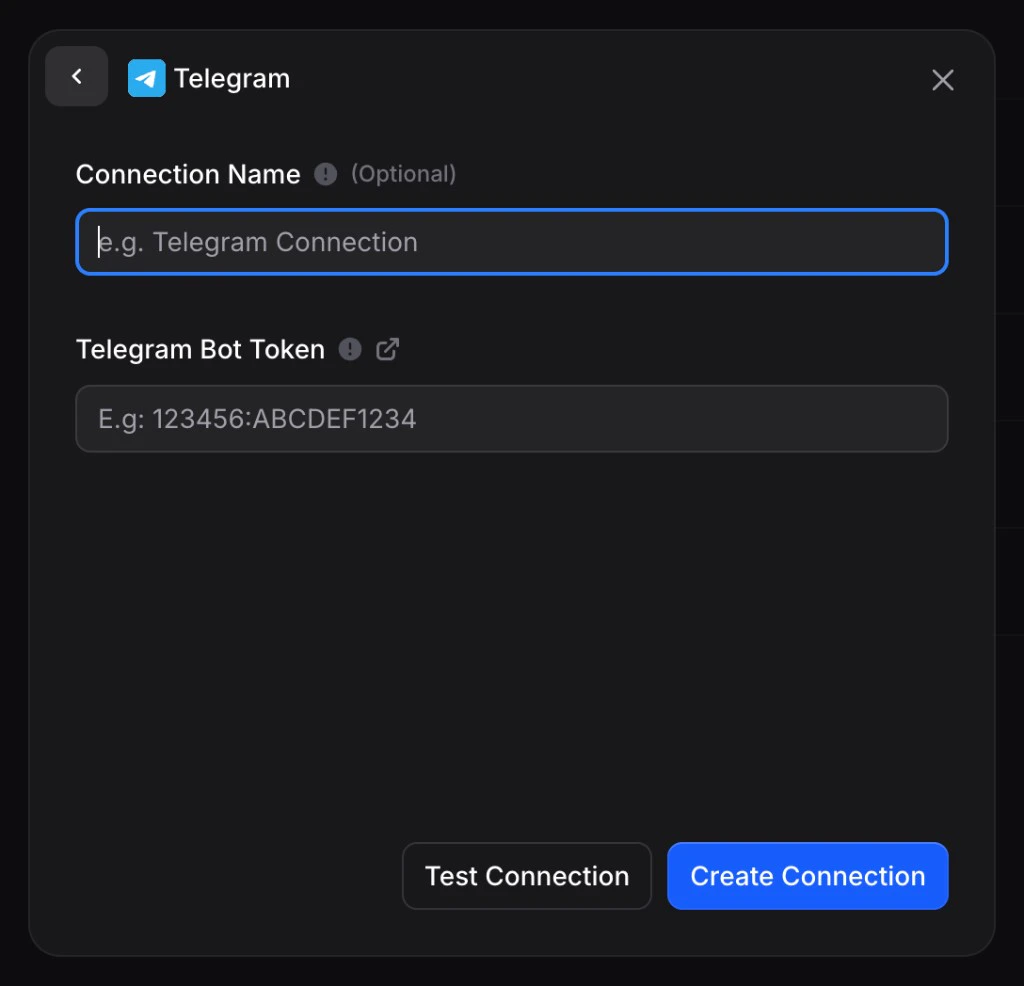
Some integrations need values you enter **inside Invent**: a **Telegram Bot token**, an **MCP** server URL and optional headers, API keys, and so on. There may be no browser redirect, or there is a redirect *and* you still confirm details in a form, depending on the integration.
You typically fill in:
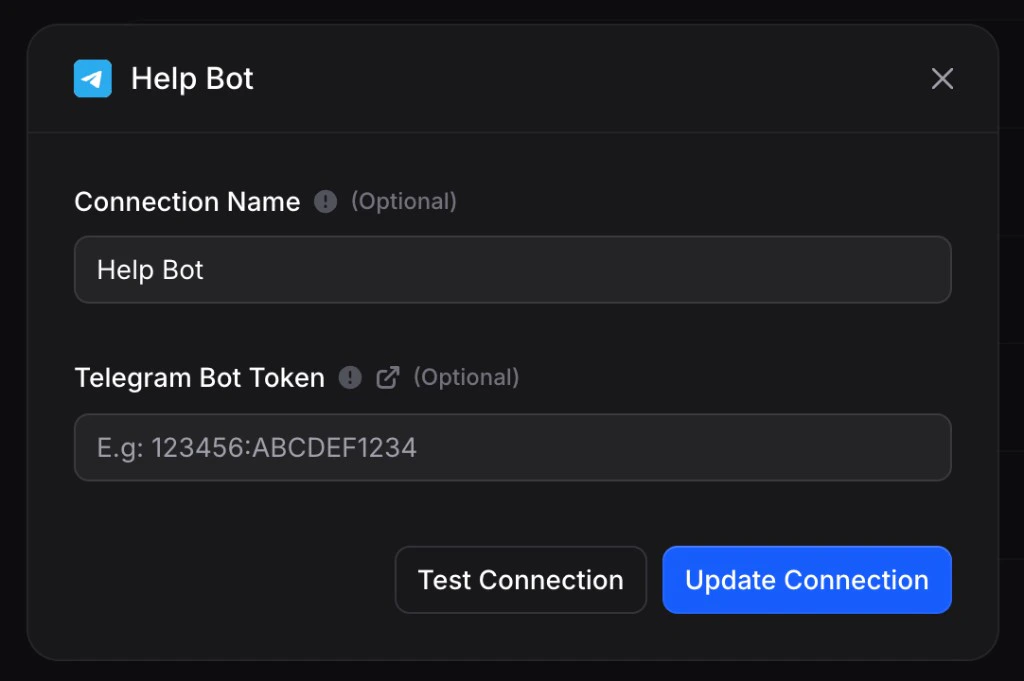
* **Connection name (optional)**: how this row appears on the Connections page and in dropdowns (e.g. `Help Bot`, `Prod MCP`).
* **Provider-specific fields**: URL, token, JSON headers, etc.
* **Test connection**: verify credentials before you save (recommended).
* **Create connection** or **Update connection**: save changes.
This matches the **universal connection flow** described for channels: authenticate with the provider, then name the connection, then use it wherever Invent asks for a Connection. See [Channels → The universal connection flow](/assistants/channels#the-universal-connection-flow) for the channel-specific steps (picking a phone number, Page, etc.).
### Form connections (credentials in Invent)
Some integrations need values you enter **inside Invent**: a **Telegram Bot token**, an **MCP** server URL and optional headers, API keys, and so on. There may be no browser redirect, or there is a redirect *and* you still confirm details in a form, depending on the integration.
You typically fill in:
* **Connection name (optional)**: how this row appears on the Connections page and in dropdowns (e.g. `Help Bot`, `Prod MCP`).
* **Provider-specific fields**: URL, token, JSON headers, etc.
* **Test connection**: verify credentials before you save (recommended).
* **Create connection** or **Update connection**: save changes.
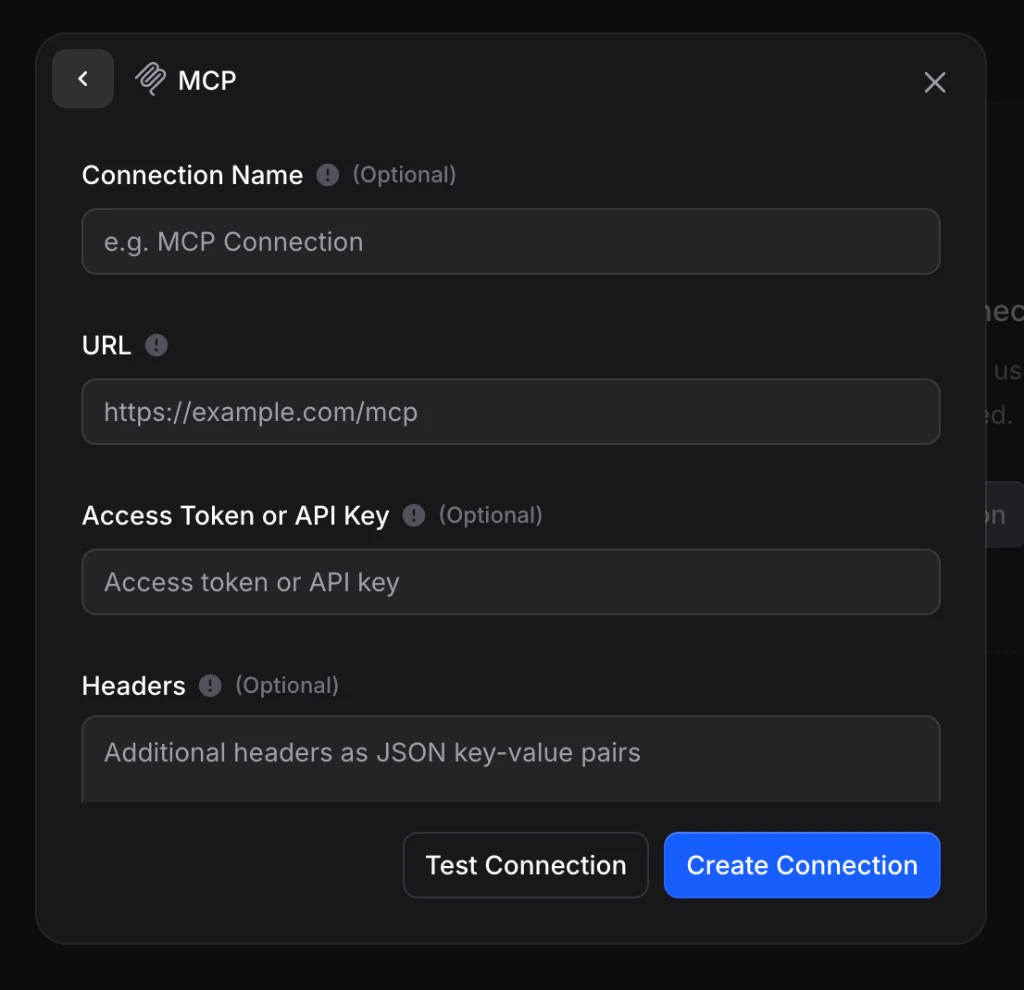 **Example: Telegram** uses a bot token from BotFather (see the help link next to the field in the product). Create and test, or open an existing connection to **Update** with a new token.
 ## Add a new integration from this page
From **Settings → Connections**, click **Add integration** (or use the same entry point from an assistant when adding an Action or Channel).
A searchable list opens: each row is a service with a short description of what connecting enables (email, spreadsheets, MCP tools, etc.).
## Add a new integration from this page
From **Settings → Connections**, click **Add integration** (or use the same entry point from an assistant when adding an Action or Channel).
A searchable list opens: each row is a service with a short description of what connecting enables (email, spreadsheets, MCP tools, etc.).
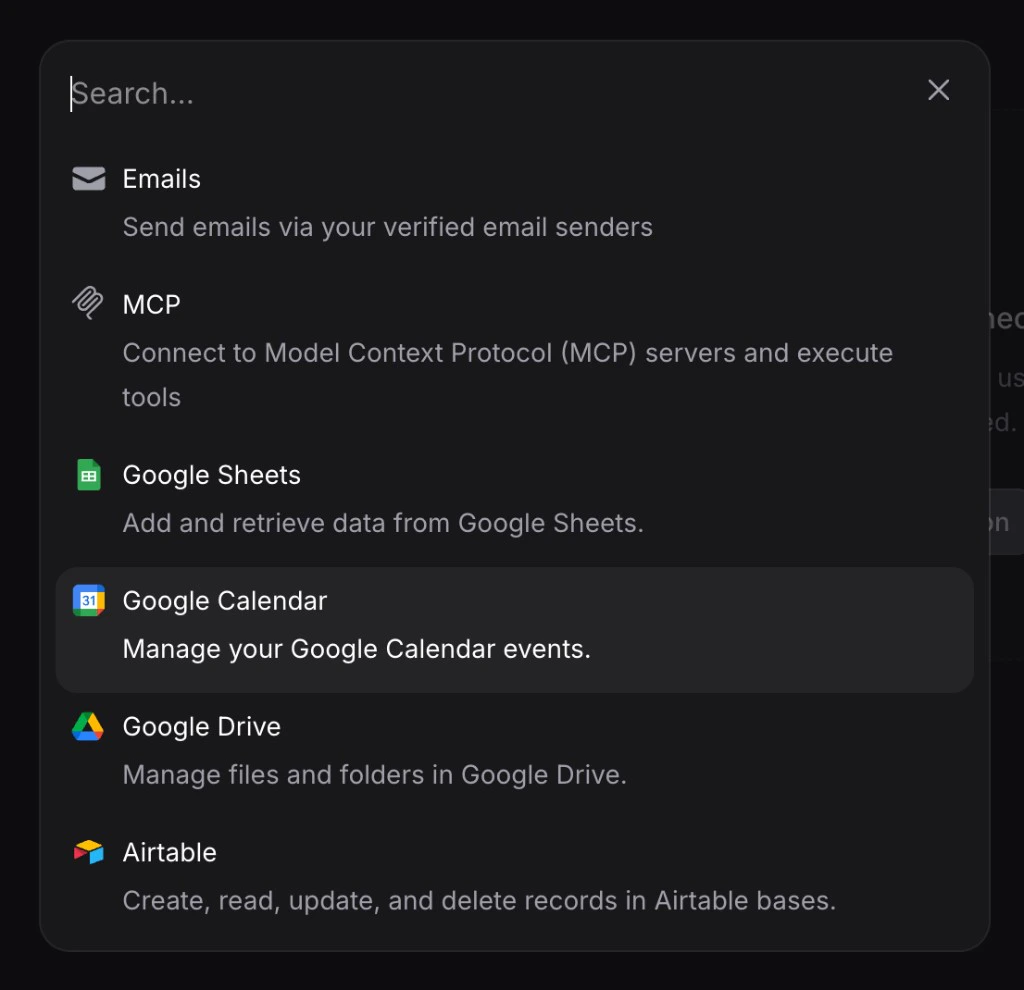 Use **Search** if the list is long. Select the provider you need.
* **OAuth-style**: click **Continue to …**, finish the provider flow, return to Invent, and confirm the **connection name** if asked.
* **Form-style**: enter tokens, URL, headers, then optional **Test connection**, then **Create connection**.
Open an assistant’s **Actions** tab to attach actions that use this connection, or **Channels** to bind a phone number, Page, or bot. Existing connections appear in the **Connection** dropdown so you rarely need to add the same account twice.
[Actions → Adding Actions](/assistants/actions#adding-actions) · [Channels → How channels work](/assistants/channels#how-channels-work)
## What you see in the list
Each connected integration is a row with:
* **Icon and name**: service type + the **connection name** you gave (or a sensible default).
* **Active**: the connection is healthy and ready for Actions and Channels.
* **Account hint**: for many OAuth services, you will see the linked email or account so you know *which* login this is (for example `Acme Sheets (docs@acme.com)`).
* **Edit**: open **Manage connection** to rename, test, or reconnect.
* **Disconnect**: remove the connection (see below).
## Manage an existing connection
Click **Edit** on any row to open **Manage connection**. What appears depends on the provider, but you will consistently get:
* **Connection name**: optional label used everywhere this connection appears.
* **Reconnect**: run the provider sign-in again when tokens expire or access was revoked (OAuth-style services).
* **Test connection**: verify the integration still works without leaving the dialog.
* **Update connection**: save name or credential changes (form-style services).
Use **Search** if the list is long. Select the provider you need.
* **OAuth-style**: click **Continue to …**, finish the provider flow, return to Invent, and confirm the **connection name** if asked.
* **Form-style**: enter tokens, URL, headers, then optional **Test connection**, then **Create connection**.
Open an assistant’s **Actions** tab to attach actions that use this connection, or **Channels** to bind a phone number, Page, or bot. Existing connections appear in the **Connection** dropdown so you rarely need to add the same account twice.
[Actions → Adding Actions](/assistants/actions#adding-actions) · [Channels → How channels work](/assistants/channels#how-channels-work)
## What you see in the list
Each connected integration is a row with:
* **Icon and name**: service type + the **connection name** you gave (or a sensible default).
* **Active**: the connection is healthy and ready for Actions and Channels.
* **Account hint**: for many OAuth services, you will see the linked email or account so you know *which* login this is (for example `Acme Sheets (docs@acme.com)`).
* **Edit**: open **Manage connection** to rename, test, or reconnect.
* **Disconnect**: remove the connection (see below).
## Manage an existing connection
Click **Edit** on any row to open **Manage connection**. What appears depends on the provider, but you will consistently get:
* **Connection name**: optional label used everywhere this connection appears.
* **Reconnect**: run the provider sign-in again when tokens expire or access was revoked (OAuth-style services).
* **Test connection**: verify the integration still works without leaving the dialog.
* **Update connection**: save name or credential changes (form-style services).
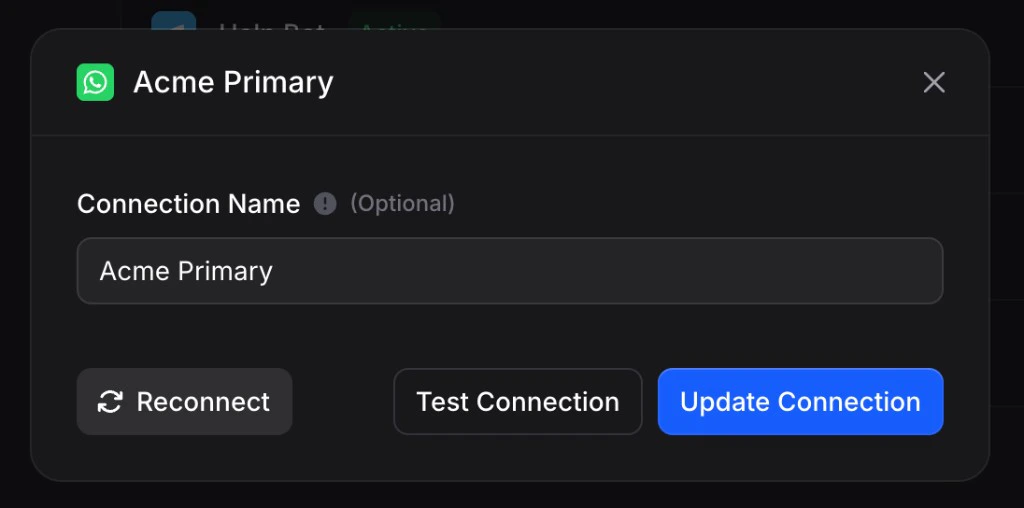 If something breaks after a password change or admin removes API access, **Reconnect** is usually the fastest fix. For bot tokens or MCP URLs, paste the new values in the form, **Test connection**, then **Update connection**.
## Disconnect a connection
Click the **unlink / disconnect** control on the row (broken-chain style icon in the product). Invent asks you to confirm:
If something breaks after a password change or admin removes API access, **Reconnect** is usually the fastest fix. For bot tokens or MCP URLs, paste the new values in the form, **Test connection**, then **Update connection**.
## Disconnect a connection
Click the **unlink / disconnect** control on the row (broken-chain style icon in the product). Invent asks you to confirm:
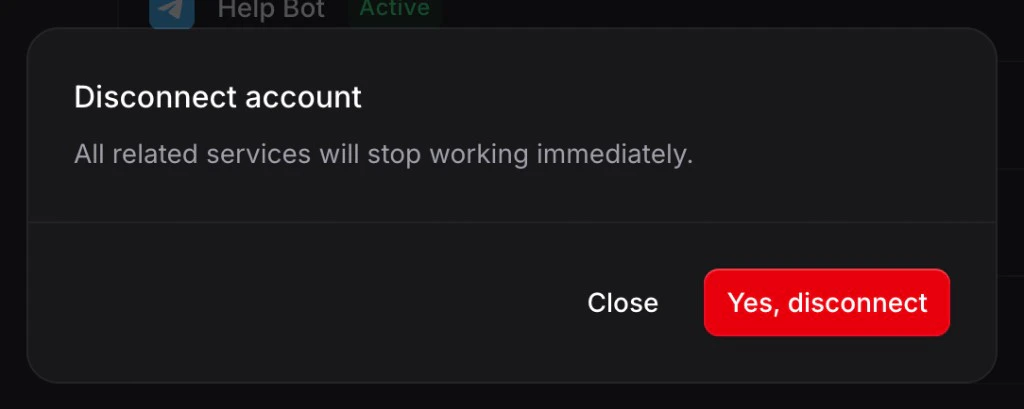 **Disconnect is immediate.** Any [Action](/assistants/actions) or [Channel](/assistants/channels) that relied on this connection stops working until you connect again or point the assistant at a different connection. Disconnecting here removes the workspace-level link, not just one assistant.
Removing a **channel binding** from a single assistant (Disconnect on the assistant’s Channels tab) does **not** delete the underlying connection. Other assistants can keep using it. See [Channels → Managing connected channels](/assistants/channels#managing-connected-channels).
## Connection status
* **Active**: Ready to use; Actions and Channels can run with this connection.
* **Inactive / error**: Often means expired tokens or revoked access. Open **Edit** → **Reconnect**, or fix form credentials and **Update connection**.
If only one assistant misbehaves, check that its Action or Channel still selects the right connection in the dropdown before you assume the account is dead.
## Testing
Always use **Test connection** when the form offers it, especially after rotating tokens or changing an MCP URL. For OAuth services, sending a quick test message from a [Channel](/assistants/channels) or running through the [Playground](/assistants/introduction#the-playground) after reconnecting catches issues before customers do.
[Actions → Testing actions](/assistants/actions#testing-actions)
## Security and good habits
* **Minimum access**: Invent requests only what each integration needs; approve scopes on the provider the same way you would for any business tool.
* **Naming**: Prefer names that describe use (`Billing Gmail`, `EU WhatsApp`) rather than personal names, so the list stays clear as you grow.
* **Rotation**: When someone leaves or a token leaks, **Update** or **Reconnect** and remove old connections you no longer need.
* **Secrets**: Form fields for API keys and bot tokens are sensitive. Treat them like passwords and avoid sharing screenshots publicly.
## Next steps
Wire integrations into conversations with AI-controlled fields and testing in the Playground
Universal connect flow, multiple numbers or Pages, and Inbound routing
Every conversation, every channel, in one place
Settings, billing, members, and API keys
**Disconnect is immediate.** Any [Action](/assistants/actions) or [Channel](/assistants/channels) that relied on this connection stops working until you connect again or point the assistant at a different connection. Disconnecting here removes the workspace-level link, not just one assistant.
Removing a **channel binding** from a single assistant (Disconnect on the assistant’s Channels tab) does **not** delete the underlying connection. Other assistants can keep using it. See [Channels → Managing connected channels](/assistants/channels#managing-connected-channels).
## Connection status
* **Active**: Ready to use; Actions and Channels can run with this connection.
* **Inactive / error**: Often means expired tokens or revoked access. Open **Edit** → **Reconnect**, or fix form credentials and **Update connection**.
If only one assistant misbehaves, check that its Action or Channel still selects the right connection in the dropdown before you assume the account is dead.
## Testing
Always use **Test connection** when the form offers it, especially after rotating tokens or changing an MCP URL. For OAuth services, sending a quick test message from a [Channel](/assistants/channels) or running through the [Playground](/assistants/introduction#the-playground) after reconnecting catches issues before customers do.
[Actions → Testing actions](/assistants/actions#testing-actions)
## Security and good habits
* **Minimum access**: Invent requests only what each integration needs; approve scopes on the provider the same way you would for any business tool.
* **Naming**: Prefer names that describe use (`Billing Gmail`, `EU WhatsApp`) rather than personal names, so the list stays clear as you grow.
* **Rotation**: When someone leaves or a token leaks, **Update** or **Reconnect** and remove old connections you no longer need.
* **Secrets**: Form fields for API keys and bot tokens are sensitive. Treat them like passwords and avoid sharing screenshots publicly.
## Next steps
Wire integrations into conversations with AI-controlled fields and testing in the Playground
Universal connect flow, multiple numbers or Pages, and Inbound routing
Every conversation, every channel, in one place
Settings, billing, members, and API keys