> ## Documentation Index
> Fetch the complete documentation index at: https://docs.useinvent.com/llms.txt
> Use this file to discover all available pages before exploring further.
# Members
> Invite teammates, assign roles, and control what each person can do
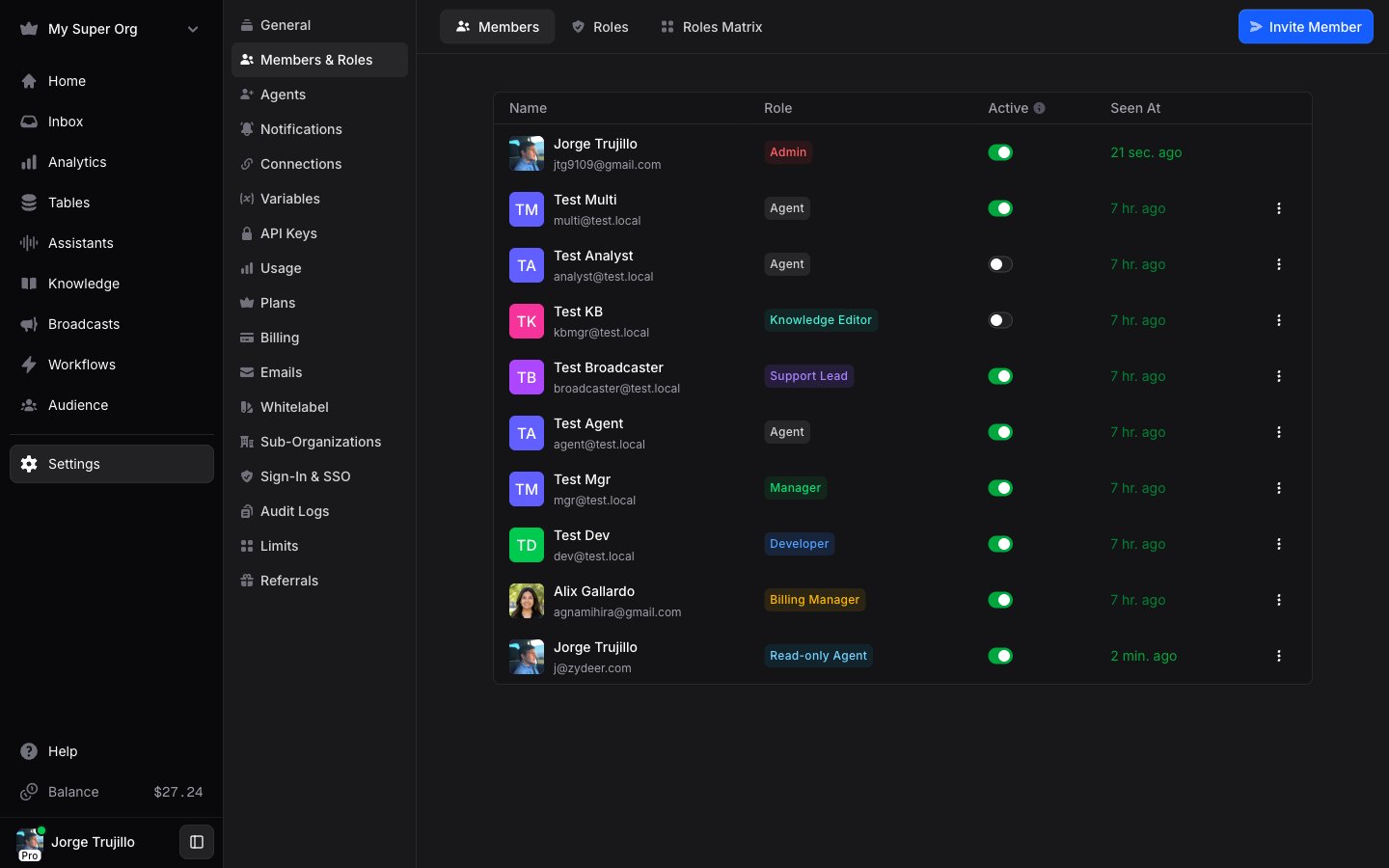
Members are the people with access to your workspace. You can invite teammates, assign system or custom roles, set who is available to handle conversations, and remove access at any time.
 ## Roles
Every member has either a **system role** or one or more **custom roles**. System roles cover the common cases:
| Role | Best for | What they can do |
| :------------ | :------------------------------ | :------------------------------------------------------------------------------------------------------------------------------------------------------------------------ |
| **Admin** | Owners and operators | Full access to everything, including billing, SSO, audit logs, and sub-organizations. |
| **Developer** | Technical staff | Manage assistants, knowledge, workflows, connections, API keys, tables, domains, emails, billing, and variables, plus the inbox and contacts. View members and analytics. |
| **Manager** | Team leads and support managers | Invite and manage Managers and Agents; manage the inbox, contacts, segments, broadcasts, and table records; view analytics. No technical configuration. |
| **Agent** | Frontline support | View and respond to conversations, manage contacts and table records. Read-only elsewhere. |
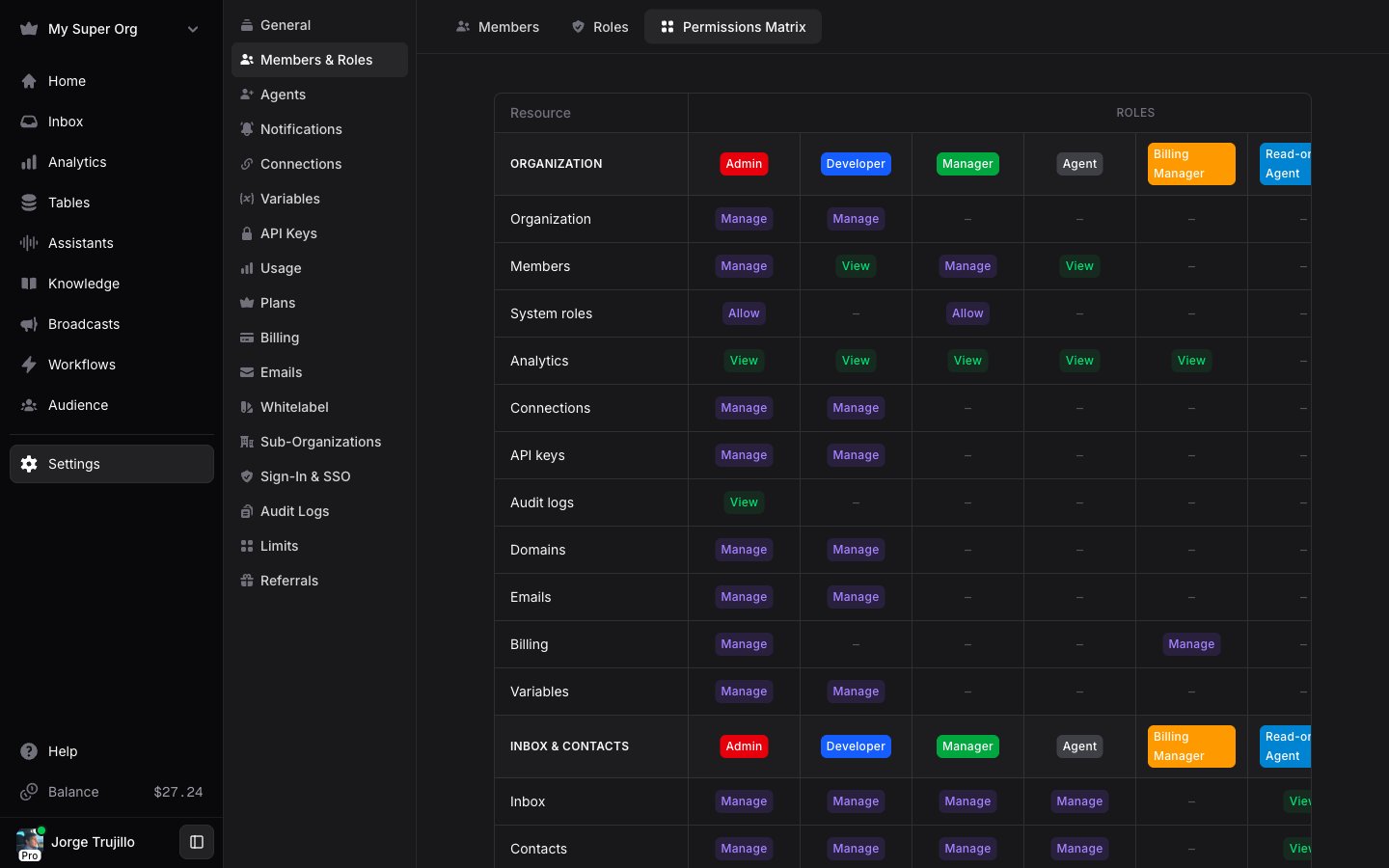
For anything more specific, create a [custom role](/workspace-management/custom-roles) with an exact, resource-by-resource permission set. To compare what every role can do side by side, open **Settings → Members & Roles → Permissions Matrix**.
## Roles
Every member has either a **system role** or one or more **custom roles**. System roles cover the common cases:
| Role | Best for | What they can do |
| :------------ | :------------------------------ | :------------------------------------------------------------------------------------------------------------------------------------------------------------------------ |
| **Admin** | Owners and operators | Full access to everything, including billing, SSO, audit logs, and sub-organizations. |
| **Developer** | Technical staff | Manage assistants, knowledge, workflows, connections, API keys, tables, domains, emails, billing, and variables, plus the inbox and contacts. View members and analytics. |
| **Manager** | Team leads and support managers | Invite and manage Managers and Agents; manage the inbox, contacts, segments, broadcasts, and table records; view analytics. No technical configuration. |
| **Agent** | Frontline support | View and respond to conversations, manage contacts and table records. Read-only elsewhere. |
For anything more specific, create a [custom role](/workspace-management/custom-roles) with an exact, resource-by-resource permission set. To compare what every role can do side by side, open **Settings → Members & Roles → Permissions Matrix**.
 ## Inviting members
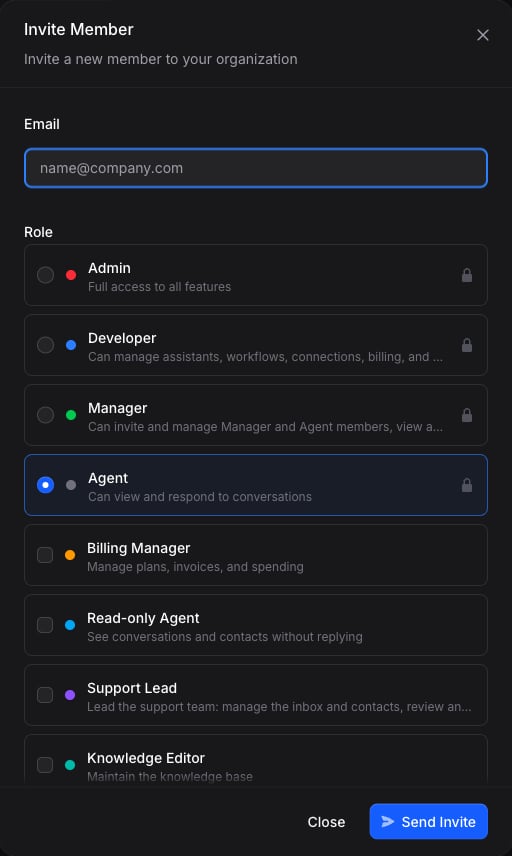
Go to **Settings → Members & Roles** and select **Invite Member**.
Add the teammate's email address.
Pick one **system** role, or select one or more **custom** roles. You can only grant roles whose permissions you hold yourself.
Select **Send Invite**. The invitee receives a branded invitation email and joins with the role you chose when they accept.
## Inviting members
Go to **Settings → Members & Roles** and select **Invite Member**.
Add the teammate's email address.
Pick one **system** role, or select one or more **custom** roles. You can only grant roles whose permissions you hold yourself.
Select **Send Invite**. The invitee receives a branded invitation email and joins with the role you chose when they accept.
 ### Pending invites
Pending invitations appear in the members list with a "Pending" status. From the member options menu you can **Resend** the invitation email or **Revoke** the invitation.
## Changing a member's role
Use the role dropdown to switch a member between system roles, or **Edit roles** to assign custom roles. You can only change a member to a role with equal or lower access than your own.
Assigning a custom role drops the member to the **Agent** base role; they keep only the custom role's access. Removing all of their custom roles later leaves them as an Agent, not their previous system role.
## Availability
The **Active** toggle in the members list controls whether a member is available to receive conversation assignments and assistant handoffs. Turn it off to take someone out of rotation without changing their role or removing them. Managers, and roles with agent-assignment access, can change a member's availability.
## Removing members
To remove a member, open the three-dot **Member options** menu and select **Remove Member**. Removed members immediately lose access to your workspace.
## Best practices
1. **Grant the minimum needed.** Start narrow; you can always widen access later.
2. **Use custom roles for precise access.** When a system role is too broad or too narrow, a [custom role](/workspace-management/custom-roles) gives you exactly the surface you want.
3. **Reserve Admin for owners.** Only give Admin to people who need full control, including billing and security.
4. **Review access regularly.** Remove members who no longer need access, and turn off availability for anyone temporarily out of rotation.
### Pending invites
Pending invitations appear in the members list with a "Pending" status. From the member options menu you can **Resend** the invitation email or **Revoke** the invitation.
## Changing a member's role
Use the role dropdown to switch a member between system roles, or **Edit roles** to assign custom roles. You can only change a member to a role with equal or lower access than your own.
Assigning a custom role drops the member to the **Agent** base role; they keep only the custom role's access. Removing all of their custom roles later leaves them as an Agent, not their previous system role.
## Availability
The **Active** toggle in the members list controls whether a member is available to receive conversation assignments and assistant handoffs. Turn it off to take someone out of rotation without changing their role or removing them. Managers, and roles with agent-assignment access, can change a member's availability.
## Removing members
To remove a member, open the three-dot **Member options** menu and select **Remove Member**. Removed members immediately lose access to your workspace.
## Best practices
1. **Grant the minimum needed.** Start narrow; you can always widen access later.
2. **Use custom roles for precise access.** When a system role is too broad or too narrow, a [custom role](/workspace-management/custom-roles) gives you exactly the surface you want.
3. **Reserve Admin for owners.** Only give Admin to people who need full control, including billing and security.
4. **Review access regularly.** Remove members who no longer need access, and turn off availability for anyone temporarily out of rotation.