> ## Documentation Index
> Fetch the complete documentation index at: https://docs.useinvent.com/llms.txt
> Use this file to discover all available pages before exploring further.
# Domains
> Claim and verify email domains to control how users join your organization
SSO Domains require a **Business** or **Enterprise** plan. [View plans](/guides/pricing-and-plans)
SSO Domains are the email domains your organization has claimed. Claiming a domain unlocks auto-join, scopes which login methods are permitted through the [Access Policy](/workspace-management/sso/access-policy), keeps user identity in sync with your identity provider, and allows you to attach SSO profiles.
A domain can only be claimed by **one** organization in Invent. The first organization to complete email verification for a given domain becomes its sole owner. If you believe your domain has been claimed by another organization, please contact Invent support with proof of ownership.
## The Domains Table
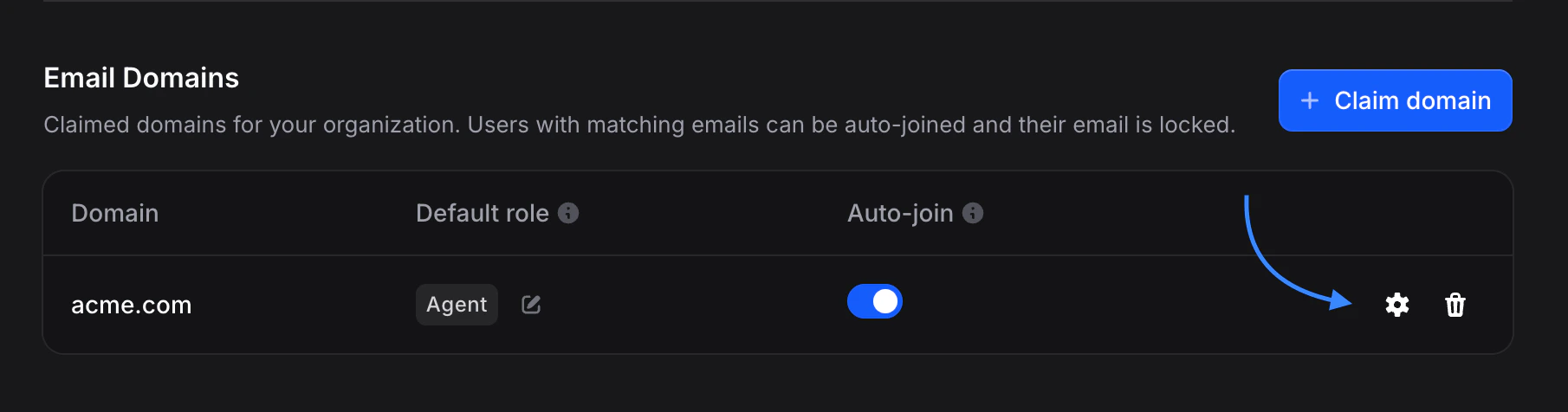
Each verified domain shows:
| Column | Description |
| --------------- | ---------------------------------------------------------------------------------------------------- |
| **Domain** | The verified email domain (e.g. `acme.com`) |
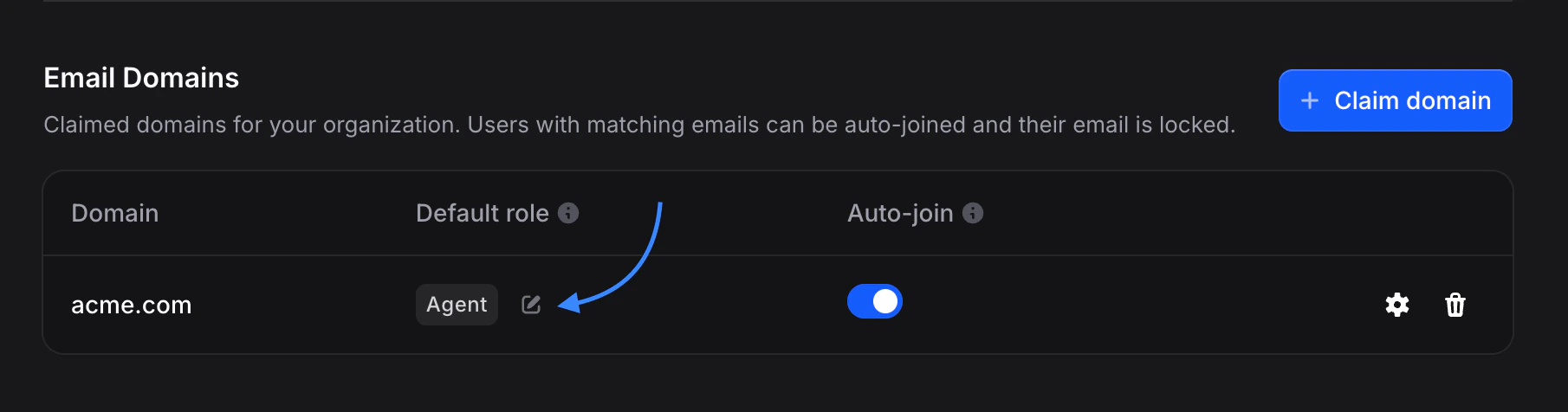
| **Role** | Default role assigned to users who auto-join through this domain. Click the pencil icon to change it |
| **Auto-Join** | Toggle. When on, users signing up with an email on this domain are automatically added as members |
| **⚙️ Settings** | Opens the settings dialog for profile sync, email change, and profile change |
| **🗑️ Delete** | Starts the 6-digit email-verified deletion flow |
## Claiming a Domain
1. Go to **Settings** → **SSO** ([useinvent.com/o/settings/sso](https://useinvent.com/o/settings/sso)).
2. In the **Email Domains** section, click **Claim domain**.
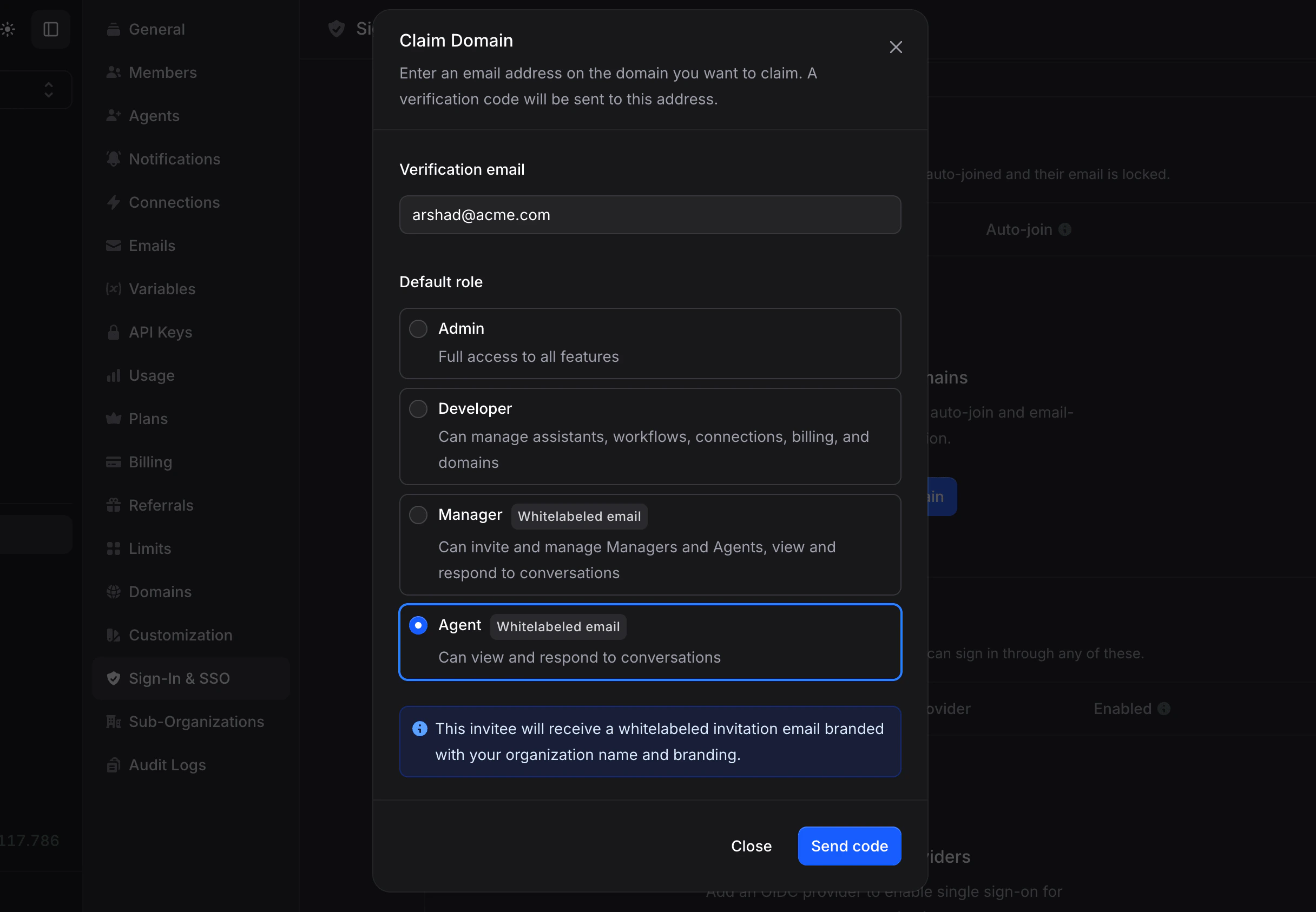
3. Fill in the form:
* **Verification email**: an email address on the domain you want to claim (for example, `admin@acme.com`). The 6-digit verification code is sent to this address and becomes the domain's **verification of record** for future sensitive operations, such as deletion.
* **Default role**: the role assigned to users who auto-join through this domain. Choose from Admin, Developer, Manager, or Staff. Defaults to **Staff**.
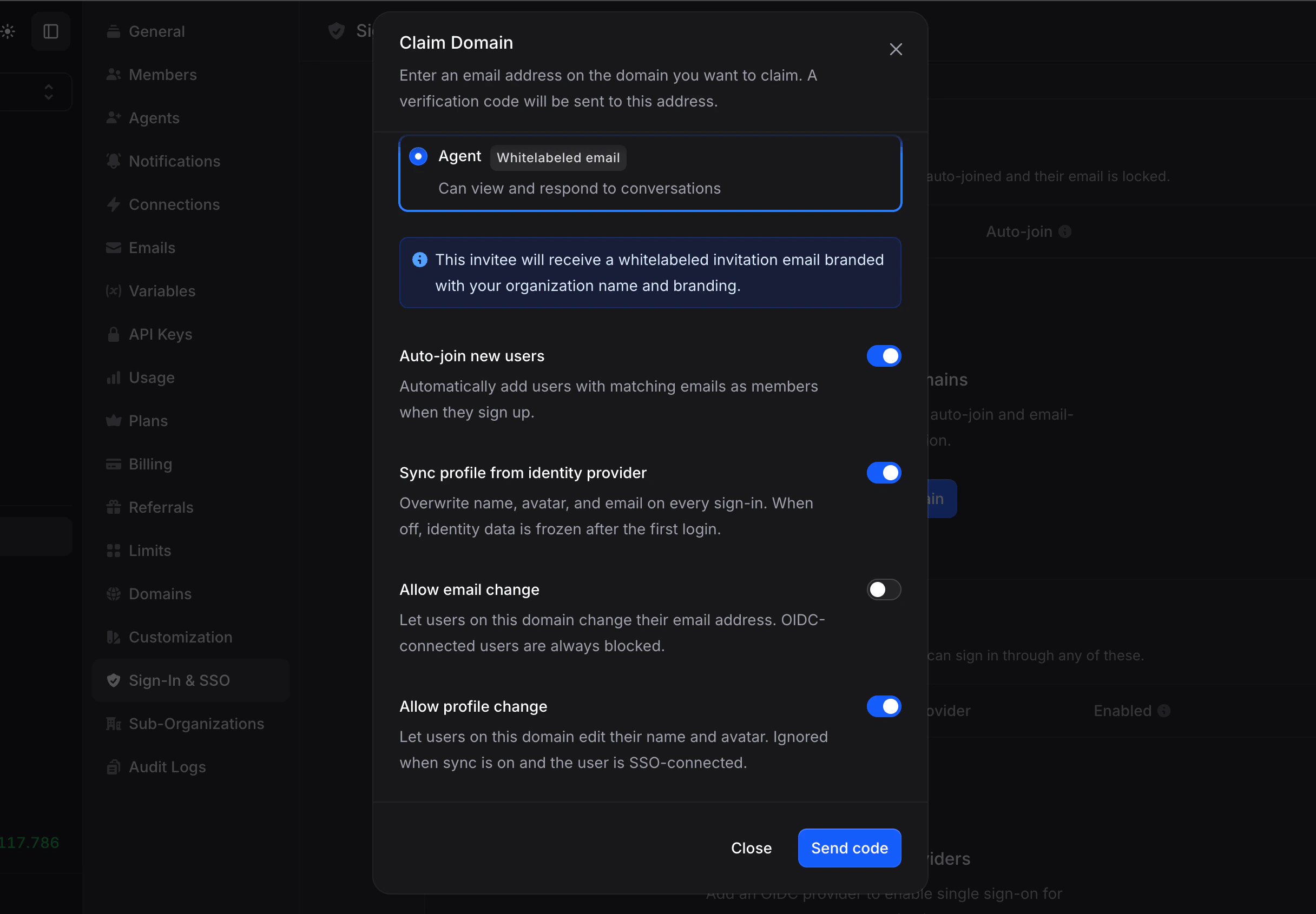
* **Auto-join new users**: automatically add users who sign up with an email on this domain as members of your organization. Defaults to **on**.
* **Sync profile from identity provider**: refresh the user's name, avatar, and email from your identity provider on every sign-in. Defaults to **on**.
* **Allow email change**: permit users on this domain to change their own email address from the user settings page. Defaults to **off**.
* **Allow profile change**: permit users on this domain to change their own name and avatar from the user settings page. Defaults to **on**.
4. Click **Send code**. A 6-digit verification code is emailed to the verification address.
5. Enter the code to complete verification and claim the domain.
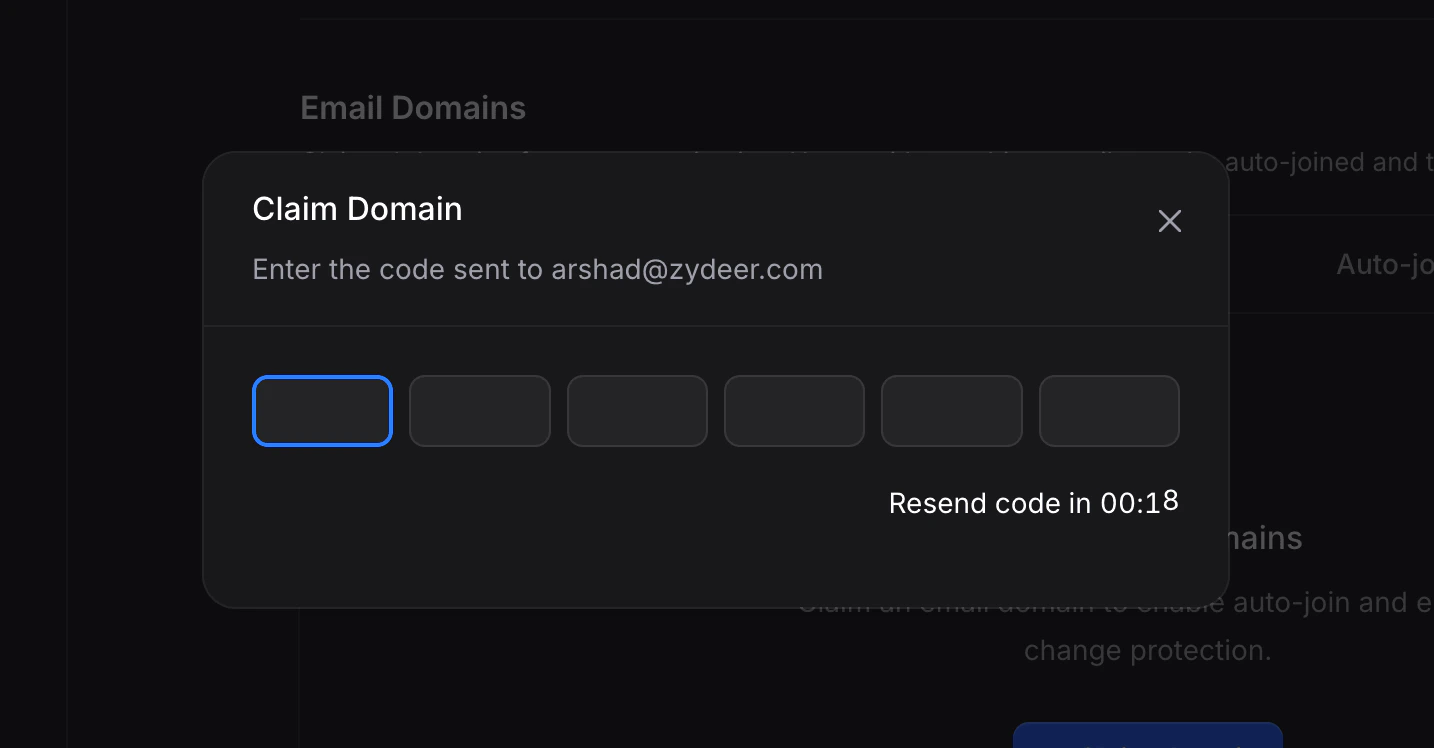 The verification code is valid for **10 minutes**. If it expires before you enter it, click **Resend** on the verification screen to request a new one.
Disposable email addresses and free-mail domains (Gmail, Outlook, Yahoo, iCloud, and similar) cannot be claimed as SSO domains.
## Domain Settings Explained
### Default Role
Every user who auto-joins through this domain is assigned this role on creation. The options match the standard Invent member roles:
* **Admin**: full access to the organization, including SSO, billing, and member management.
* **Developer**: technical features such as assistants, API keys, and integrations.
* **Manager**: customer-facing operations, including the inbox, contacts, and segments.
* **Staff**: view and respond to conversations.
[See the full role matrix →](/workspace-management/members)
You can change the default role at any time by clicking the pencil icon next to the role badge on the domain row. Existing members retain their current role. Only users who auto-join **after** the change receive the new default.
The verification code is valid for **10 minutes**. If it expires before you enter it, click **Resend** on the verification screen to request a new one.
Disposable email addresses and free-mail domains (Gmail, Outlook, Yahoo, iCloud, and similar) cannot be claimed as SSO domains.
## Domain Settings Explained
### Default Role
Every user who auto-joins through this domain is assigned this role on creation. The options match the standard Invent member roles:
* **Admin**: full access to the organization, including SSO, billing, and member management.
* **Developer**: technical features such as assistants, API keys, and integrations.
* **Manager**: customer-facing operations, including the inbox, contacts, and segments.
* **Staff**: view and respond to conversations.
[See the full role matrix →](/workspace-management/members)
You can change the default role at any time by clicking the pencil icon next to the role badge on the domain row. Existing members retain their current role. Only users who auto-join **after** the change receive the new default.
 ### Auto-Join
When **on**, any new user who signs up with an email matching this domain is automatically added to your organization with the **Default Role** set above.
Auto-join applies to **every sign-in method**, not just SSO. A user who signs up with Google using their `@acme.com` email is auto-joined in exactly the same way as a user who signs up through your SSO provider. The trigger is the verified email domain, not the authentication method.
Auto-join makes onboarding frictionless for large teams by removing the need for manual invitations. If you prefer explicit control over who joins your organization, turn it off and invite each member individually.
### Sync Profile
When **on**, Invent refreshes the user's **name**, **avatar**, and **email** from the claims returned by your identity provider on every SSO sign-in. This ensures that Invent's view of each user stays consistent with your directory of record as names change, photos are updated, or email addresses are reassigned.
When **off**, these identity fields are written once on first sign-in and are never subsequently overwritten from the identity provider. Existing users will keep whatever name, avatar, and email they already have in Invent regardless of what the identity provider returns.
### Allow Email Change
Controls whether users on this domain may change their own email address from the user settings page.
When **Sync Profile** is on, users connected to an identity provider (OIDC) are **always** blocked from changing their email, regardless of this flag. Their email is owned by the identity provider and any change would be overwritten on the next sign-in.
When **Sync Profile** is off, this flag applies uniformly to every user on the domain, including identity-provider-connected users. The Invent UI reflects this by disabling the email field for users who are blocked and surfacing a tooltip explaining which system manages their identity.
### Allow Profile Change
Controls whether users on this domain may change their own name and avatar from the user settings page. The rules mirror **Allow Email Change**: when **Sync Profile** is on, identity-provider-connected users are always blocked regardless of this flag, because any edit would be overwritten by the identity provider on the next sign-in. When **Sync Profile** is off, this flag applies uniformly to every user on the domain.
## Editing a Domain
Click the **⚙️ Settings** icon on any domain row to open the domain settings dialog.
### Auto-Join
When **on**, any new user who signs up with an email matching this domain is automatically added to your organization with the **Default Role** set above.
Auto-join applies to **every sign-in method**, not just SSO. A user who signs up with Google using their `@acme.com` email is auto-joined in exactly the same way as a user who signs up through your SSO provider. The trigger is the verified email domain, not the authentication method.
Auto-join makes onboarding frictionless for large teams by removing the need for manual invitations. If you prefer explicit control over who joins your organization, turn it off and invite each member individually.
### Sync Profile
When **on**, Invent refreshes the user's **name**, **avatar**, and **email** from the claims returned by your identity provider on every SSO sign-in. This ensures that Invent's view of each user stays consistent with your directory of record as names change, photos are updated, or email addresses are reassigned.
When **off**, these identity fields are written once on first sign-in and are never subsequently overwritten from the identity provider. Existing users will keep whatever name, avatar, and email they already have in Invent regardless of what the identity provider returns.
### Allow Email Change
Controls whether users on this domain may change their own email address from the user settings page.
When **Sync Profile** is on, users connected to an identity provider (OIDC) are **always** blocked from changing their email, regardless of this flag. Their email is owned by the identity provider and any change would be overwritten on the next sign-in.
When **Sync Profile** is off, this flag applies uniformly to every user on the domain, including identity-provider-connected users. The Invent UI reflects this by disabling the email field for users who are blocked and surfacing a tooltip explaining which system manages their identity.
### Allow Profile Change
Controls whether users on this domain may change their own name and avatar from the user settings page. The rules mirror **Allow Email Change**: when **Sync Profile** is on, identity-provider-connected users are always blocked regardless of this flag, because any edit would be overwritten by the identity provider on the next sign-in. When **Sync Profile** is off, this flag applies uniformly to every user on the domain.
## Editing a Domain
Click the **⚙️ Settings** icon on any domain row to open the domain settings dialog.
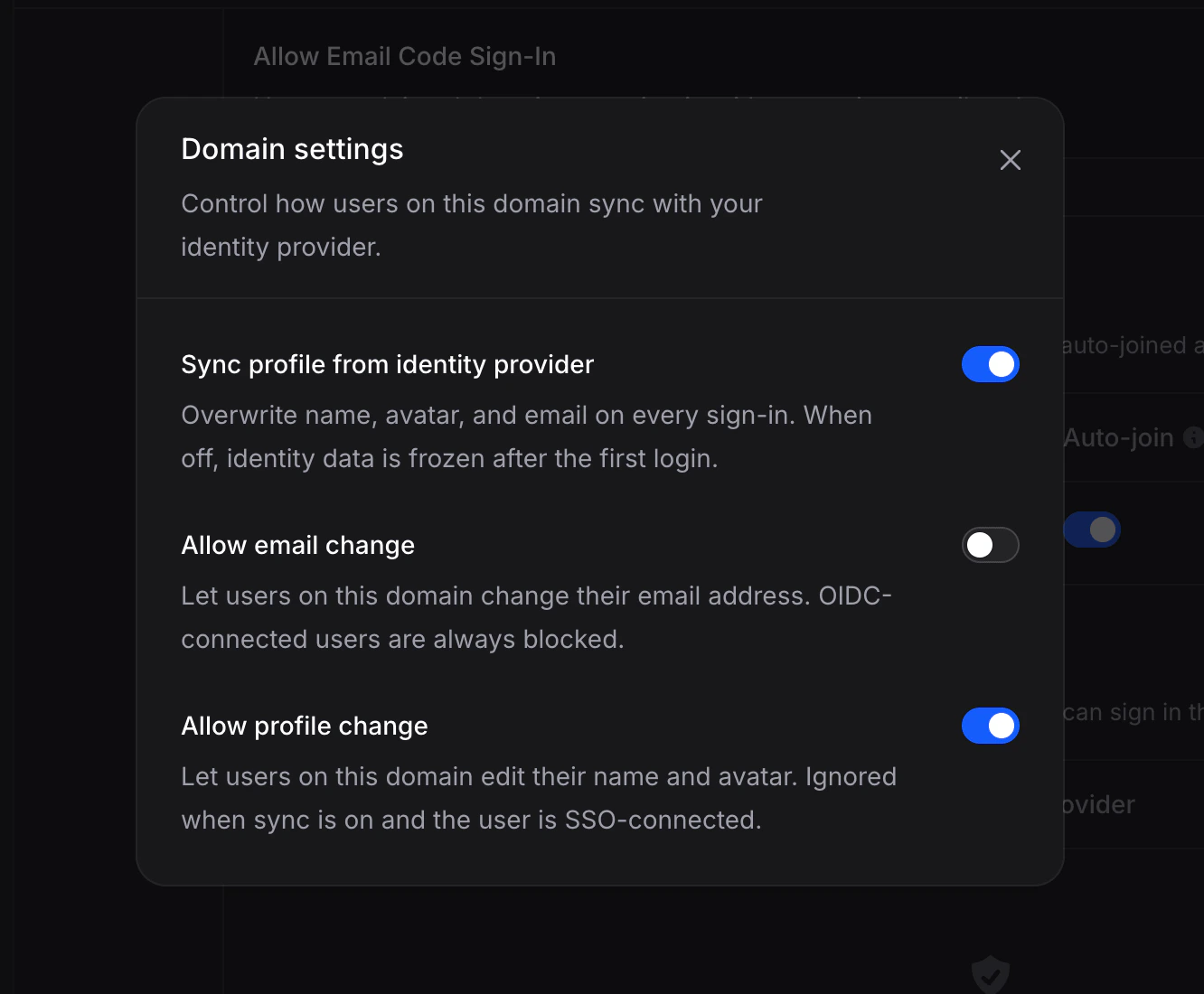 Three flags are editable inside the dialog:
* **Sync Profile**
* **Allow Email Change**
* **Allow Profile Change**
Changes save immediately on toggle and take effect on the next sign-in.
Two other settings are edited inline on the domain row rather than in this dialog:
* To change the **Default Role**, click the pencil icon next to the role badge on the row.
* To change **Auto-Join**, flip the toggle switch directly on the row.
The domain itself (for example, `acme.com`) and its verified state are immutable after claiming. If you need to change the domain value, delete it using the flow below and claim the new domain from scratch.
## Deleting a Domain
Deleting a domain is a sensitive operation and is protected by a second round of email verification. Even organization admins cannot remove a domain with a single click.
Three flags are editable inside the dialog:
* **Sync Profile**
* **Allow Email Change**
* **Allow Profile Change**
Changes save immediately on toggle and take effect on the next sign-in.
Two other settings are edited inline on the domain row rather than in this dialog:
* To change the **Default Role**, click the pencil icon next to the role badge on the row.
* To change **Auto-Join**, flip the toggle switch directly on the row.
The domain itself (for example, `acme.com`) and its verified state are immutable after claiming. If you need to change the domain value, delete it using the flow below and claim the new domain from scratch.
## Deleting a Domain
Deleting a domain is a sensitive operation and is protected by a second round of email verification. Even organization admins cannot remove a domain with a single click.
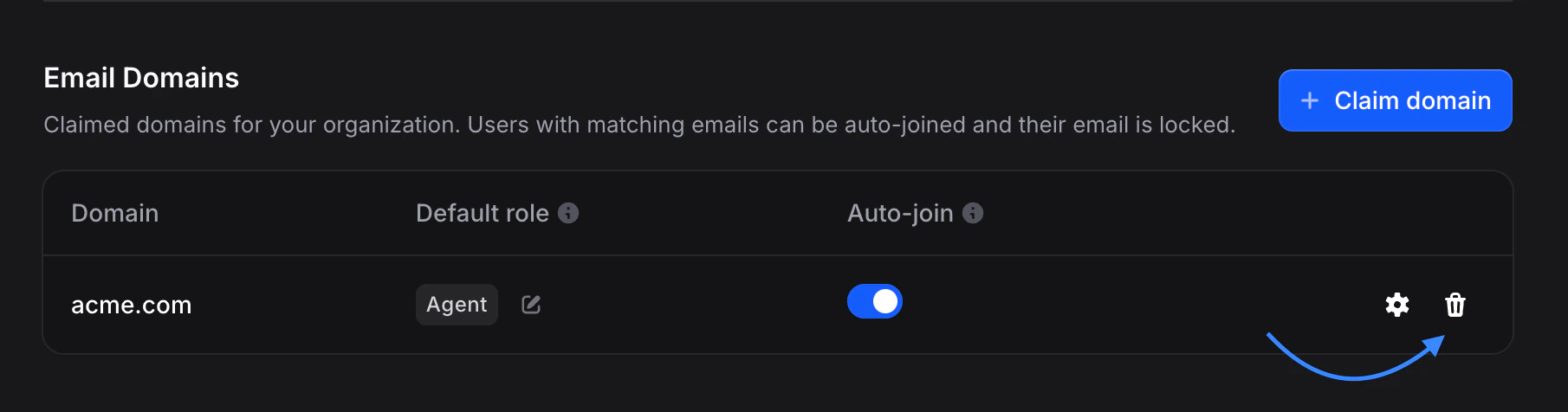 1. Click the **🗑️ Delete** icon on the domain row.
2. Click **Send deletion code**. A 6-digit code is emailed to the original verification address **and** to every admin on your organization, so that more than one person is aware of the deletion attempt.
3. Enter the code in the confirmation dialog to complete the removal.
Deleting a domain has the following effects:
* The claim is released from Invent. Another organization can subsequently claim the same domain.
* Auto-join and profile sync stop applying to future sign-ins on that domain.
* Existing members who joined through this domain are **not** removed. They remain in your organization with their current roles and any active sessions are preserved.
* SSO profiles on the organization are **not** deleted, but they will stop being reachable through the sign-in flow if no remaining verified domain matches an incoming user's email.
## Relationship with SSO Profiles
Domains and profiles are separate concepts that are linked at sign-in time:
1. A user enters their email on the [Invent sign-in page](https://useinvent.com/sign-in).
2. Invent looks up the email's domain. If it matches a verified domain on any organization, Invent resolves to that organization.
3. Invent then lists every **enabled** SSO profile belonging to that organization. Those profiles become the identity-provider options the user sees.
In short: **the domain proves which organization owns the user, and the profile provides the identity provider that authenticates them.** Both pieces are required for SSO sign-in to work end-to-end.
[Set up your first SSO profile →](/workspace-management/sso/profiles)
## Troubleshooting
The code is 6 digits long and expires after **10 minutes** from the moment it was sent. If the code expired, click **Resend** on the verification screen to receive a new one. If you copied and pasted the code, check that no whitespace or trailing characters were included.
Another Invent organization has already verified this domain. If you believe your organization is the rightful owner, contact Invent support with documentation that demonstrates ownership of the domain.
Check your spam folder and any organization-wide email filters that may be blocking messages from external senders. The sender address is the `from` address configured for your workspace, or Invent's default if none is configured. If the email still does not arrive, try claiming the domain again with a different mailbox on the same domain.
Yes. `team.acme.com` and `acme.com` are treated as entirely separate domains. Only users whose email **exactly** matches a verified domain will be matched by that domain's settings. Claiming `acme.com` does not implicitly cover `team.acme.com`, and vice versa.
1. Click the **🗑️ Delete** icon on the domain row.
2. Click **Send deletion code**. A 6-digit code is emailed to the original verification address **and** to every admin on your organization, so that more than one person is aware of the deletion attempt.
3. Enter the code in the confirmation dialog to complete the removal.
Deleting a domain has the following effects:
* The claim is released from Invent. Another organization can subsequently claim the same domain.
* Auto-join and profile sync stop applying to future sign-ins on that domain.
* Existing members who joined through this domain are **not** removed. They remain in your organization with their current roles and any active sessions are preserved.
* SSO profiles on the organization are **not** deleted, but they will stop being reachable through the sign-in flow if no remaining verified domain matches an incoming user's email.
## Relationship with SSO Profiles
Domains and profiles are separate concepts that are linked at sign-in time:
1. A user enters their email on the [Invent sign-in page](https://useinvent.com/sign-in).
2. Invent looks up the email's domain. If it matches a verified domain on any organization, Invent resolves to that organization.
3. Invent then lists every **enabled** SSO profile belonging to that organization. Those profiles become the identity-provider options the user sees.
In short: **the domain proves which organization owns the user, and the profile provides the identity provider that authenticates them.** Both pieces are required for SSO sign-in to work end-to-end.
[Set up your first SSO profile →](/workspace-management/sso/profiles)
## Troubleshooting
The code is 6 digits long and expires after **10 minutes** from the moment it was sent. If the code expired, click **Resend** on the verification screen to receive a new one. If you copied and pasted the code, check that no whitespace or trailing characters were included.
Another Invent organization has already verified this domain. If you believe your organization is the rightful owner, contact Invent support with documentation that demonstrates ownership of the domain.
Check your spam folder and any organization-wide email filters that may be blocking messages from external senders. The sender address is the `from` address configured for your workspace, or Invent's default if none is configured. If the email still does not arrive, try claiming the domain again with a different mailbox on the same domain.
Yes. `team.acme.com` and `acme.com` are treated as entirely separate domains. Only users whose email **exactly** matches a verified domain will be matched by that domain's settings. Claiming `acme.com` does not implicitly cover `team.acme.com`, and vice versa.