

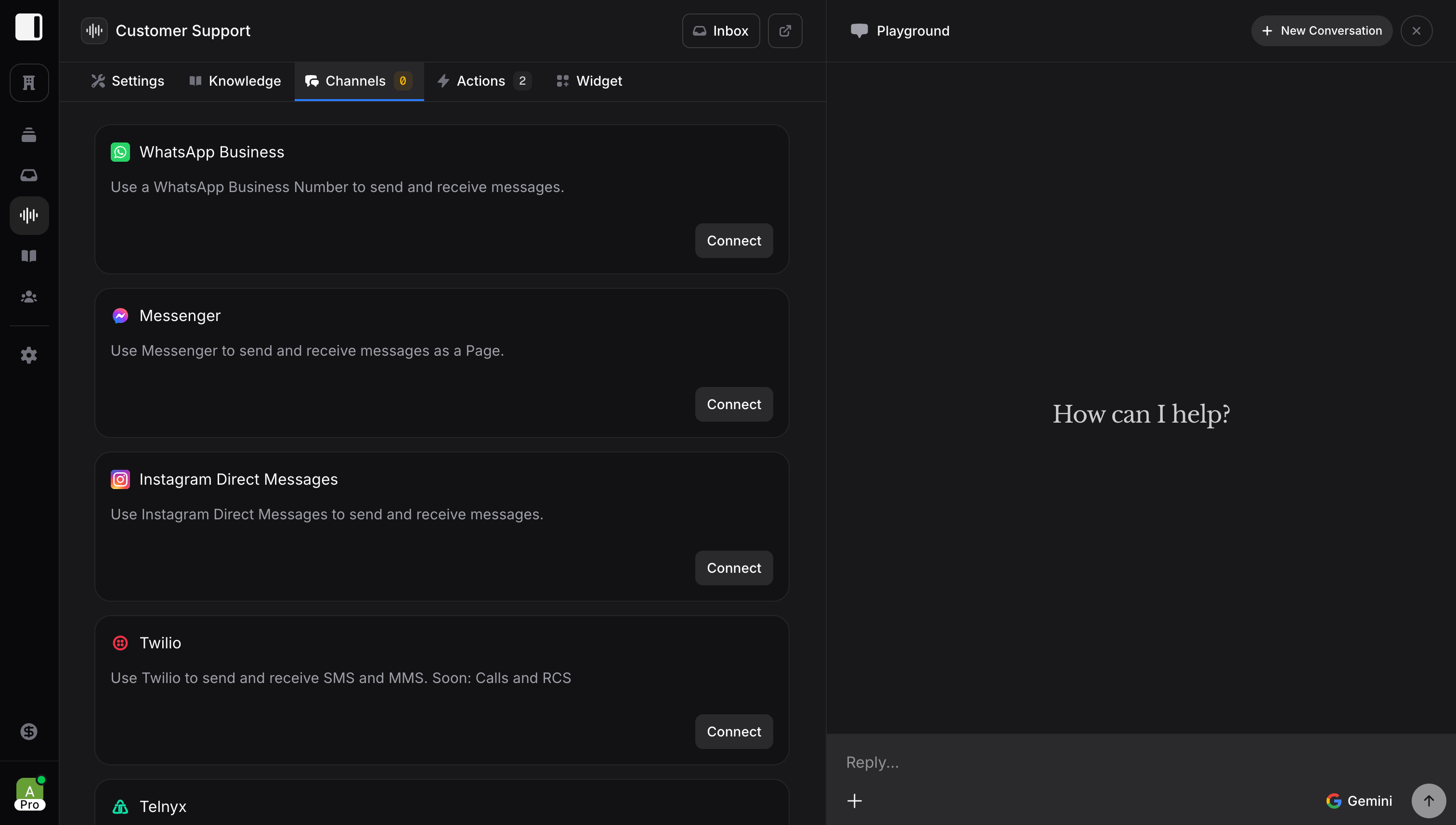
Connecting a Channel
- Go to your assistant’s Channels tab
- Find the channel you want to connect
- Click Connect
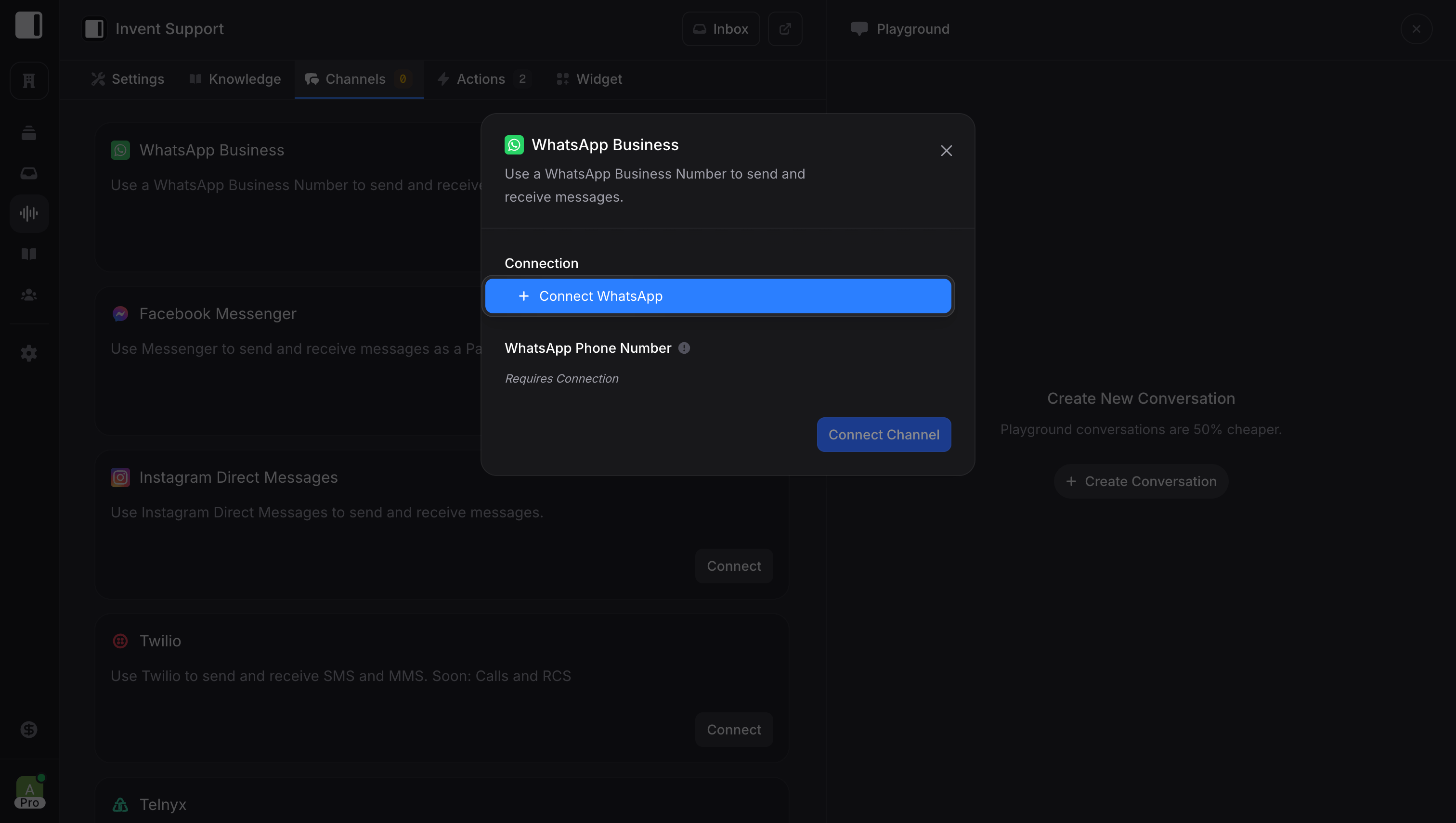
- Follow the authentication steps
- Configure any channel-specific settings
Managing Connected Channels
For each connected channel, you can:- Enable/Disable: Turn the channel on or off without disconnecting
- Manage: Access channel-specific settings
- Disconnect: Remove the channel entirely
One Assistant, Multiple Channels
A single assistant can handle multiple channels simultaneously. A customer might:- Ask a question on Instagram
- Continue the conversation on WhatsApp
- Complete a purchase on your website
Channel-Specific Behavior
While your assistant’s core personality stays consistent, some behaviors adapt to each channel:- WhatsApp: Can send location requests, handle voice messages
- Instagram: Can respond to story mentions, handle image messages
- Web Widget: Can show rich cards, suggested questions
Best Practices
- Start with one channel: Get it working perfectly before adding more
- Match your customers: Use channels where your customers already are
- Keep branding consistent: Same name and avatar across all channels
- Test each channel: Send test messages to verify everything works
- Monitor all channels: Check your Inbox regularly for conversations needing attention