

How It Works
When a customer requests human help or the assistant encounters something it can’t handle, the conversation is automatically handed off:- Conversation appears in Inbox under “Waiting for Human”
- System assigns to an active agent (if available)
- If no active agents, conversation remains unassigned for manual assignment
Agent Status
Toggle your status to control automatic assignments: Active: Receives automatic handoff assignments Inactive: Skipped for auto-assignments, but can still manually take over conversations Members toggle status in their profile settings.Manual Assignment
Assign conversations from the Inbox sidebar:- Open a conversation
- Click the agent dropdown (shows “Unassigned” if unassigned)
- Search and select a team member
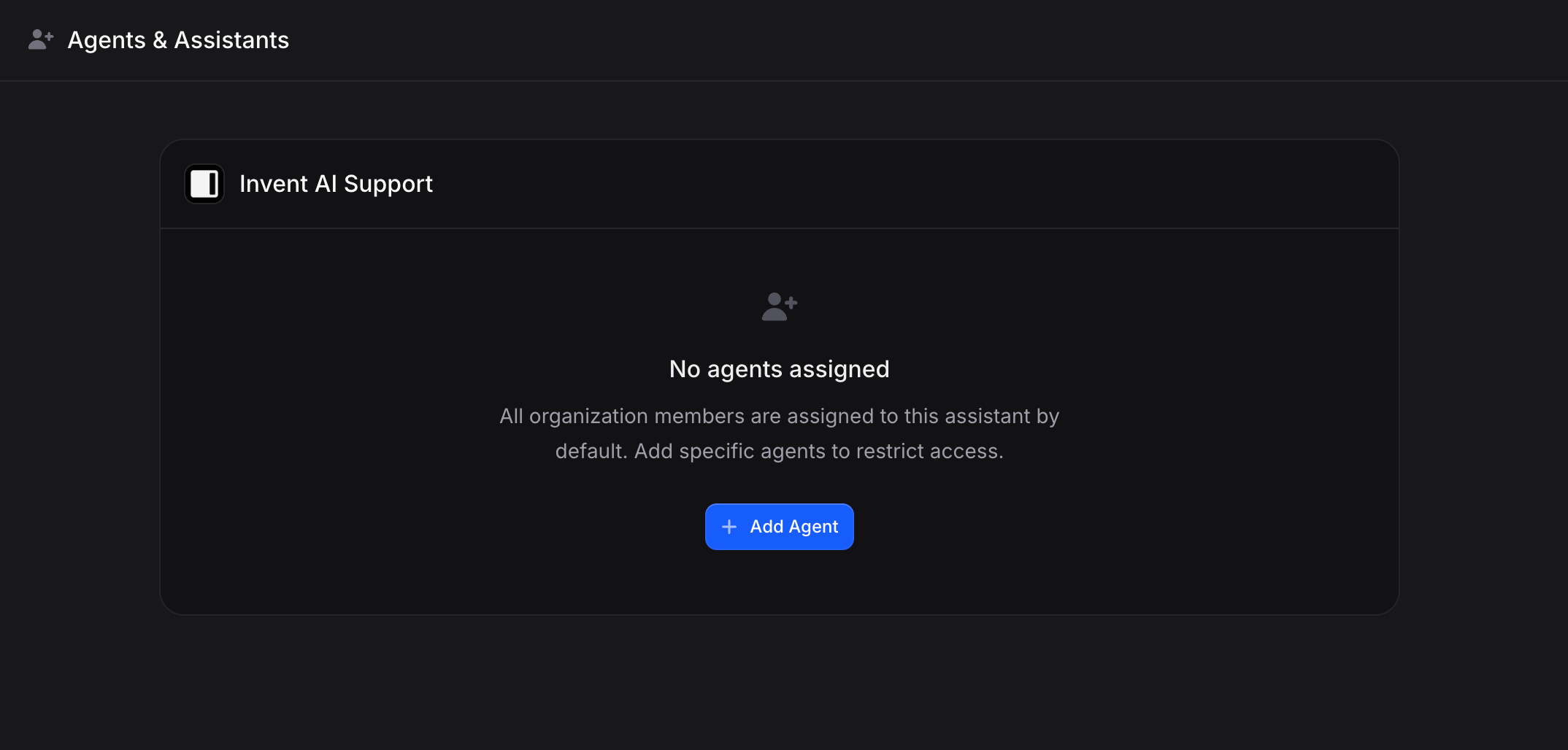
Restricting Assistant Access
By default, all members access conversations from any assistant. To restrict:- Go to Settings → Agents
- Find the assistant
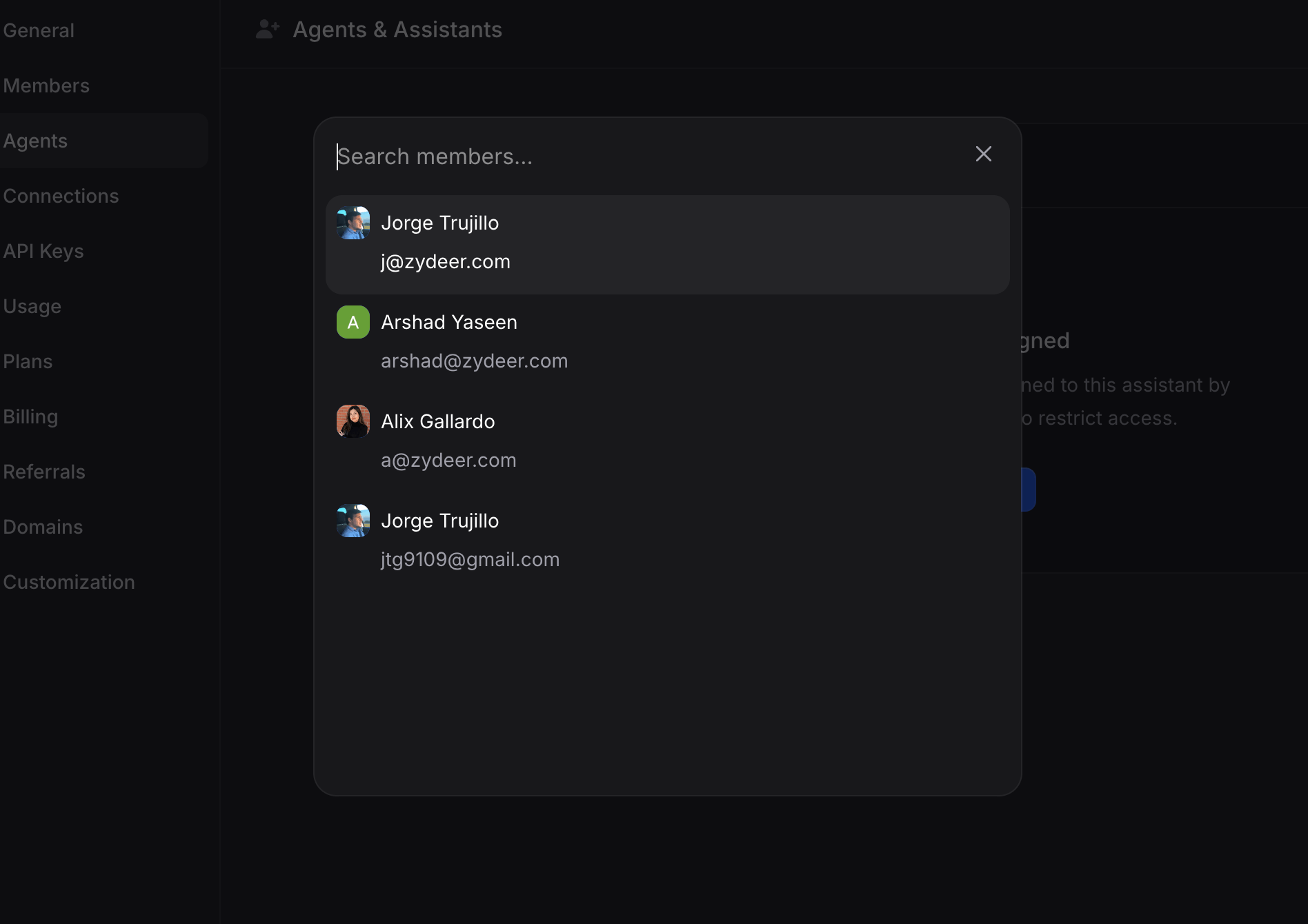
- Click Add Agent and select specific members
- Only selected members see that assistant’s conversations
Managing Assignments
- Add Agent: Assign additional members
- Remove Agent: Revoke access (trash icon)
- Enable/Disable: Toggle without removing
Agent Roles
Can be assigned as agents:- Manager
- Agent
- Admin
- Developer
Use Cases
Support Teams: Route customer service to support agents Specialized Assistants: Assign subject matter experts to relevant assistants Regional Teams: Assign by language or time zone Workload Management: Set status inactive when at capacityResolving Conversations
After helping a customer:- Click Resolve to mark complete
- Click Hand Over to AI to return conversation to assistant
- If customer replies, resolved conversations reopen automatically
Inbox Filters
Find conversations needing attention:- All: Every conversation
- Unread: New messages you haven’t seen
- Unresolved: Open conversations (AI handling or awaiting response)
- Resolved: Completed conversations
- Assigned to me: Conversations assigned to you
- Unassigned: Conversations without an assigned agent
Next Steps
Inbox
Manage conversations and monitor handoffs in the Inbox
Members
Invite team members and assign roles for agent access