

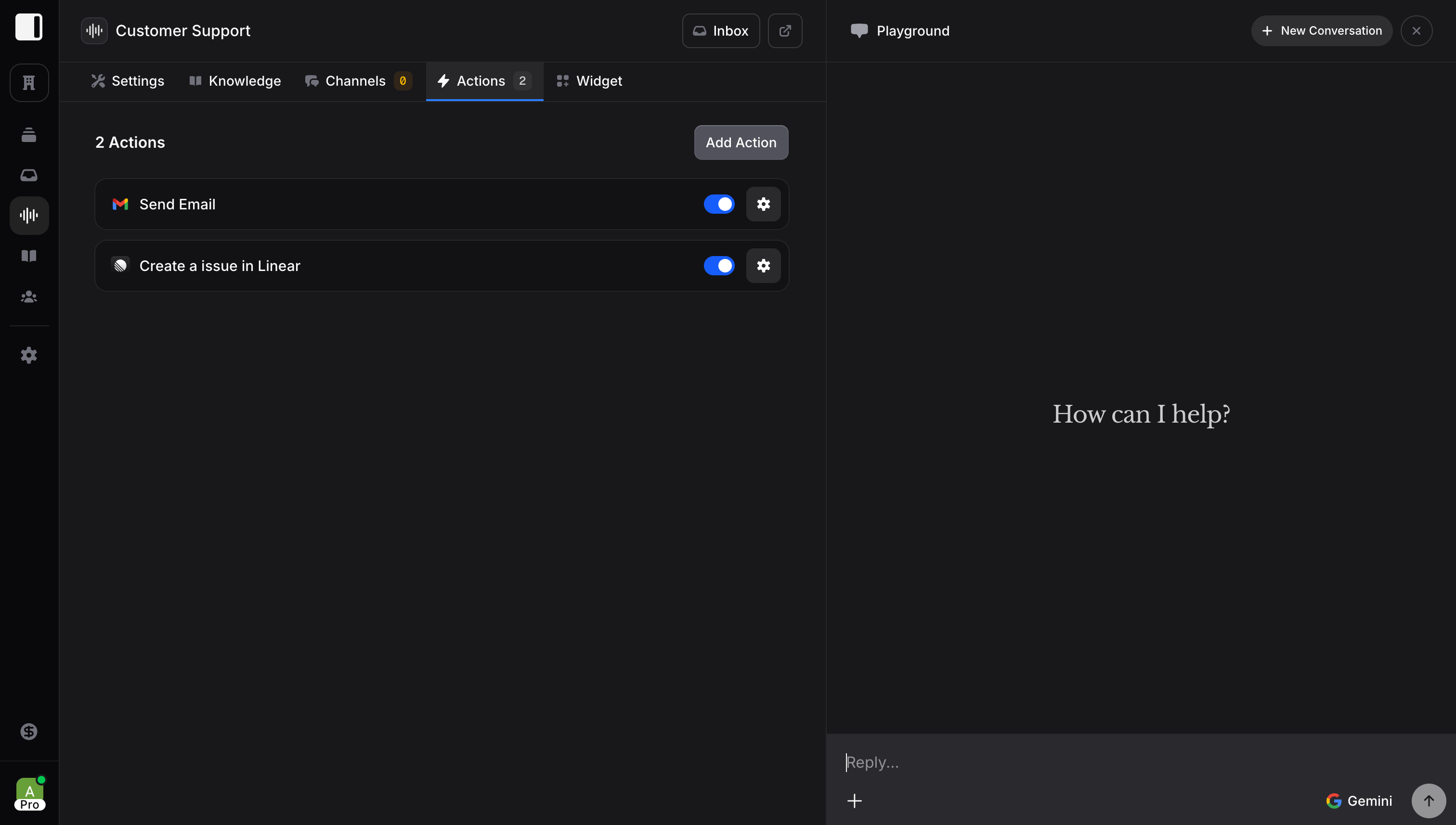
What Are Actions?
Actions are integrations that let your assistant interact with external services. Instead of just saying “I can help you book an appointment,” your assistant actually books it. Without actions: “Please visit our website to book an appointment.” With actions: “I’ve booked you for Tuesday at 2 PM. You’ll receive a calendar invite shortly.”Adding Actions
- Go to your assistant’s Actions tab
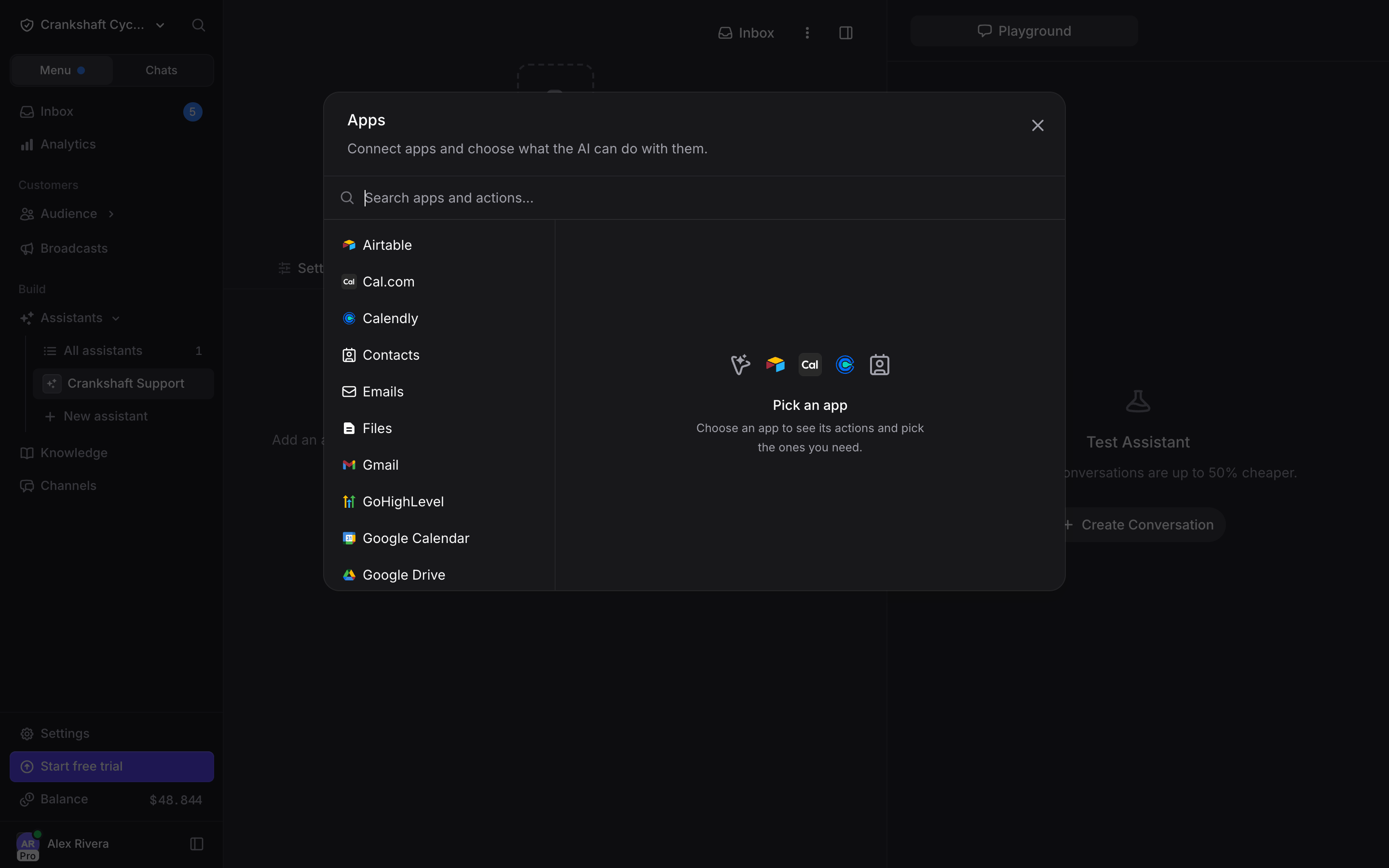
- Click Add Action. The Apps dialog opens
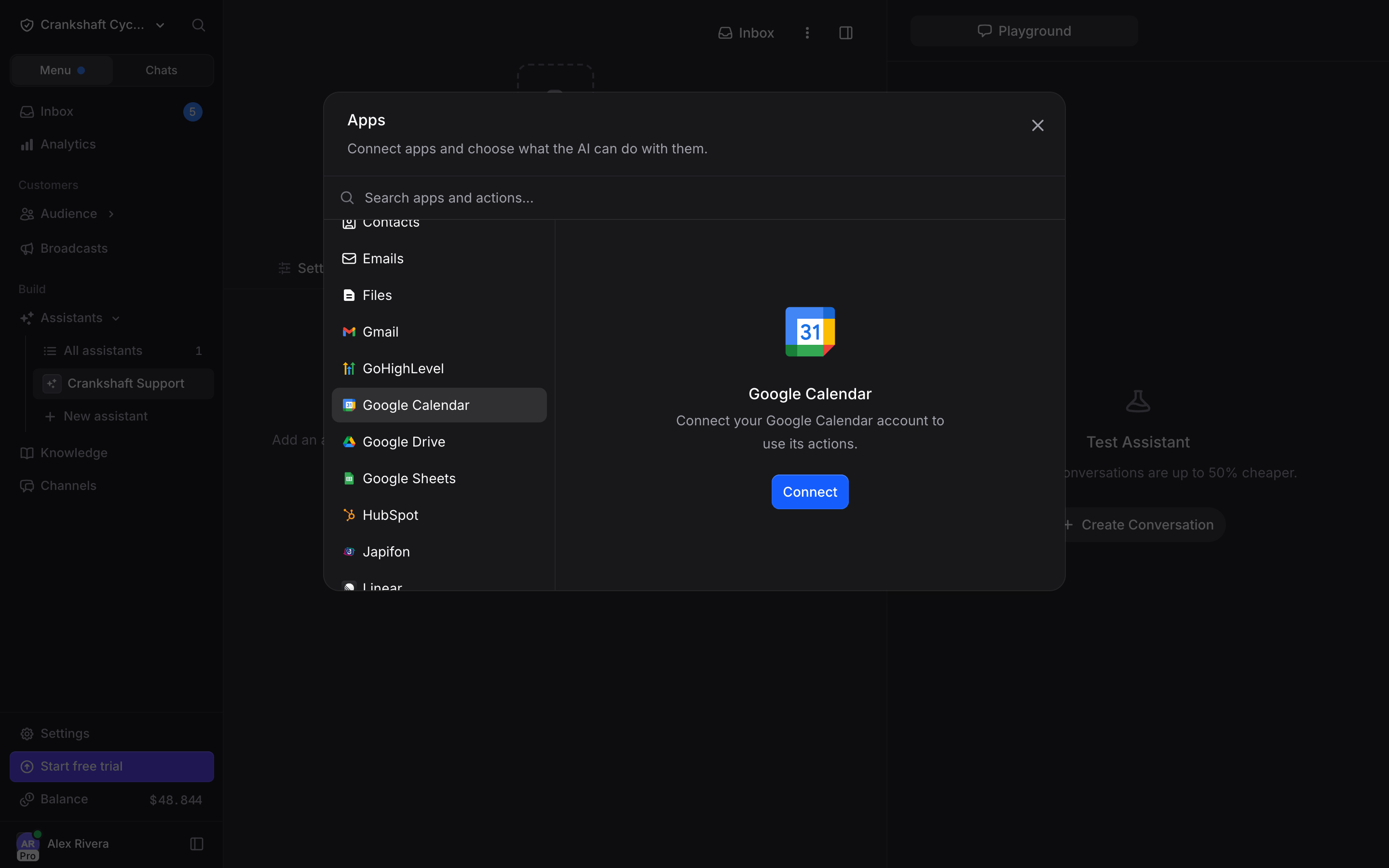
- Pick an app (like Google Calendar). If it is not connected yet, click Connect. For most apps, connecting the account also adds all of its actions, with an Undo button in the confirmation
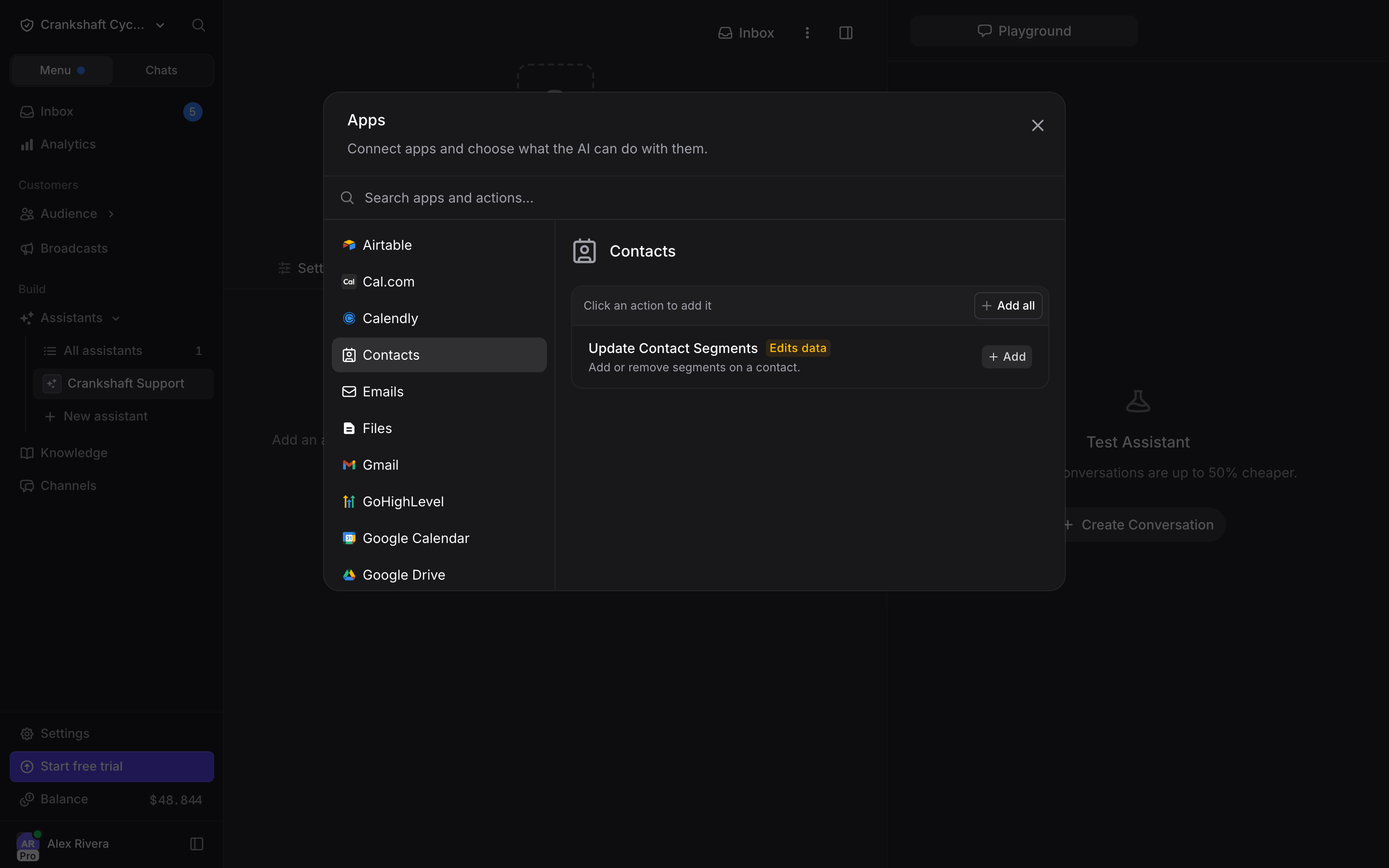
- Click an action (like Create Event) to add it. An action with required fields opens its form first; fill it in and click Add Action
- To add the app’s actions in one go, click Add all. If the app has shared fields (like which calendar to use), you set them once and every action is added with those values. Actions that need their own required fields are skipped; add those one by one
Available Integrations
Invent integrates with popular services across multiple categories:- Scheduling: Book and manage appointments with calendar services like Google Calendar, Cal.com, and Calendly
- Communication: Send messages via email, Slack, SMS, and other communication platforms
- CRM & Sales: Connect to your CRM to manage contacts, leads, deals, and customer relationships
- Productivity: Work with spreadsheets, project management tools, note-taking apps, and task managers
- Payments: Process payments and create checkout links through payment processors
- E-commerce: Access order information, product catalogs, and customer data from your store
- Utilities: Search the web, scrape data from websites, call any API endpoint, or trigger custom workflows
AI Controlled Fields
This is where the magic happens. When configuring an action, most fields are set to AI Controlled by default.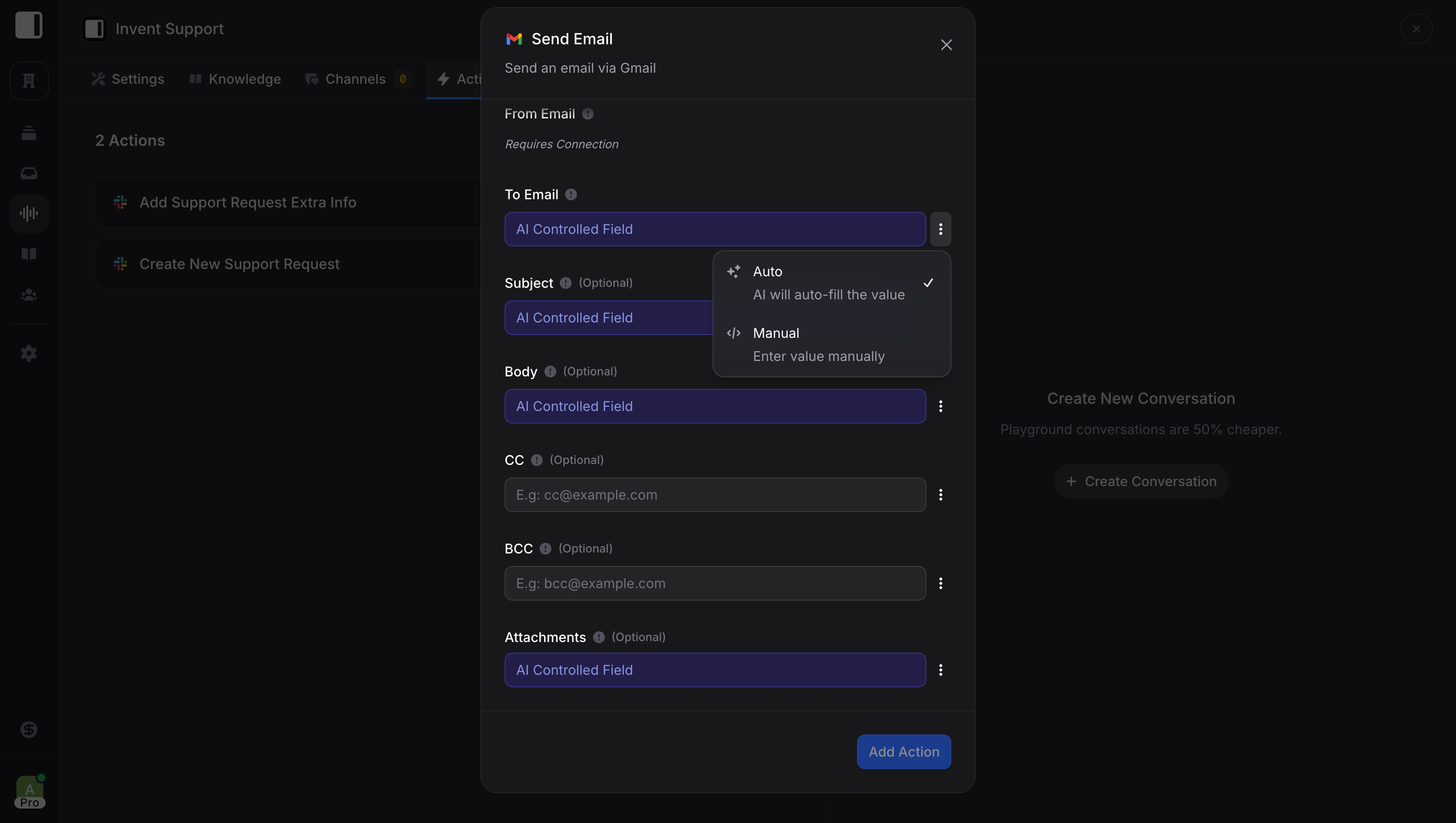
What Does AI Controlled Mean?
Instead of you hardcoding values, your assistant figures them out from the conversation. Example: Creating a Calendar Event
You don’t write code. You don’t create complex rules. The AI understands context and fills in the right values.
Auto-Discovery
AI Controlled Fields go beyond reading the conversation. When a field needs a provider-specific value the assistant cannot infer from chat alone, like a Calendar ID, a Trello list, or a spreadsheet sheet name, the assistant automatically runs the provider’s discovery actions to resolve it. You no longer need to wire up those lookups yourself. You only add the actions the assistant should perform. Discovery runs behind the scenes using the same Connection as your explicit actions, so permissions and access scopes stay consistent. For a setup like the one above with justCreate Event and Create Card, the assistant automatically invokes supporting lookups whenever it needs a value to fill an AI Controlled field:
List Calendarsto know which Google Calendar to create the event inList BoardsandList Liststo pick the right Trello destinationList Membersto assign the card to the right person- …and similar discovery actions for every other integration
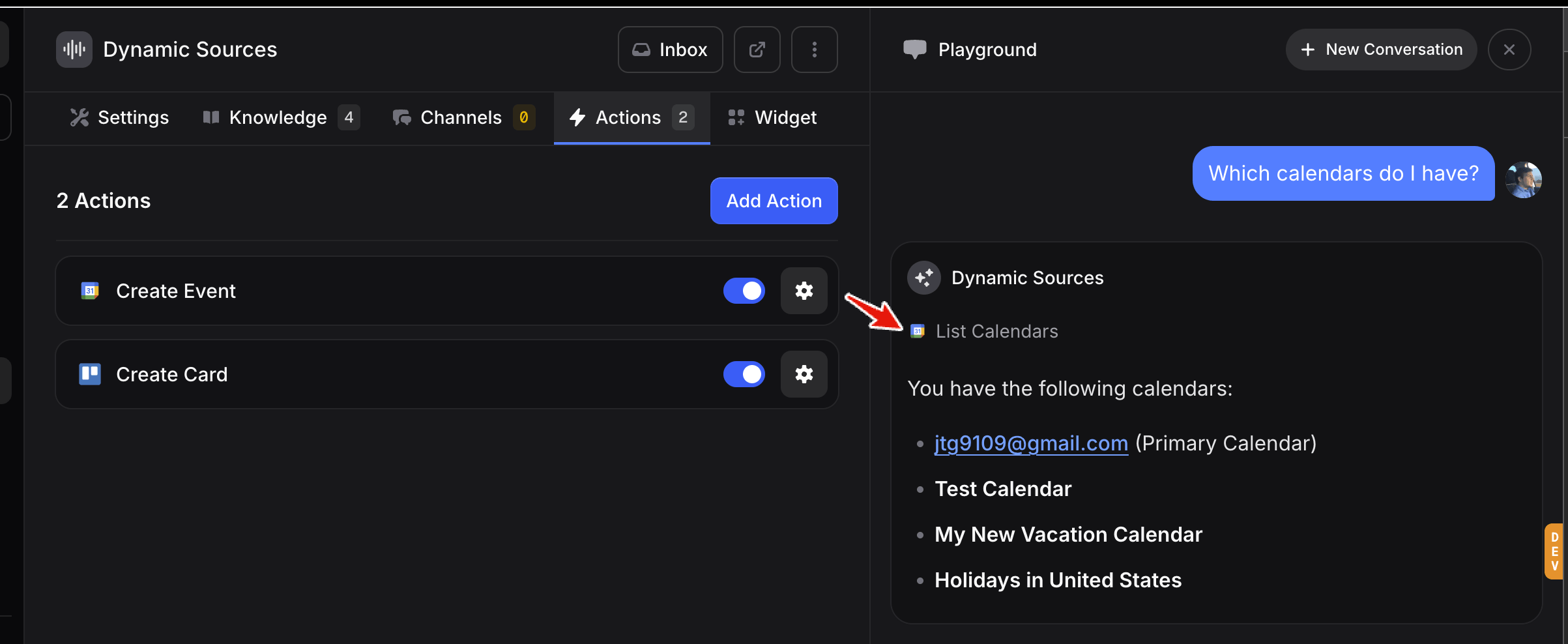
Create Event and Create Card configured. When a customer asks “Which calendars do I have?”, the assistant automatically invokes List Calendars to answer, even though that action is not in the configured list. The same happens for Trello when the assistant needs a board or list ID to create a card.
When to Override AI Control
Sometimes you want specific values regardless of conversation:- Calendar ID: Always use your business calendar
- Default duration: All appointments are 1 hour
- Notification settings: Always send email reminders
Action Configuration
Each action has:Action Name (Optional)
A custom name to help your assistant identify this action. Useful when you have multiple similar actions.When To Use (Optional)
Guidance for your assistant on when to trigger this action. For example:“Use this action when a customer wants to book an appointment and has provided their preferred date and time.”
Connection
Which account to use. For Google Calendar, this is which Google account’s calendar to access. You can connect multiple accounts and choose the right one for each action. Manage all your connected accounts from the Connections page.Action-Specific Fields
Each action has different fields. For Google Calendar’s Create Event:- Calendar: Which calendar to add the event to
- Event Title: Name of the event
- Description: Event details
- Start Date: When it starts
- End Date: When it ends
- Attendees: Who to invite
- Visibility: Public or private
- Reminders: Notification settings
Enabling and Disabling Actions
Each action has a toggle to enable or disable it. Disabled actions won’t be used by your assistant, but the configuration is preserved. This is useful for:- Testing new actions before going live
- Temporarily disabling actions during maintenance
- A/B testing different action configurations
Multiple Actions
Your assistant can have many actions. During a conversation, it automatically chooses the right one based on context. Customer: “I need to book an appointment for next week” → Assistant uses Create Event action Customer: “Can you check if I have anything scheduled tomorrow?” → Assistant uses Search Events action Customer: “Actually, can we move it to Thursday?” → Assistant uses Update Event actionTesting Actions
Always test your actions in the Playground before going live. The Playground lets you simulate real conversations and verify that actions trigger correctly with the right values. Here is an example of a “Book Consultation” action configured with a mix of AI Controlled and Manual fields: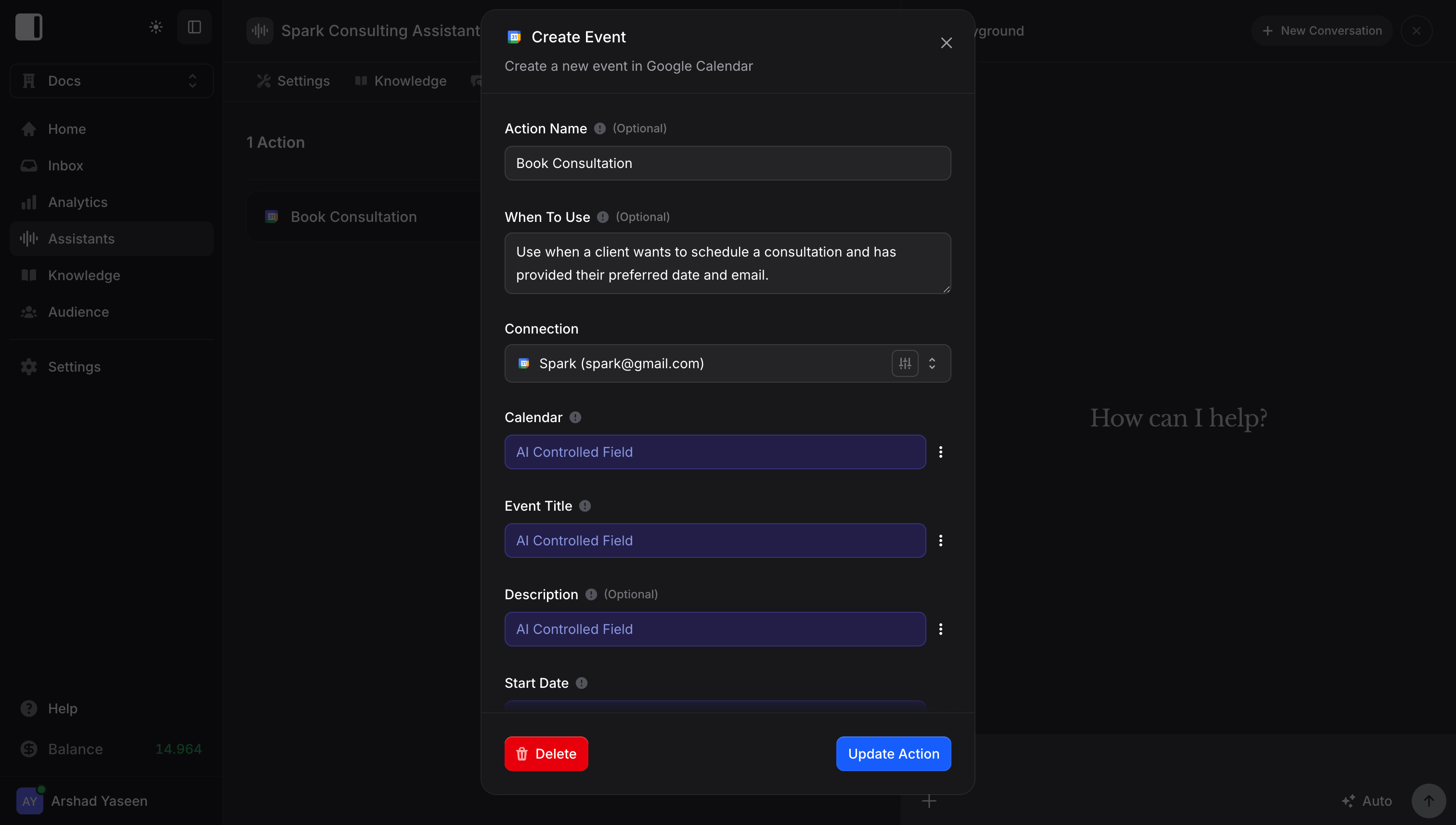
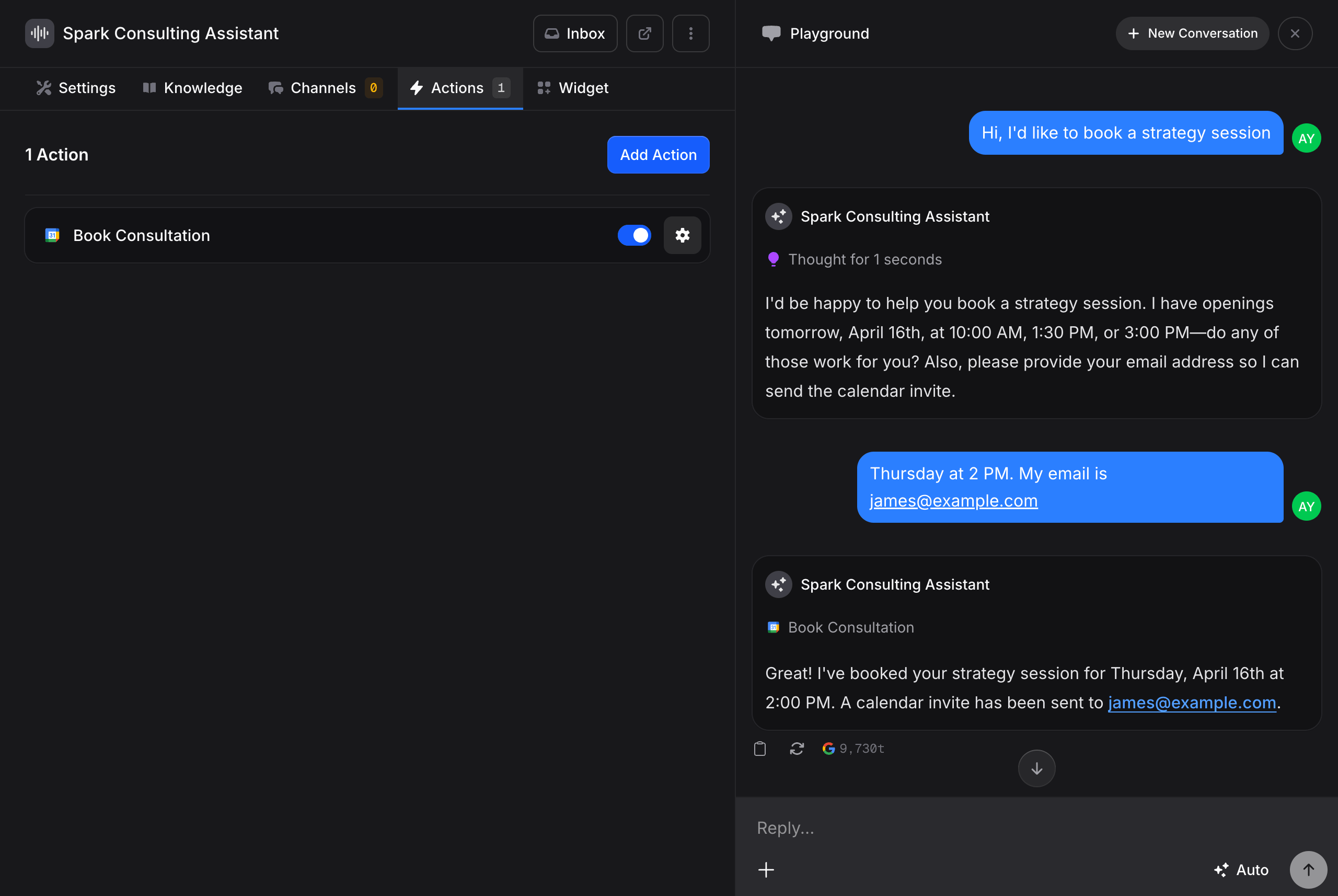
How to Test
- Open your assistant and click Create Conversation in the Playground
- Have a conversation that should trigger your action (e.g., ask to book an appointment)
- Watch for the action execution in the conversation. You will see when the assistant calls an action and what values it used
- Verify the result in the external service (e.g., check that the calendar event was actually created)
What to Check
- Does the action trigger at the right time? If it triggers too early (before the customer confirmed) or not at all, adjust your “When To Use” instructions
- Are the AI Controlled fields correct? Check that the assistant extracted the right values from the conversation. If a field is consistently wrong, consider switching it to a fixed Manual value
- Does the assistant confirm before acting? Add confirmation rules to your Instructions so the assistant verifies details with the customer before triggering irreversible actions
- What happens when information is missing? The assistant should ask for required details instead of guessing. If it guesses, add a rule to your Instructions like “Always ask for the customer’s email before booking”
Best Practices
- Start simple: Add one action, test it thoroughly, then add more
- Use descriptive names: “Book Yoga Class” is better than “Create Event”
- Write clear “When To Use” instructions: Help your assistant know when to trigger each action
- Test in the Playground: Verify actions work before customers use them
- Monitor action usage: Check that actions are triggering correctly
Troubleshooting
Action Not Triggering
- Check that the action is enabled (toggle is on)
- Verify the “When To Use” instructions are clear
- Test in the Playground with explicit requests
Wrong Values Being Used
- Review which fields are AI Controlled vs fixed
- Add more specific “When To Use” instructions
- Consider overriding AI Control for problematic fields
Connection Errors
- Reconnect the integration
- Verify the connected account has necessary permissions
- Check if the external service is experiencing issues