

Why the Connections page exists
Invent splits the problem in two:- Connection: Who are we, as a workspace, on this provider? (the authenticated account, bot token, MCP URL, etc.)
- Where it is used: Which assistant uses this for which Action or Channel?
Actions
Each action that needs an external service chooses a Connection. Several actions can share one Google or Stripe account.
Channels
Messaging channels reuse the same pattern: a Connection to Meta, Telegram, etc., then a per-assistant binding (phone number, Page, bot).
Open Connections
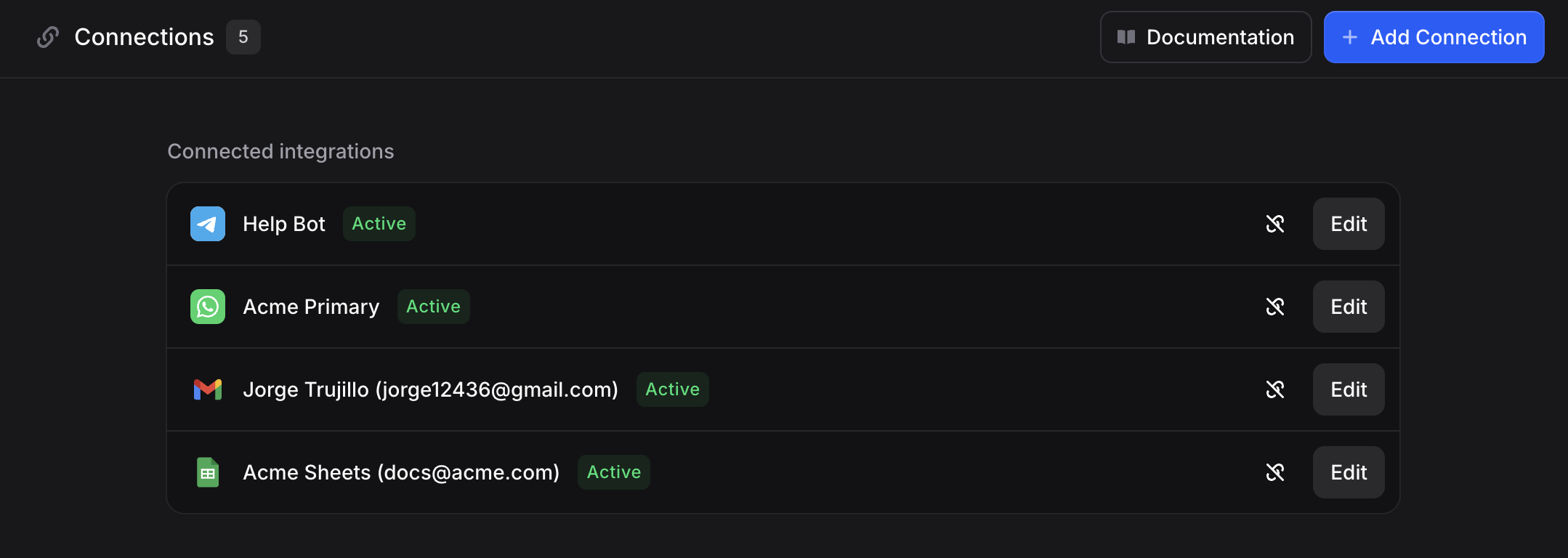
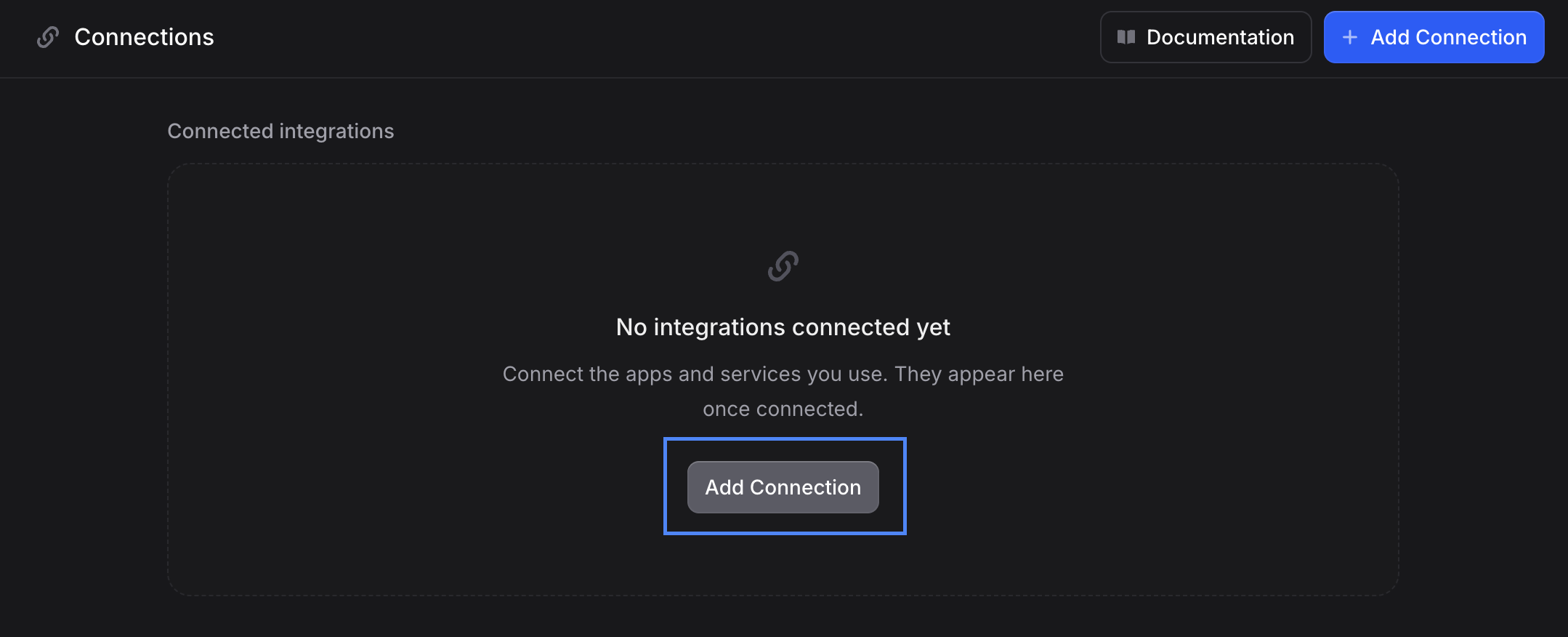
Go to Settings → Connections (useinvent.com/o/settings/connections). At the top you will see:- Connections with a count badge (how many integrations are connected)
- Documentation: quick access to this guide
- Add integration: opens the integration picker (same idea as starting a new connection from scratch)
Two ways to connect
Not every provider works the same way. Invent supports:Sign-in connections (OAuth / “Continue to …”)
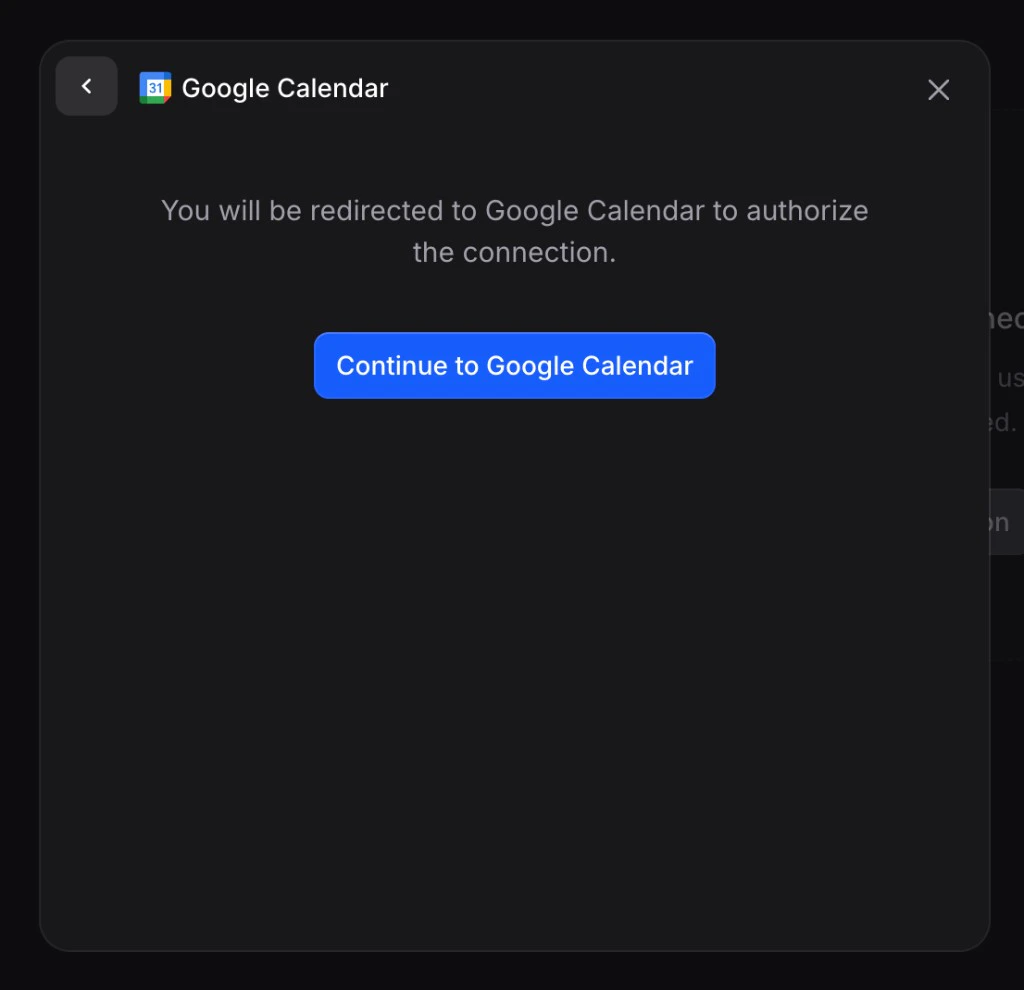
For services like Google Calendar, Gmail, Google Sheets, WhatsApp (via Meta), and many others, Invent sends you through the provider’s normal sign-in screen in a popup or new tab. You approve access on their domain; Invent never sees your password. Flow in practice:- You pick the integration (from Add integration or from an Action/Channel dialog).
- Invent shows a short screen that you will be redirected to authorize (example below).
- You complete the provider flow and return to Invent.
- You name the connection if prompted. That label is only for you inside Invent (same idea as in Channels → The Universal Connection Flow).
- The connection appears on this page and in dropdowns across the workspace.
Form connections (credentials in Invent)
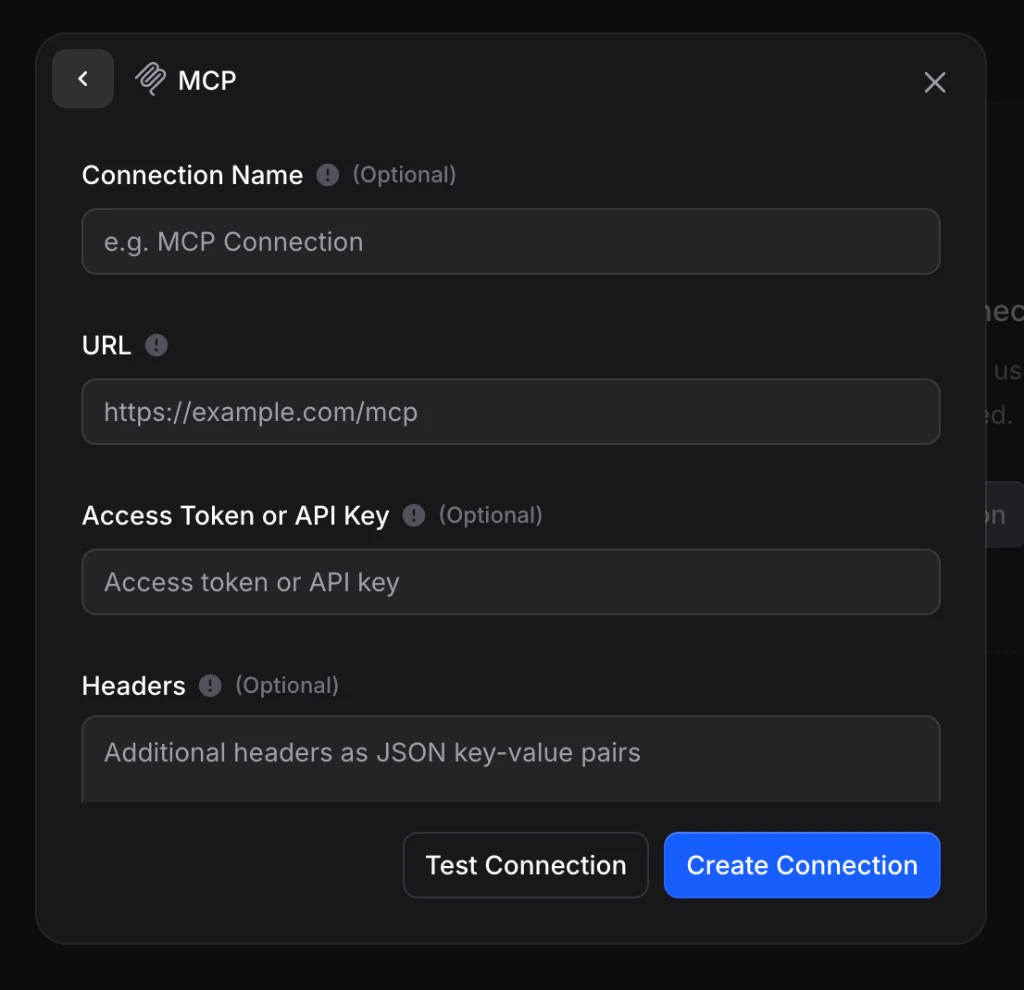
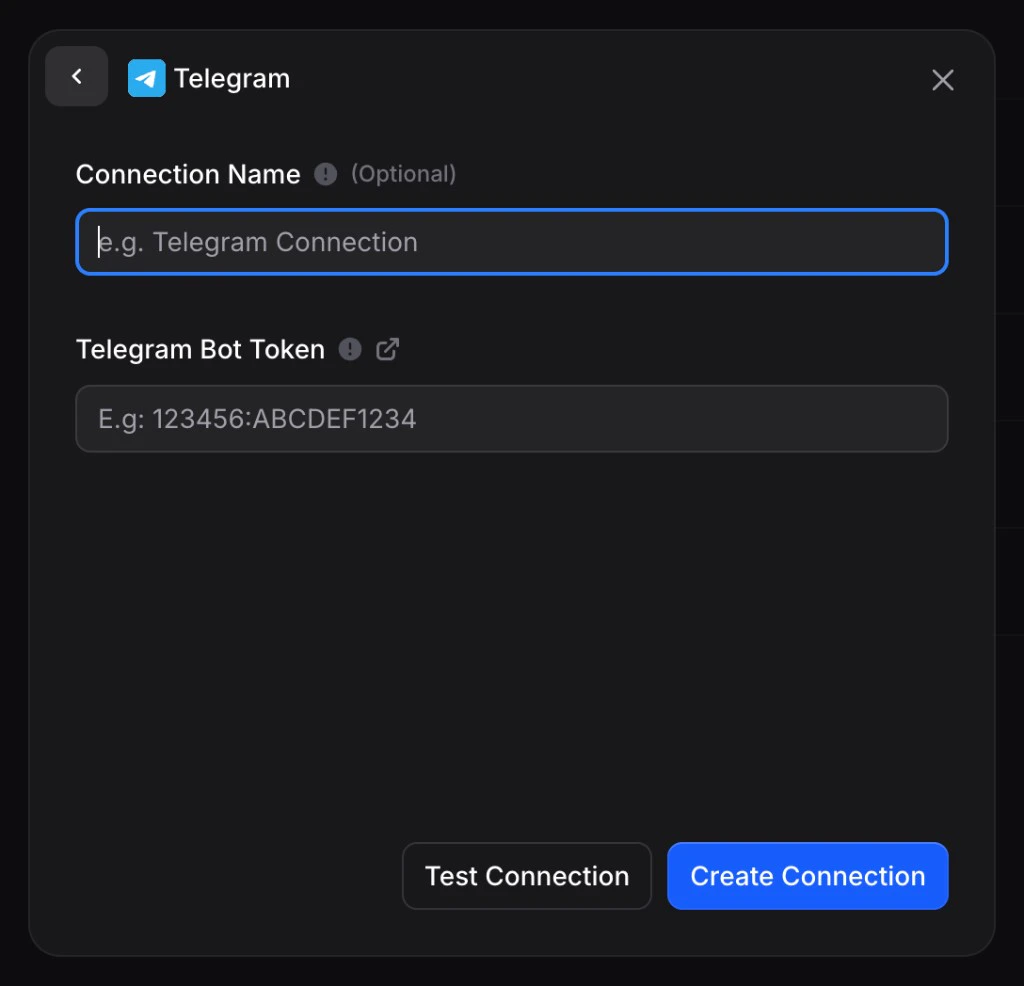
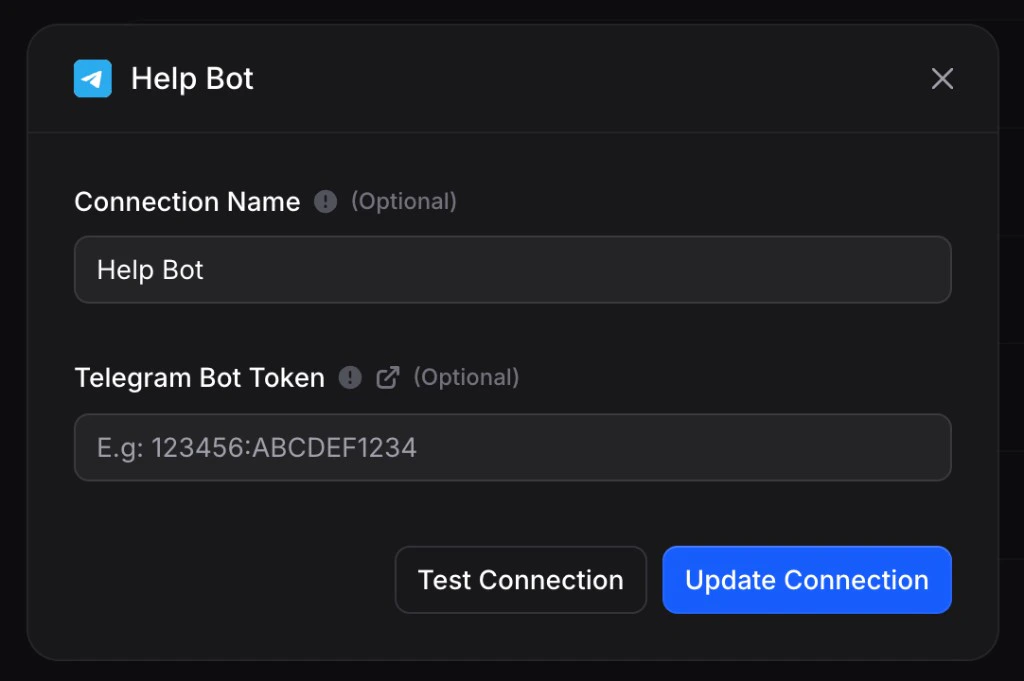
Some integrations need values you enter inside Invent: a Telegram Bot token, an MCP server URL and optional headers, API keys, and so on. There may be no browser redirect, or there is a redirect and you still confirm details in a form, depending on the integration. You typically fill in:- Connection name (optional): how this row appears on the Connections page and in dropdowns (e.g.
Help Bot,Prod MCP). - Provider-specific fields: URL, token, JSON headers, etc.
- Test connection: verify credentials before you save (recommended).
- Create connection or Update connection: save changes.
Add a new integration from this page
1
Click Add integration
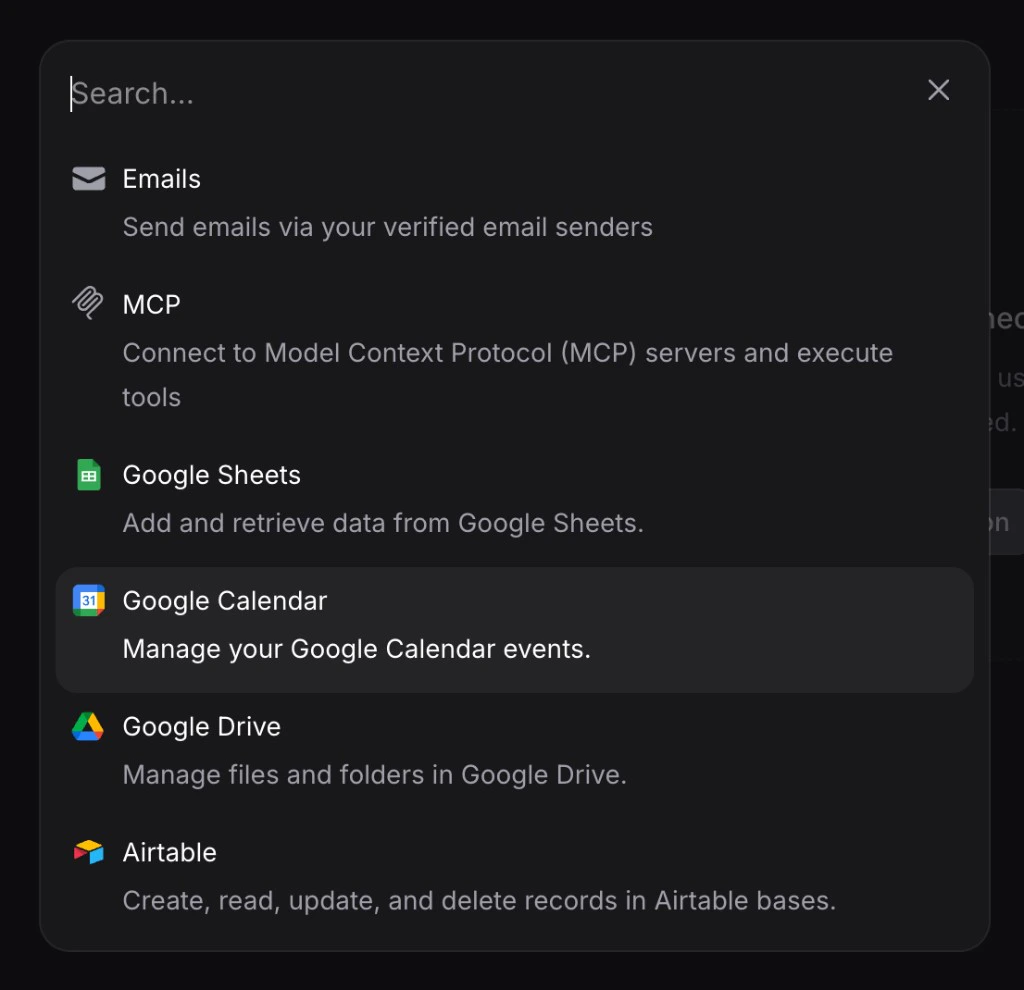
From Settings → Connections, click Add integration (or use the same entry point from an assistant when adding an Action or Channel).A searchable list opens: each row is a service with a short description of what connecting enables (email, spreadsheets, MCP tools, etc.).
2
Pick a service
3
Complete sign-in or the form
- OAuth-style: click Continue to …, finish the provider flow, return to Invent, and confirm the connection name if asked.
- Form-style: enter tokens, URL, headers, then optional Test connection, then Create connection.
4
Use it where you need it
Open an assistant’s Actions tab to attach actions that use this connection, or Channels to bind a phone number, Page, or bot. Existing connections appear in the Connection dropdown so you rarely need to add the same account twice.Actions → Adding Actions · Channels → How channels work
What you see in the list
Each connected integration is a row with:- Icon and name: service type + the connection name you gave (or a sensible default).
- Active: the connection is healthy and ready for Actions and Channels.
- Account hint: for many OAuth services, you will see the linked email or account so you know which login this is (for example
Acme Sheets (docs@acme.com)). - Edit: open Manage connection to rename, test, or reconnect.
- Disconnect: remove the connection (see below).
Manage an existing connection
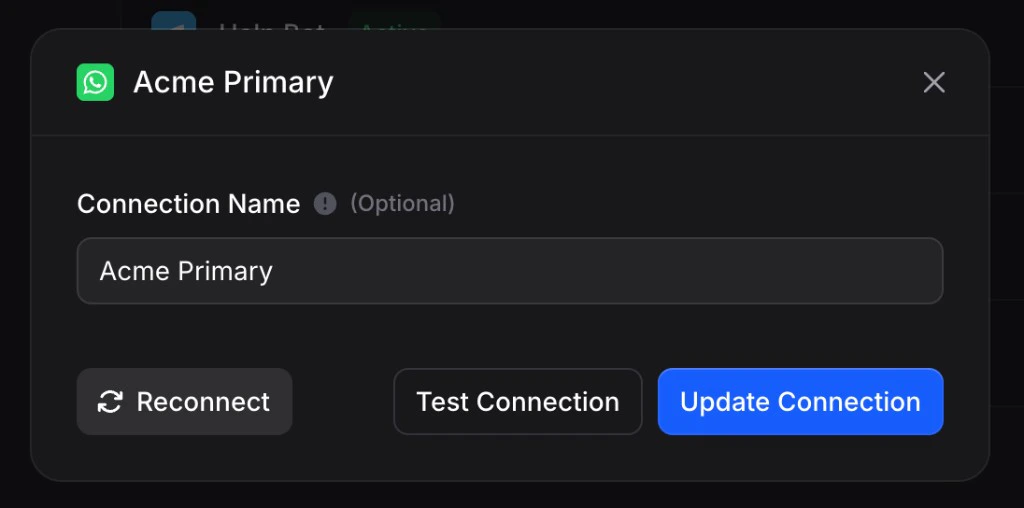
Click Edit on any row to open Manage connection. What appears depends on the provider, but you will consistently get:- Connection name: optional label used everywhere this connection appears.
- Reconnect: run the provider sign-in again when tokens expire or access was revoked (OAuth-style services).
- Test connection: verify the integration still works without leaving the dialog.
- Update connection: save name or credential changes (form-style services).
Disconnect a connection
Click the unlink / disconnect control on the row (broken-chain style icon in the product). Invent asks you to confirm: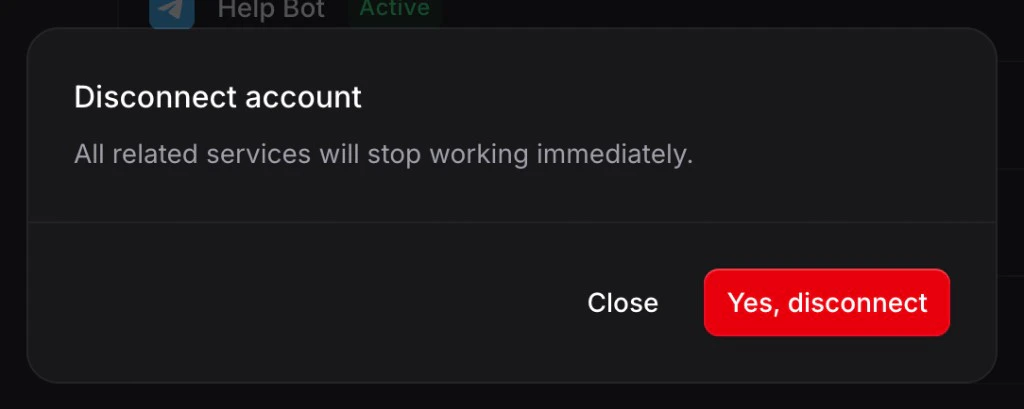
Removing a channel binding from a single assistant (Disconnect on the assistant’s Channels tab) does not delete the underlying connection. Other assistants can keep using it. See Channels → Managing connected channels.
Connection status
- Active: Ready to use; Actions and Channels can run with this connection.
- Inactive / error: Often means expired tokens or revoked access. Open Edit → Reconnect, or fix form credentials and Update connection.
Testing
Always use Test connection when the form offers it, especially after rotating tokens or changing an MCP URL. For OAuth services, sending a quick test message from a Channel or running through the Playground after reconnecting catches issues before customers do. Actions → Testing actionsSecurity and good habits
- Minimum access: Invent requests only what each integration needs; approve scopes on the provider the same way you would for any business tool.
- Naming: Prefer names that describe use (
Billing Gmail,EU WhatsApp) rather than personal names, so the list stays clear as you grow. - Rotation: When someone leaves or a token leaks, Update or Reconnect and remove old connections you no longer need.
- Secrets: Form fields for API keys and bot tokens are sensitive. Treat them like passwords and avoid sharing screenshots publicly.
Next steps
Actions
Wire integrations into conversations with AI-controlled fields and testing in the Playground
Channels
Universal connect flow, multiple numbers or Pages, and Inbound routing
Inbox
Every conversation, every channel, in one place
Workspace overview
Settings, billing, members, and API keys