

Multimodal Understanding
Your assistant can understand more than just text. Customers can send voice messages, images, files, contacts, and locations across supported channels, and the assistant processes them naturally as part of the conversation. For example, a customer can send a voice note on WhatsApp and the assistant will transcribe, understand, and reply. Voice notes and the sound of videos are transcribed once, whatever model the assistant uses, and videos also get a short description of what they show. Your team reads the transcript under the player in the Inbox. To turn this off, use Transcriptions under the model in the assistant’s settings.Location Sharing
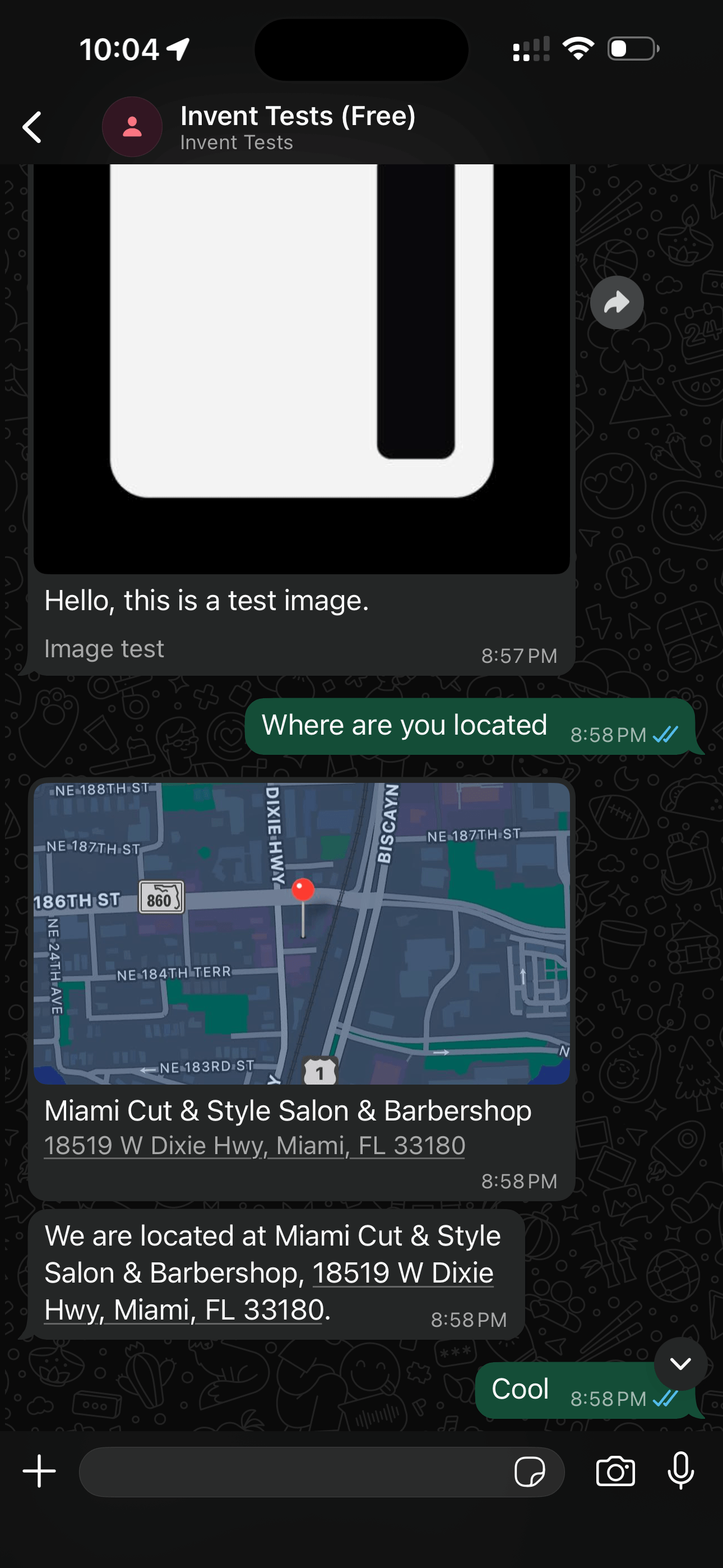
Your assistant can send and receive locations natively. Customers can share their location, and the assistant understands the address and coordinates. The assistant can also send locations back as native map items.
The assistant can also request a customer’s location with a Share Location button. On WhatsApp and Telegram this opens the native location picker. On the Web Widget it uses the browser’s geolocation API.
Contact Sharing
On WhatsApp, customers can share contact cards (name, phone number) directly in the conversation. Your assistant reads the contact details and can act on them. Your assistant can also send a tappable contact card of its own, with a name, phone number and email, instead of typing the number or address as text. Supported on WhatsApp, Telegram, Slack and the Web Widget. On Telegram a card needs a phone number: a contact with only an email is not sent as a card there.Typing Indicators
Your assistant shows a typing indicator while composing a response, giving customers a natural chat experience. Supported on WhatsApp, Instagram, Messenger, TikTok and Telegram.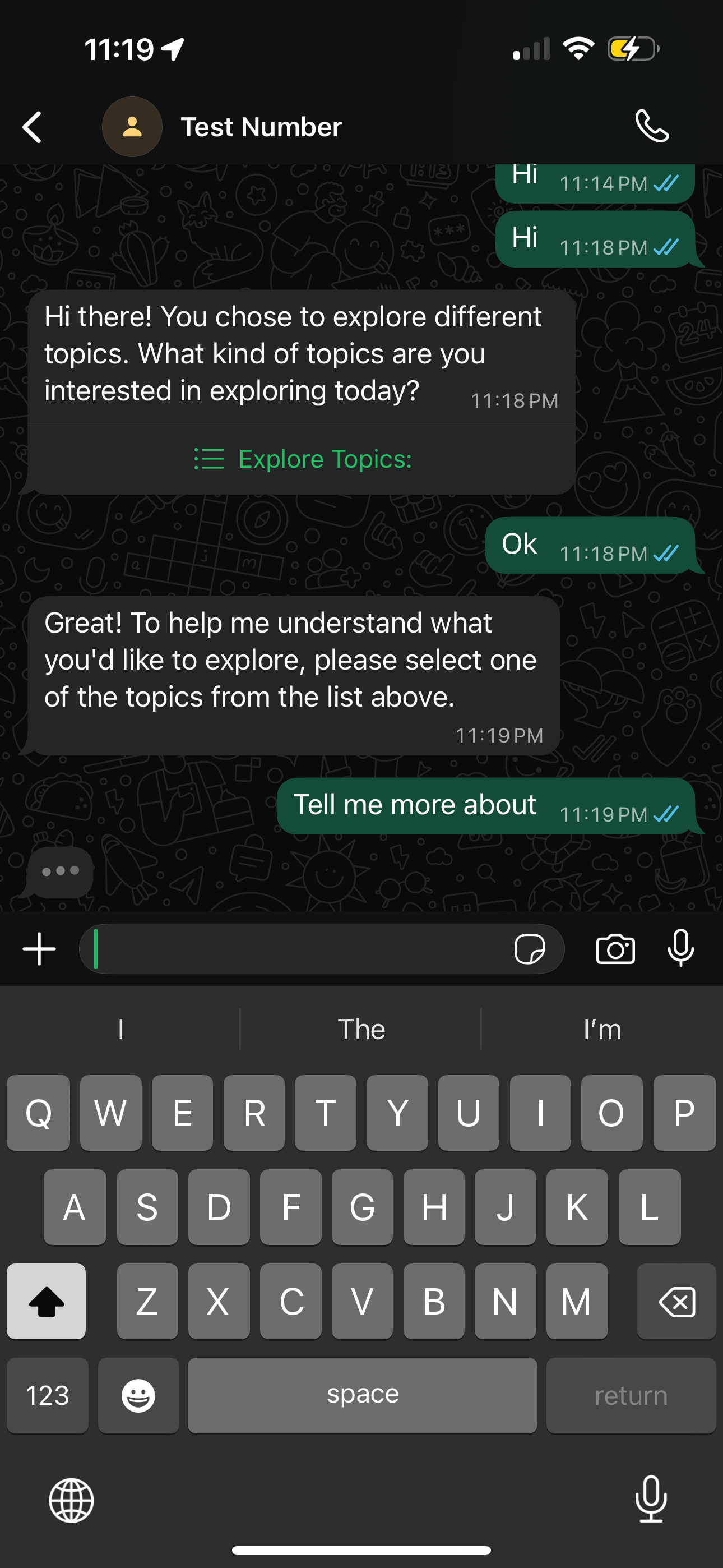
Read Receipts
Your assistant sends read receipts when it processes a customer’s message, so customers know their message was seen. Supported on WhatsApp, Instagram, Messenger and TikTok.Reactions
Your assistant can react to a customer’s message with an emoji, the way people do in messaging apps: a thumbs up on a confirmation, a heart on a thank-you. Sometimes the reaction is the whole reply, so a quick “thanks, bye” gets an emoji instead of another sentence. Supported on WhatsApp, Instagram, Messenger, Telegram, Slack, Microsoft Teams and the Web Widget. On WhatsApp, Instagram, Messenger and Telegram a message keeps one reaction from your side: a new one replaces the previous one. Telegram accepts only its own set of reaction emojis, so any other emoji shows in the Inbox but does not reach the customer.Options
Options let your assistant present a set of choices as interactive buttons. Instead of listing items in a text message and asking the customer to type their choice, the assistant displays a clean menu that customers can tap to select.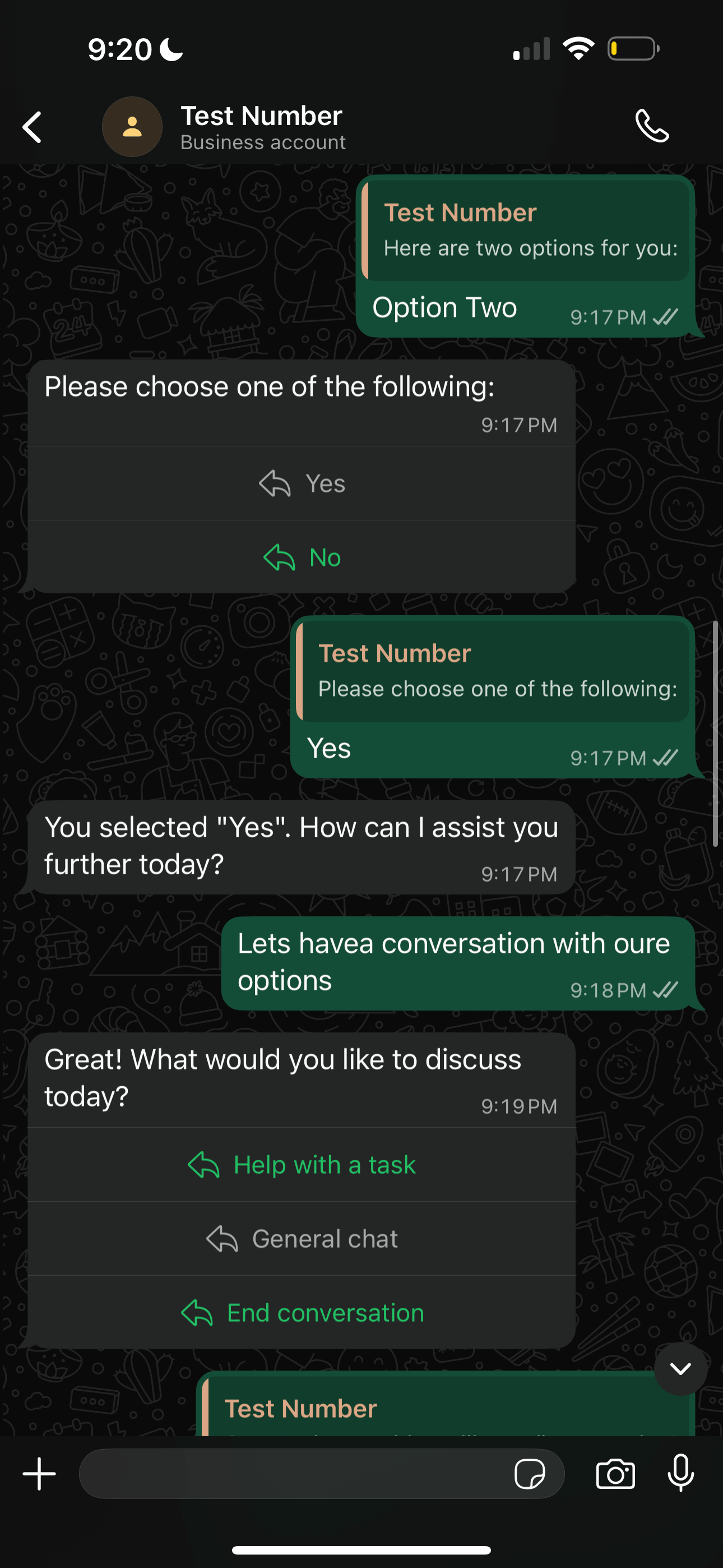
When to Use Options
Options work best when the assistant needs the customer to pick from a defined set of choices:- Service menus: “What can I help you with? Services, Contact Us, FAQ”
- Product categories: “Which category are you interested in?”
- Appointment types: “What type of session would you like to book?”
- Survey responses: “How would you rate your experience?”
Configuring Options via Instructions
Your assistant decides when to use options based on conversation context. To guide this behavior, add rules to your assistant’s Instructions. Example instruction:Link Buttons
Link buttons let your assistant display URLs as tappable buttons. Instead of pasting a raw URL into the chat, the assistant presents a clean, labeled button that customers can tap to open the link.How Link Buttons Work on Each Channel
Link buttons are supported across all major channels. On messaging apps, tapping a link button opens the URL natively within the app.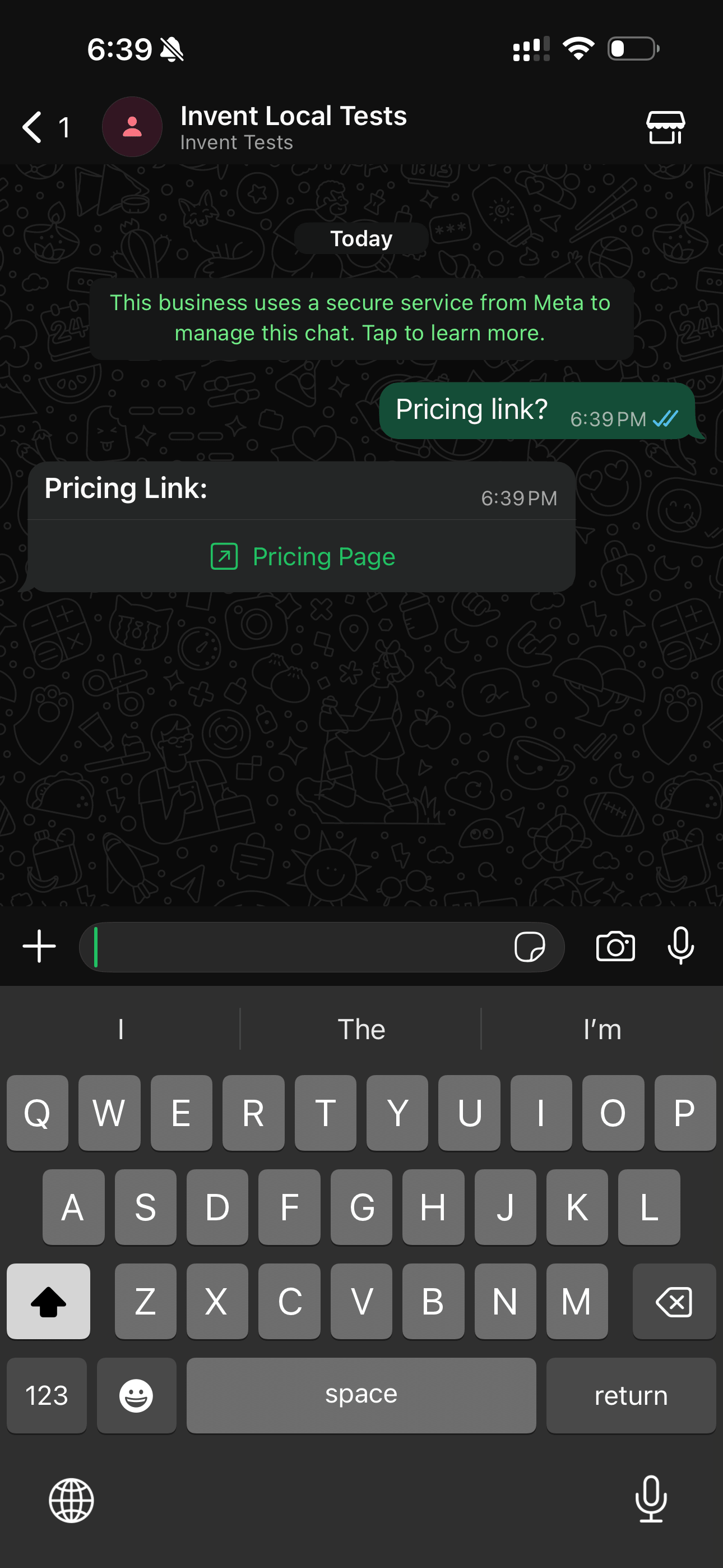
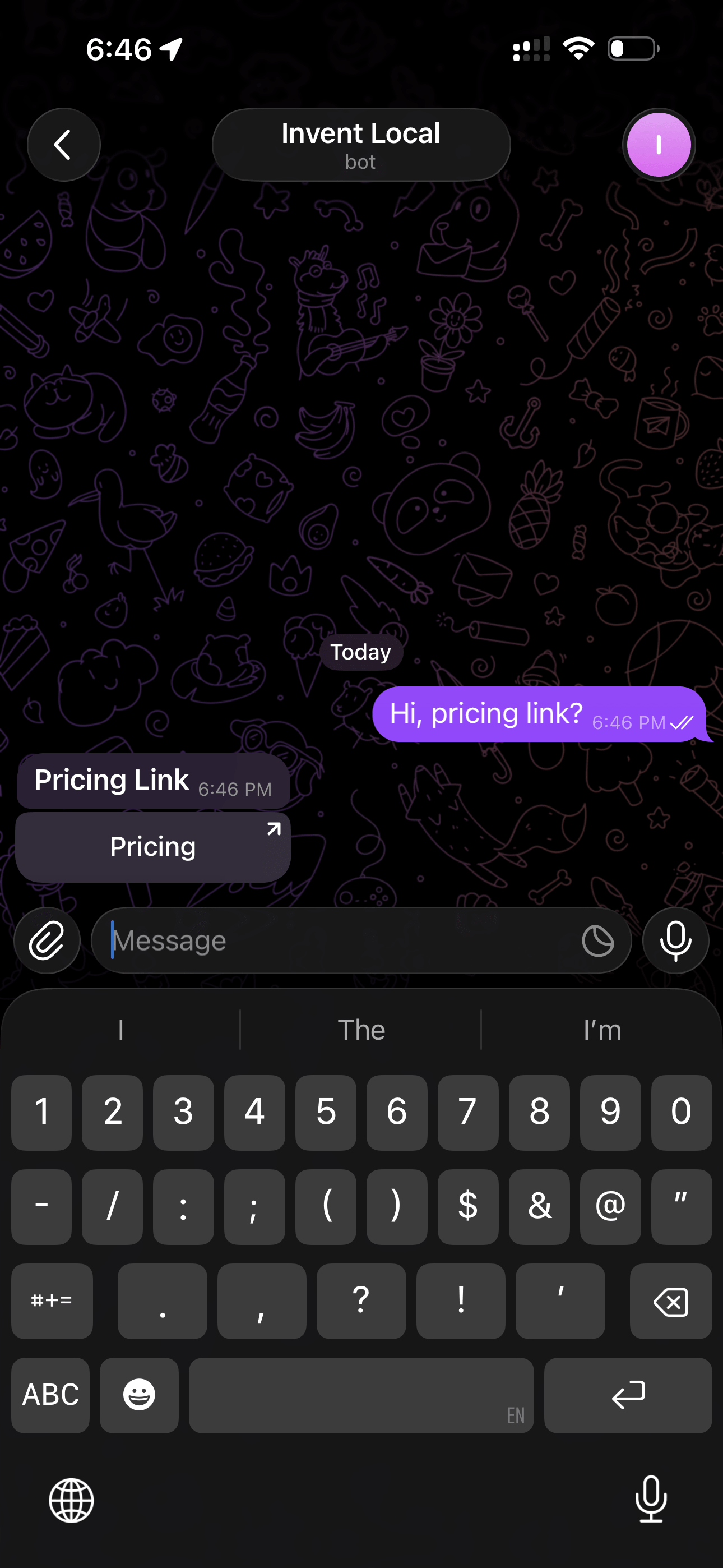
https links only. On the web widget, links appear in a card with an external link icon and open in a new browser tab. There, a link button can also be a phone number or an email address: it shows a phone or email icon and opens the device’s dialer or email app.
Use Cases
Link buttons are ideal for any URL you want customers to access quickly without copying and pasting:- Payment links: Direct customers to a checkout or payment page
- Pricing pages: Share your pricing or plan comparison page
- Booking pages: Link to a scheduling tool or calendar
- Documentation: Point customers to help articles or guides
- Any external page: Product pages, forms, downloads, or portals