

Two ways to broadcast
Every broadcast is one of two types, chosen when you create it and fixed afterwards.Marketing Broadcasts
Send one message to a group at once, immediately or scheduled
Transactional Broadcasts
Trigger a single message through the API when an event happens
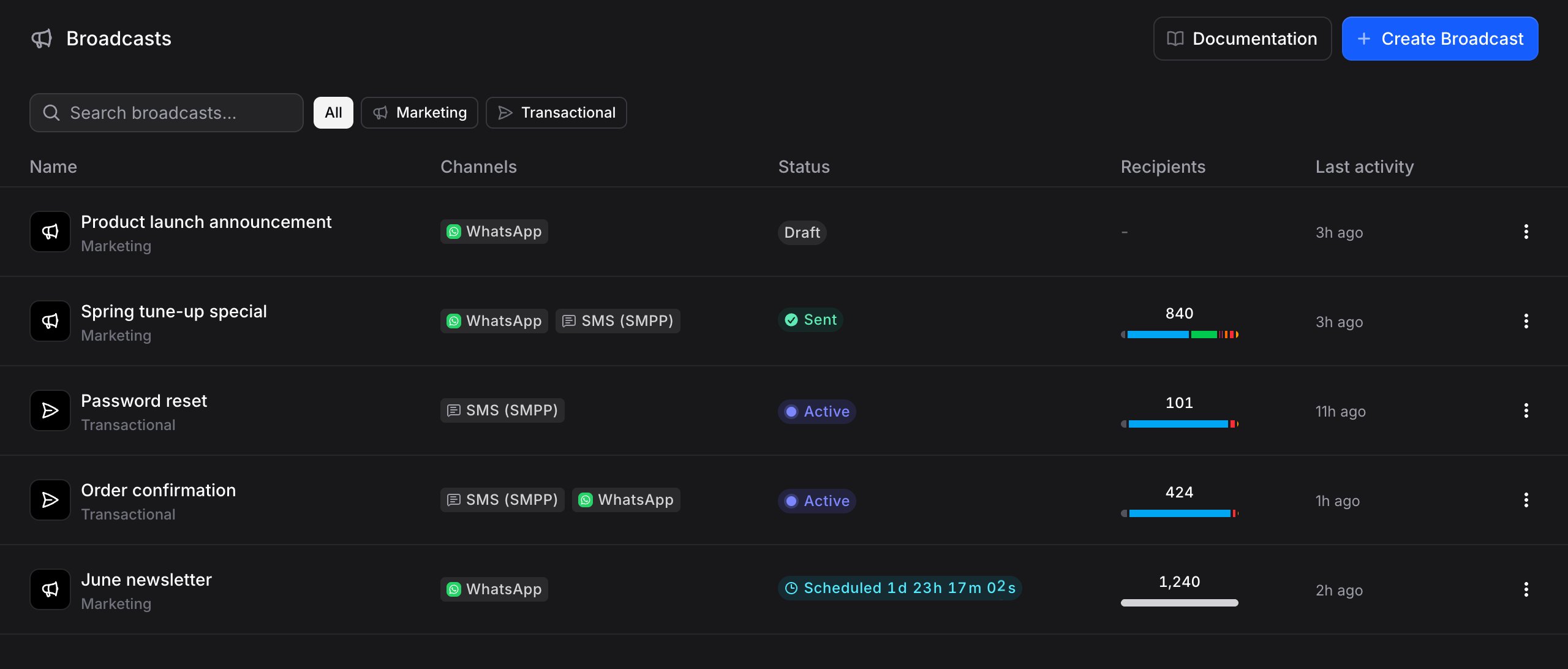
The Broadcasts dashboard
The Broadcasts page lists every broadcast in a table:
Above the table, a search box filters by name and a set of chips filters by type: All, Marketing, or Transactional. Both are reflected in the URL, so a filtered view can be bookmarked or shared.
Each row has a three-dot menu to duplicate or delete the broadcast.
Alongside the list, the Broadcasts area has a WhatsApp Templates view for building and managing your templates (see WhatsApp) and an Analytics view for delivery reporting. Opening a single broadcast gives it its own Overview and Recipients tabs, plus an Analytics tab once it has left Draft.
Creating a broadcast
1
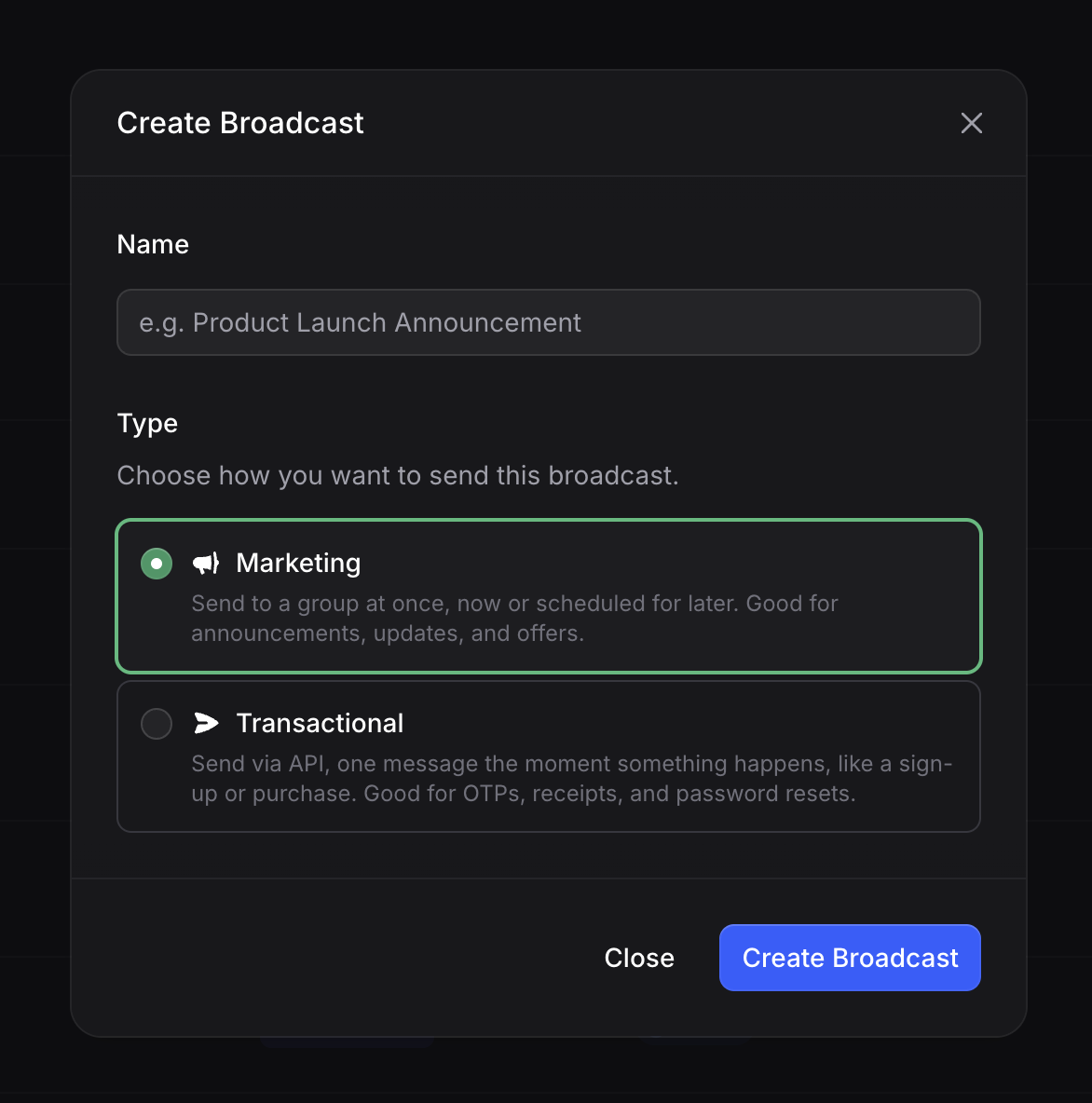
Click + Create Broadcast
Use the + Create Broadcast button in the top-right corner.
2
Name it
Give the broadcast a descriptive name, for example “Black Friday Sale” or “Login OTP”.
3
Choose the type
Pick Marketing or Transactional. This sets how the broadcast sends and cannot be changed later.
- Marketing: send to a group at once, now or scheduled for later.
- Transactional: send via API, one message the moment something happens.
Channels
Channels determine how your message is delivered. Every broadcast needs at least one, and you can add several to reach contacts across platforms in a single broadcast.
Available channels
More broadcast channels are coming soon.
Set up WhatsApp Templates and configure the channel
Adding multiple channels
After your first channel, click + Add Channel to add another. Each channel is configured independently with its own template and settings, so a single broadcast can reach contacts on several platforms at once.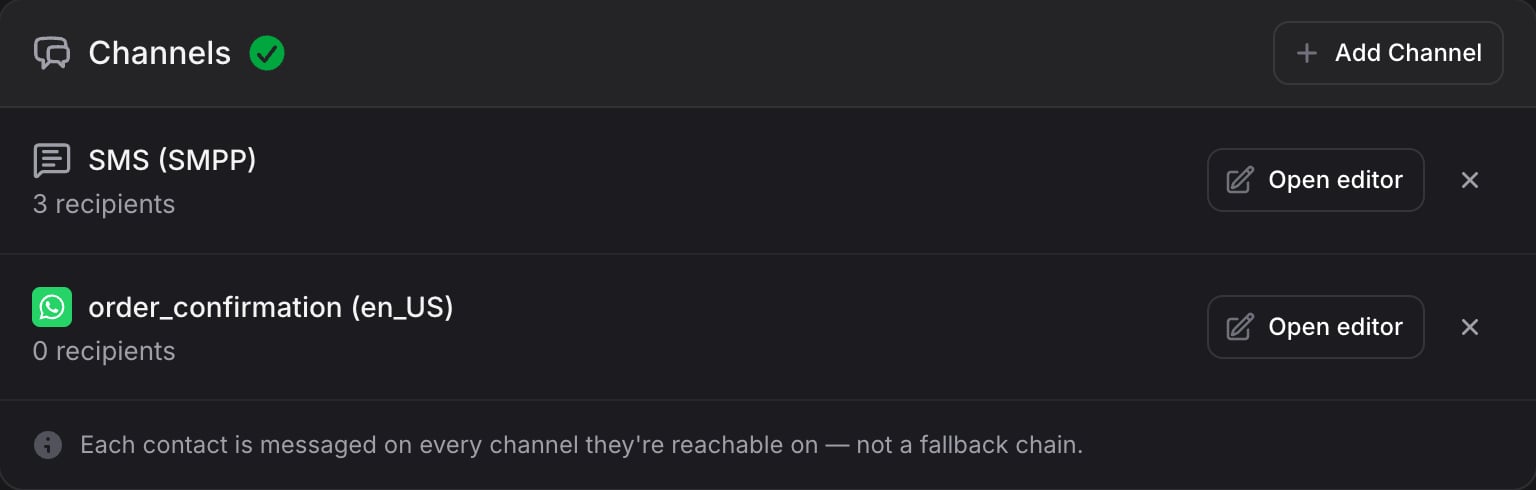
Editing a channel
After a channel is added you can:- Click Edit to change the template, variables, or settings.
- Click x to remove the channel.
Channels can only be edited while the broadcast is in Draft.
Variables
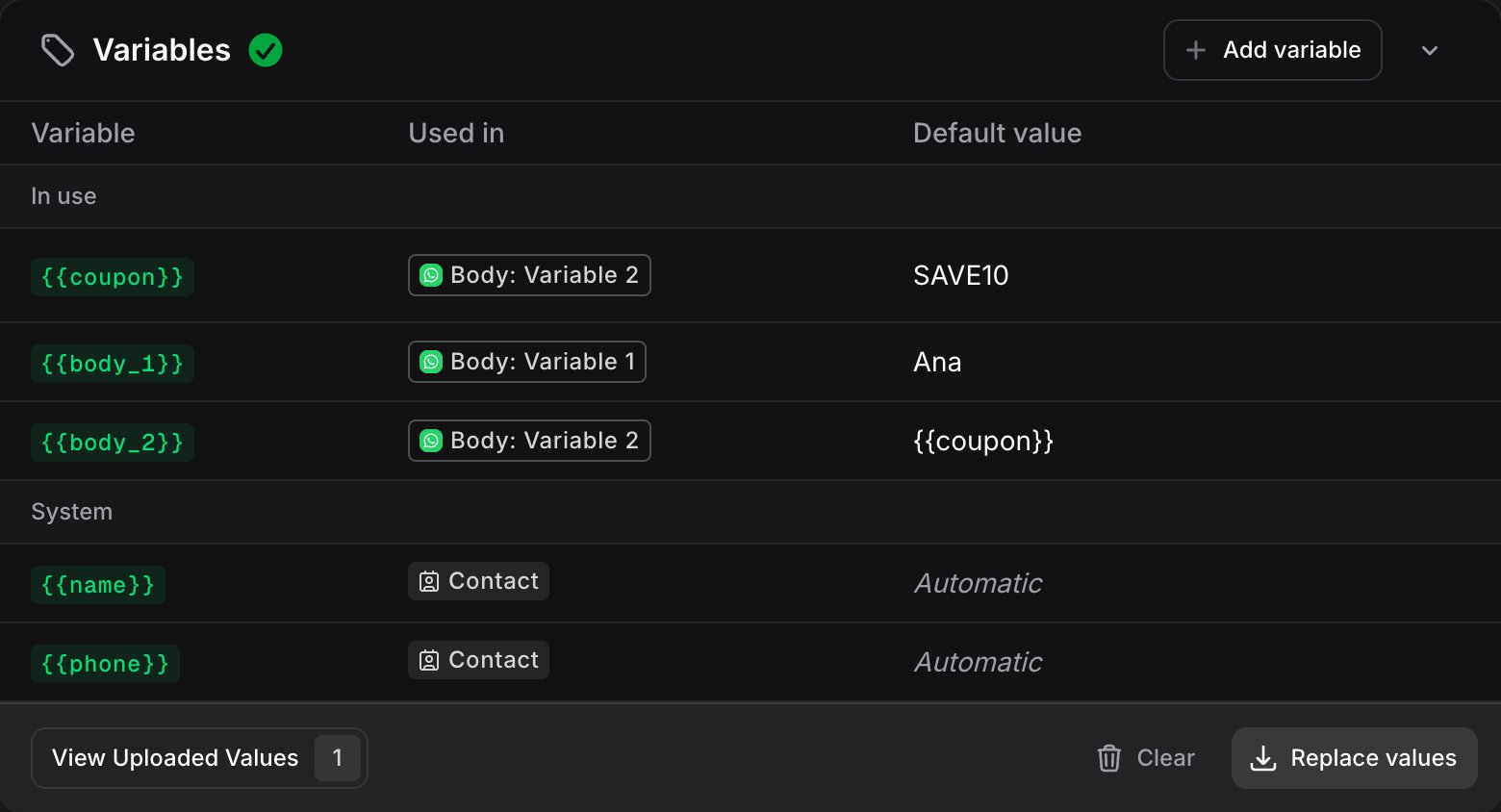
Every field a channel exposes is a variable with a name: a WhatsApp template’s placeholders (body_1, or body_customer_name on a named template), an email subject or body, an SMS message. Nothing has to be declared. Three rules cover it all:
Pick a template and it is ready to send. Change a default only when you want a different one, and pass values only for the recipients that need their own. Email and SMS channels are not generally available yet; their slots apply once they ship.
Your own variables
Click + Add variable to add a name of your own with a default, for examplecoupon with SAVE10. Use it in any channel as {{coupon}}, and pass it by name on a send or in an import when a recipient needs a different value. A variable no channel uses yet stays listed under Not used, ready for an API send that fills it.
Importing values
For marketing broadcasts, you can give each contact its own values from a spreadsheet. Name a column like a variable (body_1, coupon) and it fills it for every row. The Import values row sits at the bottom of the Variables section:
1
Click Import values
The import dialog opens with a file upload area.
2
Upload your file
Drag in a .csv, .xlsx, .xls, .numbers, or .ods file with a column to identify recipients (email or phone) and a column for each variable.
3
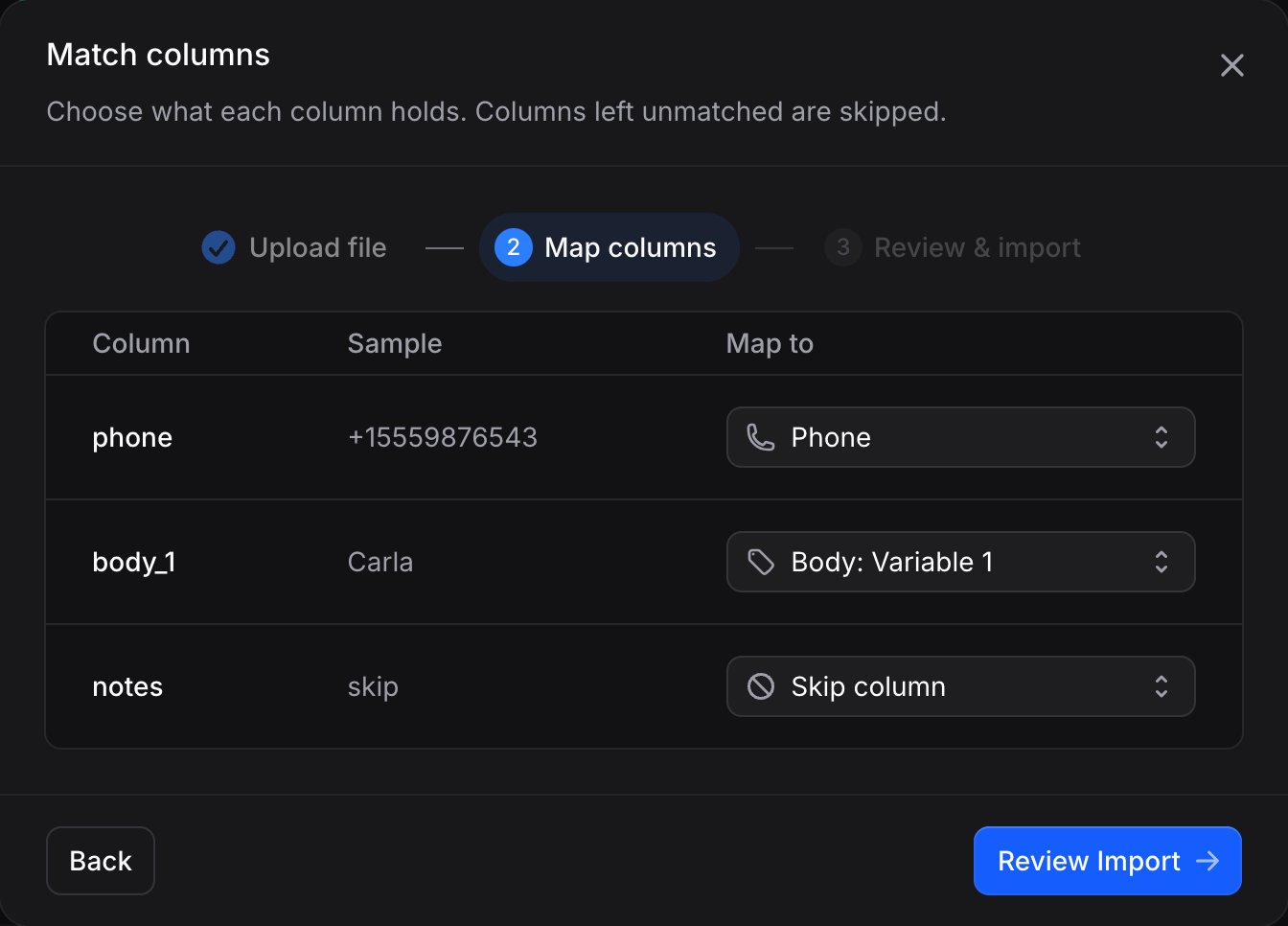
Map the columns
Map each column from your file:
- Recipient identifier: map at least one column to Email or Phone so Invent knows which contact each row belongs to.
- Slots: a column whose header matches a slot name is matched for you. Every slot of every channel is offered, so an email
subjectand a WhatsAppbody_1can come from the same file. - Skip column: anything unmatched is skipped.
4
Import
Click Review, then Import. A success message confirms how many values were imported.
Transactional broadcasts do not import values up front. Their per-recipient values arrive with each trigger instead.
Using variables in templates
Write a variable anywhere in a channel as{{name}}, with no spaces inside the braces:
{{ opens a picker with the contact variables (name, first_name, last_name, and the channel identifier such as phone or email) and your own. A name you write that does not exist yet shows up in the Variables section as Missing default; give it a default there and it becomes a variable of the broadcast. The broadcast cannot be sent or activated while a variable it uses has no default.
Contact variables always win: a value named name can never override the contact’s name. The older {{properties.coupon}} form keeps working.
Broadcast statuses
Duplicating a broadcast
To reuse a setup, open the three-dot menu on any broadcast and select Duplicate. This creates a copy in Draft with “(Copy)” appended. It keeps the audience (all contacts, segments, or imported contacts) or trigger, the channels, and every variable with its default. The per-recipient values from an import are not copied: import them again on the copy.Next steps
Marketing Broadcasts
Audience, scheduling, and analytics for bulk sends
Transactional Broadcasts
API triggers, variables, and the live endpoint
Set up WhatsApp Templates and configure the channel
Audience
Manage contacts and build segments for targeting