

- If my assistant handles X messages a day, how much will that cost me?
- What do I get for the $29/month plan?
How Much Will It Cost Me?
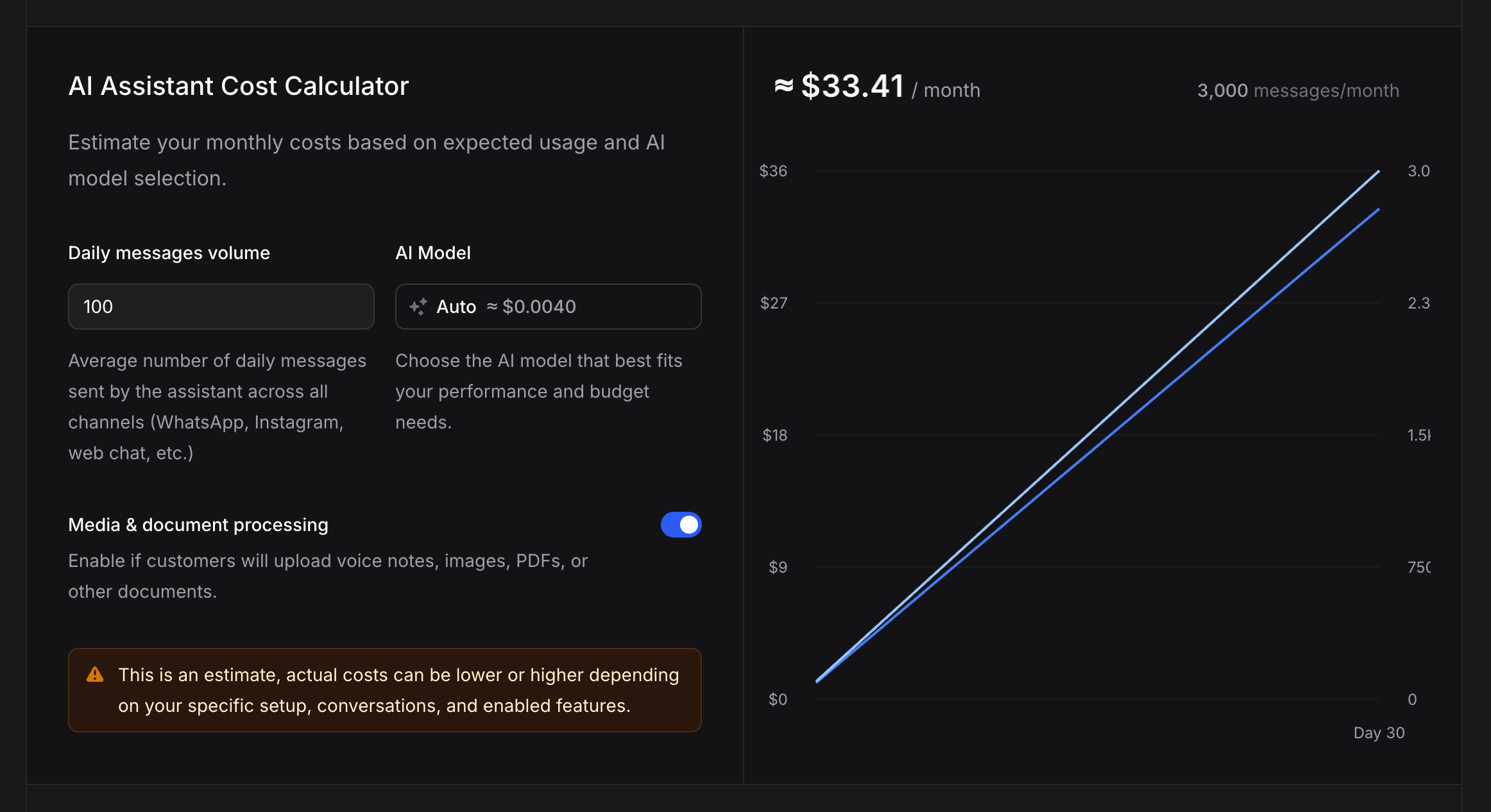
The fastest way to get a real number for your business is the AI Assistant Cost Calculator on our pricing page. Enter your daily message volume, pick a model, and your monthly spend updates live on the graph.Open the Cost Calculator
Estimate your monthly cost in seconds. Adjust daily messages, pick a model, toggle media processing, and see your monthly total update instantly.
What to Expect at Each Volume
On the Auto model (the recommended default that picks a model per message), here is what a typical business pays each month. Most setups land close to these numbers:
For a live number tied to today’s rates and your exact configuration, use the calculator.
What Changes the Cost
Two assistants at the same volume can land in different places. The main factors:- Model choice. Lighter models (Nano tiers, smaller Gemini/GPT variants) can be up to 10× cheaper per message than premium reasoning models. Auto balances quality and cost and is the right default for most businesses.
- Media & document processing. Voice notes, images, and PDFs take more tokens to understand. If your customers send rich media, turn the toggle on in the calculator.
- Conversation length. Longer back-and-forth uses more tokens per message. Prompt caching softens this significantly after the first message.
- Knowledge & actions. Each Knowledge Base search and each action run adds a small amount on top of the message. For most businesses this is a few cents a day.
What Do I Get for $29/Month?
The Business plan is $29/month. Here is what that actually includes:- $29 of usage included each month. Spent the same way as Pay As You Go usage, at the same per-message rates. Roughly $29 worth of messages, knowledge searches, and broadcasts before any extra billing kicks in.
- Premium features unlocked. Custom domain, white-label branding (“Remove Powered by”), audit logs, sub-organizations, Slack support, larger knowledge storage, and more.
- Usage above $29 is billed at the same rate as Pay As You Go. You are never charged a premium for going over, you just pay for what you use.
Compare Plans Side-by-Side
Full feature matrix, limits, and a free trial on the pricing page
The Three Plans at a Glance
Every plan uses the same per-message, per-search, per-broadcast rates. The only thing that changes is what’s included and which features are unlocked.
Knowledge & Broadcasts: Pocket-Change Costs
Both are billed from the same balance as messages. They rarely move the needle compared to the message cost.Knowledge
- Upload: about $0.0005 per chunk (a chunk is ~350–400 words, about half a page). A 10-page document runs around $0.007 to index. A full 100-page help center is around $0.07. One-time charge.
- Search: about $0.0005 per search. Identical searches are cached free for 2 hours across your whole organization, so repeat questions don’t re-charge.
Broadcasts
Send campaigns via Email, SMS, or WhatsApp. You bring your own provider (Twilio, Meta, SendGrid, etc.) and Invent charges a small per-message fee on top.
Your provider bills their own delivery cost separately (Meta template fees, Twilio SMS, etc.).
How Message Pricing Works
This section is the “why” behind the numbers above. Skip it if the calculator and the cost ranges already answered your question.Per-Message Pricing, Not Subscriptions
Invent is usage-based. You pay for what you use, measured per message. Every model in the assistant settings shows its estimated cost per message right next to its name (for example,Auto ≈ $0.004). That figure already assumes an average conversation with prompt caching enabled.
What Affects a Single Message’s Cost
- The model. Premium models cost more per message than lighter ones. The calculator shows each model’s per-message rate.
- Response length. Longer, more detailed replies use more output tokens.
- Instruction length. Every message carries your full instructions as context, so bloated instructions compound. Keep them focused. See Instructions vs Knowledge for what belongs where.
- Actions triggered. Messages that include a Knowledge Base Search or a tool call use extra tokens. Invent has optimized this significantly (see below).
Prompt Caching
Enabled on every supported model. When your assistant handles multiple messages in the same conversation, cached context is reused instead of reprocessed. This means:- First message: slightly more expensive, the full context is processed fresh.
- Consecutive messages: cheaper than the per-message figure, cached context is read at a reduced rate.
Cost Optimizations
Invent continuously tunes how messages are handled:- Actions up to ~50% cheaper. Messages involving actions (Knowledge Base Search, integrations) use far fewer tokens than a naive implementation would.
- Assistants use up to ~50% fewer tokens overall, thanks to internal context-management improvements.
- Knowledge Base Searches use up to ~20% fewer tokens, so retrieving information is more efficient.
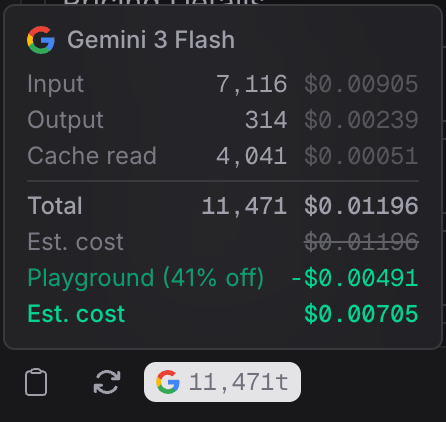
Playground Discount
Messages sent in the Playground get a discount so you can iterate on instructions, knowledge, and actions without worrying about costs. The token breakdown in the Playground makes the discount explicit.Credits, Under the Hood
You pay Invent in dollars, not credits. Internally the system converts your spend to a “credit” unit so that every usage type (messages, knowledge searches, broadcasts) draws from the same balance. You never need to think about credits unless you want to. The dashboard and invoices show dollar amounts. What you should know:- Pay As You Go: 100 free messages per month. The first allowance lands when your organization is created; after that a new one is granted once a month, as soon as your balance has run out (see the FAQ). Unused free messages do not roll over.
- Business: $29 in included usage per month, same rate card as Pay As You Go. Anything above is billed at the same rates.
- Free usage is one organization per account. If you run multiple organizations, only one receives the free monthly allocation.
Billing Management
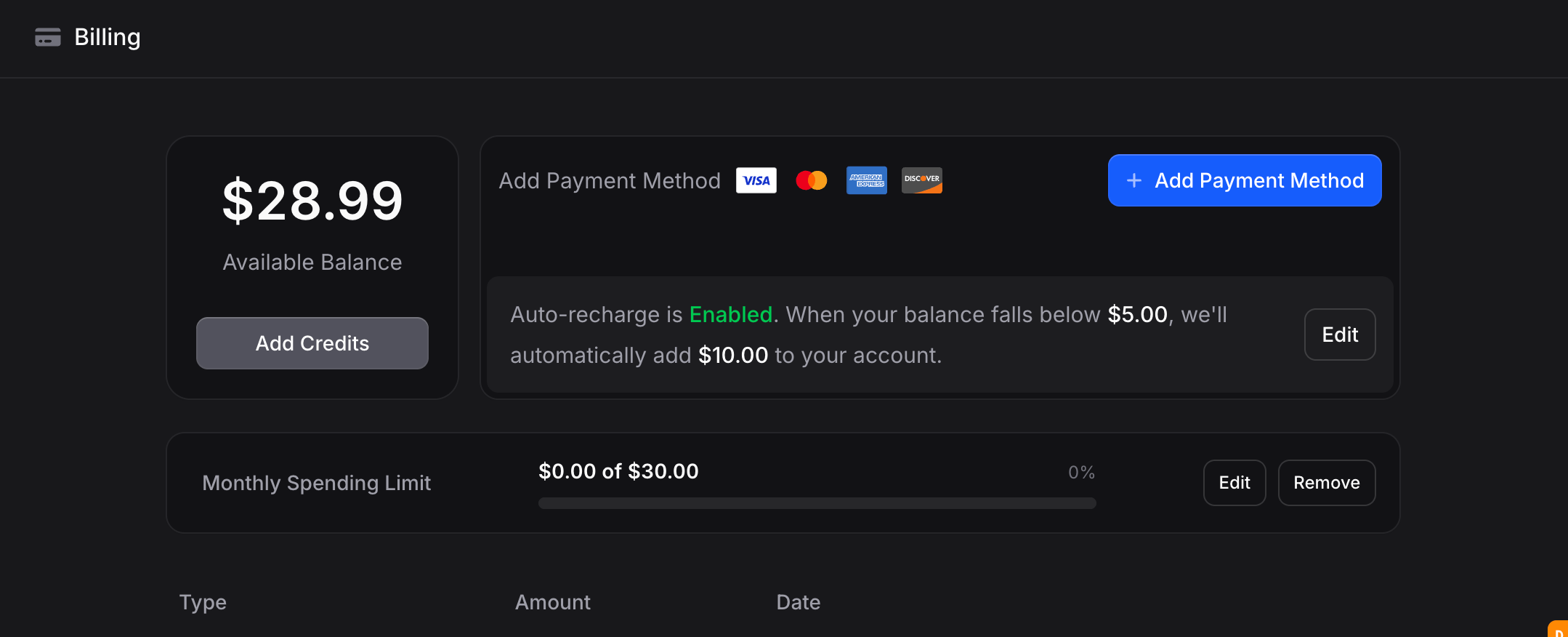
All billing lives at Settings → Billing.Monthly Spending Limit
Cap how much your organization can spend per calendar month. When the limit is reached, billable operations pause until you raise the limit or the month rolls over: the counter resets on the 1st of each month.- Go to Settings → Billing
- Click Set Spending Limit. The limit is on right away, at $30 or at the amount you last removed
- Click Edit, enter an amount between $1 and $100,000, then click Save changes
Limits per Member and Assistant
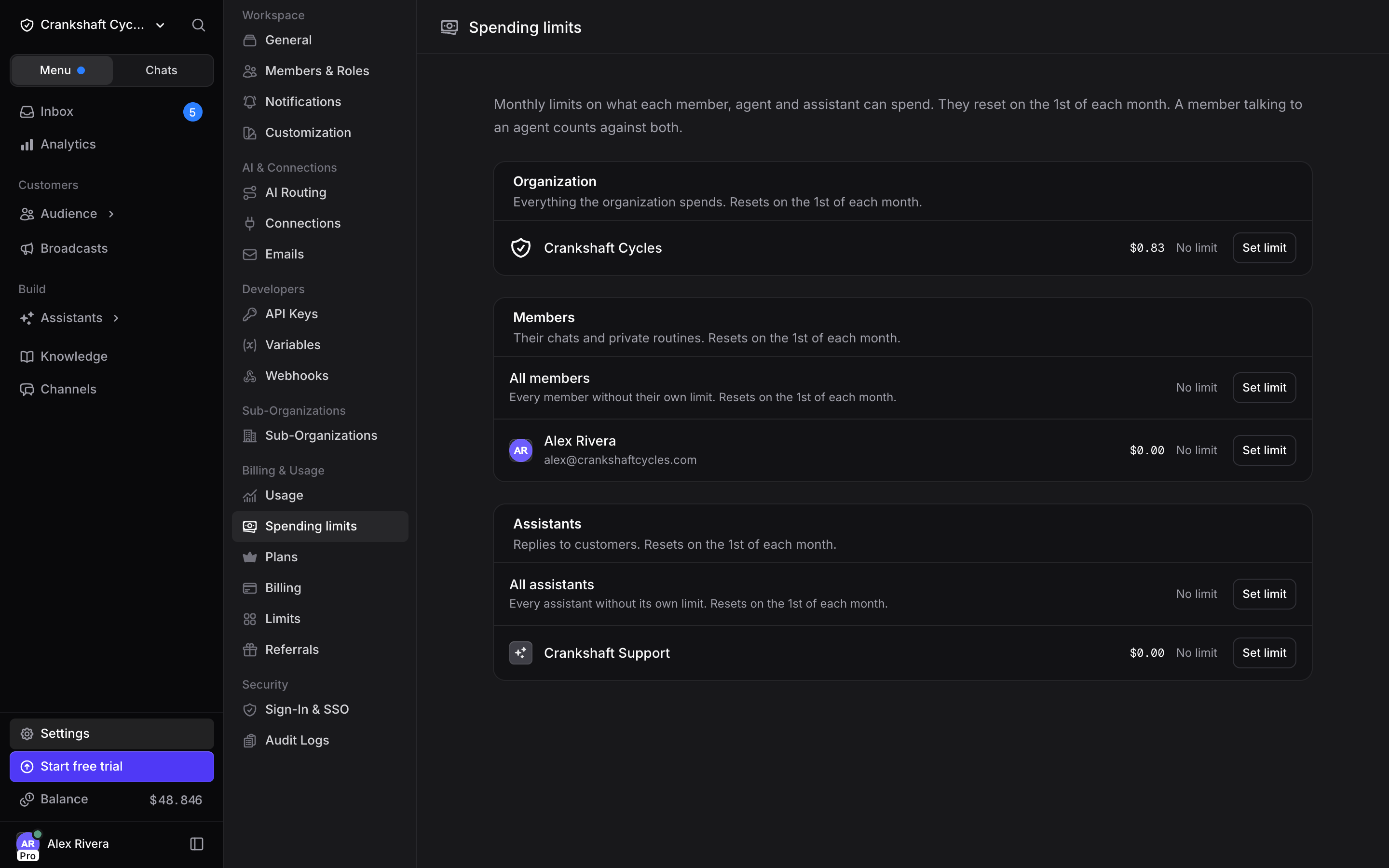
The monthly limit caps everyone together. To cap one person or one assistant, open Settings → Spending limits (billing managers only, also linked from the Billing page right under the monthly limit). The page shows the organization limit at the top, then a Members card and an Assistants card. Each row shows what it spent this month, with the biggest spender first.- Members: what each member spends in their own chats.
- Assistants: what each assistant spends replying to customers.
- A member’s new messages are rejected with You reached your spending limit for this month. Ask a billing manager to raise it. A billing manager reads it with a Manage spending limits button instead.
- An assistant stops replying to customers until you raise its limit or the month resets.
- Billing managers get an email, at most once every 24 hours per limit.
Auto-Recharge
Keep your assistant running by automatically topping up when your balance dips below a threshold.- Go to Settings → Billing
- Click Edit next to auto-recharge
- Set your minimum balance threshold (default: $5) and recharge amount (default: $10). Both accept values from $5 to $500
- Save
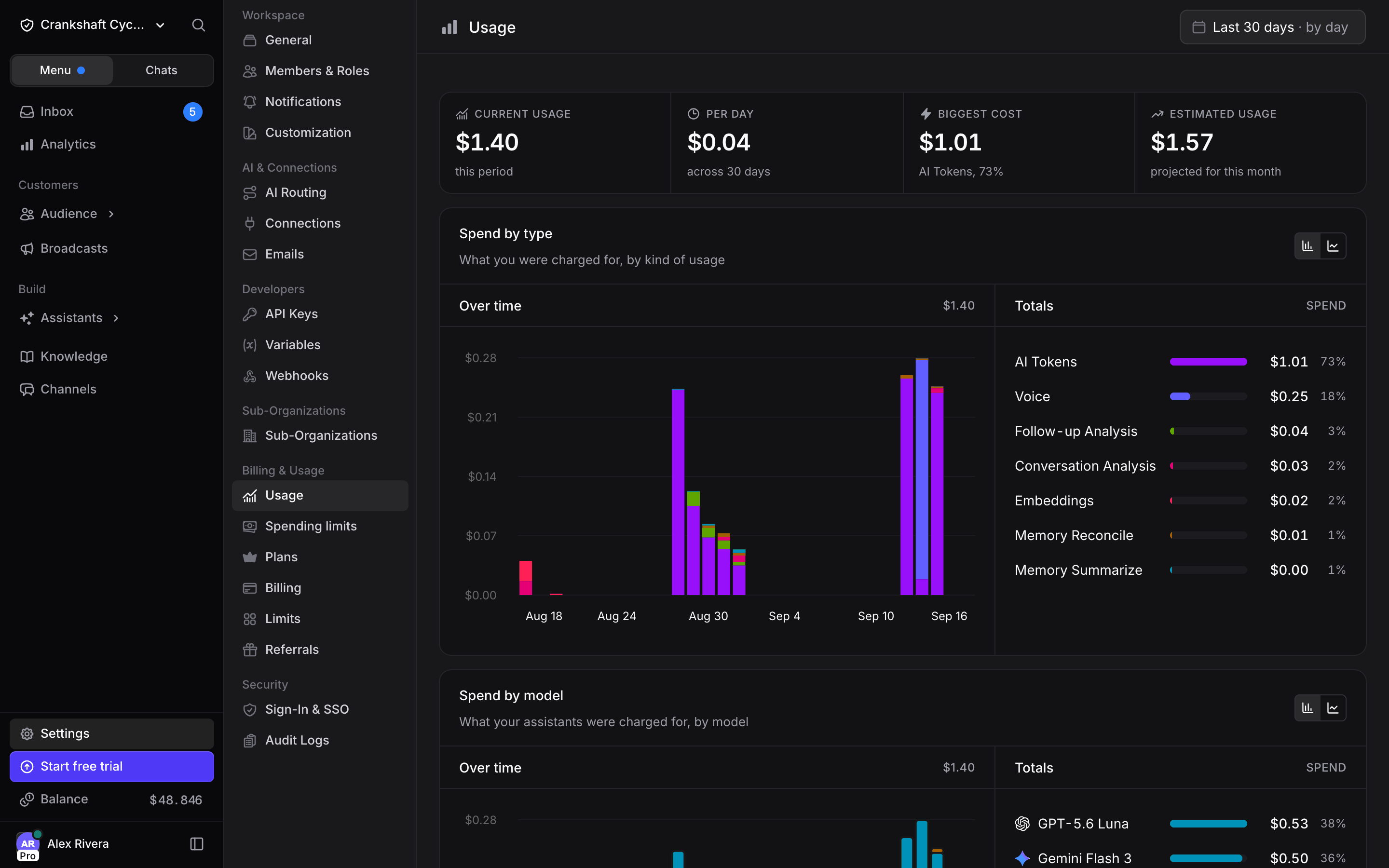
Usage Tracking
Watch your spend at Settings → Usage. It is for billing managers, and the same view also sits under Analytics → Usage:- Four headline numbers: Current usage for the selected period, Per day (the average across the period), Biggest cost (the kind of usage you paid the most for, with its share) and Estimated usage (what this calendar month will cost at the rate so far)
- Spend by type: a stacked graph over time with a total per kind of usage
- Spend by model: the same split by AI model
- Spend by member and Spend by assistant: who the AI spend went to
- Budget: your available balance with the auto-recharge status, and how much of the spending limit is used
- Date range filter: presets from the last 24 hours out to the last three years, plus year to date and a custom range
Add Credits
Top up your balance by hand from Settings → Billing:- Click Add Credits under your balance
- Pick $10, $25, $50 or $100, or enter a custom amount between $5 and $500
- Click Add $X in credits. The amount is charged right away to the payment method on file
Billing Details
Under Billing details on the same page, click Edit details to open the Stripe customer portal and set the company name, address and VAT number shown on your invoices.Billing History & Payment Methods
View past payments, download receipts, and update your card under Settings → Billing. Each card payment in Payment History has a Receipt button that opens its Stripe invoice, with your billing details on it. Payments are processed via Stripe and all major credit cards are accepted.Upgrading and Downgrading
Both happen at Settings → Plans. Upgrade to Business. The button under Business depends on where your organization stands:- Start free trial: you have never subscribed before and have no card on file. Stripe Checkout opens and the first 7 days are free.
- Subscribe: you subscribed before and have no card on file. Stripe Checkout opens.
- Upgrade to Business: a payment method is already on file. Stripe Checkout opens, and the 7-day trial still applies if you never subscribed before.
- Manage Plan: shown once you are on Business. It opens the Stripe billing portal.
- Auto-recharge switches off the moment you request the cancellation. Your card stays on file and you can turn auto-recharge back on from Billing.
- When Business ends, any remaining included usage is cleared and you lose the Business-only features. Your data stays.
- Custom domains keep working for 5 more days, then show an unavailable page until you subscribe again. Your domain setup is kept.
- When Business ends, members with billing permissions get an email. If you have custom domains, it names the day they stop working.
FAQ
If I get 100 messages a day, what will that cost me?
If I get 100 messages a day, what will that cost me?
On the Auto model, around $30–35 a month for ~3,000 messages. If your customers send a lot of voice notes, images, or PDFs, expect the upper end. The cost calculator gives a live number for your exact setup.
Is the $29/month plan unlimited?
Is the $29/month plan unlimited?
No. $29/month includes $29 of usage and unlocks premium features (custom domain, whitelabel, audit logs, sub-organizations, Slack support, larger knowledge storage). Usage above $29 is billed at the same per-message rates as Pay As You Go. You are never charged a premium for going over.
How do I pick the right model?
How do I pick the right model?
Start with Auto. It picks the best model per message automatically, balancing quality and cost. If you later need to tune costs down or quality up, the assistant settings show every available model with its per-message cost next to it, so you can compare at a glance.
Why was my first message more expensive than the figure shown?
Why was my first message more expensive than the figure shown?
The per-message figure assumes prompt caching is active. Your first message has no cache to read from, so it processes the full context at standard input rates. After that, consecutive messages benefit from caching and typically cost less than the figure.
When do my free Pay As You Go messages reset?
When do my free Pay As You Go messages reset?
The first allowance lands when your organization is created. After that, a new one is granted when two things are true: at least a month has passed since the last grant, and your balance (paid plus free) has dropped below the value of the free allowance. If you still have balance when the month is up, the grant waits and lands as soon as it drops below that value. Unused free messages do not roll over.
Do I get free messages for multiple organizations?
Do I get free messages for multiple organizations?
No. Free messages are granted to one organization per account. If you manage multiple organizations, only one receives the free monthly allocation.
What does Knowledge cost on top of messages?
What does Knowledge cost on top of messages?
Very little. About $0.0005 to index each chunk (~350–400 words) once at upload, and about $0.0005 per search at query time. Repeated identical searches are cached free for 2 hours across your organization. For most businesses, knowledge costs are a few cents to a few dollars a month.
How much does it cost to upload knowledge?
How much does it cost to upload knowledge?
Each chunk (~350–400 words) costs about $0.0005 to index, charged once at upload. A short FAQ page runs about $0.001, a 10-page document around $0.007, a full 100-page help center around $0.07. The exact chunk count shows on your Knowledge page under Total Chunks.
How much does a broadcast cost?
How much does a broadcast cost?
Invent charges a small per-message fee per channel (about $0.001 for email and SMS, $0.004 for WhatsApp). Your own provider (Twilio, Meta, SendGrid) bills their delivery cost separately.
Can I cap how much I spend?
Can I cap how much I spend?
Yes. Set a Monthly Spending Limit at Settings → Billing between $1 and $100,000. When the limit is reached, billable operations pause until you raise the limit or the month rolls over: the counter resets on the 1st of each month. To cap a single member or assistant instead, use Settings → Spending limits.
Can I connect the assistant to my API or database?
Can I connect the assistant to my API or database?
Yes, via the HTTP Request action. Your assistant can call any external API or database to fetch real-time data during a conversation.
Can I embed the assistant on my website?
Can I embed the assistant on my website?
Yes, with a simple JavaScript snippet. See the Web Widget docs for the embed code and platform-specific install guides.