

Sub-Organizations require a Business or Enterprise plan. View plans
Creating a Sub-Organization
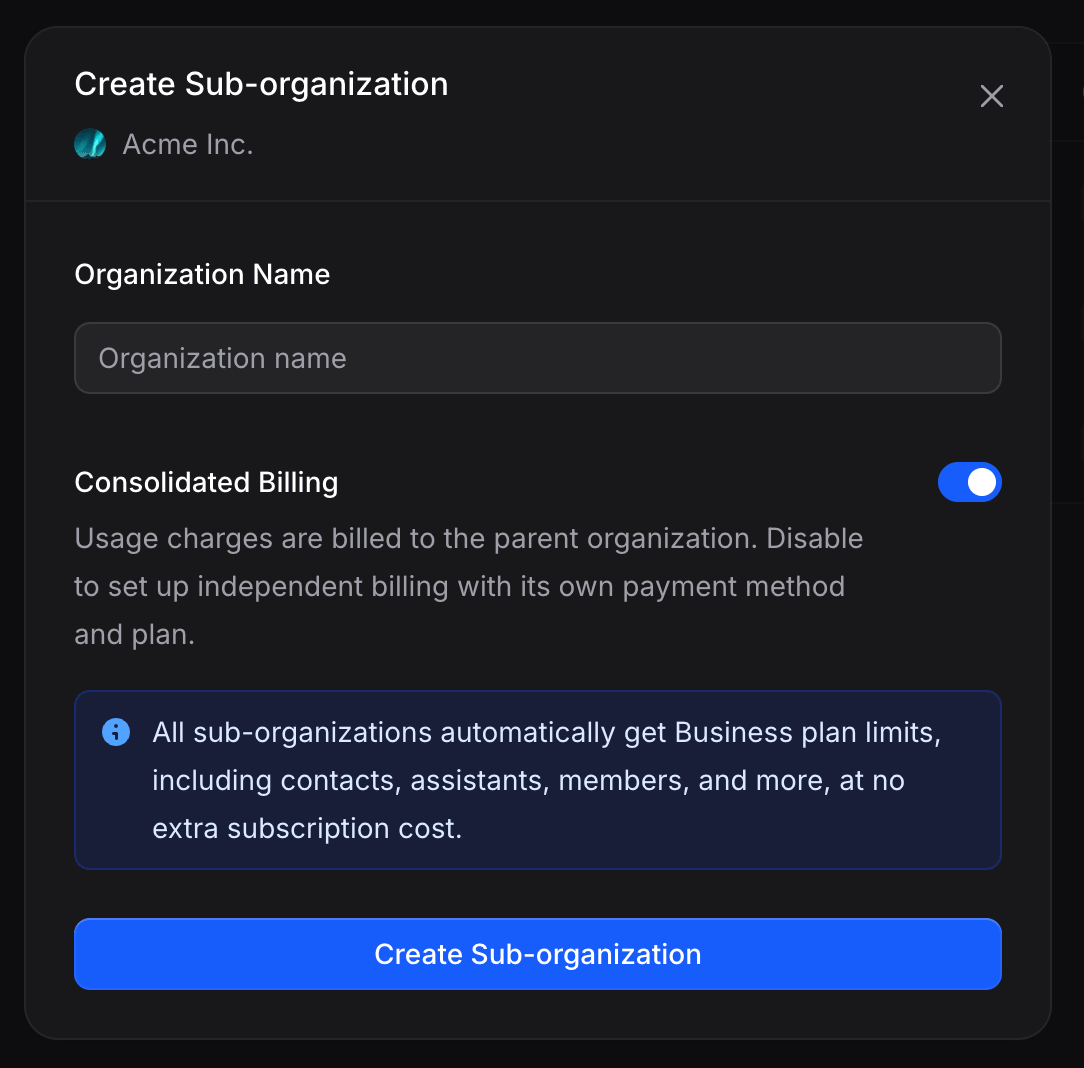
- Go to Settings → Sub-Organizations.
- Click + Create Sub-organization in the top right.
- Enter an Organization Name.
- Click Create Sub-organization.
The Sub-Organizations List
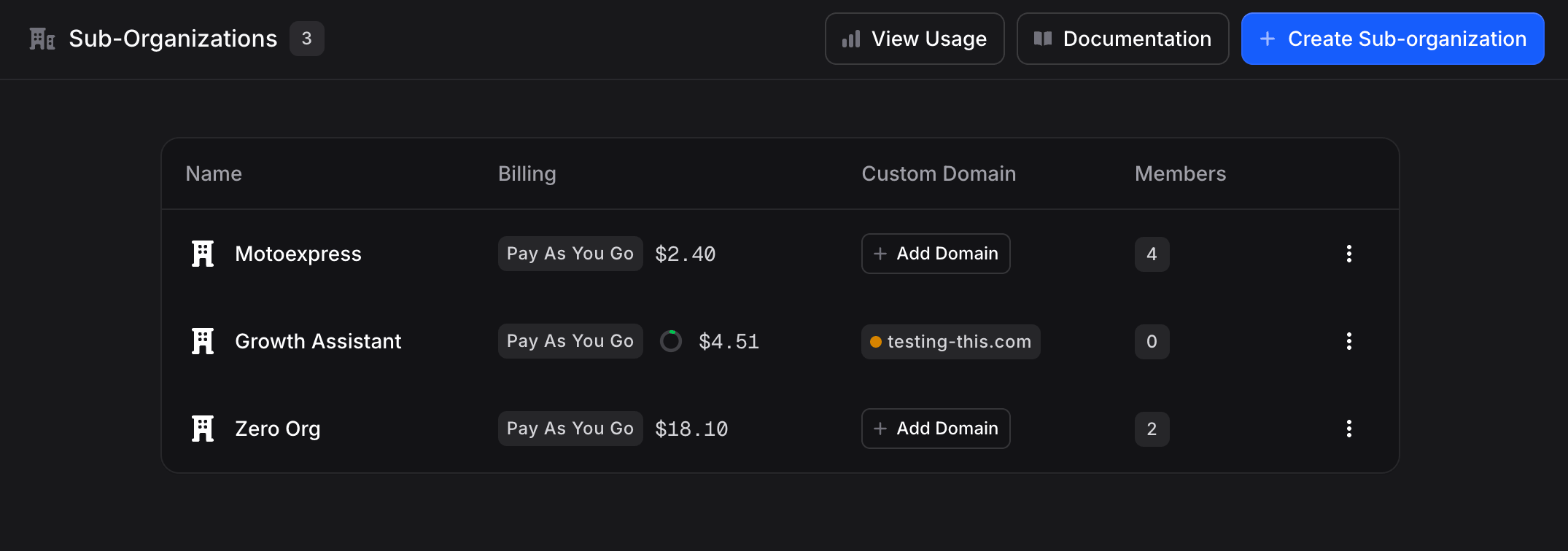
The list shows every sub-org you belong to or manage from the parent.
Each row has a ⋮ quick-actions menu on the right.
Quick Actions Menu
View Usage Across Sub-Organizations
Click View Usage at the top of the Sub-Organizations page to see aggregated spend and credits across every sub-org, with a date-range filter and a per-org breakdown.The Management Dashboard
Click any row in the Sub-Organizations list to open that sub-org’s management dashboard. You can also jump straight into a specific tab from any item in the row’s ⋮ quick-actions menu. The dashboard has seven tabs: Overview, Members, Roles, Customization, Domain, Modules, Billing.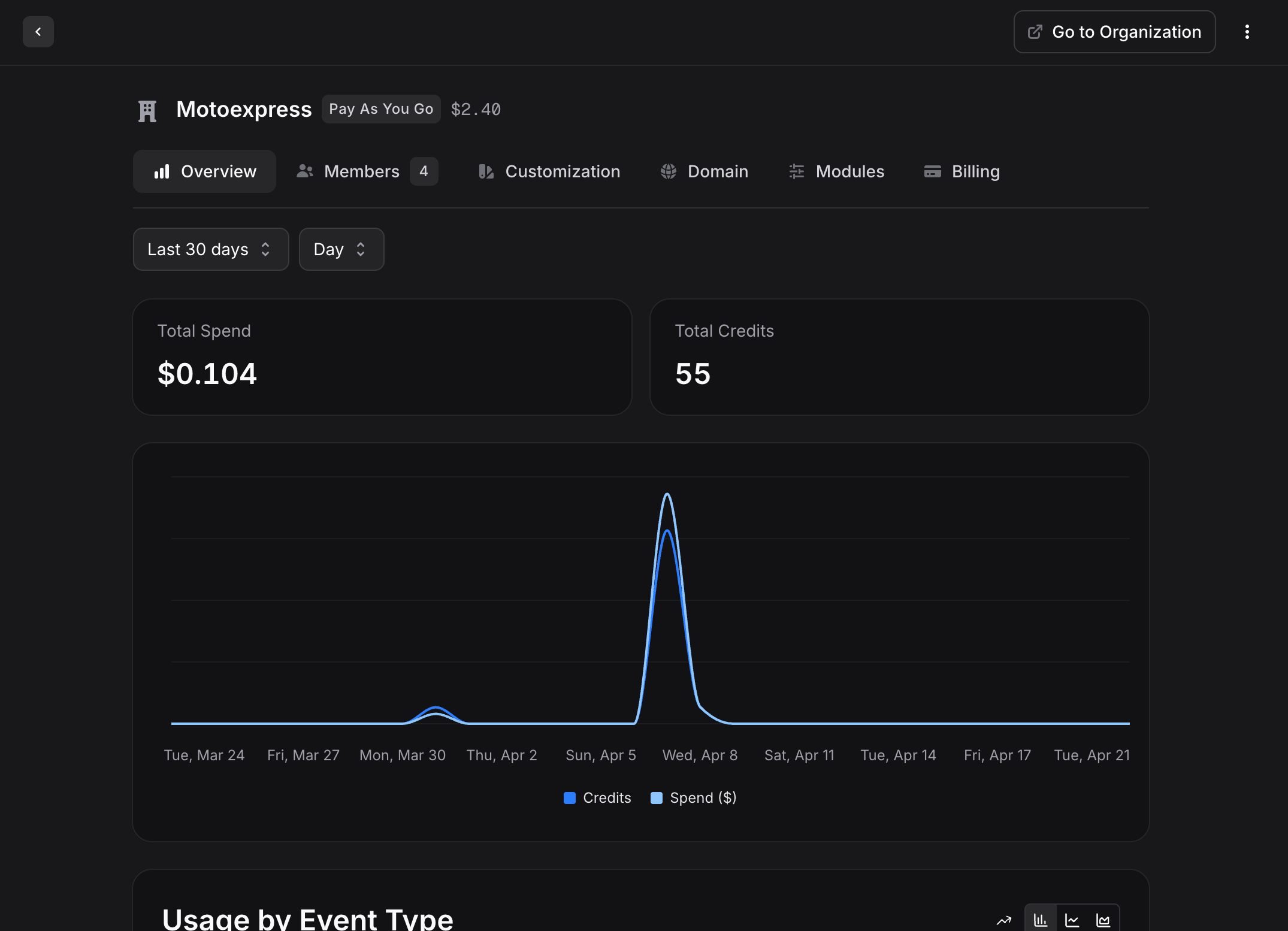
Overview
A usage dashboard scoped to this sub-org: Total Spend, Total Credits, a daily usage graph, and a Usage by Event Type breakdown. Filter by Last 7 days, Last 30 days, and other preset ranges.Members
Invite and manage the sub-org’s team members. Each member has a Name, Email, Role, and Status. Members take the same roles as in the parent organization: Admin, Developer, Manager, and Agent. A user can belong to multiple sub-orgs at once with a different role in each. They switch between them using the organization switcher in the top-left of the sidebar. Invitation emails for this sub-org are branded from this sub-org’s own Customization and Domain, not the parent’s. See Whitelabel for sub-organizations for the branding flow.Roles
Each sub-organization has its own Roles tab for custom roles scoped to that sub-org, mirroring the parent’s Members → Roles. Roles created here apply only within this sub-org.Customization
The sub-org’s own branding: logo, organization name, contact email, address, terms of service, and privacy policy. These values are used on the sub-org’s branded emails, portals, and sign-in screen.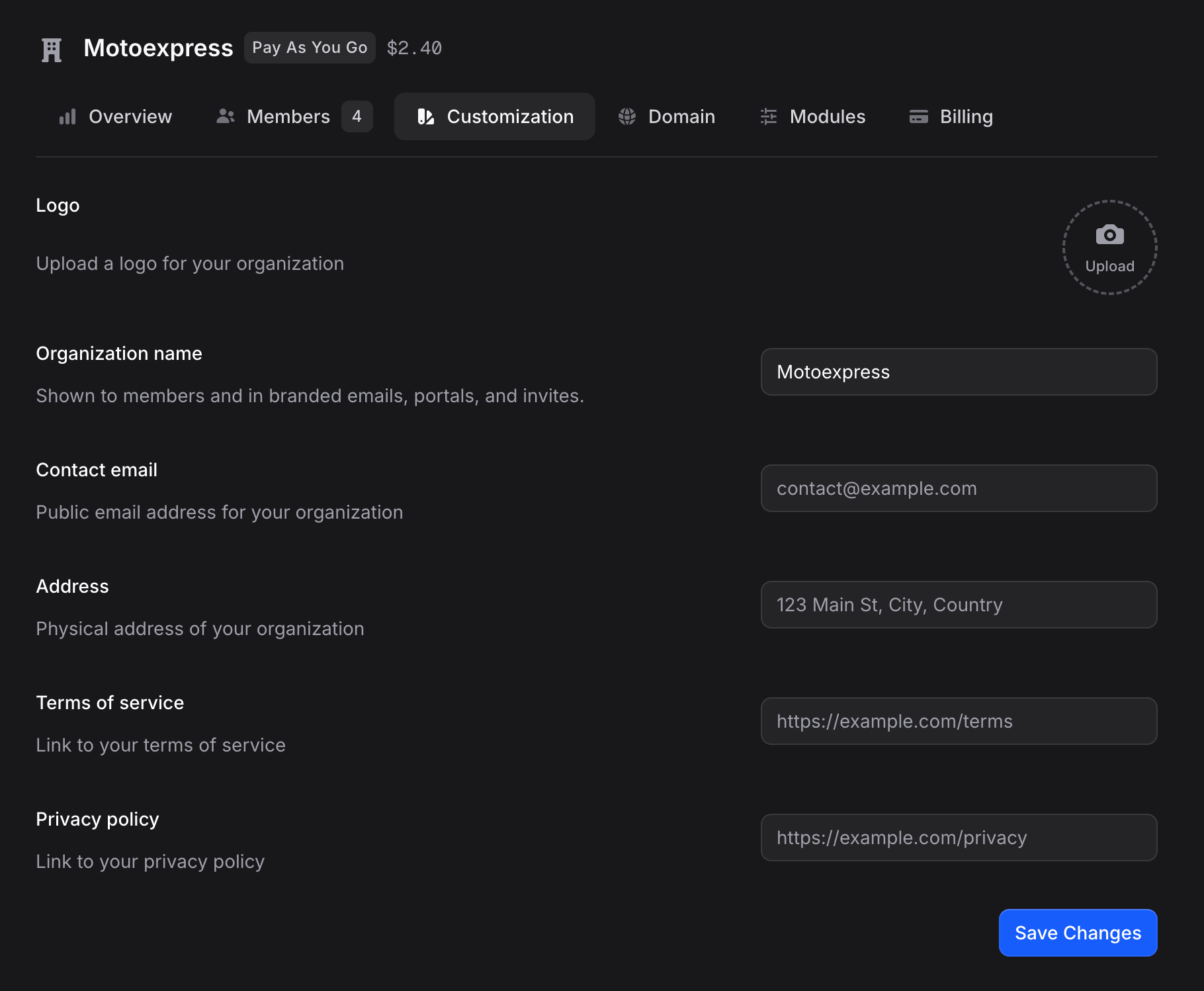
Domain
Each sub-organization has its own custom domain tab. A sub-org’s invitation links and emails only become branded once this sub-org has its own verified domain, independently of the parent. The setup is identical to the parent’s domain setup (add hostname, add CNAME, verify). For the full flow, DNS specifics, and the wildcard shortcut for agencies with many sub-orgs, see Whitelabel → Domain and Wildcard for agencies.Modules
Modules control which sections of the product are visible in this sub-organization’s sidebar. Disabled modules are hidden from the sidebar and return a not-available placeholder if visited directly.A module the sub-organization does not have (for example Workflows when it is not enabled on the parent) has no row here. The only greyed row is Show credits balance, which needs a spending cap on the sub-org first.
Show credits balance
At the bottom of the Modules tab is a Show credits balance toggle. This changes the usage indicator shown in the sub-org’s sidebar.- Off (default): the sidebar shows a Balance in dollars, like
$18.10. - On: the sidebar shows a Usage percentage, like
Usage 6%, based on the sub-org’s monthly spending limit. No dollar amounts are exposed to members.
The credits-based indicator only makes sense when a Monthly Spending Limit is set on the sub-org, since the percentage needs a cap to measure against. Invent prompts you to set a limit first if you enable this toggle without one.
Billing
Controls how this sub-organization pays for usage and where its credits come from.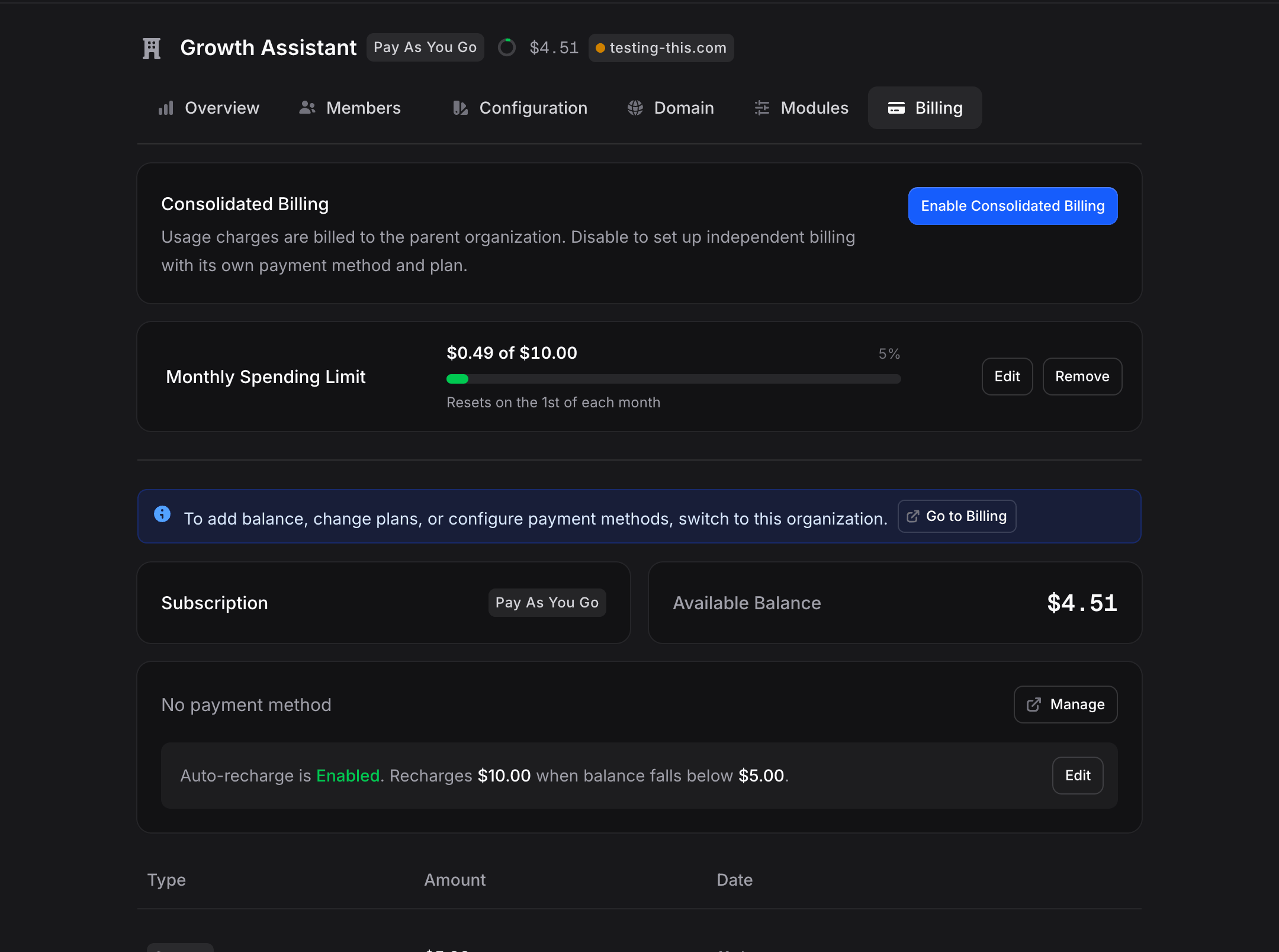
Consolidated Billing
Consolidated Billing is the single most important control here. It decides who pays for this sub-org.- Enabled (default): usage charges are billed to the parent organization. The sub-org draws from the parent’s credit pool. No separate subscription, no separate payment method. This is the standard agency setup.
- Disabled: the sub-org has its own billing: its own subscription, its own payment method, and its own plan. Usage is no longer deducted from the parent. Use this if you want a client to pay Invent directly, or if the sub-org is essentially an independent tenant.
Monthly Spending Limit
Cap how much this sub-org can spend per calendar month. Once the cap is hit, billable operations pause until the limit is raised or the month resets on the 1st. Combine the cap with the Show credits balance toggle on the Modules tab to give members a clean percentage indicator instead of a dollar balance. Inside the sub-org this limit is read-only and reads Managed by the parent’s name: only the parent changes it, from this tab. The same goes for the All members and All assistants default rules on the sub-org’s Settings → Spending limits page: the sub-org reads them, and the parent sets them through the API (PATCH /orgs/orgs/{sub_org_id}/billing with spending_cap.defaults). Limits on a single member or assistant stay editable inside the sub-org.
Other Billing Controls
The rest of the tab mirrors the parent’s billing page, scoped to this sub-org:- Subscription: the sub-org’s current plan (relevant when Consolidated Billing is disabled). A sub-org on Pay As You Go gets its parent’s plan: the parent’s limits and features apply to it.
- Available Balance: the credit balance assigned to this sub-org.
- Payment Method: card on file (only used when Consolidated Billing is disabled).
- Auto-recharge: automatic top-ups when the balance drops below a threshold.
- Payment History: past transactions for this sub-org only.
Switching Between Organizations
Use the organization switcher in the top-left of the sidebar to hop between your parent and any sub-org you belong to. The switcher shows:- The parent organization with its plan badge
- All sub-orgs nested underneath (marked with a ↳ icon)
Detaching a Sub-Organization
Detaching makes a sub-organization fully independent. It disappears from the parent’s list and no longer shares any resources.- Click ⋮ on the sub-org row.
- Select Detach Organization.
- Confirm.
Managing Sub-Organizations via the API
Everything above can also be done programmatically. This is the setup for platforms and agencies that provision an organization per client from their own backend and wrap Invent behind their own panel. All requests authenticate with a parent organization API key (create one here) in theAuthorization: Bearer YOUR_API_KEY header. A parent key can call every org-scoped endpoint for any of its sub-organizations. Two rules to remember:
- A path without an org id always means the parent org. To act inside a sub-organization, put the sub-org’s id after
/orgs/. - Nesting is one level deep: a sub-organization cannot have sub-organizations of its own.
Endpoints
All routes require the
orgs:write permission, except the billing route which requires billing:write. API keys carry full admin access, so both work out of the box.
Create a sub-organization
id. From that moment, the sub-org is a full organization: put its id after /orgs/ on any org-scoped endpoint (contacts, broadcasts, connections, webhooks) with the same parent key.
Configure modules and spending
Toggle which product sections the sub-org sees, and cap what it can spend:Feature flags (the
features object) are managed by the Invent team, not through the API. If a sub-org needs a gated capability, such as a dedicated SMS carrier connection, contact support after creating it.FAQ
Do I need a separate Business subscription for each sub-org?
Do I need a separate Business subscription for each sub-org?
No. Your parent organization pays once. Sub-orgs have Consolidated Billing enabled by default and draw from the parent’s credits. If you see a second active subscription inside a sub-org, someone accidentally subscribed it separately. Open the sub-org’s Billing tab, disable the redundant subscription, and leave Consolidated Billing on.
Why does a sub-org have a Billing tab at all if the parent pays?
Why does a sub-org have a Billing tab at all if the parent pays?
Two reasons. First, to set per-sub-org Monthly Spending Limits, track usage separately, and turn Consolidated Billing off if you ever want that sub-org to pay its own way. Second, every organization in Invent is architecturally independent, so the billing tab is always present and a sub-org can “graduate” to its own plan later without any migration.
Which organization uses the free credits?
Which organization uses the free credits?
Free credits are provided to one organization per account. If you have multiple organizations, only one gets the free monthly allowance.
Can a member belong to multiple sub-orgs?
Can a member belong to multiple sub-orgs?
Yes. They use a single login and switch between the sub-orgs they’re invited to using the organization switcher. Their role can differ in each one.
Next Steps
Whitelabel
Brand the parent and every sub-org with logos, domains, and a wildcard for agencies
Members
Invite members into a sub-organization once its branding and domain are in place
Plans & Pricing
Understand how credits flow between the parent and its sub-organizations
Single Sign-On
Route team sign-ins for each sub-org through your identity provider