

Audit Logs require a Business or Enterprise plan. View plans
Understanding the Activity Feed
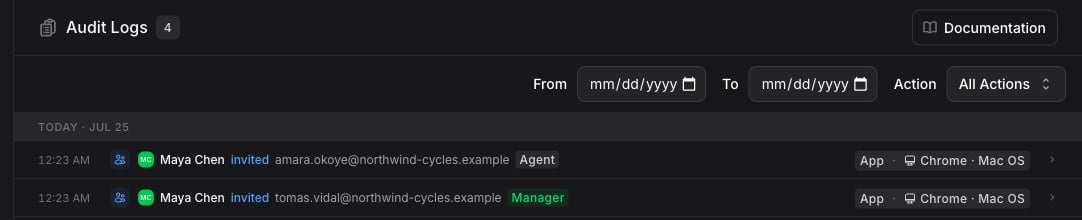
Audit logs are shown as an activity feed grouped by day. Each entry reads as a short sentence describing what happened, with a timestamp and a Source badge:- Sentence: who did what to which resource, for example the actor, the action, and the affected resource (such as an assistant name).
- Source badge: where the action originated. Possible sources are App, Admin, API, System, and AI.
- Timestamp: when the action occurred.
Filtering Logs
You can narrow down your audit logs using the filters at the top of the page:- Date Range: Set a From and To date to view activity within a specific time period
- Action: Use the action dropdown to filter by a specific event type, or select All Actions to view everything
Event Types
Audit logs capture a wide range of events across your workspace, grouped by category:- Organization: Updated, Deleted, Disabled, Enabled, Restored, Transferred, Transferred To, Detached, Detached From, Sub-Organization Created, Sub-Organization Updated, Sub-Organization Member Joined, Sub-Organization Member Role Changed
- Members: Invited, Joined, Removed, Left, Role Changed
- Roles: Created, Updated, Deleted, Assigned, Unassigned
- Assistants: Created, Updated, Deleted, Restored, Duplicated, Duplicated From, Secret Key Rotated, Knowledge Attached, Knowledge Detached, Member Added, Member Removed
- Actions: Created, Updated, Deleted, Enabled, Disabled
- Channels: Created, Deleted, Updated, Enabled, Disabled
- Connections: Created, Updated, Deleted
- Broadcasts: Created, Updated, Deleted, Duplicated, Activated, Paused, Scheduled, Cancelled
- Segments: Created, Updated, Deleted
- Tables: Created, Updated, Deleted, Duplicated, Field Created, Field Updated, Field Deleted
- Routines: Created, Updated, Deleted, Token Rotated
- Billing: Updated, Payment Method Linked, Payment Method Unlinked, Plan Changed
- Workflows: Created, Deleted, Restored
- Domains: Domain Created, Domain Deleted, Email Domain Created, Email Domain Deleted, Email Identity Created, Email Identity Updated, Email Identity Deleted
- SSO: Profile Created, Profile Updated, Profile Deleted, Profile Sessions Revoked, Domain Created, Domain Updated, Domain Deleted, Domain Verification Code Requested, Domain Deletion Code Requested
- Conversations: Chat Deleted
- API Keys: Created, Updated, Deleted, Rotated
- Webhooks: Created, Updated, Deleted, Secret Rotated
Who Can View Audit Logs
Audit Logs are available to Admin users, and to any custom role granted Audit logs = View. You can access them by navigating to Settings → Audit Logs (useinvent.com/o/settings/audit-logs).Best Practices
- Review regularly: Check audit logs periodically to stay aware of changes in your workspace
- Investigate unexpected changes: If something looks off, use the filters to trace who made the change and when
- Use date filters for incidents: When troubleshooting, narrow down to the specific time window to quickly find relevant activity