

This page covers the marketing-specific flow. For the building blocks every broadcast shares (channels, templates, and variables), start with the Broadcasts overview. For event-driven messages sent one at a time, see Transactional broadcasts.
Audience
The Audience section determines who receives your broadcast. It is the first thing to configure, and it is required before you can send.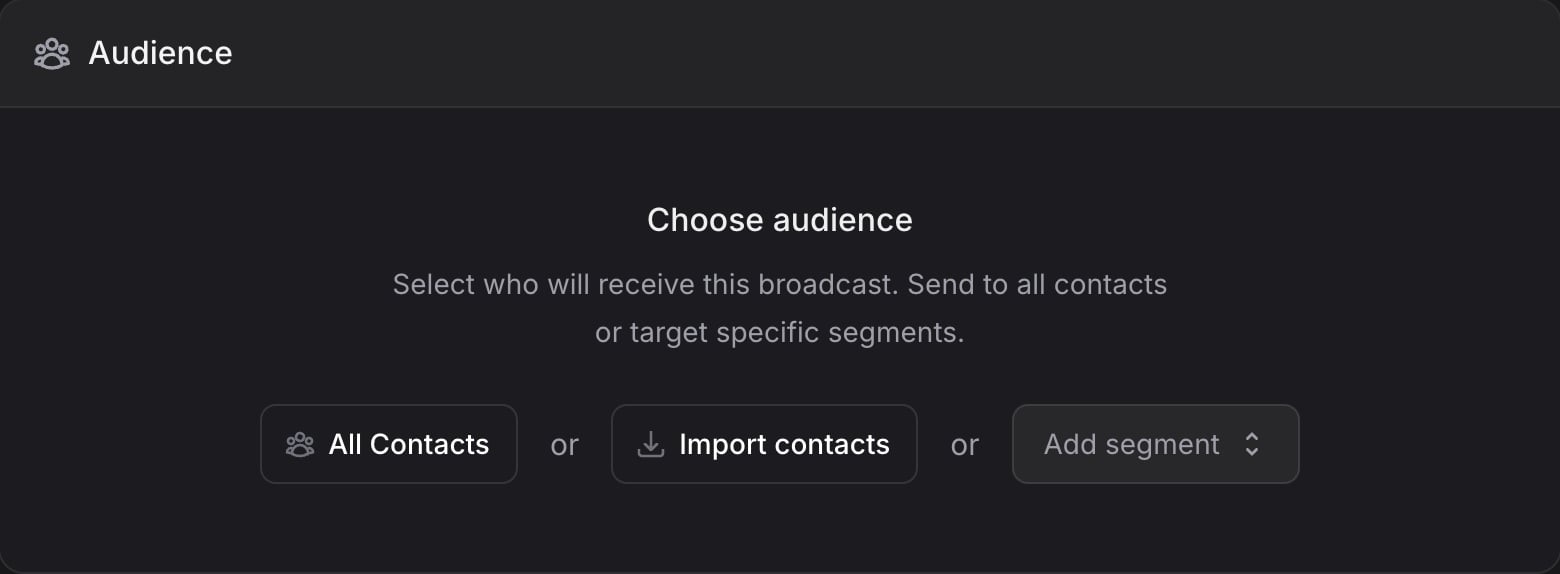
Audience guide
Learn how to manage contacts and build segments in the Audience guide.
All contacts
Click All Contacts to send to every contact in your audience. Once selected, the Audience section shows an “All Contacts” row with its contact count, a See all button to browse them, and a Change button to pick a different audience.Specific segments
Click Add segment to target specific groups:- Search for a segment by name.
- Select one or more segments from the list.
- Add multiple segments to widen your reach.
Import a file
Click Import contacts to send to a list from a CSV, Excel, Numbers or OpenDocument file without leaving the broadcast:- Upload a
.csv,.xlsx,.xls,.numbers, or.odsfile of up to 50 MB. One import adds up to 50,000 contacts; split a bigger list into several files. - Map the columns to contact fields; recognized columns are mapped automatically.
- Review and import. Optionally pick a segment to file the contacts under with Import to segment (Optional). The contacts join this broadcast’s audience directly and appear as Imported contacts in the Audience section, with See all to browse them and Remove to clear them.
Add a channel before importing. The import maps your columns onto the fields your channels use, so Import contacts stays disabled until the broadcast has at least one.
Marketing broadcasts respect each contact’s subscription status. Contacts who have unsubscribed or are blocked are automatically excluded from the audience, so you stay compliant without extra work.
Test your broadcast
Before sending to your whole audience, send yourself a test to confirm everything looks right.1
Click Send Test
Open the broadcast and click Send Test in the top-right corner.
2
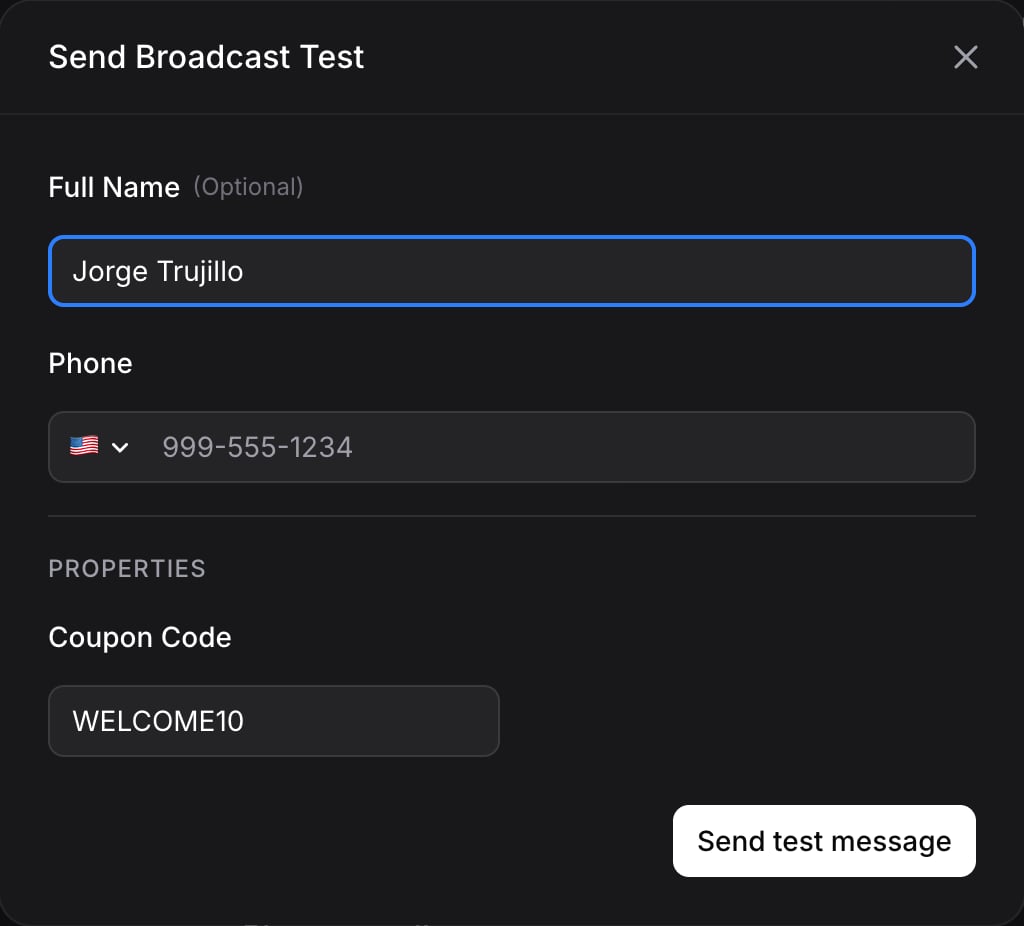
Enter the test recipient
Provide the contact detail that matches the channel you are testing:
- Full Name (optional): a name for the test recipient.
- Phone (optional): the number that receives the test, with a country-code selector.
3
Send the test
Click Send test message and check the device to confirm the message renders correctly with its variables populated.
Send or schedule
Once your audience, channels, and content are ready, click Schedule Broadcast in the top-right corner to open the delivery dialog. It has two parts: when the broadcast starts, and how quickly it goes out.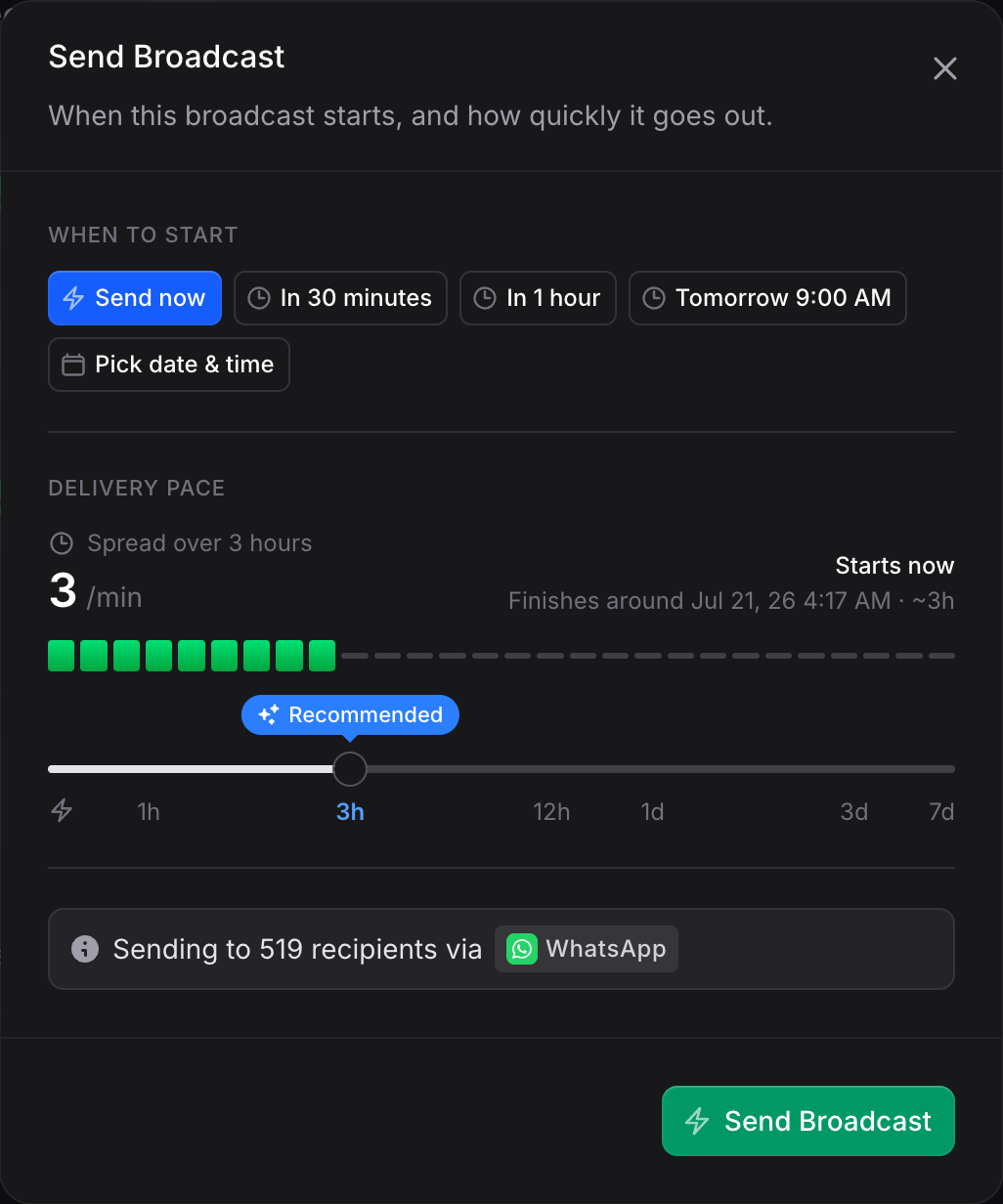
When to start
Pick when the broadcast begins:- Send now: start delivering immediately.
- Quick options: in 30 minutes, in 1 hour, or tomorrow at 9:00 AM.
- Pick date & time: choose any future date and time with the picker.
Delivery pace
Delivery pace controls how fast the send goes out once it starts. Instead of firing everything at once, you can spread the send evenly over a window so it lands steadily rather than all in the same minute. Drag the slider between ASAP (as fast as possible) and up to 7 days. As you move it, the dialog updates live:- The rate — roughly how many messages go out per minute.
- The finish estimate — when the send is expected to complete.
- A small timeline bar that fills to show how much of the window the send occupies.
Whatever pace you pick, Invent never exceeds your channel’s safe sending limit. If you choose a pace faster than the limit allows, the send simply runs at the limit and the finish estimate adjusts. Delivery pace applies to marketing broadcasts only.
Confirmation
The dialog always shows a recipient summary — “Sending to X recipients via WhatsApp” — with the channel and count. Click Send Broadcast to start now, or Schedule Broadcast to queue it for the time you picked. Both buttons check that the WhatsApp account can send template messages before anything is queued. The send is refused with an error when the account has no active payment method, when Meta has not verified the business, when Meta has blocked the account or the sending number, or when the audience is larger than the number of conversations the account may start in 24 hours (the error states the recipient count and the limit). The payment and verification errors add a button, Set up payment method or Start verification, that opens the fix in Meta Business Manager.Scheduled broadcasts
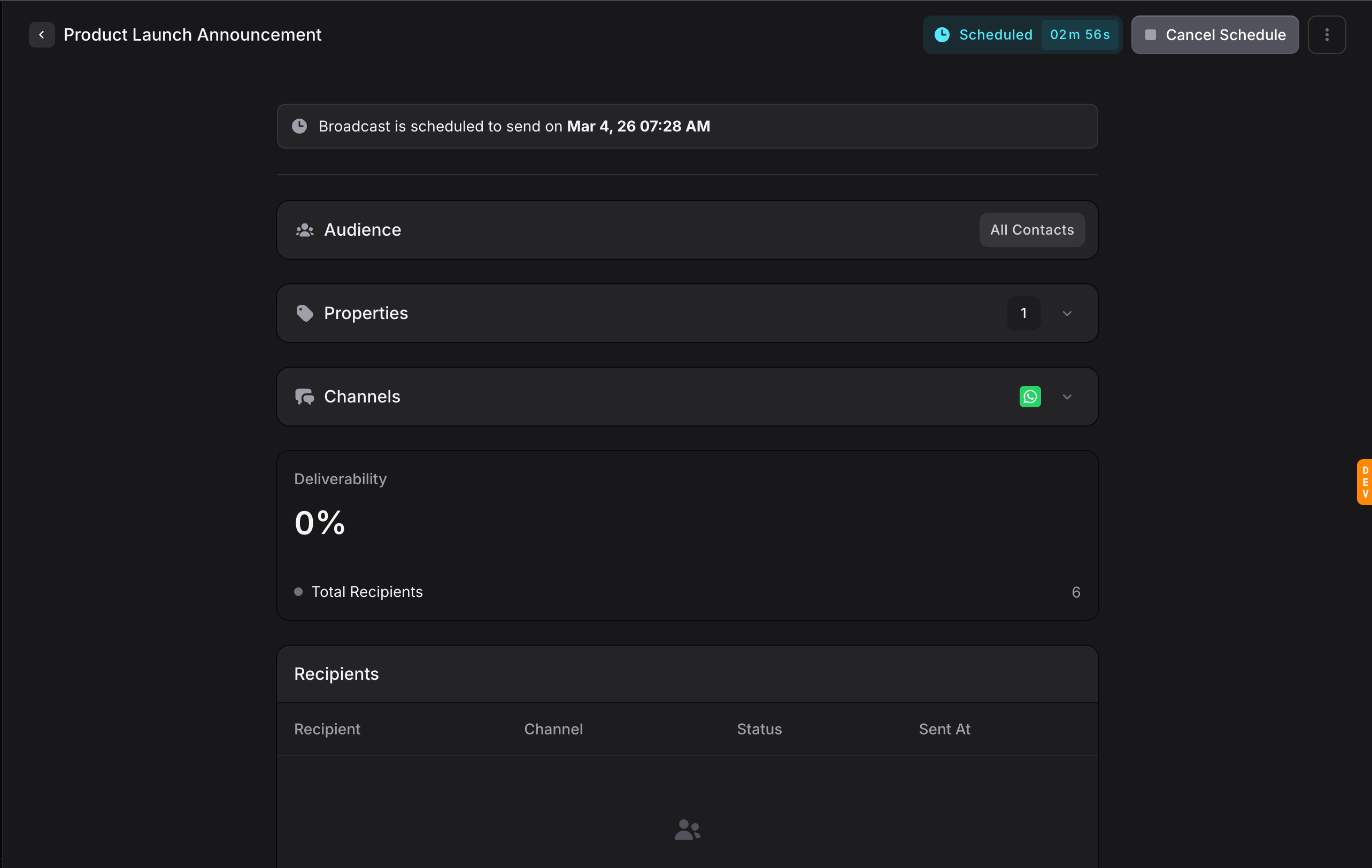
When a broadcast is scheduled, the page updates to show:- A banner: “Broadcast is scheduled to send on” the chosen date and time.
- A live countdown in the top-right corner.
- A Cancel Schedule button that returns the broadcast to Draft.
While it’s sending
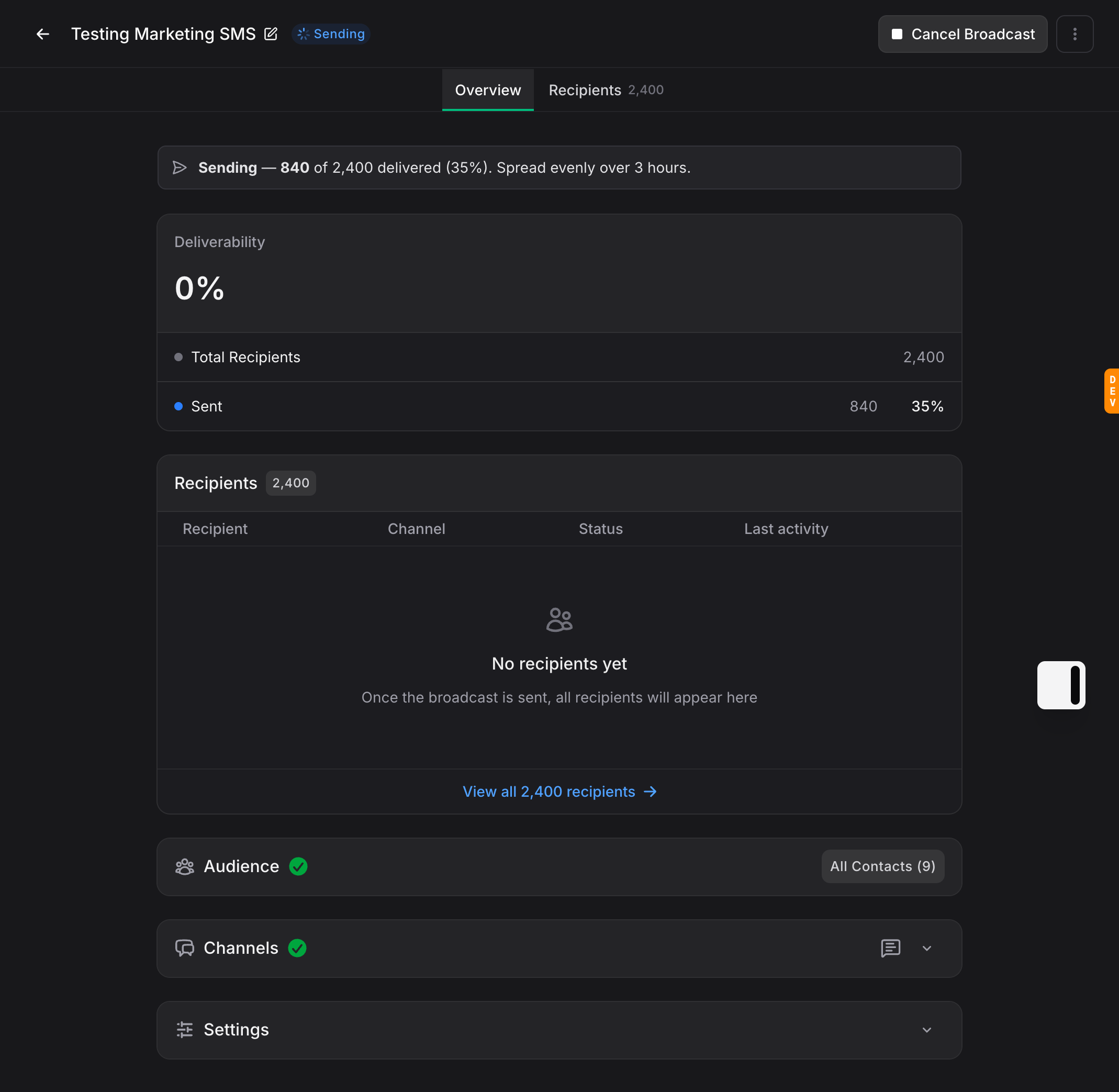
Once a broadcast starts, the header shows a Sending status and a banner tracks it live:- Progress — how many of the total recipients have been delivered so far, with a percentage.
- Pace — “Spread evenly over 3 hours” when you set a delivery pace, or “Going out as fast as your channels safely allow” when you didn’t.
Cancelling a send in progress
A paced broadcast can be delivering for hours, so you can stop one mid-send. Click Cancel Broadcast and confirm. Delivery stops and the broadcast returns to Draft, fully editable again — messages already delivered stay delivered and keep counting in your analytics, and the unsent remainder is discarded. A banner tells you how many people already received it. Send it again and everyone who already received it is skipped, so nobody gets it twice. The send dialog counts only the people still to reach, which makes an unedited re-send the way to resume an interrupted broadcast.Messages already handed to the channel may still go out — cancelling stops the queue, not a message mid-delivery.
Analytics
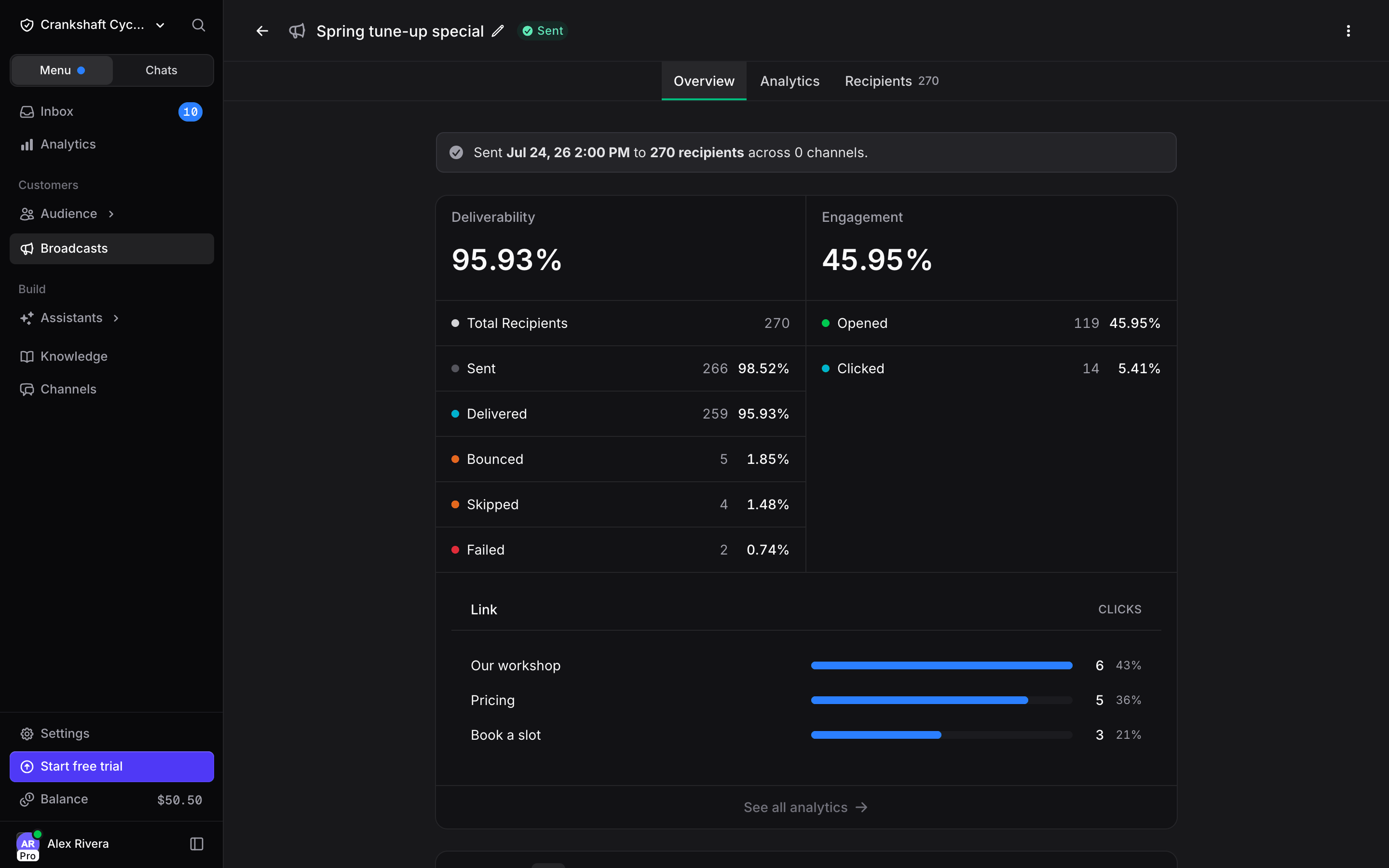
After a broadcast is sent, the page becomes an analytics dashboard. The Audience, Variables, and Channels sections collapse into summaries, and delivery data takes their place.Deliverability
- Total Recipients: how many contacts were targeted.
- Sent: how many messages were sent, with the percentage.
- Delivered: how many were confirmed delivered, with the percentage.
- Skipped, Failed, and Bounced: how many were not delivered, with the percentage. Each of these rows appears only once it has a count.
Engagement
The Engagement column appears once at least one recipient has engaged, and each row appears only once it has a count:- Opened: how many recipients opened or read the message, with the percentage.
- Clicked: how many clicked a link in the message.
- Played: how many played an audio message.
Analytics tab
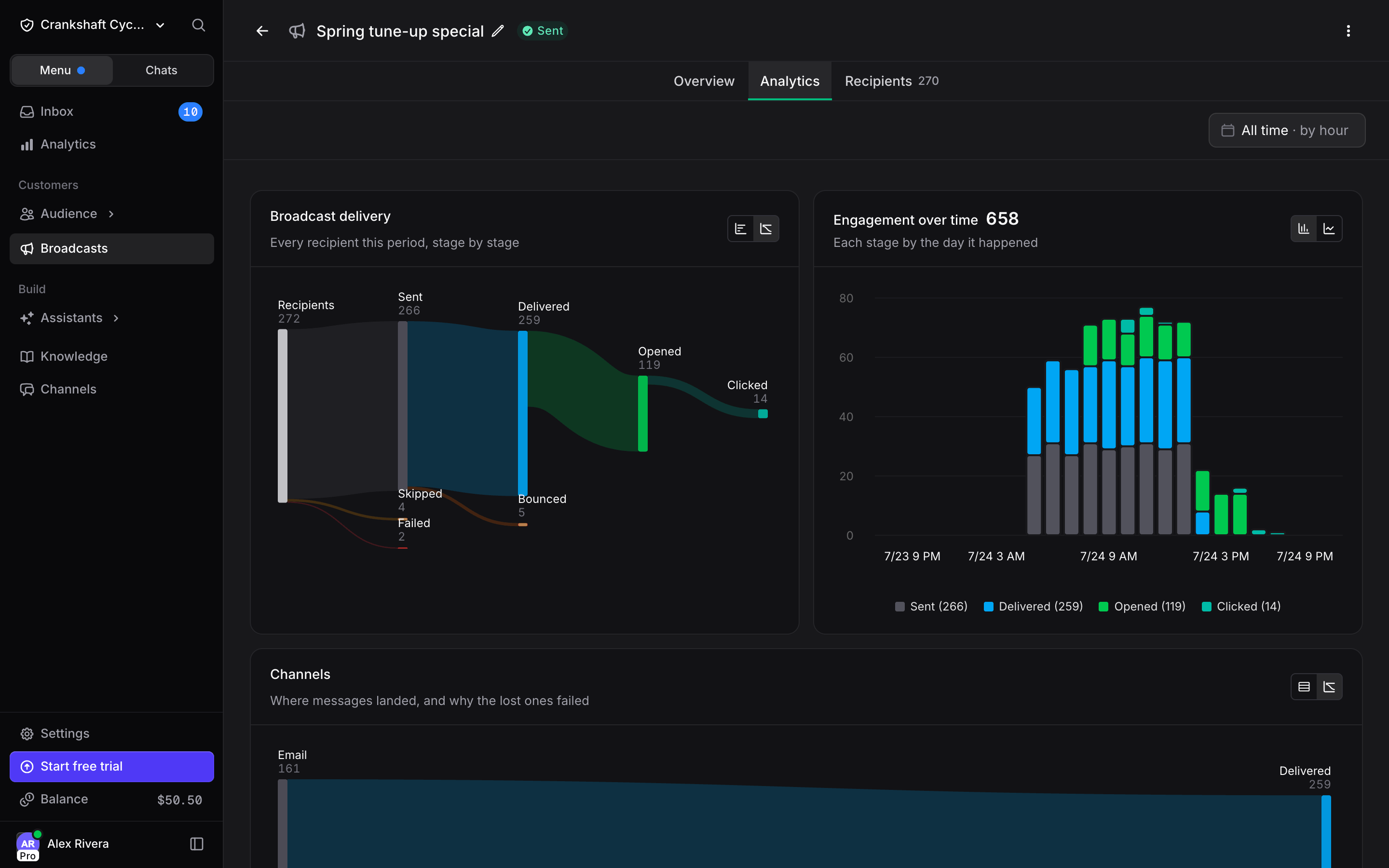
Once a broadcast leaves Draft, an Analytics tab appears next to Overview and Recipients. See all analytics at the bottom of the stats card opens it too, and a cancelled broadcast that already sent messages keeps it. The tab shows:- Broadcast delivery: a funnel from Recipients through Queued, Sent, Delivered, Opened, and Clicked, with Skipped, Failed, and Bounced as the drop-off. The toggle in the card header switches between the Sankey and bar views.
- Engagement over time: sent, delivered, opened, and clicked counts plotted over the course of the send.
- Channels: delivered messages by channel, and the failure reasons behind the ones that did not arrive.
Recipients tab
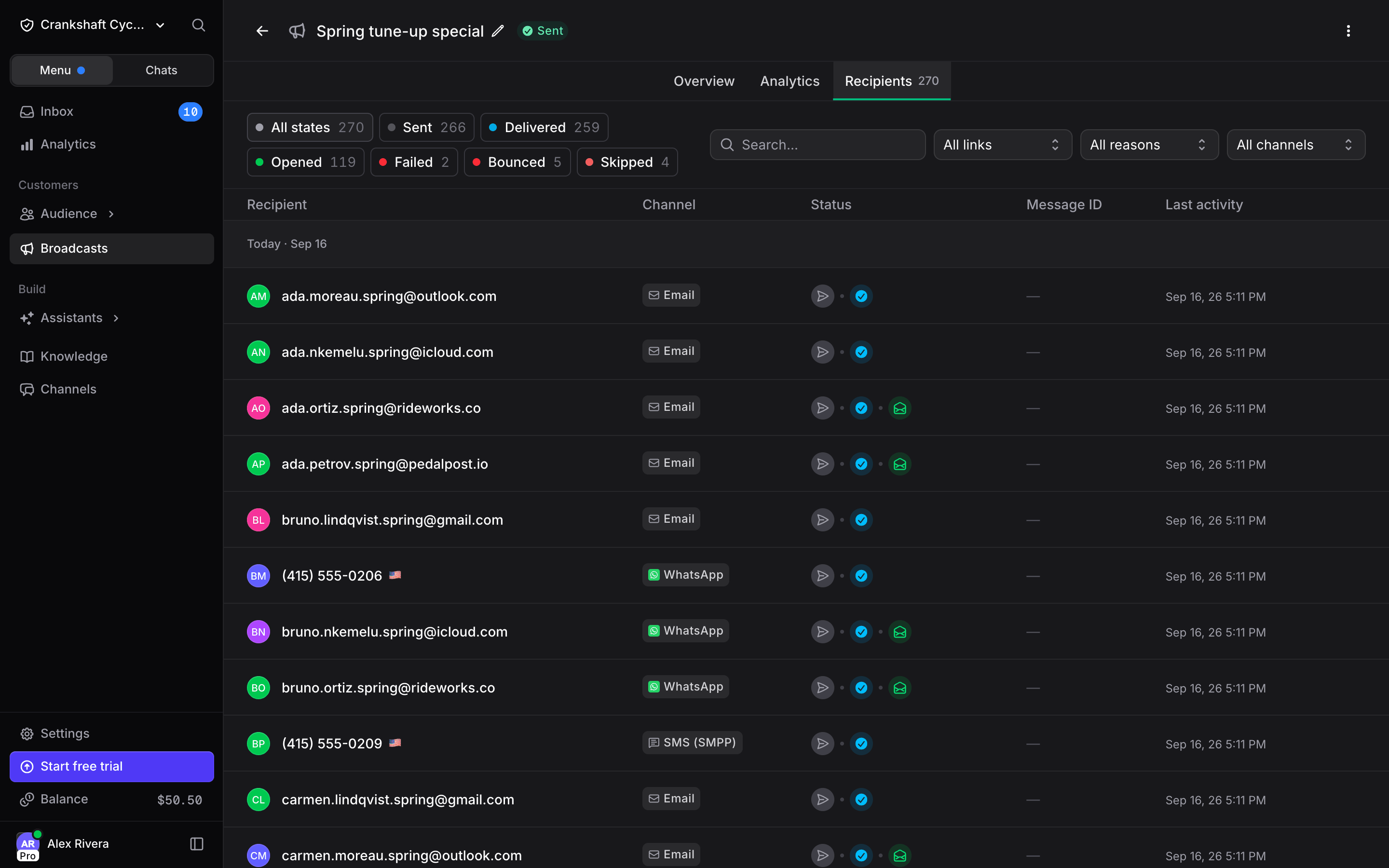
Before anything is sent, the tab lists the audience the broadcast will reach, with a search box. Once sending starts, the tab lists every recipient with the channel used, the delivery status, the message ID, and the last activity. Hover a status icon to see exact timestamps for each event. Above the table:- Status chips with a count per state, to narrow the list to Sent, Delivered, Failed, and so on.
- A channel filter.
- A link filter when the broadcast has clicks, and a failure reason filter when it has failures.
Retrying failures
A failed recipient shows a Retry button on its row, which puts that message back on the send queue. When several failed, Retry all failed appears above the table and requeues them in one go. Retrying never re-sends to someone who already received the message. Recipients that never reached anyone — imported, still queued, failed, or skipped — can also be removed from the table through the ⋮ menu on their row.Best practices
- Always test first. Send yourself a preview and confirm the template and variables render correctly.
- Segment instead of blasting. Send relevant content to the right group rather than the same message to everyone.
- Personalize with variables. A name and a unique code lift engagement. See Variables.
- Schedule for the right moment. Send when your audience is active, and avoid late nights and weekends.
- Watch your numbers. Low deliverability usually points to bad phone numbers or addresses in your contacts.
- Get consent. Only message contacts who opted in. On WhatsApp this is essential. See WhatsApp Best Practices.
Next steps
Transactional Broadcasts
Send event-driven messages one at a time through the API
Set up WhatsApp Templates and configure the channel
WhatsApp Best Practices
Keep your number and templates in good standing
Audience
Manage contacts and build segments for targeting