

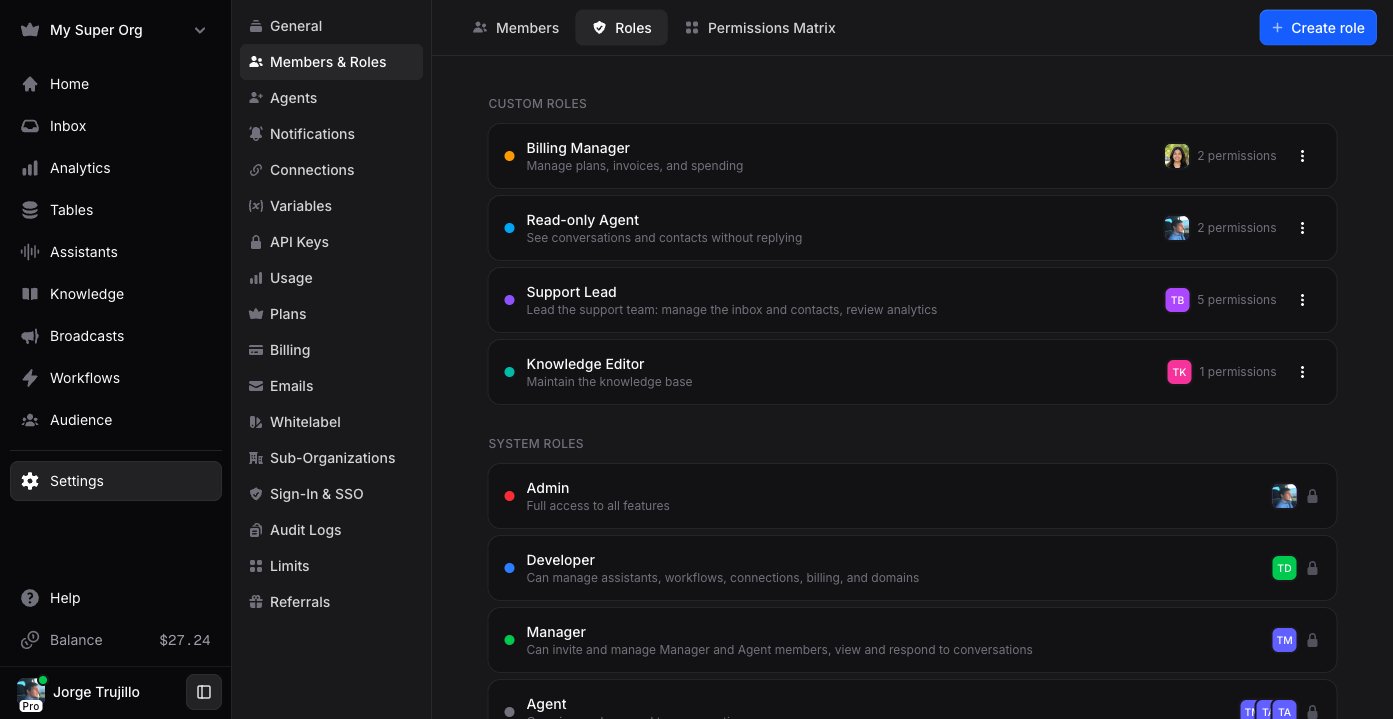
System vs custom roles
- System roles are fixed and read-only: Admin, Developer, Manager, and Agent. You can open one to see exactly what it grants, but you can’t change it.
- Custom roles are roles you create with a tailored permission set, color, and description.
Permission levels
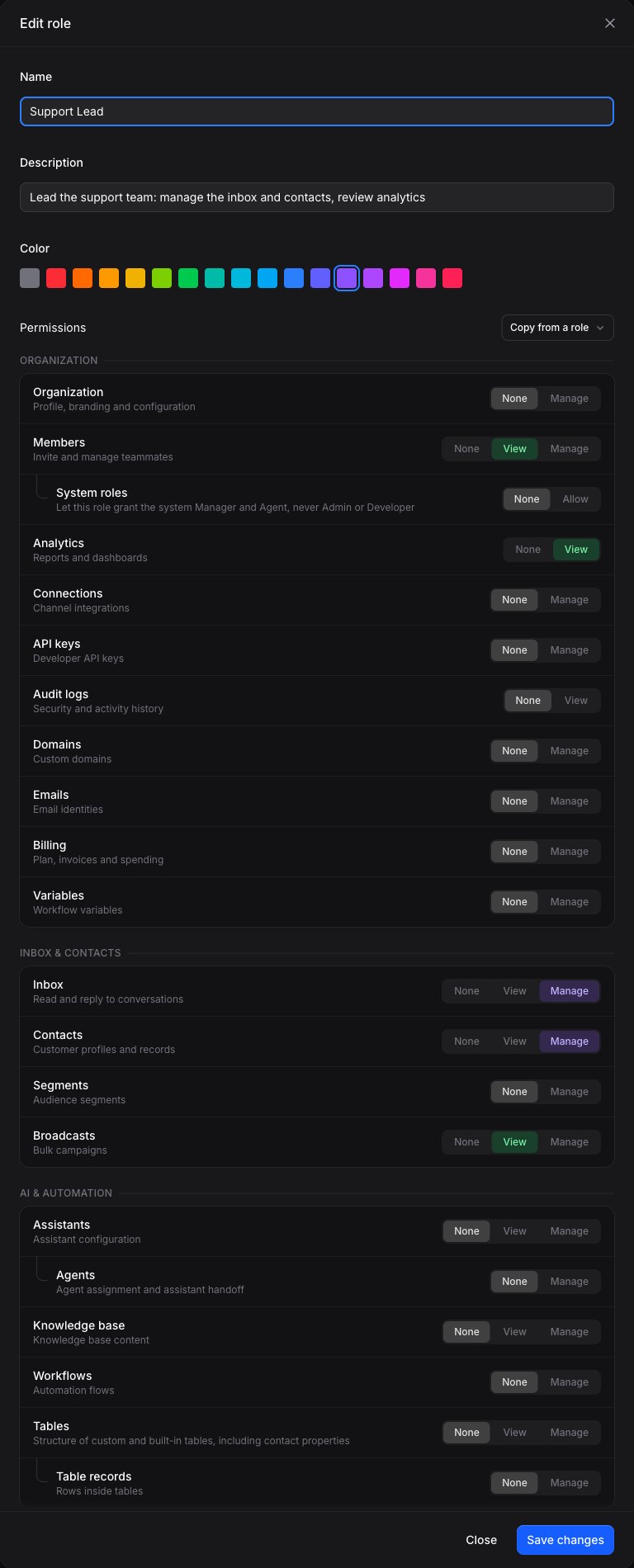
Open a role to see the permission editor. Every resource (Members, Inbox, Contacts, Tables, and so on) is set to one of three levels: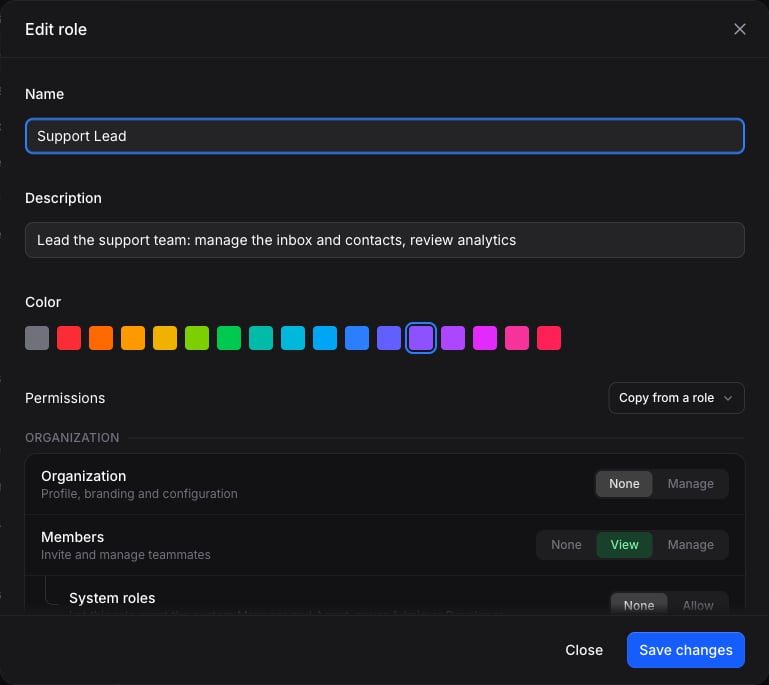
Not every resource offers all three levels. Some are view-only (Analytics, Audit logs) and some are manage-only (Connections, Workflows, Segments). The editor only shows the levels that apply to each resource.
Sub-resources and cascading
Some resources nest a finer-grained permission underneath them:- System roles under Members: whether this role can assign the system Manager and Agent roles to others (never Admin or Developer).
- AI Routing under Assistants: conversation routing and assistant handoff.
- Table records under Tables: the rows inside tables, separate from the table structure.
- Table views under Tables: the saved views over those tables.
Reserved permissions
A few permissions are reserved for Admins and can never be granted through a custom role: SSO, Sub-organizations, and Administration (the reserved admin actions to delete the organization and manage roles). They appear in the editor with a “Reserved” badge and can’t be selected.Creating a custom role
1
Open Roles
Go to Settings → Members & Roles → Roles and select Create role.
2
Name and color
Give the role a name, pick a color (used for its badge across the workspace), and add an optional description.
3
Set permissions
For each resource, choose None, View, or Manage. To start from an existing role, use Copy from a role and adjust from there.
4
Save
Select Save changes. The role now appears under Custom roles and can be assigned to members.
You can only grant permissions you hold yourself (the subset rule), so you can never create a role more powerful than your own access.
Assigning roles
Assign custom roles from the members list with Edit roles next to a member, or stage them on an invite.Inviting with custom roles
When you invite a member, pick a system role or one or more custom roles. If you choose custom roles, the invitee joins at the Agent base plus those roles when they accept.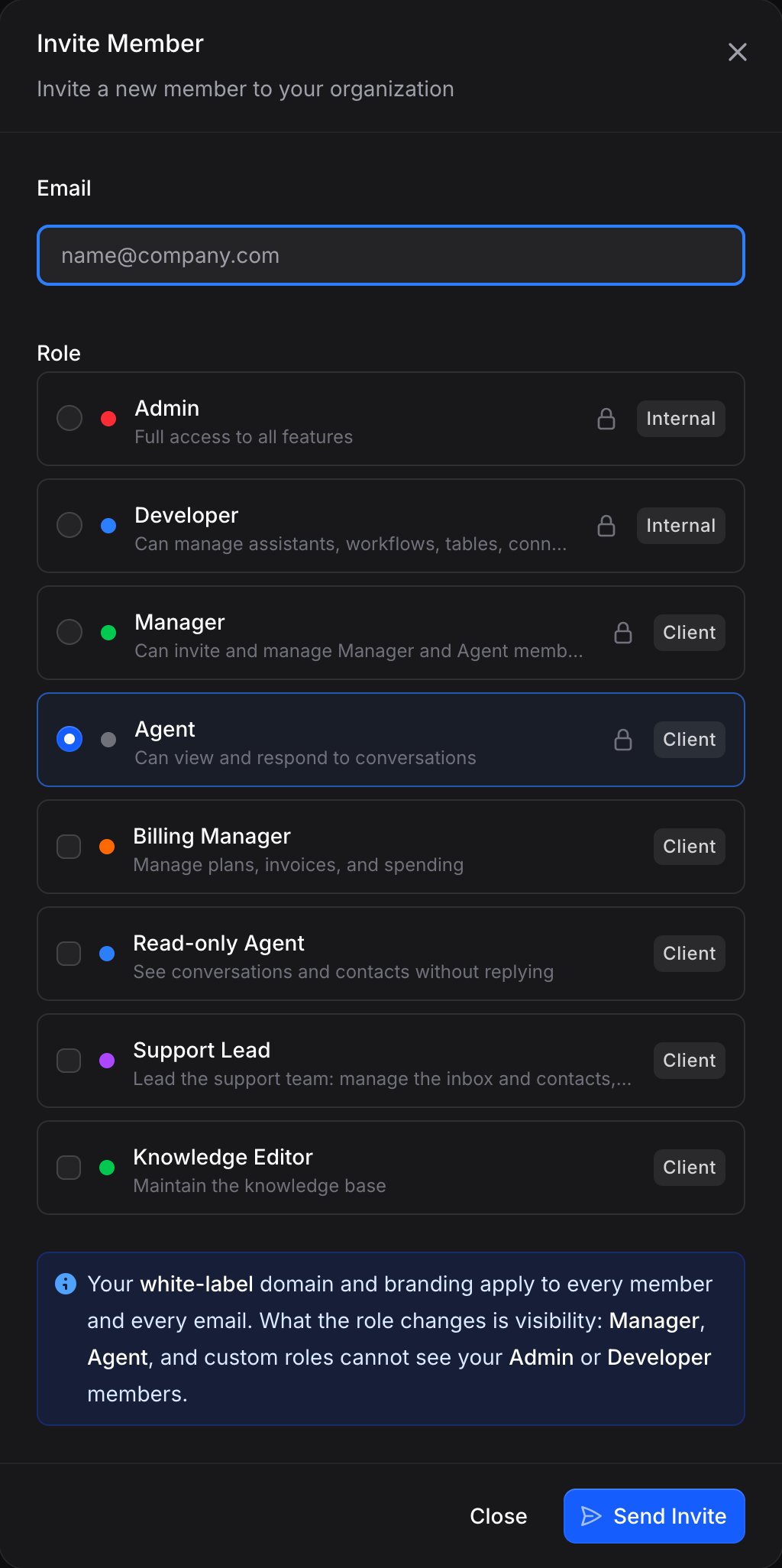
If a staged custom role is deleted before the invite is accepted, the invite is removed.
The permissions matrix
Settings → Members & Roles → Permissions Matrix shows every role (system and custom) as a column and every resource as a row, so you can compare access at a glance.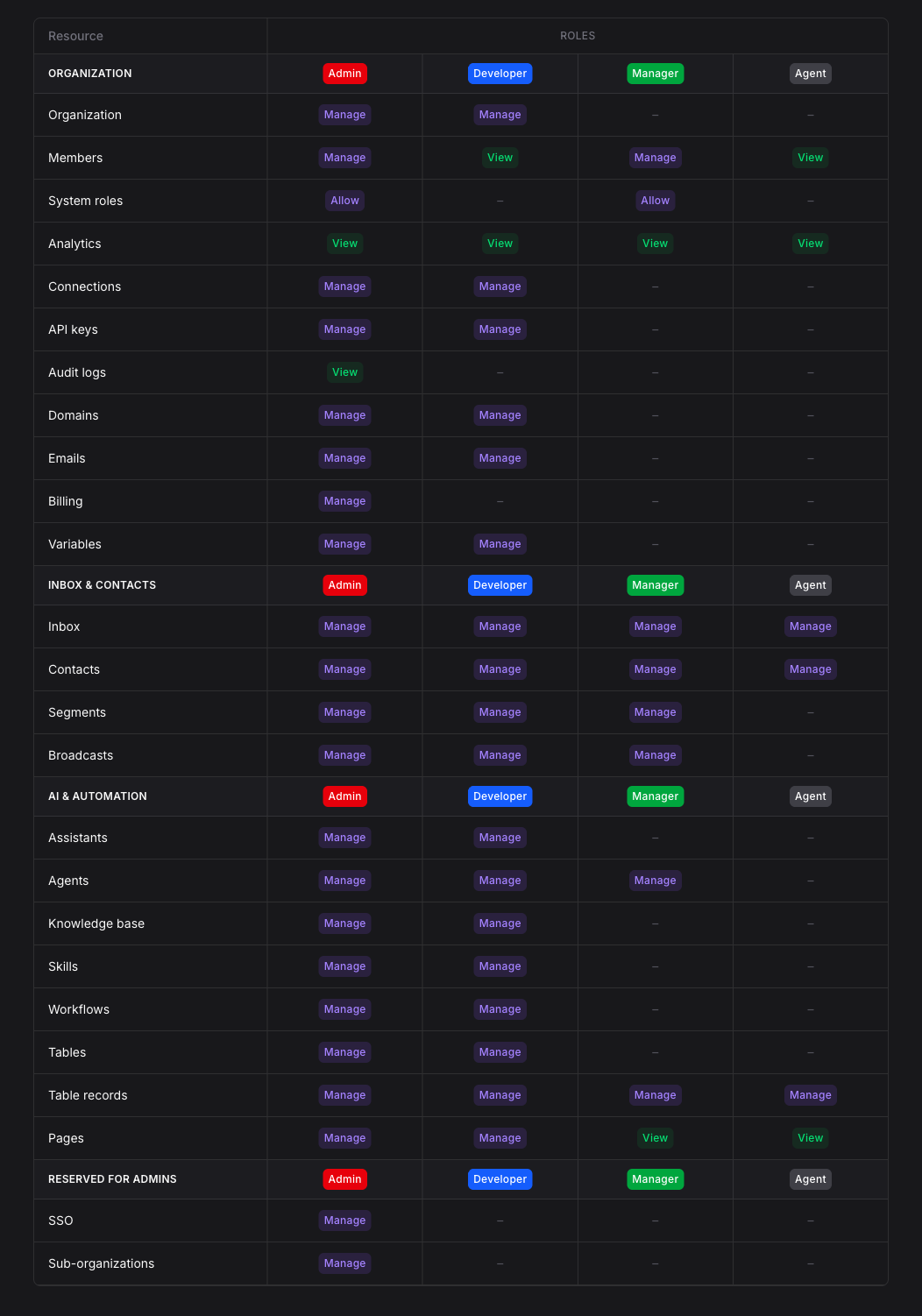
Plan and visibility notes
- Creating custom roles requires the Business or Enterprise plan. Existing custom roles stay viewable and removable on lower plans, but you can’t create new ones.
- Once your workspace runs on a custom domain, that white-label domain and its email branding apply to every member regardless of role. What the role changes is visibility: members with the Manager, Agent, or a custom role only see Manager and Agent members, so your Admin and Developer members stay hidden from client-side teams. The role picker marks each role Internal or Client to show which side it puts a member on.