

New to channels? Start with the Channels Overview to see the universal connect flow that every channel shares. This guide walks through the Telegram-specific steps on top of that flow.
t.me/<botname> link, or taps a Start button in your marketing material lands in a chat that your assistant answers instantly, 24/7. Everything appears in the same Inbox as your other channels, with the same assistant, the same Knowledge, and the same Memory.
Telegram does not use OAuth. Instead, it gives every bot a bot token that uniquely identifies and authenticates it. You generate the token with Telegram’s official @BotFather (a bot for creating bots) and paste it into Invent once. From then on the bot belongs to your workspace.
Before You Start
You need two things:- A Telegram account to chat with @BotFather. Any personal Telegram account works; the bot you create is independent of the account that creates it, so this is not a long-term ownership decision. Use Telegram on your phone or
web.telegram.orgon the desktop, whichever is easier. - A name and username for your bot. The username has to be globally unique across all of Telegram and must end in
botor_bot(for example,acme_support_bot). Have a couple of variants ready in case your first pick is taken.
Step 1: Open the Telegram Connect Dialog
From your assistant’s Channels tab, find Telegram Bot in the list and click Connect. The Telegram connect dialog opens.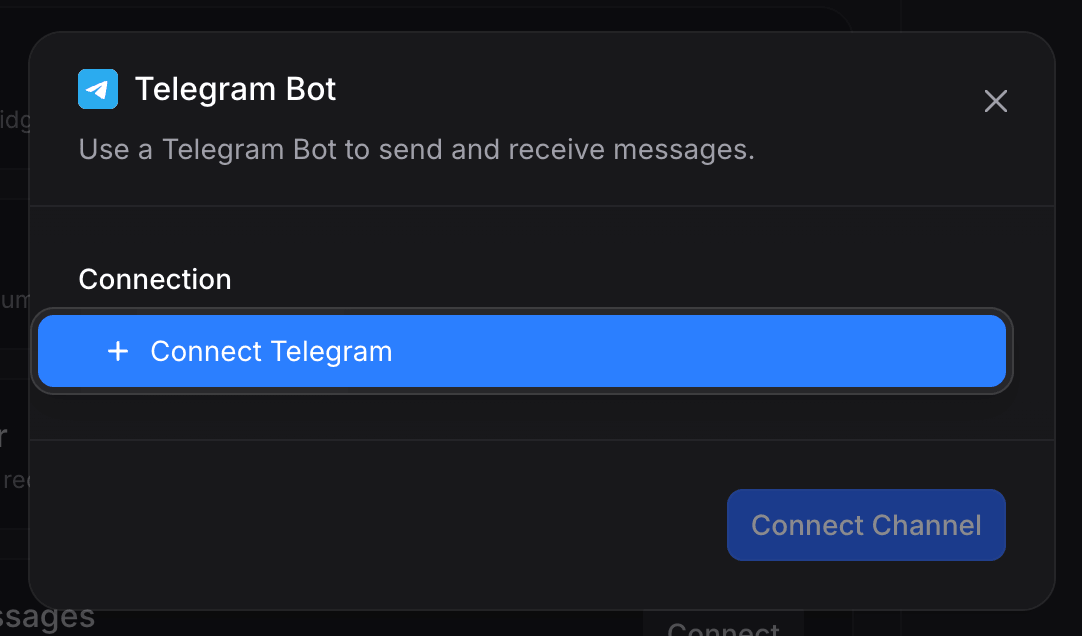
- Connection: the authenticated link to a Telegram bot, identified by its token. If this is your first Telegram connection, the dropdown is empty apart from a blue + Connect Telegram button you use to start the setup (covered in the next step). If you have already connected a Telegram bot for another assistant, your existing connections are listed here and you can reuse any of them, in which case you can skip to Step 5.
Step 2: Open the Connection Form
Open the Connection dropdown and click + Connect Telegram. The connection form opens.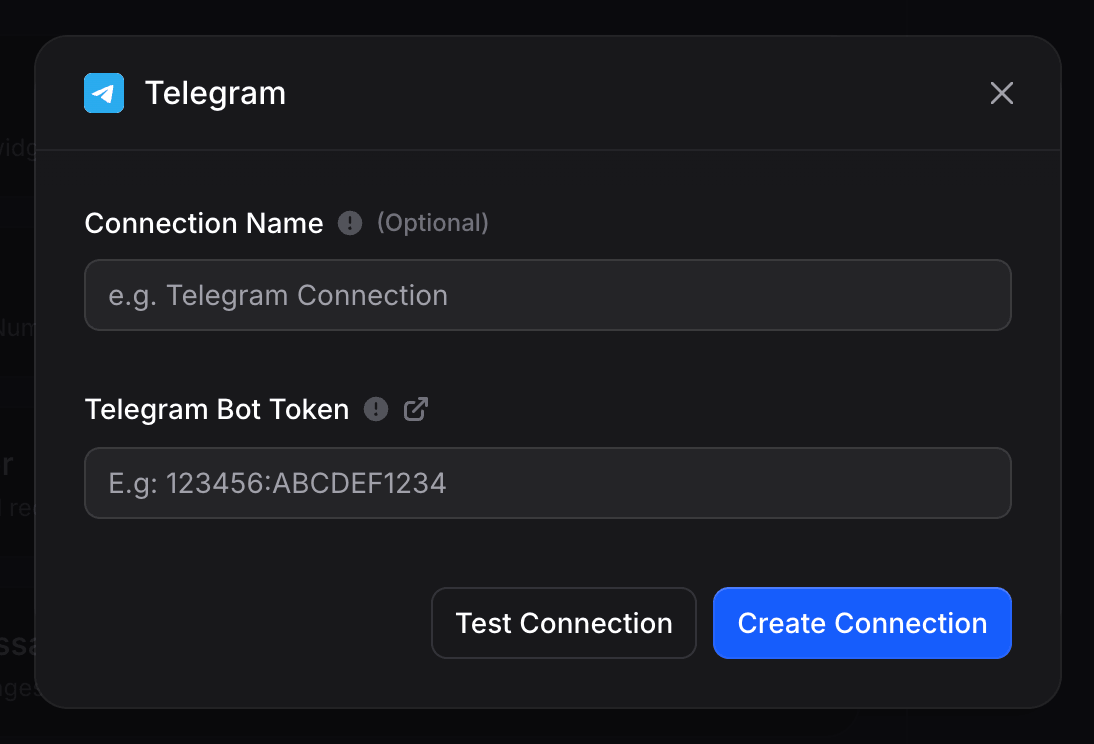
- Connection Name (optional): a label you will see inside Invent (for example, “Acme Support Bot”). If you leave it blank, Invent uses the bot’s own Telegram name as the label.
- Telegram Bot Token (required): the secret token issued by @BotFather, in the format
123456:ABCDEF1234abcdef1234ABCDEF1234abcdef. You will create this in the next step.
Step 3: Create a Bot with @BotFather
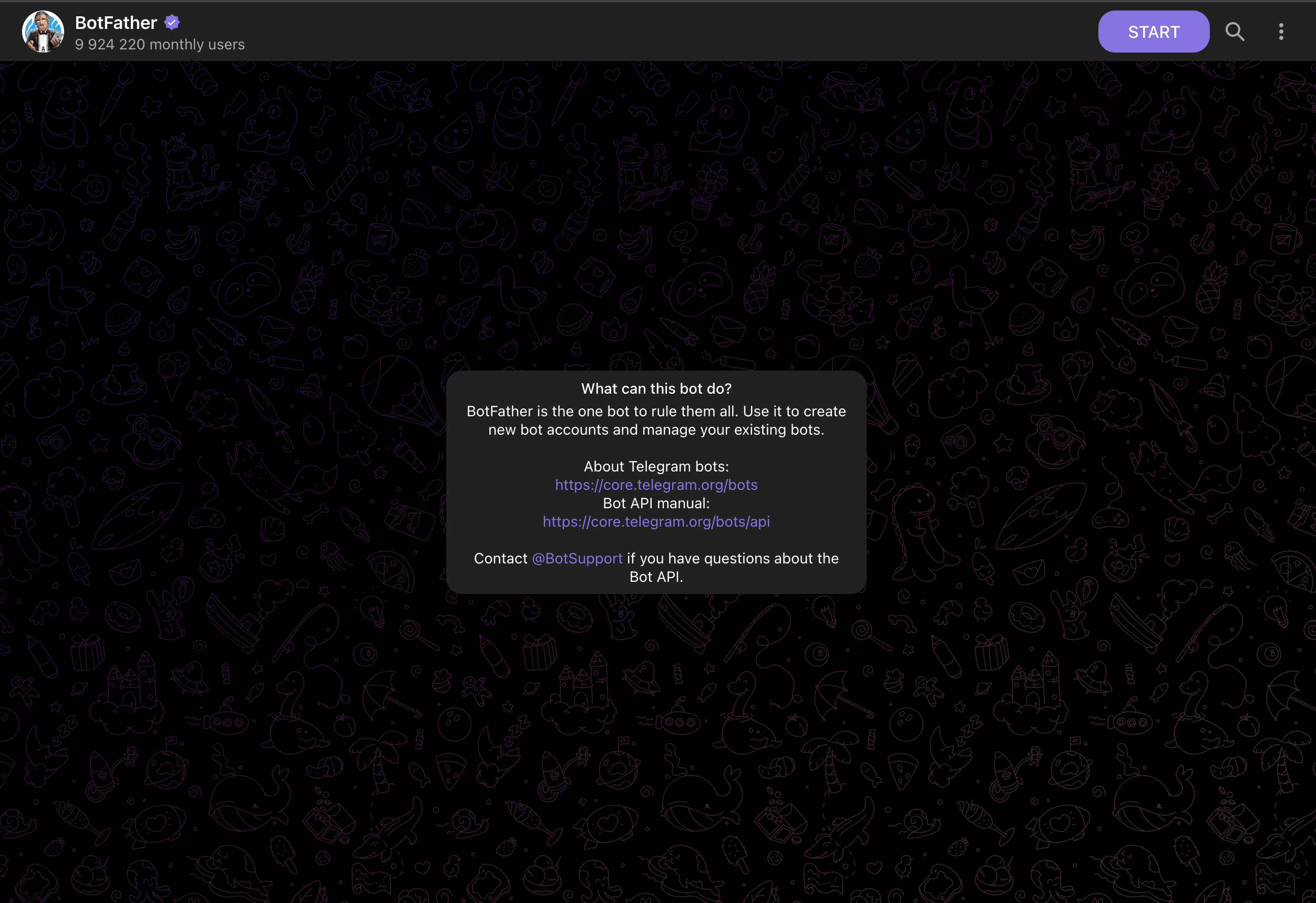
Open Telegram (mobile, desktop, orweb.telegram.org) and search for BotFather. Pick the verified result, the one with the blue checkmark next to the name. Tap Start to begin the conversation.
Step 3a: Send /newbot
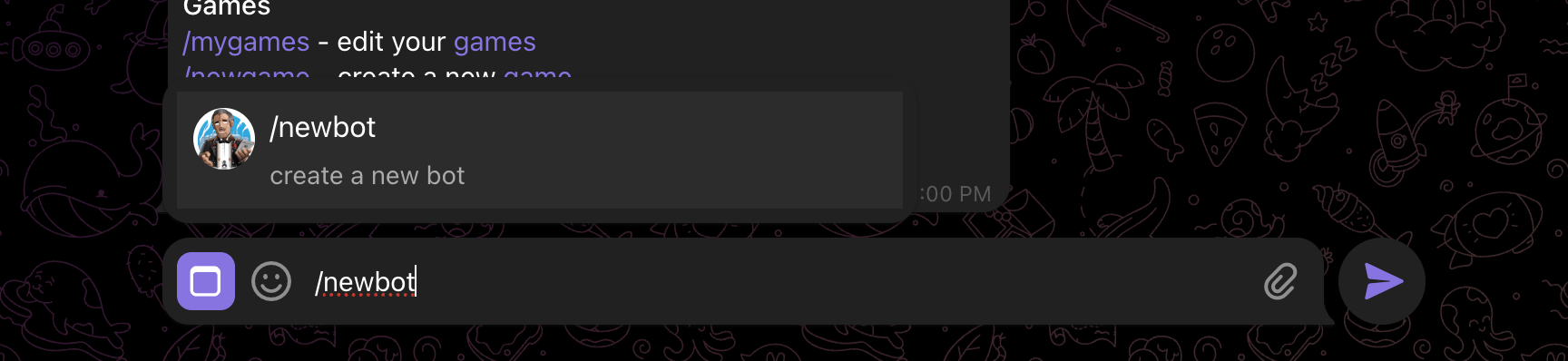
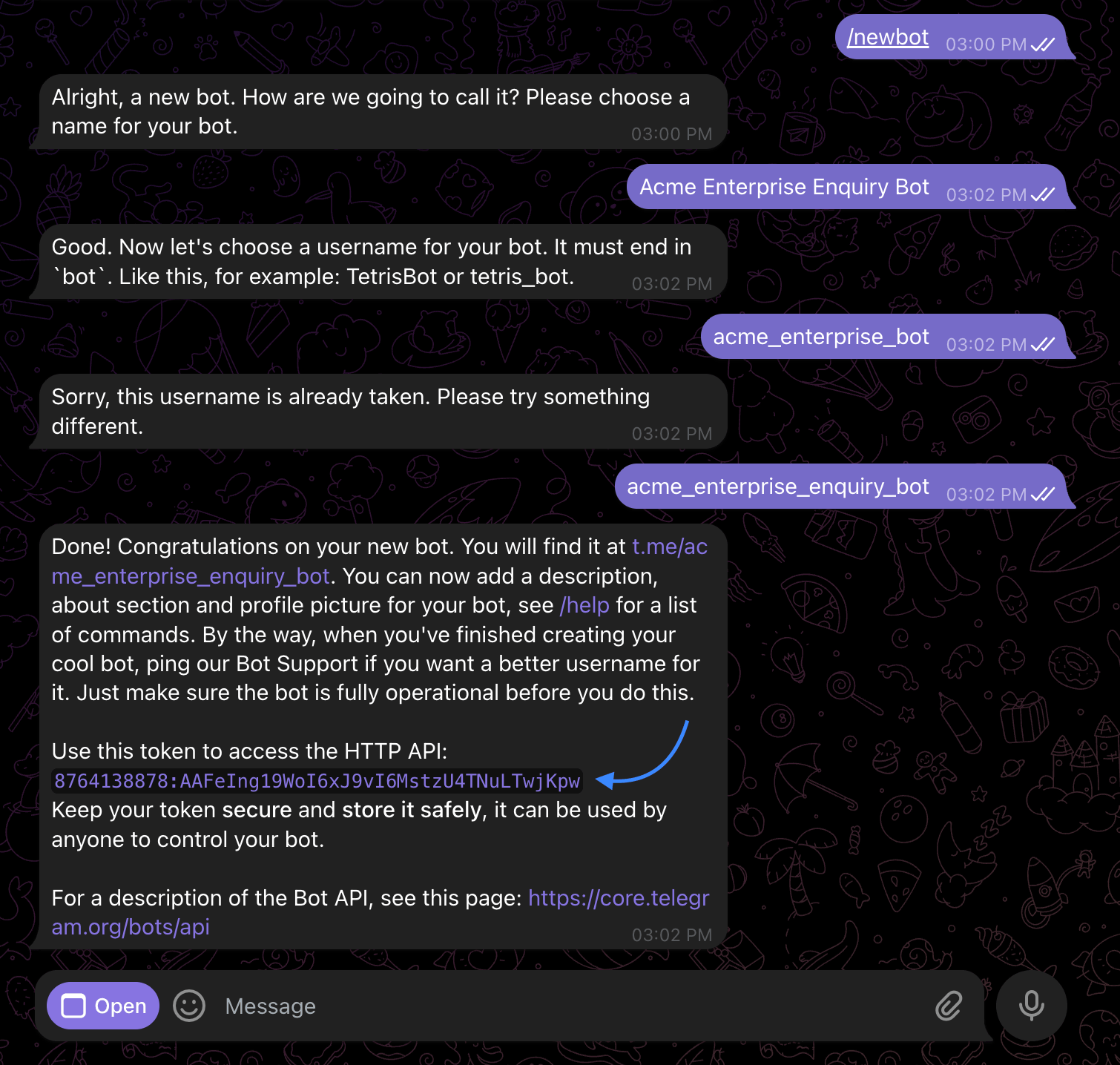
Type /newbot and send it. BotFather replies asking for a display name for the new bot.
Step 3b: Pick a Display Name and Username
BotFather walks you through two prompts:- Display name: the friendly name customers see at the top of the chat (for example, “Acme Enterprise Enquiry Bot”). Spaces and most characters are allowed. You can change this later from BotFather with
/setname. - Username: the globally unique identifier that becomes your bot’s
t.me/<username>link. It must end inbot(or_bot), is case-insensitive, and cannot be changed once chosen. If your first pick is taken, BotFather rejects it with “Sorry, this username is already taken” and asks for another.
Step 3c: Copy the Token
Tap (or click) the token to copy it to your clipboard. The format is always:Step 4: Create the Connection in Invent
Switch back to the Invent connection form you left open in Step 2.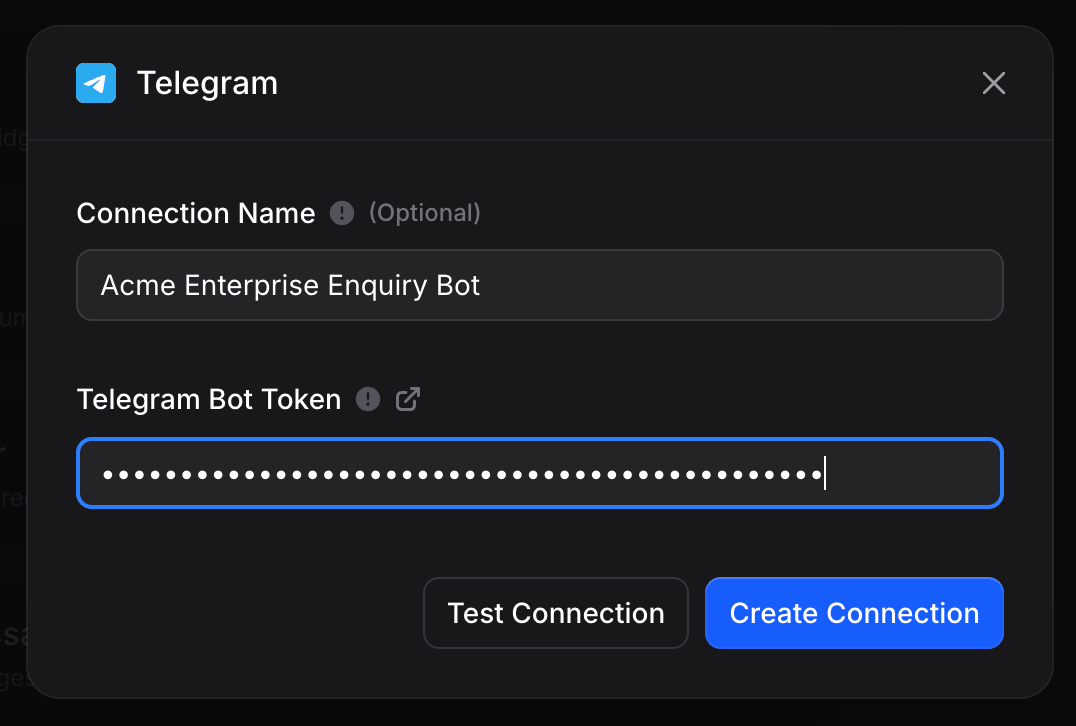
- Connection Name: enter a label that will read well in the channel list a year from now. “Acme Enterprise Enquiry Bot” is better than “Test” or “Alice’s bot”.
- Telegram Bot Token: paste the token you copied from @BotFather. Invent masks it with dots as soon as you paste, so it is never visible in plain text on screen again.
- (Optional) Click Test Connection. Invent calls Telegram with the token and confirms that it is valid and that the bot is reachable. If anything is wrong (mistyped token, revoked token, bot deleted), the error surfaces here before you save anything.
- Click Create Connection.
Invent encrypts the bot token at rest and never returns it in plain text after creation. If you forget the token, regenerate it with
/revoke in @BotFather and update the connection.Step 5: Pick the Bot
Back on the Telegram Bot connect dialog, your new connection is already selected.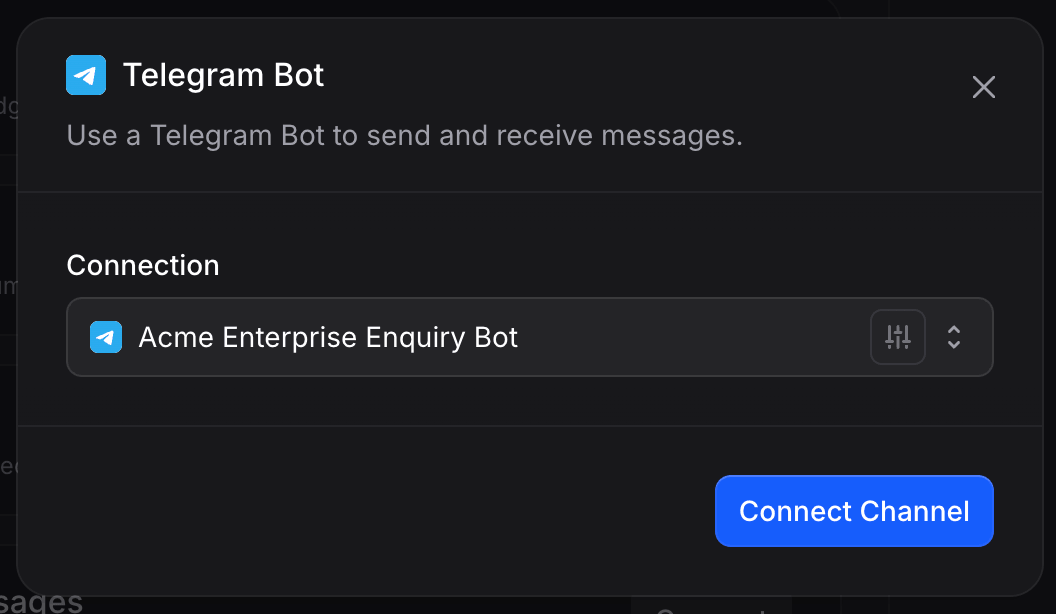
One bot, one assistant. A Telegram bot can only be bound to one assistant at a time. If two assistants need to share the same bot, AI routing is usually a better pattern than splitting the bot. Binding a bot already attached to another Invent assistant overrides the previous binding and the new assistant takes over from the next message onwards.
@username as its identifier.
Step 6: Send a Test Message
Open Telegram on your personal device, search for your bot’s username (or opent.me/<your_bot_username> from any browser and let it deep-link into the Telegram app), and tap Start. You should see your assistant reply within a second or two. The conversation also appears in your Inbox immediately, with the originating bot and the Telegram channel shown on the conversation.
That is it, the assistant is live on Telegram.
Connecting More Bots
You can add additional Telegram bots to the same assistant at any time. From the Channels tab, click + Add another under the Telegram section and either:- Pick another bot from the existing connections list in the Connection dropdown, or
- Connect a new bot by clicking + Connect Telegram in the dropdown, creating a fresh bot with @BotFather, and pasting its token into a new connection.
Reusing a Connection Across Assistants
Once a Telegram connection exists in your workspace, any assistant can pick it up from the Connection dropdown without re-entering the token. Set up a bot once, reuse it everywhere. Manage every connection centrally from Settings → Connections:- Rename a connection to keep the list readable as you add more.
- Rotate the token: if you regenerate the bot token in @BotFather (with
/revoke), open the connection in Invent, click Edit, paste the new token, and save. Channels bound to that connection start working again immediately. - Disconnect to remove the link entirely. Any assistant still using that connection stops sending and receiving until it is pointed at a new bot.
Troubleshooting
'Invalid token' or 'Test Connection' fails
'Invalid token' or 'Test Connection' fails
Three common causes:
- The token has whitespace or a stray character around it from the copy-paste. Re-copy the token directly from the @BotFather success message and paste it again.
- The token has already been revoked. Run
/mybotsin @BotFather, pick this bot, choose API Token, and verify that the visible token matches what you pasted. Use Revoke current access token to mint a fresh one if needed and update Invent with the new value. - The bot was deleted in @BotFather. There is no recovery, you have to create a new bot, paste its token into a new Invent connection, and rebind the channel.
Customers tap Start but my assistant never replies
Customers tap Start but my assistant never replies
The most common reason is that another tool, automation, or script still owns the bot’s webhook. Telegram only delivers each update to one webhook URL at a time. Open Settings → Connections, click Edit on the Telegram connection, and re-save the token (or Disconnect and re-run Connect Channel) to re-register its webhook: any old subscriber stops receiving messages.A second cause is that the bot was added to a Telegram group with privacy mode still on (the default). In groups, privacy-mode bots only see messages that mention them or reply to them. For one-on-one DMs, this does not matter, the bot always receives them. If you intend to use the bot in groups too, talk to @BotFather, run
/setprivacy, pick the bot, and set privacy to Disable.The username I want is already taken
The username I want is already taken
Telegram usernames are first-come, first-served and never released, even when a bot is deleted. Try variations: add your industry (
acme_support_bot), your region (acme_eu_bot), or a year (acme_bot_2026). Keep it short, all-lowercase, and easy to dictate over the phone, since customers will type it into Telegram search.The bot token leaked, what now?
The bot token leaked, what now?
Treat this as a security incident. Open @BotFather, run
/mybots, pick the affected bot, choose API Token, then Revoke current access token. BotFather issues a new token and the old one is permanently invalidated. Open Settings → Connections in Invent, edit the Telegram connection, paste the new token, and save. The channel resumes service the moment the new token is saved; the leaked token can no longer be used by anyone.The connection shows an 'Inactive' badge after a while
The connection shows an 'Inactive' badge after a while
Either the token was revoked in @BotFather without updating Invent, or the bot was deleted. Open Settings → Connections, find the Telegram connection, and click Fix (shown when the row has a status error) or Edit, then paste a fresh token. If the bot itself was deleted, you have to create a new one and rebind the channel.
My bot cannot send the first message to a customer
My bot cannot send the first message to a customer
This is a Telegram platform rule, not an Invent limitation. Bots cannot DM users who have not opened a chat with them first. Customers always have to tap Start (or send any message) at least once before the bot, and therefore the assistant, can reply or follow up. Use a
t.me/<your_bot_username>?start=<payload> deep link in your marketing material, ads, or QR codes to make that first tap as smooth as possible.I want a different agency or partner to manage the same bot
I want a different agency or partner to manage the same bot
Telegram supports only one active webhook per bot, so only one workspace can be bound to a given bot at a time. If a partner needs to manage the same bot from a different Invent workspace, share the token with them; the moment they bind it, your workspace’s webhook is replaced and stops receiving messages. To run two integrations in parallel, create a second bot with @BotFather and give the partner the new bot’s token instead.
Next Steps
Channels Overview
See the universal connection flow that every channel uses
Connections
Manage every authenticated link, including Telegram, in one place
Capabilities
See everything your assistant can send and receive on Telegram
Inbox
Manage every Telegram conversation alongside your other channels