

New to channels? Start with the Channels Overview to see the universal connect flow that every channel shares. This guide walks through the Instagram-specific screens on top of that flow.
Before You Start
You need three things:- An Instagram account for the business you want to connect, with the password to hand. If your business does not have an account yet, create one in the Instagram app first.
- A professional account type (Business or Creator). Personal accounts cannot grant messaging access to third-party tools. Don’t worry if you are still on a personal account today, the connect flow lets you switch in two clicks without losing followers, posts, or your username.
- DMs turned on for the account. This is the default for every Instagram account, but if you have ever blocked DMs from non-followers in Settings → Privacy → Messages, loosen those rules so customers can reach you.
Step 1: Open the Instagram Connect Dialog
From your assistant’s Channels tab, find Instagram Direct Messages in the list and click Connect. The Instagram connect dialog opens.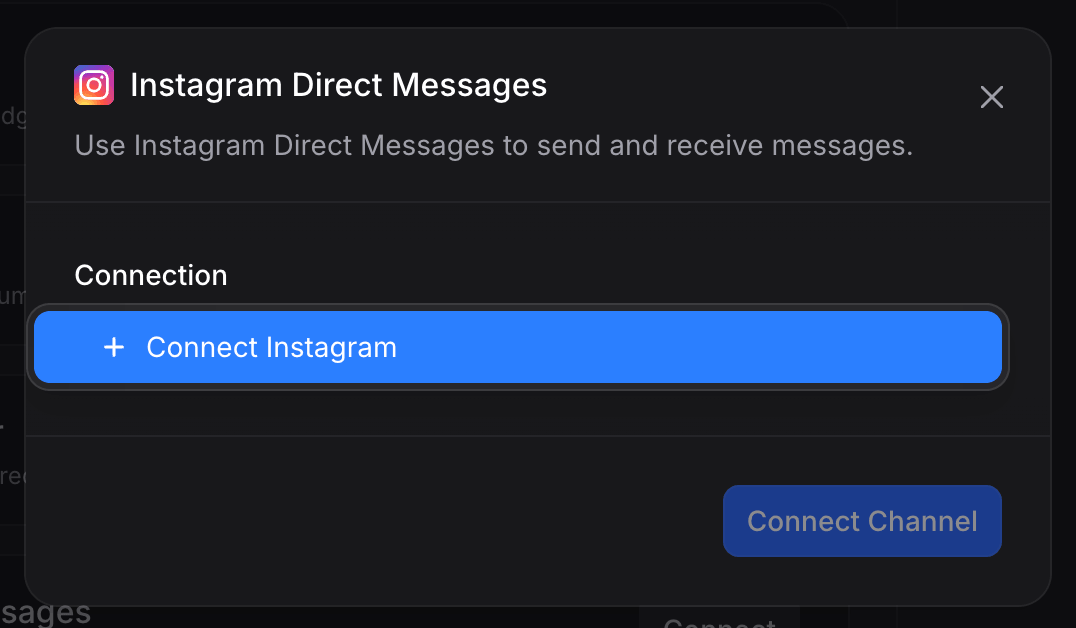
- Connection: the authenticated link to an Instagram account. If this is your first Instagram connection, the dropdown is empty apart from a blue + Connect Instagram button you use to start the sign-in flow (covered in the next step). If you have already connected Instagram for another assistant, your existing connections are listed here and you can reuse any of them, in which case you can skip to Step 9.
Step 2: Sign In to Instagram
Open the Connection dropdown and click + Connect Instagram. Instagram’s login popup opens.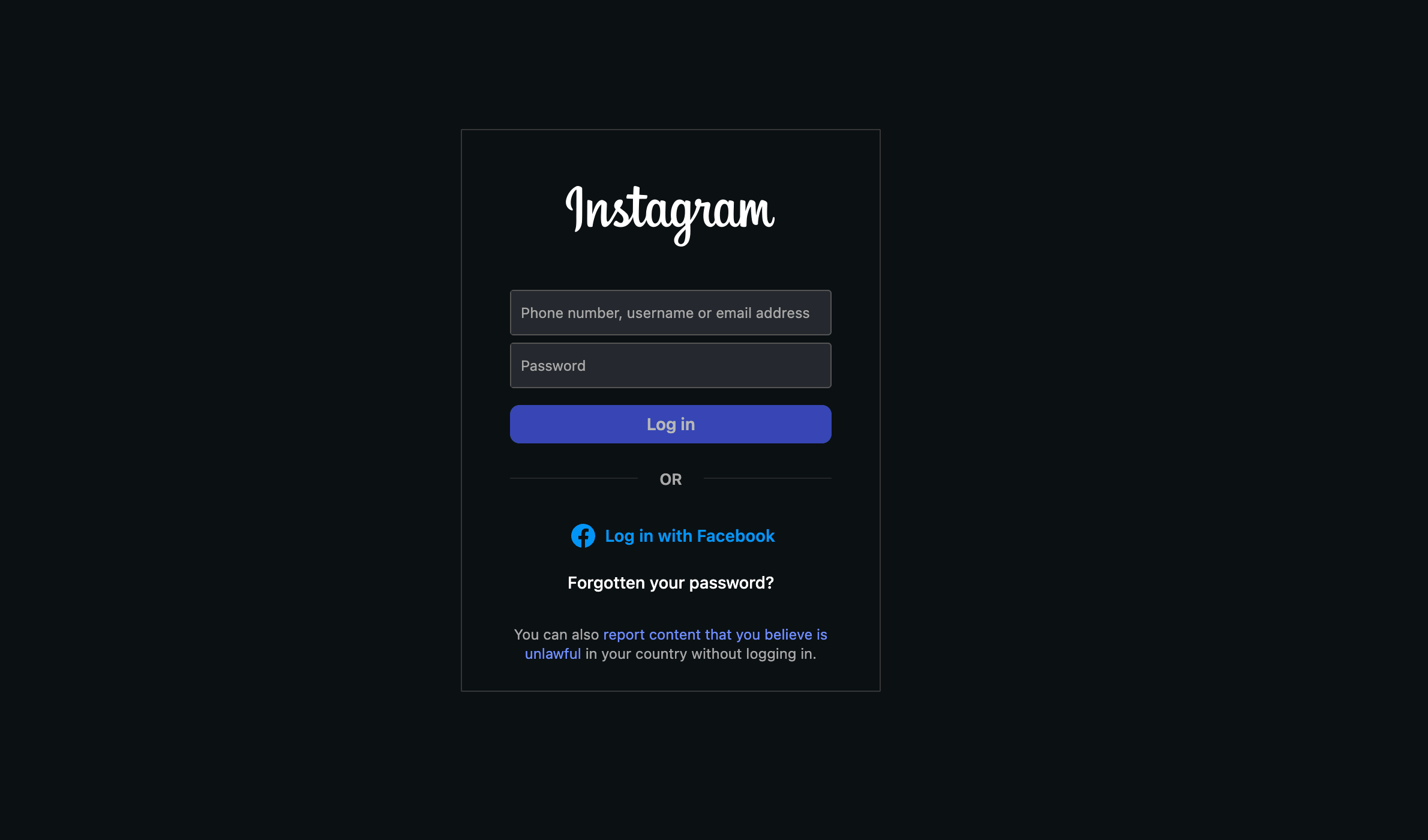
instagram.com. Your credentials are only entered on Instagram’s domain, never on Invent’s.
You have two paths:
- Log in with Instagram credentials: enter the phone number, username, or email and the password for the account that owns the DMs you want the assistant to handle. This is the recommended path because it does not depend on a linked Facebook Page.
- Log in with Facebook: only use this if the Instagram account is linked to a Facebook profile and you would rather authenticate through Facebook. The end result inside Invent is the same.
Step 3: Complete Two-Factor Authentication
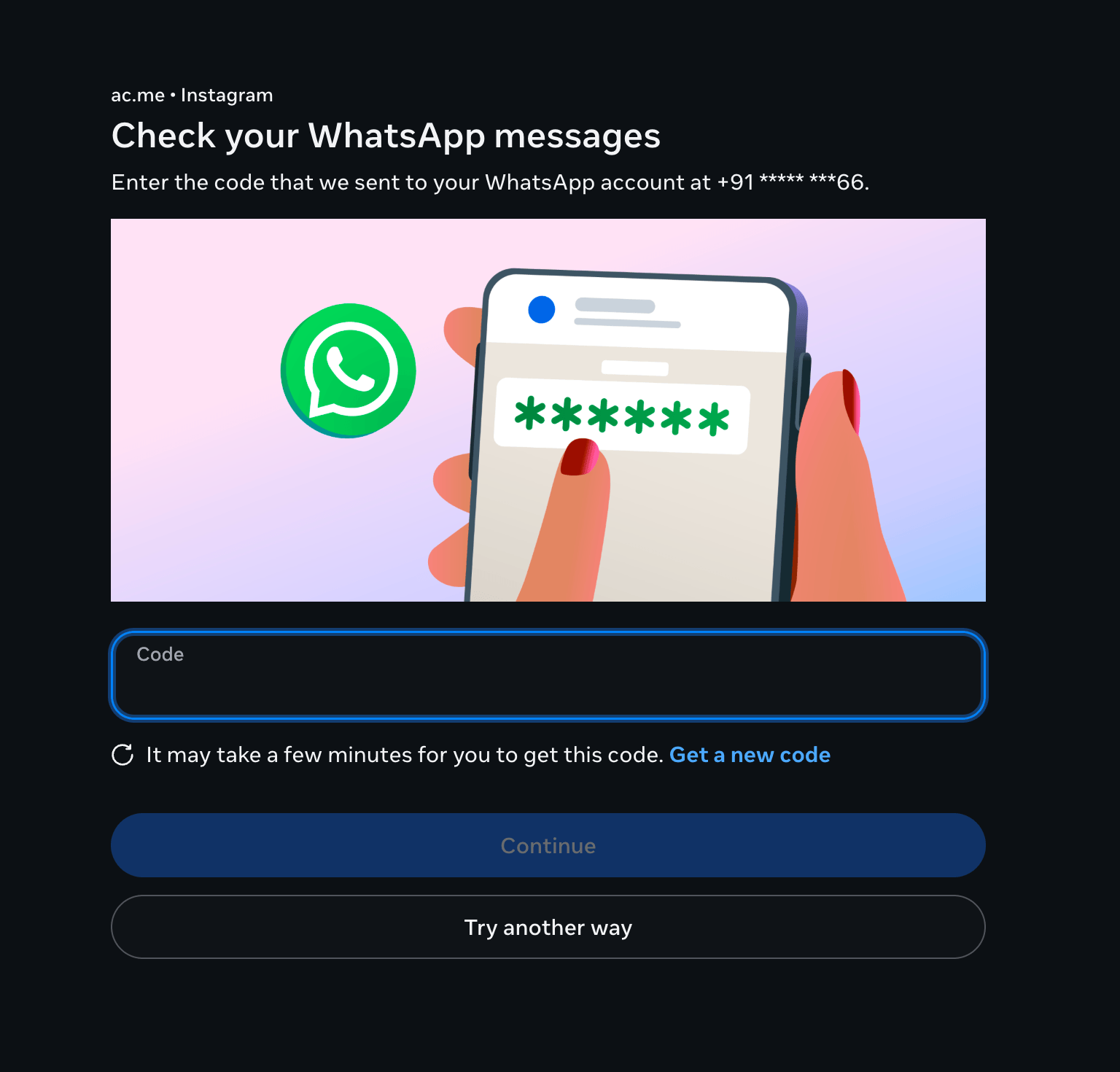
If the account has two-factor authentication enabled (and it should), Instagram asks for a one-time code. Depending on the account’s 2FA configuration, the code is sent to:- WhatsApp on the phone number registered to the Instagram account.
- An SMS to the same number, if WhatsApp delivery is not configured.
- An authenticator app like Google Authenticator or Authy, if the account uses one.
Step 4: Switch to a Professional Account (If Needed)
Invent’s messaging integration only works with professional accounts (Business or Creator). If the Instagram account you signed in with is already a professional account, Instagram skips this step entirely and jumps straight to the permissions screen. If the account is still personal, Instagram shows the Change to professional account prompt below.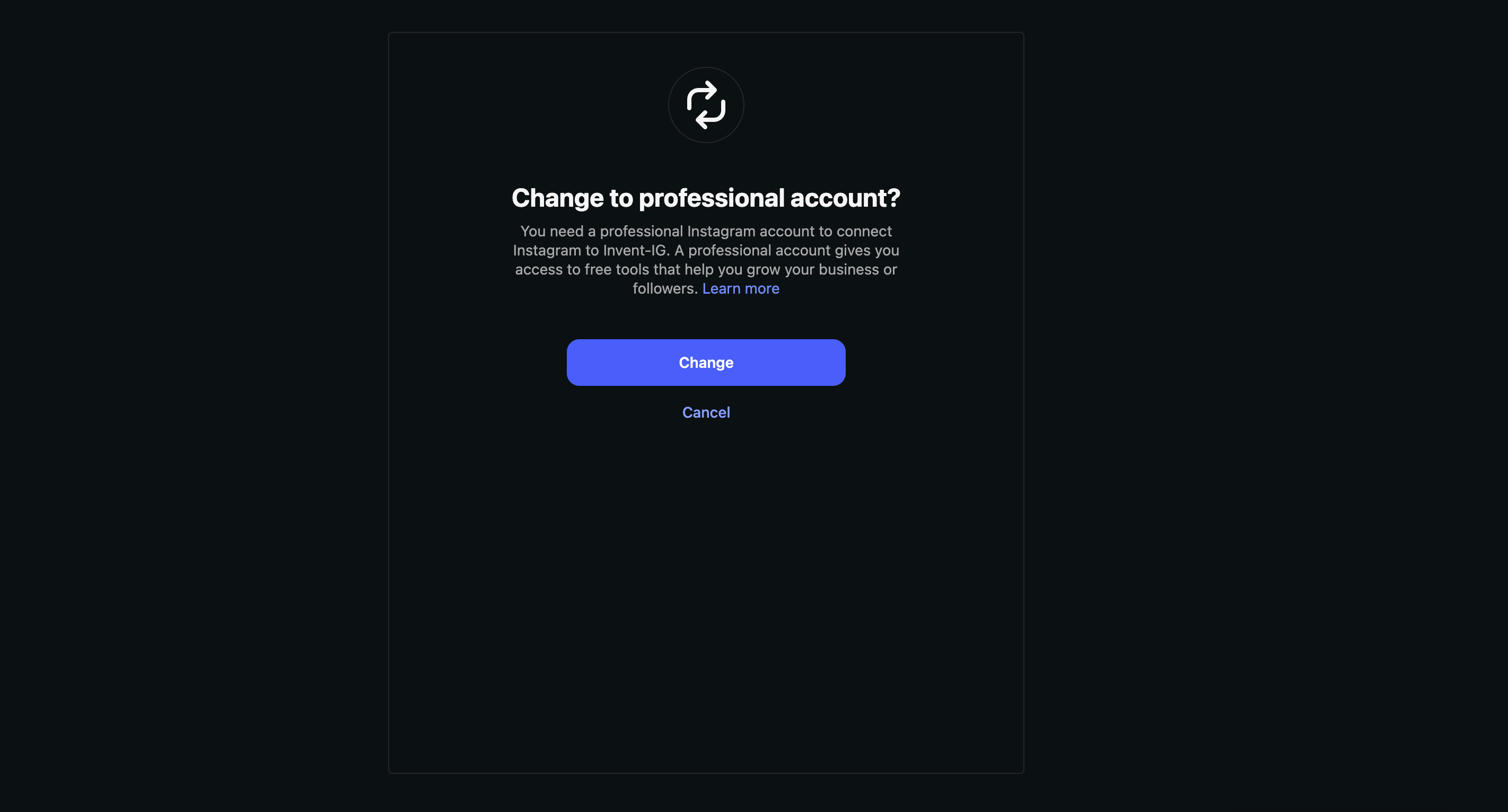
- Your username, profile, posts, Reels, Stories, followers, and follower count all stay exactly as they are.
- You can revert to a personal account at any time from Instagram → Settings → Account → Switch to personal account.
- No followers are notified, no Stories or posts get republished, nothing is announced anywhere.
Step 4a: Pick a Professional Account Type
Instagram asks whether you are a Creator or a Business.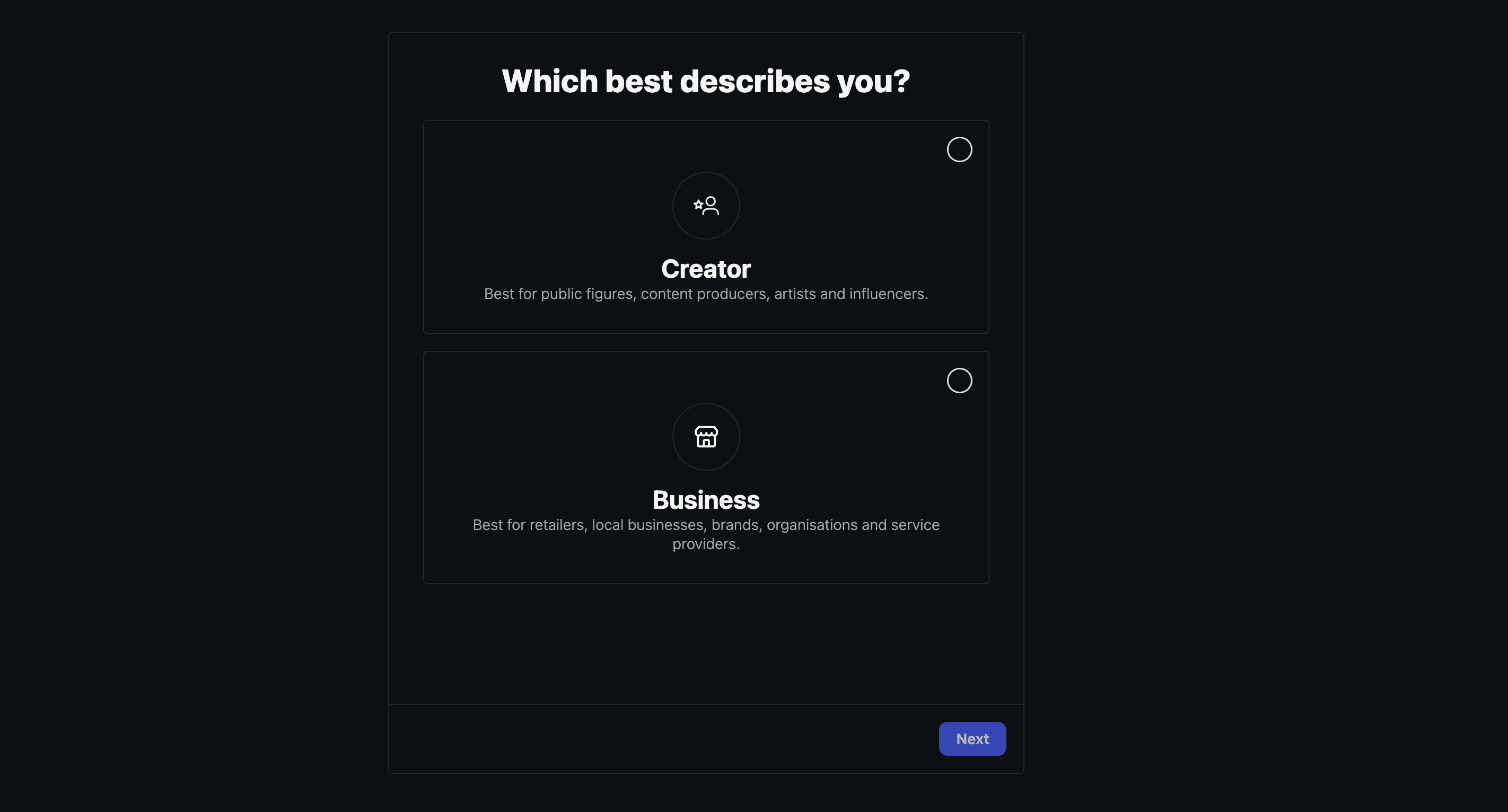
Both account types unlock the messaging API the assistant needs. Pick whichever describes the account most accurately, then click Next.
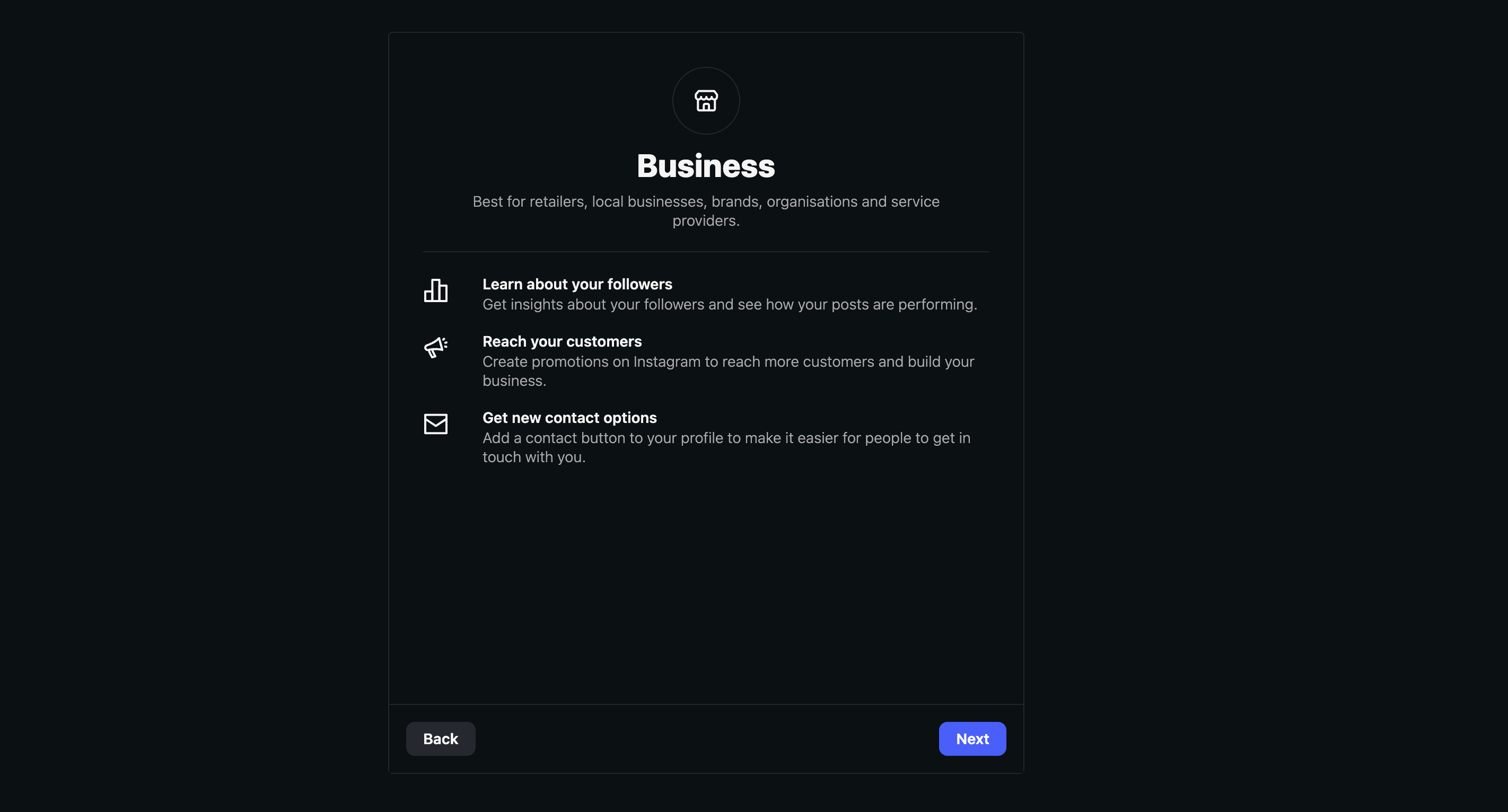
Step 4b: Select a Category
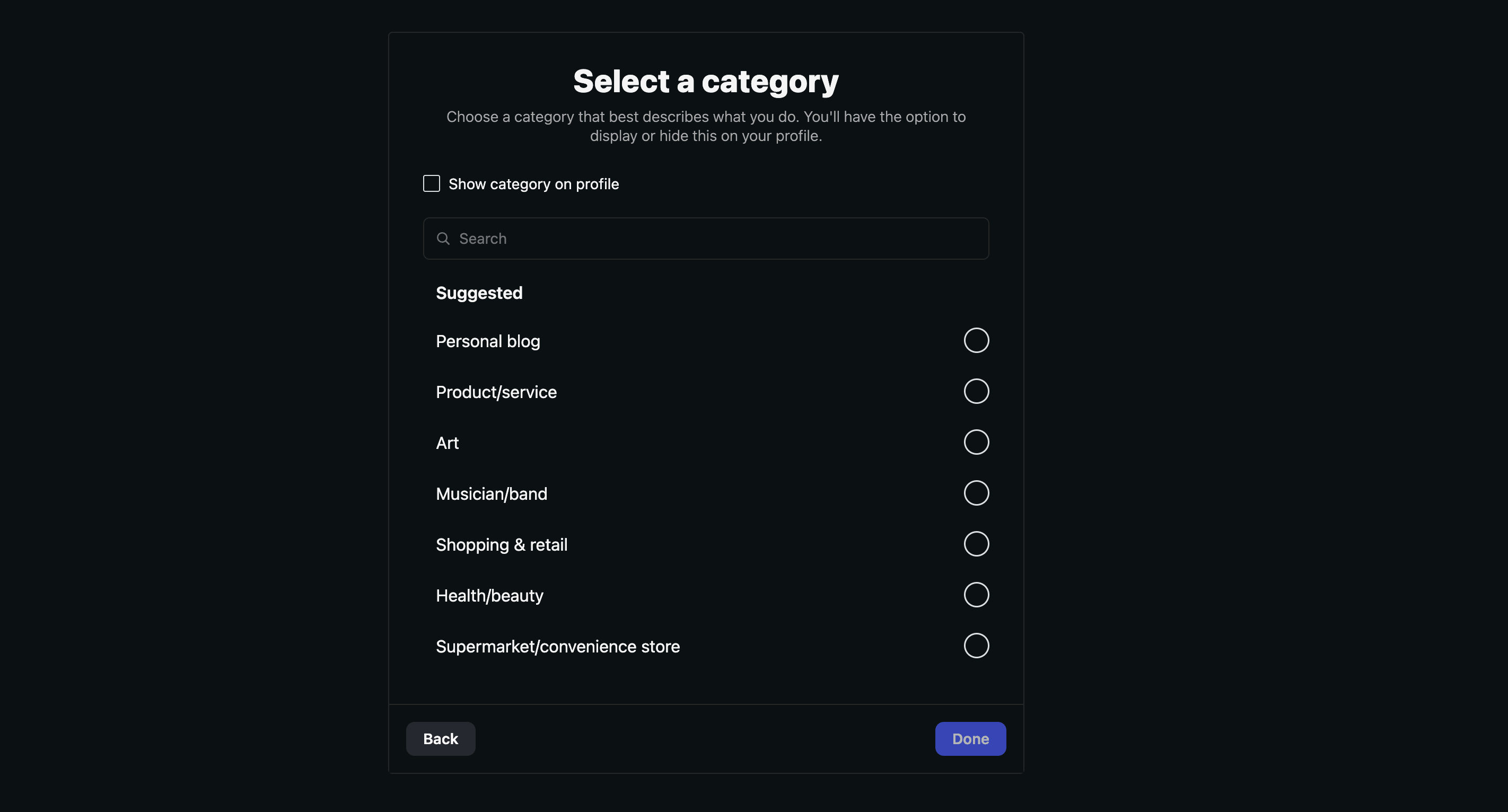
Step 4c: Confirm the Switch
Instagram shows a final confirmation explaining that professional profiles are public.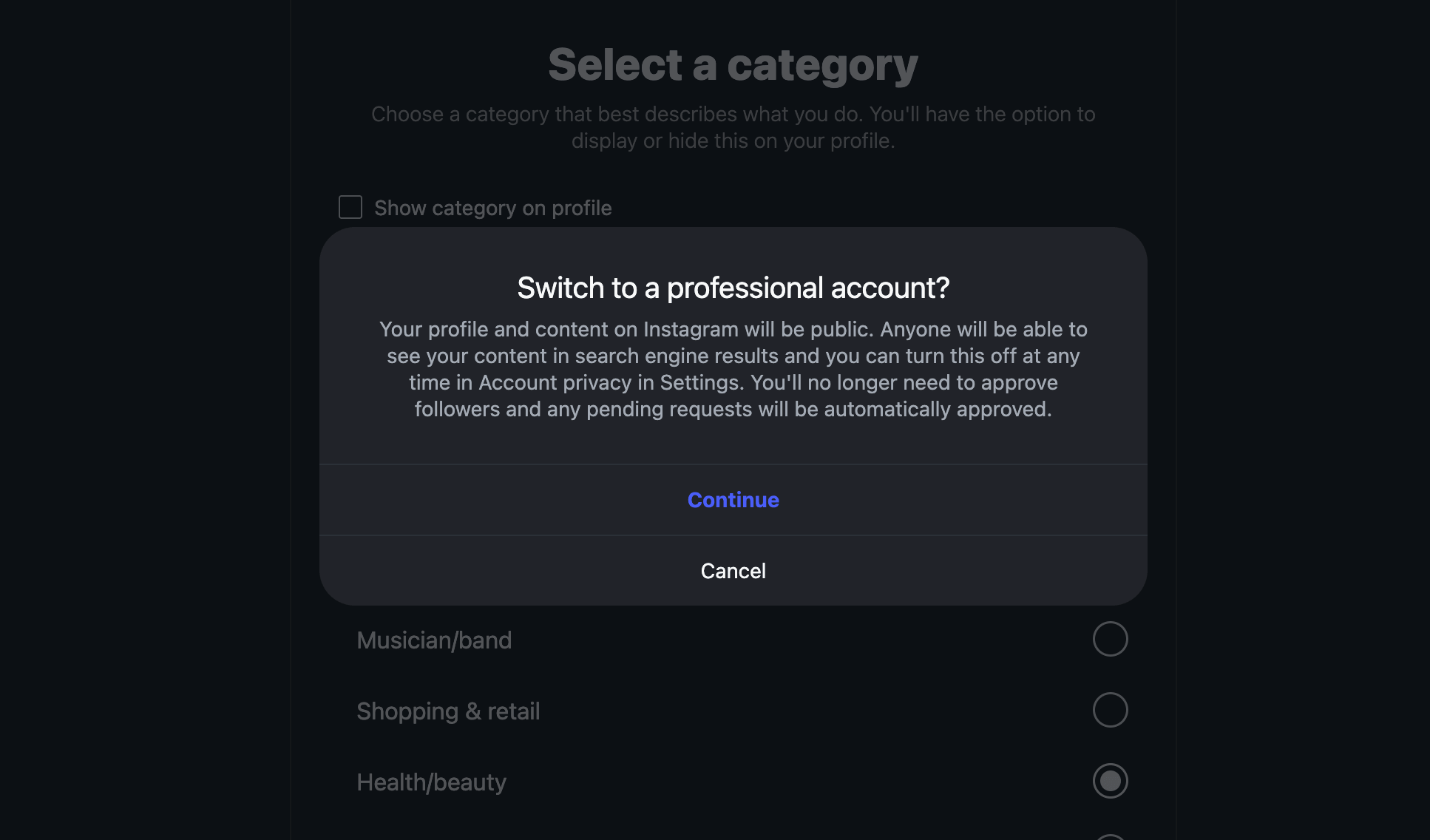
- The account becomes public if it is currently private. Pending follower requests are auto-approved.
- Search engines may index your content (Instagram’s wording, not ours). In practice this only applies to public posts and the profile page.
- You can switch back to Private later from the Instagram app, but messaging access for the assistant requires a professional, public account.
Step 5: Review Your Contact Info
Instagram offers to surface a public email, phone number, and address on the profile so customers can reach you outside of DMs.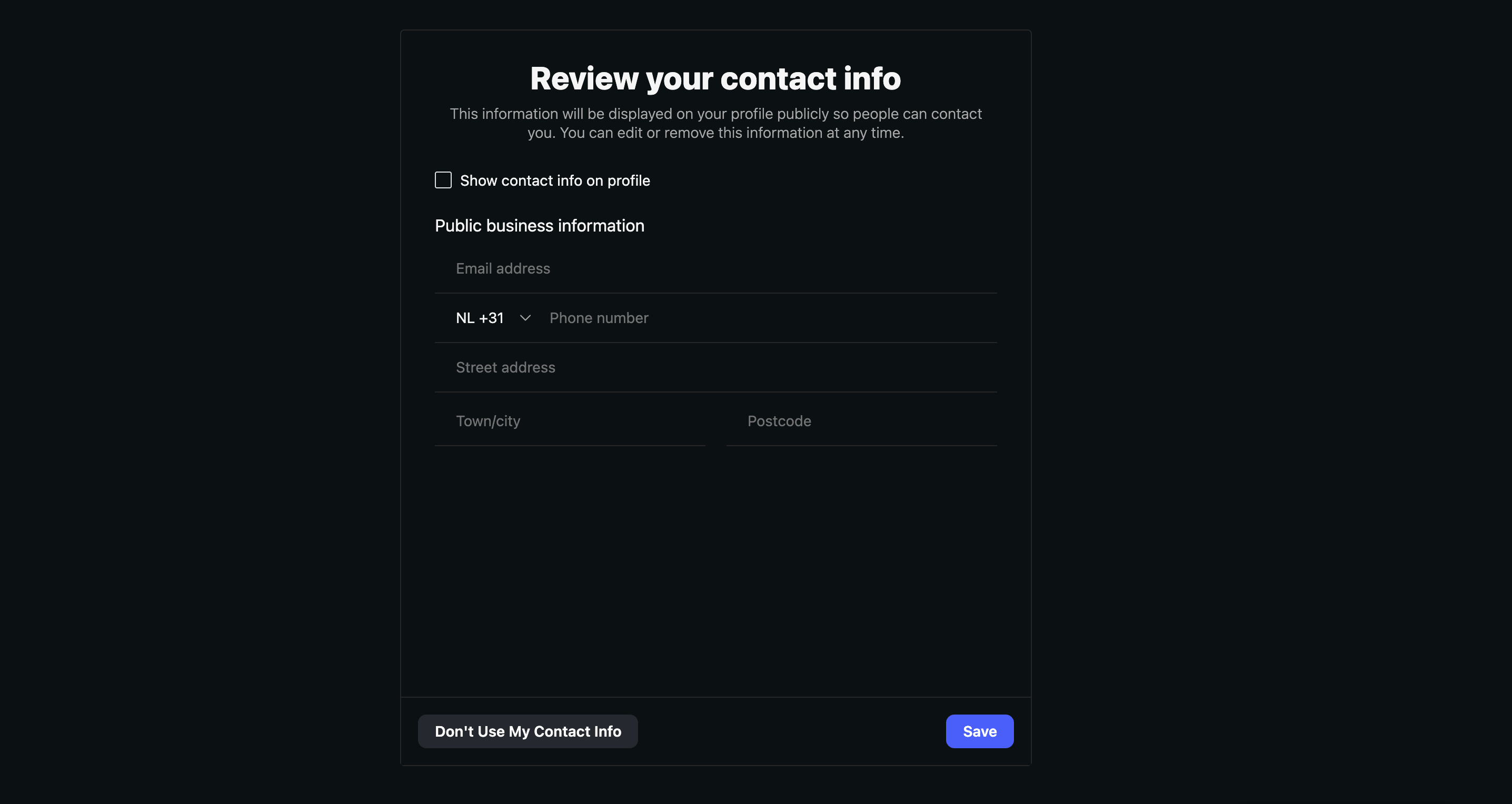
- Skip it entirely: click Don’t Use My Contact Info at the bottom-left. The assistant still works perfectly; customers just contact you through DMs.
- Fill it in but keep it private: enter the fields and leave Show contact info on profile unchecked. Useful if Instagram requires the data internally for some categories, but you do not want it shown publicly.
- Fill it in and publish it: enter the fields and tick Show contact info on profile. Customers see the email and phone as buttons under your bio.
Step 6: Confirmation Screen
Instagram confirms the account is ready.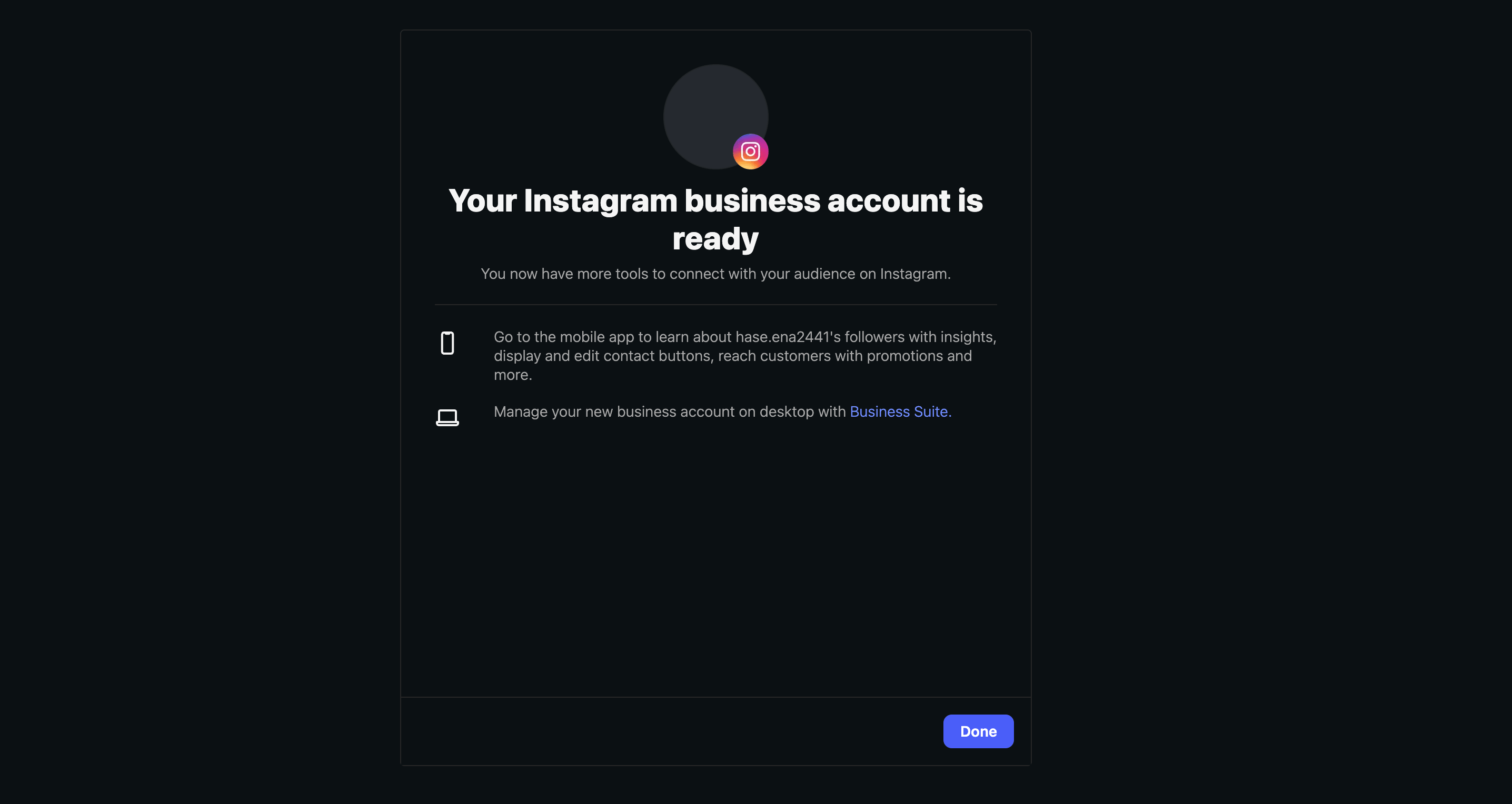
Step 7: Review Permissions and Confirm
This is the most important screen in the entire flow. Instagram now asks which messaging permissions to grant Invent.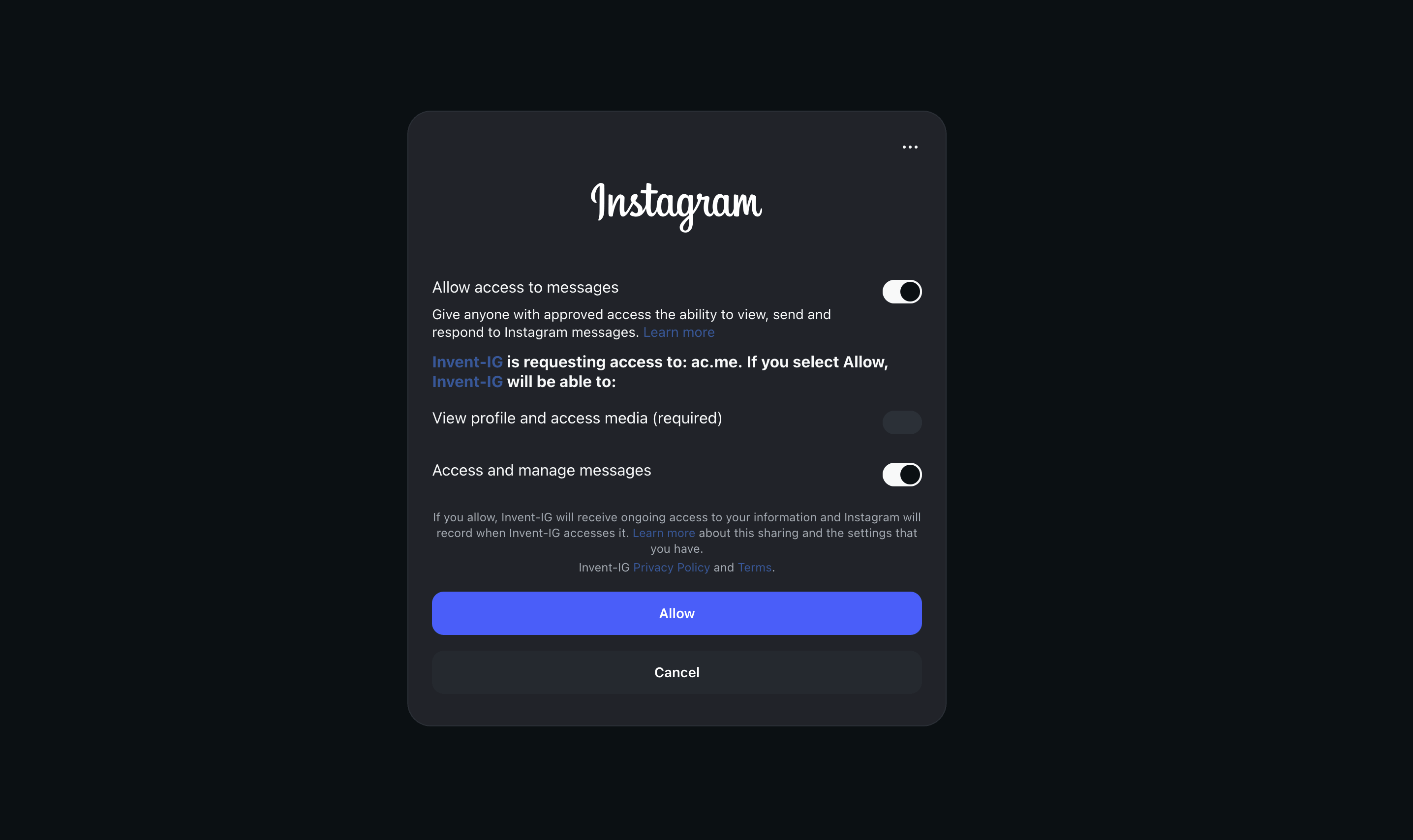
Click Allow to grant access. Instagram briefly provisions the connection, then redirects you back to Invent.
Step 8: Name the Connection in Invent
Instagram redirects you back to Invent and prompts you to label the new connection (for example, “Brand Sales DMs”). This is the name you will see inside Invent, it does not change anything on Instagram’s side. Click Create and Invent stores the connection in Settings → Connections, where you can rename it or disconnect it at any time.Step 9: Pick the Connection
Back on the Instagram connect dialog, your new connection is already selected.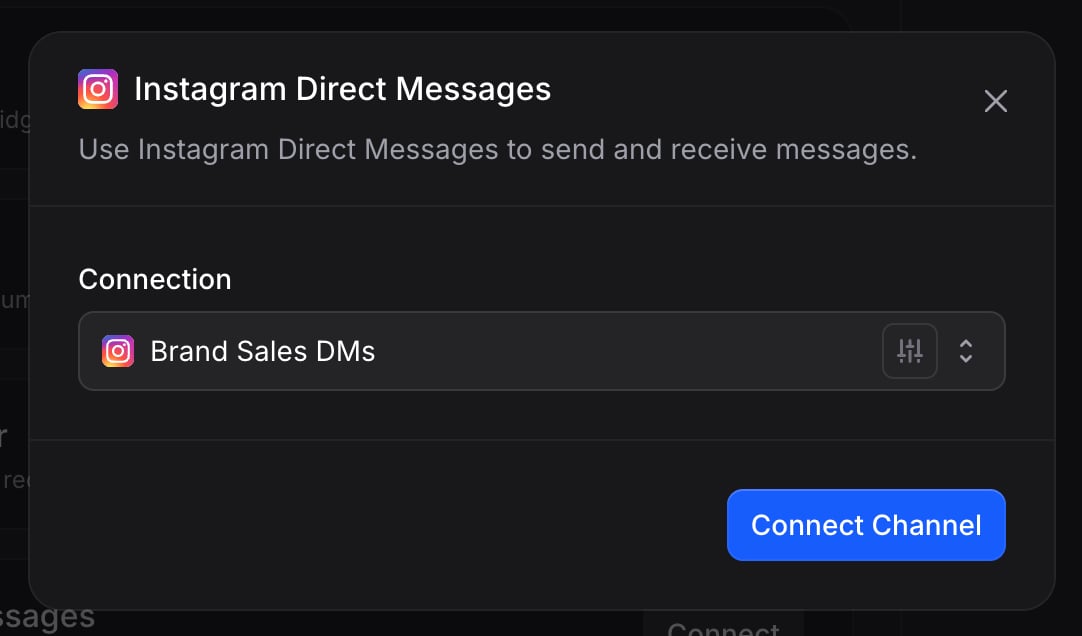
One Instagram account, one assistant. An Instagram account can only be bound to one assistant at a time. If two assistants need to share the same account, AI routing is usually a better pattern than splitting the inbox. Binding an account already attached to another Invent assistant overrides the previous binding and the new assistant takes over from the next message onwards.
Step 10: Send a Test Message
Open Instagram on your personal device, search for the connected username (or openinstagram.com/<username> and tap Message), and send a DM. You should see your assistant reply within a few seconds. The conversation also appears in your Inbox immediately, with the originating account and the Instagram channel shown on the conversation.
That is it, the assistant is live on Instagram.
People who comment on your posts can start a conversation too. See Comment Replies.
Connecting More Accounts
You can add additional Instagram accounts to the same assistant at any time. From the Channels tab, click + Add another under the Instagram section and either:- Pick another account from the same connection (rare, since each Instagram login covers one account), or
- Connect a new account by opening the Connection dropdown and choosing Connect Instagram again. This is the path you will take most often, because each Instagram account needs its own login.
Reusing a Connection Across Assistants
Once an Instagram connection exists in your workspace, any assistant can pick it up from the Connection dropdown without going through the Instagram popup again. Authenticate once, reuse everywhere. Manage every connection centrally from Settings → Connections:- Rename a connection to keep the list readable as you add more.
- Reconnect — open the connection with Edit and click Reconnect inside the dialog — if Instagram’s session expires, the password is rotated, or the user revokes the integration from
instagram.com/accounts/manage_access. - Disconnect to remove the link entirely. Any assistant still using that connection stops sending and receiving until it is pointed at a new one.
Troubleshooting
The Instagram popup closed before I reached the success screen
The Instagram popup closed before I reached the success screen
Nothing is saved until Instagram redirects back to Invent with a success. Click Connect on the channel again and run through the flow. Your account is already a professional account if you reached Step 4, so the second run will skip straight past the account-type screens.
'Two-factor code never arrived'
'Two-factor code never arrived'
Instagram sometimes prefers WhatsApp delivery on the registered phone number even when SMS would be faster. On the 2FA screen, click Try another way and switch to SMS or to an authenticator app. If the registered phone number is no longer in use, recover the account from
instagram.com/accounts/login/ first, update the phone number, then retry the connect flow.Customers send DMs but my assistant never replies
Customers send DMs but my assistant never replies
The most common cause is that Allow access to messages was toggled off on the permissions screen in Step 7. Open Settings → Connections, click Fix (or Edit) on the Instagram connection, then Reconnect inside the dialog, and confirm both Allow access to messages and Access and manage messages are ON when you reach the permissions screen this time.A second cause is that DMs from non-followers are restricted on the account. Open Instagram → Settings → Privacy → Messages and make sure your message controls allow DMs from the audience you expect.
The connection shows an 'Inactive' badge after a while
The connection shows an 'Inactive' badge after a while
Instagram’s access token has expired or was revoked. Common reasons: the password was rotated, the integration was removed from
instagram.com/accounts/manage_access, or the account was switched back to Personal (which strips messaging access). Open Settings → Connections, find the Instagram connection, click Fix (or Edit), then Reconnect inside the dialog to run a short re-authentication flow. Channels bound to that connection start working again as soon as the reconnection finishes.Outbound messages outside 24 hours are being rejected
Outbound messages outside 24 hours are being rejected
Instagram blocks promotional content sent outside the 24-hour window. To re-engage a customer who went quiet for longer than that, your message must fit a Message Tag (such as
POST_PURCHASE_UPDATE or ACCOUNT_UPDATE) and the content must match what that tag allows. Use Auto Follow-ups for in-window re-engagement, or reply manually as a member through the Inbox using the appropriate tag.The customer's name shows up as 'Instagram User' in the Inbox
The customer's name shows up as 'Instagram User' in the Inbox
Instagram hides identifying information for accounts with restricted profile visibility, accounts under 18, or customers who interact through certain regional entry points. The conversation works end-to-end; the assistant just does not have a name to use until the customer shares it. You can prompt for it from your Instructions, for example: “If you do not know the customer’s name, ask for it the first time you reply, then save it to memory.”
I want a different agency or partner to manage the same account
I want a different agency or partner to manage the same account
Instagram supports only one active messaging integration per account at a time. If a partner needs to manage the inbox from a different workspace, they have to run the connect flow on their own Invent workspace and bind the same account, which overrides the previous binding. Coordinate with the partner before switching, or use a second Instagram account so each tool can stay active independently.
Next Steps
Channels Overview
See the universal connection flow that every channel uses
Connections
Manage every authenticated link, including Instagram, in one place
Capabilities
See everything your assistant can send and receive on Instagram
Tracking
Capture referrals from Instagram ads, products, and Story mentions on every conversation