

New to broadcasts? Start with the Broadcasts Overview for the audience, variables, scheduling, and analytics flow that every channel shares. This guide focuses on the WhatsApp-specific setup.
Prerequisites
Three things need to be in place before you can configure a WhatsApp broadcast channel:- A connected WhatsApp Business number in Invent. Connections live at the organization level, so the same number you set up for an assistant is automatically available for broadcasts. If you have not connected WhatsApp yet, follow the WhatsApp channel guide, it walks through Coexistence vs API-only, Meta’s Embedded Signup, and how to attach a number. You can also manage every connection (rename, reconnect, disconnect) from Settings → Connections.
- At least one approved template. You can build and submit templates natively in Invent under Channels → WhatsApp → Templates, or create them in your WhatsApp Manager. Either way Meta reviews and approves each template before it can be sent. See WhatsApp Templates below.
- A broadcast in Draft state with an Audience configured. Open the Broadcasts page, click + Create Broadcast, and pick the segments or contacts you want to reach.
WhatsApp Templates
Outbound, business-initiated WhatsApp messages must use templates. A template is a pre-approved message structure with optional variables, buttons, and media. Meta reviews and approves each template before it can be sent.Template Categories
Every template is created in one of three categories. Picking the right one is essential, sending marketing content under a non-marketing category is one of the most common reasons for template rejection or pausing.Creating a Template
You can build templates two ways: natively in Invent’s template builder, or in Meta’s WhatsApp Manager. Either way Meta reviews and approves each template before it can be sent, and once approved it appears in Invent’s template dropdown automatically.In Invent
Invent has a full template builder under Channels → WhatsApp → Templates. See Managing templates in Invent for the complete list, library, edit, duplicate, and delete flow.1
Open Templates and click New template
Go to Channels → WhatsApp → Templates and click New template. Start from a blank template, or click Browse library to pick a pre-approved template and customize it.
2
Pick the category and language
Choose Marketing, Utility, or Authentication, and the language the body is written in. If you support multiple languages, create one template per language with the same name; Invent and WhatsApp deliver the version that matches the recipient’s locale.
3
Name the template
Use lowercase letters, numbers, and underscores only (e.g.
order_confirmation, weekend_sale_2026). The name is how you and Invent identify the template; it is never shown to the recipient.4
Compose the content
Write the body text. Use variables — numbered (
{{1}}, {{2}}) or named ({{order_id}}) — for values that change per recipient, and add a variable sample for each so Meta can review it. Do not include real customer data in samples.Everything else is optional and added with the + chips under the body. Each one appears where it will show in the message, so the editor reads top to bottom like the preview beside it:- Header: text, image, video, document, or location. A text header takes one variable.
- Footer: a single line of static text (e.g. “Reply STOP to opt out”).
- Buttons: quick reply, URL, call, copy offer code, and flow, within WhatsApp’s per-type limits (2 URL, 1 call, 1 copy code, 1 flow, 10 in total). WhatsApp groups quick replies together, so they always render beside each other whatever order you add them in.
- Flow: a shortcut that adds a flow button and lets you pick the flow and its entry screen. Flows themselves are built in Meta’s Flow Builder, linked from the field.
- Carousel: an intro message followed by 2 to 10 swipeable cards. Every card carries its own image or video, its own text, and up to two buttons; WhatsApp requires the same media type and button layout on all of them, so the editor keeps them in step. Cards carry the buttons, so the message itself has none.
- Catalog: one button that opens the product catalog connected to this WhatsApp account — the whole catalog, or products picked when the template is sent. WhatsApp labels this button itself (“View catalog” / “View items”), so there is nothing to write. Products are managed in Meta’s Commerce Manager.
- Offer: a limited-time offer banner above the body, with an optional countdown. Marketing only, needs an image or video header, takes no footer, and needs a URL button so the offer can be redeemed; an offer code button is optional beside it. You set the end time when you send the template, not here.
{{1}} is your verification code.). The editor shows three settings instead:- Security recommendation: a switch that adds “For your security, do not share this code.” to the message.
- Code expiration: 5, 10, 15, 20, 30 or 60 minutes.
- Button: Copy code, One-tap autofill or Zero-tap autofill. The two autofill options ask for your Android app: its package name and signature hash, plus an optional autofill button text. Zero-tap delivers the code to the app automatically, and submitting the template accepts WhatsApp’s zero-tap terms.
5
Submit for review
Click Submit for review. The template is sent to Meta and shows Template submitted for review. Most reviews finish within minutes but can take up to 24 hours. Track the status in the templates list.You do not need to keep the list open: Invent emails your organization’s Admins and Developers (and any custom role that can manage Connections) whenever Meta approves, rejects, pauses or disables a template, or changes its category. A rejection email includes Meta’s reason, and every email has an Open templates button that opens Channels → WhatsApp → Templates.
In WhatsApp Manager
Prefer to work on Meta’s side, or already manage templates there? You can still create them in WhatsApp Manager and they sync back to Invent.1
Open WhatsApp Manager
Go to business.facebook.com/wa/manage/message-templates and select the WhatsApp Business Account that owns the number you want to send from. If you have multiple WABAs, double-check you are on the correct one before creating.
2
Create and submit the template
Click Create template, pick the category and language, name it, compose the body with variables and any optional header, footer, or buttons, and submit. Once Meta approves it, the template appears automatically in Invent’s template dropdown.
Templates are reviewed against Meta’s WhatsApp Business Messaging Policy. Common rejection reasons: prohibited content (alcohol, gambling in restricted regions, regulated services), misleading copy, marketing language inside a Utility template, missing example values for variables, or formatting issues.
Managing templates in Invent
The Channels → WhatsApp → Templates page is a full management surface for every template on the connected WhatsApp account:- List and search all templates with their category and Meta review status, filterable by status.
- New template opens the builder described above.
- Browse library starts from a pre-approved template — usually ready to send within minutes — that you name and fill in with your own details.
- Edit an approved or rejected template (its name and language can never change); saving resubmits it to Meta for review.
- Duplicate a template into the same or another connected WhatsApp account as a prefilled copy.
- Delete a template, which permanently removes it from WhatsApp too — this cannot be undone.
- Open in Meta Manager jumps to the same template in WhatsApp Manager.
You need a connected WhatsApp account to create or manage templates. If none is connected, the page prompts you to Connect WhatsApp account first.
Where Templates Live
Templates live on the WhatsApp Business Account (WABA) that owns the phone number, not on the assistant or on Invent. This means:- Templates created on WABA A are not visible from a number on WABA B.
- Deleting a template removes it from Invent’s dropdown immediately. You can delete it directly from Invent’s Templates list — which deletes it on Meta too — or on Meta’s side.
- Editing an approved template may return it to Pending until re-approved (Meta now allows in-place edits for some categories).
Adding the WhatsApp Channel to a Broadcast
Once you have a template approved and a WhatsApp connection wired up, you can add the channel to any broadcast in Draft state.1
Click WhatsApp in the Channels section
From inside a broadcast, scroll to the Channels section and click WhatsApp. The configuration dialog opens.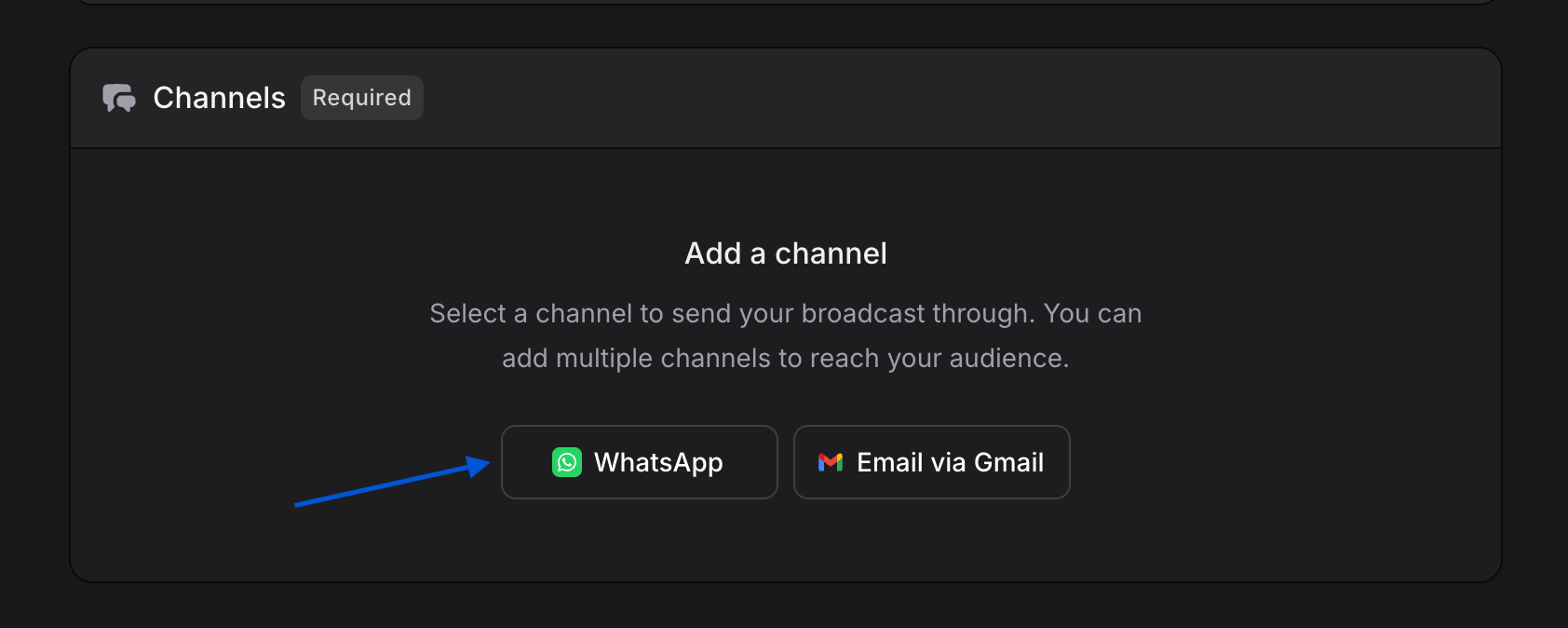
2
Select your Connection
Pick the WhatsApp Business connection to send from. Connections are organization-level and shared with your assistants, you do not need to authenticate again here. If your organization has more than one WhatsApp connection, choose the one whose WABA owns the template you plan to use.
3
Select your WhatsApp Phone Number
Choose which phone number on that connection sends the broadcast. The dropdown shows each number with its connection name. Click the external-link icon to manage the number directly in WhatsApp Manager.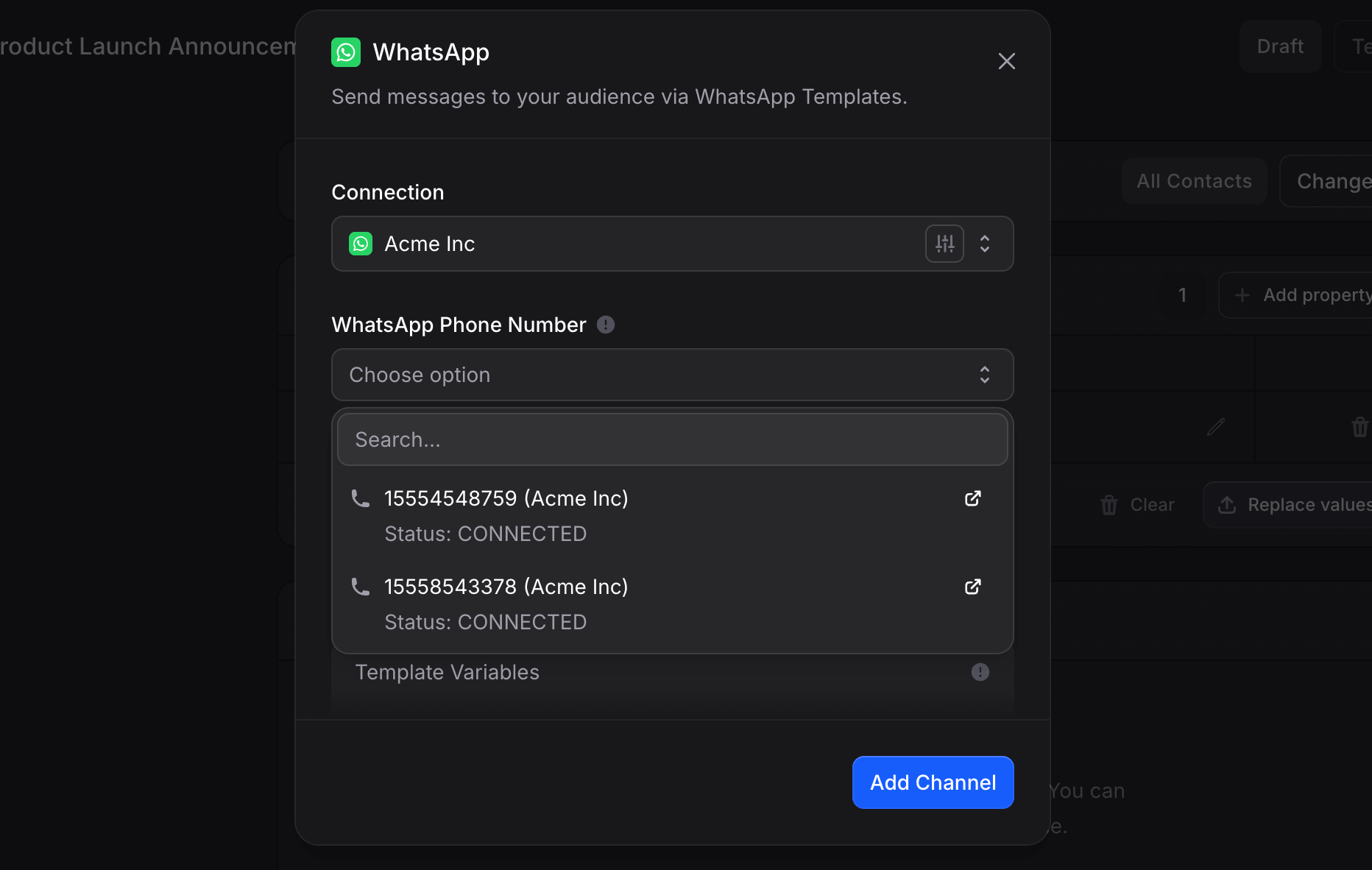
Templates are scoped to the WABA, not to a specific phone number. Every approved template on the parent WABA shows up here regardless of which number you pick.
4
Select a template
Pick a template from the searchable dropdown. Each row shows: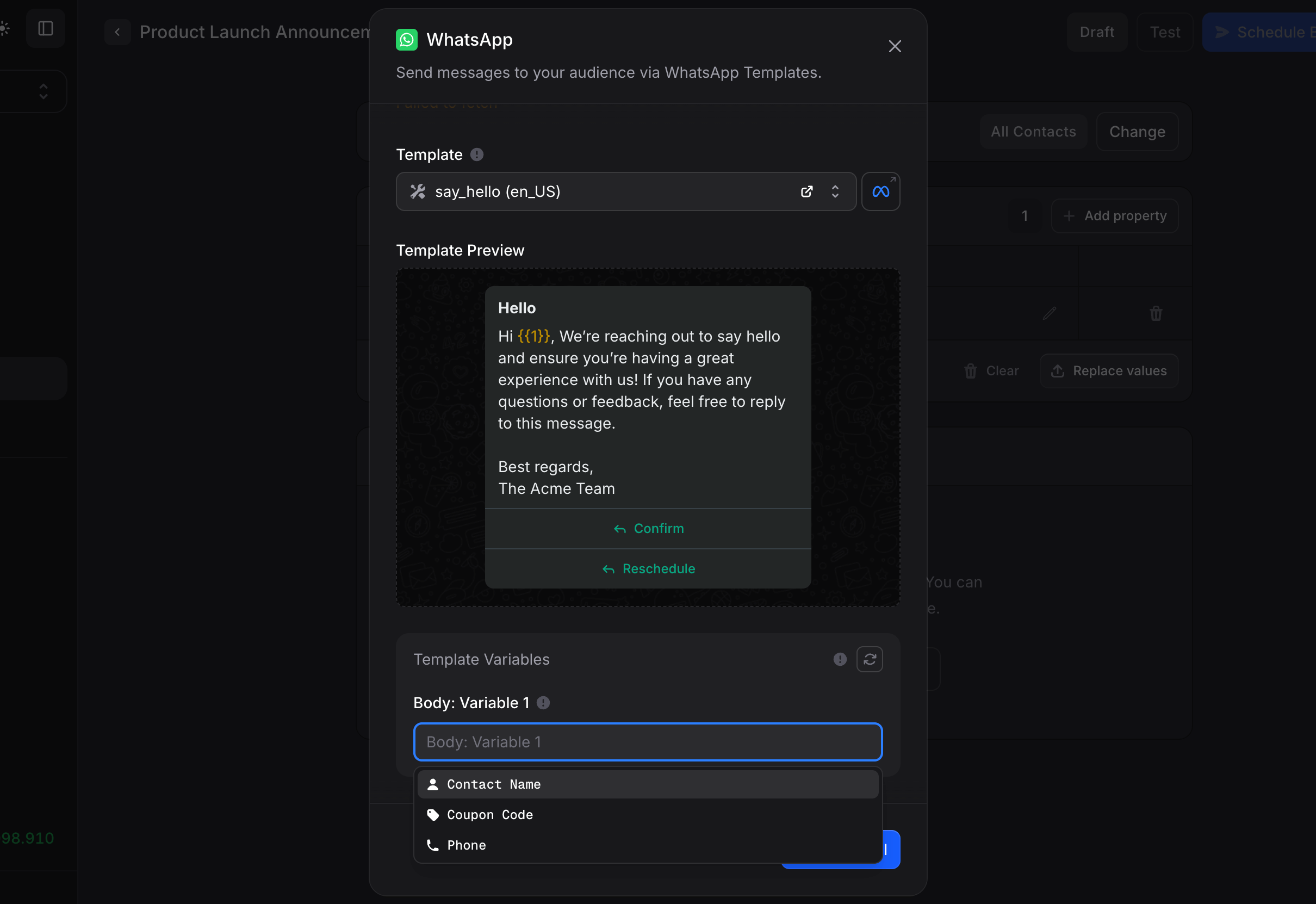
- The template name (e.g.
weekend_sale_2026) - A preview of the body
- An icon for the category (Marketing, Utility, Authentication)
5
Check the variables
Every placeholder in the template (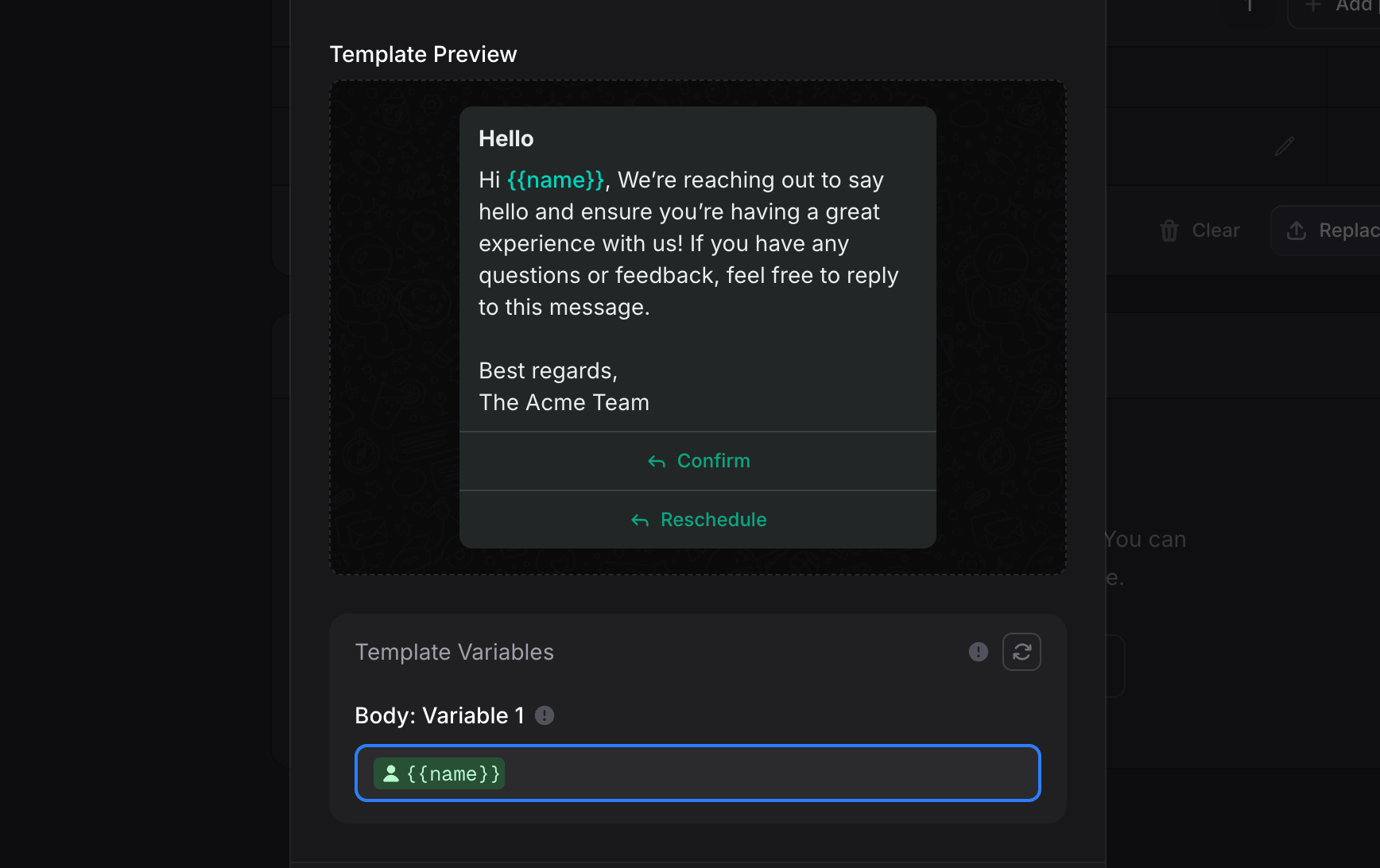
{{1}}, {{2}}, a named {{order_id}}, button URLs) is a slot, prefilled with the sample value the template was approved with. What you leave there goes out. Type {{ to use the contact’s name or phone instead, or write a fixed value.Each slot is a variable named body_1, body_2 (or body_order_id for a named placeholder). A send or an import that carries that name replaces the slot for that recipient.A template with a limited-time offer countdown asks for the offer’s end time here as well. It is part of the send, not the template, so the same template can run a different deadline every campaign — but it has to be filled in, or the send fails.
6
Click Add Channel
The WhatsApp channel is saved and shows up in the broadcast’s Channels section with the template name, recipient count, and Edit / x controls.
Test Before You Send
Always test the broadcast before scheduling it to your real audience. Click Send Test in the top-right of the broadcast editor and enter your own phone number. The template renders with the variables mapped to a single test recipient, exactly the way customers will see it. See the full testing flow →Costs
Two costs combine on every WhatsApp broadcast message:- Invent fee: about $0.004 per message, drawn from your Invent credit balance. Full pricing breakdown →
- Meta conversation fee: charged by Meta directly based on the conversation category (Marketing, Utility, Authentication) and the destination country. Meta bills this on your WABA’s payment method, not through Invent. Country-by-country rates live on Meta’s WhatsApp Business Pricing page.
Tracking Delivery and Engagement
Once a broadcast is sent, the editor turns into an analytics dashboard:- Sent / Delivered / Read percentages at the top.
- A per-recipient table with delivery status and timestamps for each event.
Troubleshooting
My template is not in the dropdown
My template is not in the dropdown
Three common causes:
- The template is still Pending review. Open WhatsApp Manager and confirm the status is Approved. Pending and Rejected templates do not appear in Invent.
- Wrong WABA. A template lives on a specific WhatsApp Business Account. Make sure the connection you picked owns the same WABA as the template.
- Template was paused or deleted by Meta. Open the templates list in WhatsApp Manager and check the status. If paused, wait for Meta to reinstate. If deleted, recreate it.
The template was rejected, what now?
The template was rejected, what now?
Click the rejected template in WhatsApp Manager to see Meta’s specific reason. The most common are:
- Wrong category: marketing copy submitted as Utility or Authentication. Resubmit under the right category.
- Prohibited content: regulated industries, misleading promises, or sensitive topics. Rewrite to remove the flagged content.
- Variable example mismatch: the example values you provided do not match the variable placement. Add realistic examples for every
{{N}}and resubmit. - Brand impersonation: header or body language that suggests you are someone you are not.
weekend_sale_2026_v2) so you can track which version is which.My broadcast is sending much slower than I expected
My broadcast is sending much slower than I expected
Meta enforces per-day messaging limits based on your number’s messaging tier. Open Channels → WhatsApp → Phone numbers and hover the Messaging limit value to see the ladder for that number: 50, 250, 1,000, 10,000 and 100,000 unique customers per rolling 24 hours, then unlimited. New numbers start low on that ladder, and Meta raises the tier automatically while quality stays high.The scale on the Channels → WhatsApp overview (250, 2K, 10K, 100K, unlimited) is a different one: it is the account-level limit, described in Messaging limit. Invent checks your audience against that account limit when you send or schedule: a broadcast with more recipients than the account may start in 24 hours is refused before it starts, and the error states the recipient count and the limit. Lower the audience or raise the limit with Meta.Within the limit, Invent sends at most 80 WhatsApp messages per minute per organization, and a recipient that hits Meta’s rate limit (error
130429) goes back on the queue for up to 3 retries. See WhatsApp error codes for the codes.To raise your tier: maintain a high quality rating for several days and Meta upgrades automatically. There is no manual escalation path.Some recipients show 'Failed' in the analytics table
Some recipients show 'Failed' in the analytics table
Hover the failure icon for the specific reason. The most common are:
- Invalid phone number (wrong country code, missing digits).
- Recipient does not have WhatsApp on that number.
- Recipient blocked your business previously.
- Recipient is in a country your WABA is not approved to send to.
A template I have used for months was suddenly paused
A template I have used for months was suddenly paused
Meta paused it because of recent quality signals (reports, blocks, low read rate). This is the early-warning sanction. Follow What to Do if You Get a Warning: stop sending, audit the recent audience, fix the consent or content issue, and resume only with your most-engaged segment.
My number was banned. What can I do?
My number was banned. What can I do?
Phone-number bans are issued by automated systems and almost never reversed on appeal. Practically, the affected number is permanently lost on WhatsApp Cloud API. The other numbers on your Business Portfolio remain active. Going forward:
- Do not import the same number into another tool. The ban follows the number, not the tool.
- For a fresh start, register a new number on the same portfolio and apply the Best Practices playbook from day one.
- If your entire portfolio is banned, contact Meta support and Invent support; recovery is rare but the process exists.
Next Steps
WhatsApp Best Practices
The playbook for keeping your number, templates, and Business Portfolio in good standing
Broadcasts Overview
Create, schedule, and analyse broadcasts across every channel
WhatsApp Channel Setup
Connect a WhatsApp Business number through Meta’s Embedded Signup
Audience
Manage your contacts and organise them into segments for targeted broadcasts