

How It Works
1
The assistant decides to hand off
The customer asks for a person, or the assistant reaches something it shouldn’t answer on its own.
2
It picks the best match
From the available members, it picks the best fit — a specific person, or anyone on a matching role or team — using their roles and descriptions. If nothing clearly matches, it assigns by availability and current workload.
3
The conversation is assigned
It lands in the Inbox under Waiting for Human, assigned to that teammate so they’re notified.
4
No one available? It waits
The conversation stays Unassigned and anyone permitted can claim it from the Inbox: reply to it, or pick themselves in the Member dropdown.
When AI Replies is off, new conversations are auto-assigned to an available member straight away, so your team is notified even before the AI weighs in.
Turn On Routing
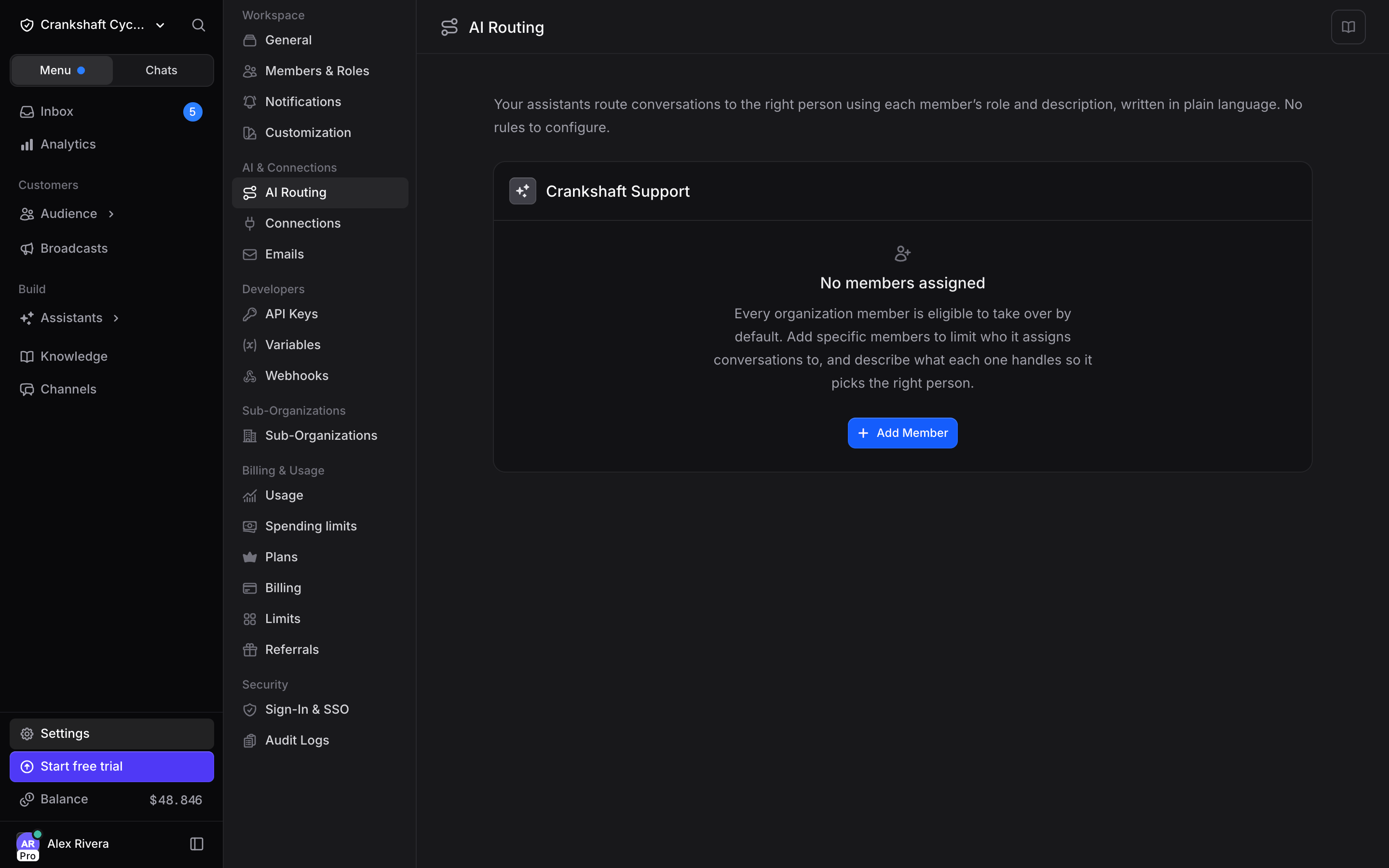
Routing runs through the Transfer to Member capability. Open an assistant, scroll to the AI Routing section, and enable Transfer to Member. This lets the assistant decide when to hand a conversation to one of your members. The same AI Routing section has an optional Routing instructions field — free-text guidance that steers how this assistant chooses between members (which person or team to prefer, when to escalate). Leave it empty to route purely on roles and descriptions.Choose Who an Assistant Routes To
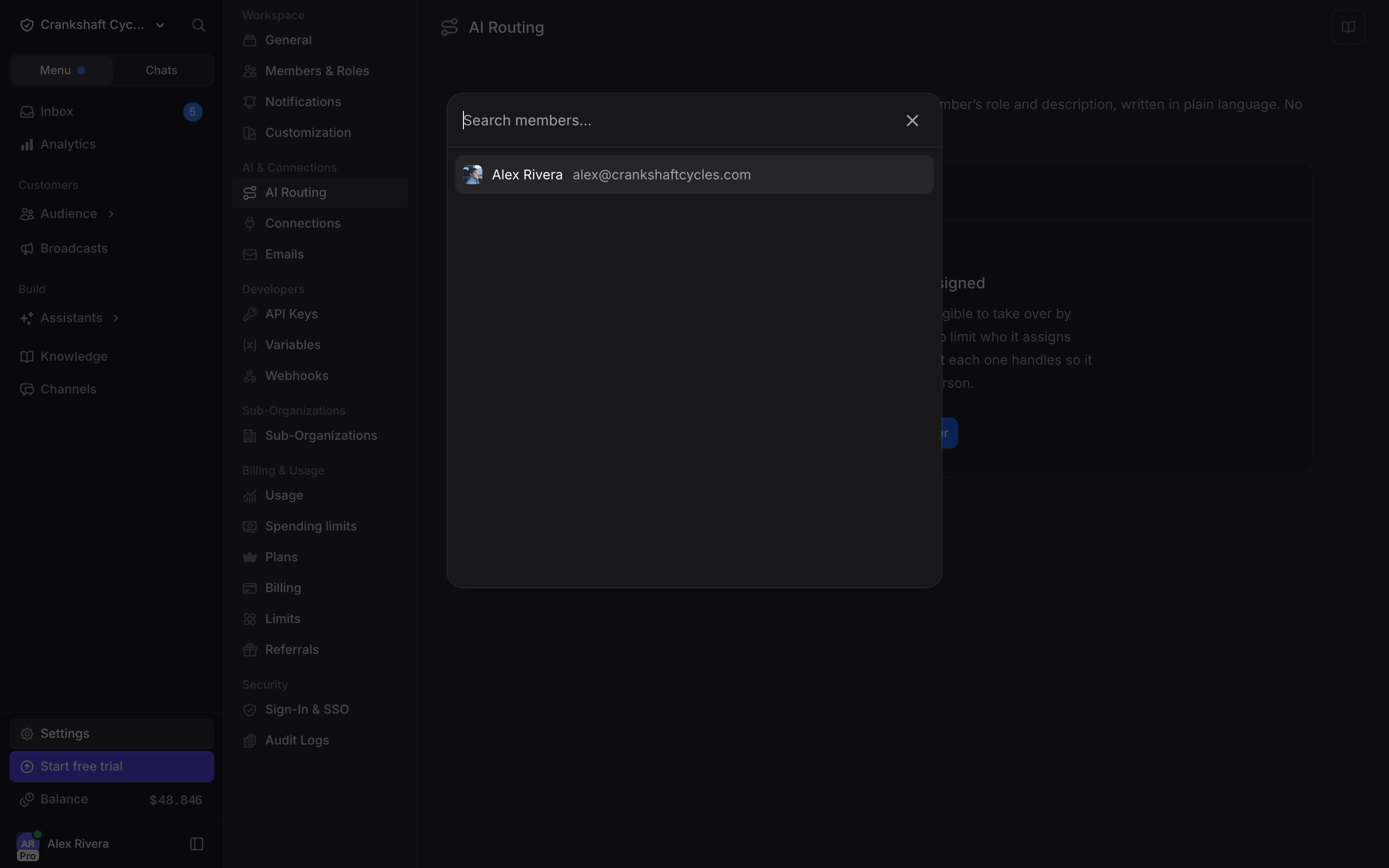
By default, every organization member is eligible to take over. Add specific members to limit an assistant to a chosen group:1
Open AI Routing
In the assistant’s AI Routing section, or from Settings → AI Routing, find the assistant.
2
Add members
Click Add Member and pick who should be eligible. The assistant now routes only among them.
3
Adjust anytime
Remove someone with the trash icon, or toggle their availability without removing them.
Describe What Each Member Handles
This is what makes routing accurate. Give each member a short, plain-language description of what they cover:Billing disputes and refunds. English and Spanish.The assistant reads the description alongside the member’s roles to choose the right person or team. Descriptions are visible to the AI and edited by managers, from Settings → Members or the AI Routing section.
If you haven’t added specific members, the assistant only routes to members who have a description. Writing one is how a member opts in to being routed to. Once you add explicit members, every available one is eligible, description or not.
Availability
Every member has an availability status that controls whether the assistant assigns them work: Available: the assistant can assign conversations to them. Unavailable: skipped for new assignments (for example, while away), but keeps full access and can still take over conversations manually. Members set their own status from the account menu. Managers can set anyone’s from Settings → Members.Roles and Access
Any member can be added. Admins and Developers always have access to every assistant’s conversations, so you rarely need to add them explicitly. On white-label organizations, Managers and Agents don’t see Admin or Developer members.Manual Assignment
You’re never locked into automatic routing. From the Inbox you can:- Assign a conversation to any teammate from the Member dropdown in the contact panel, or pick yourself to claim it.
- Send a reply: the AI pauses on that conversation and it is assigned to you if nobody had it yet.
- Click Resolve when it’s handled, or set AI replies back to On in the composer to return it to the assistant. A paused AI also resumes on its own when the customer writes again after 10 quiet minutes.
Best Practices
- Write descriptions the way customers describe their problem, not in internal jargon. “Refunds, billing, and payment disputes” routes better than “AR/AP specialist.”
- Keep them short and specific. Include specialties, languages, and coverage — “Onboarding and setup. Spanish. EMEA hours.” One or two lines is plenty.
- Use roles for interchangeable teams, descriptions for specifics. If anyone on a team can take the question, a shared role does the job; reach for descriptions when people cover different things.
- Keep availability current. Flip to Unavailable when you step away — the assistant never routes to someone marked unavailable, so stale statuses send work to the wrong place.
- Scope assistants with explicit members. Leaving an assistant open means anyone with a description is eligible; adding members restricts it to that group. For large teams, assign the specific people who should handle each assistant so routing stays focused.
- You don’t have to describe everyone. If a conversation doesn’t clearly match anyone, the assistant assigns by availability and workload — so describe the people whose specialty actually matters.
Use Cases
Specialized teams: route billing to finance and bugs to engineering by describing what each person handles. Language or region: add “English and Spanish” or “EMEA hours” to a description and the assistant matches accordingly. Tiered support: add only senior members to a high-touch assistant. Time away: flip to Unavailable at capacity or off-shift, and the assistant stops assigning you new conversations.Next Steps
Inbox
Manage conversations and monitor handoffs in the Inbox
Members
Invite team members and assign roles for routing access