

Where It Lives
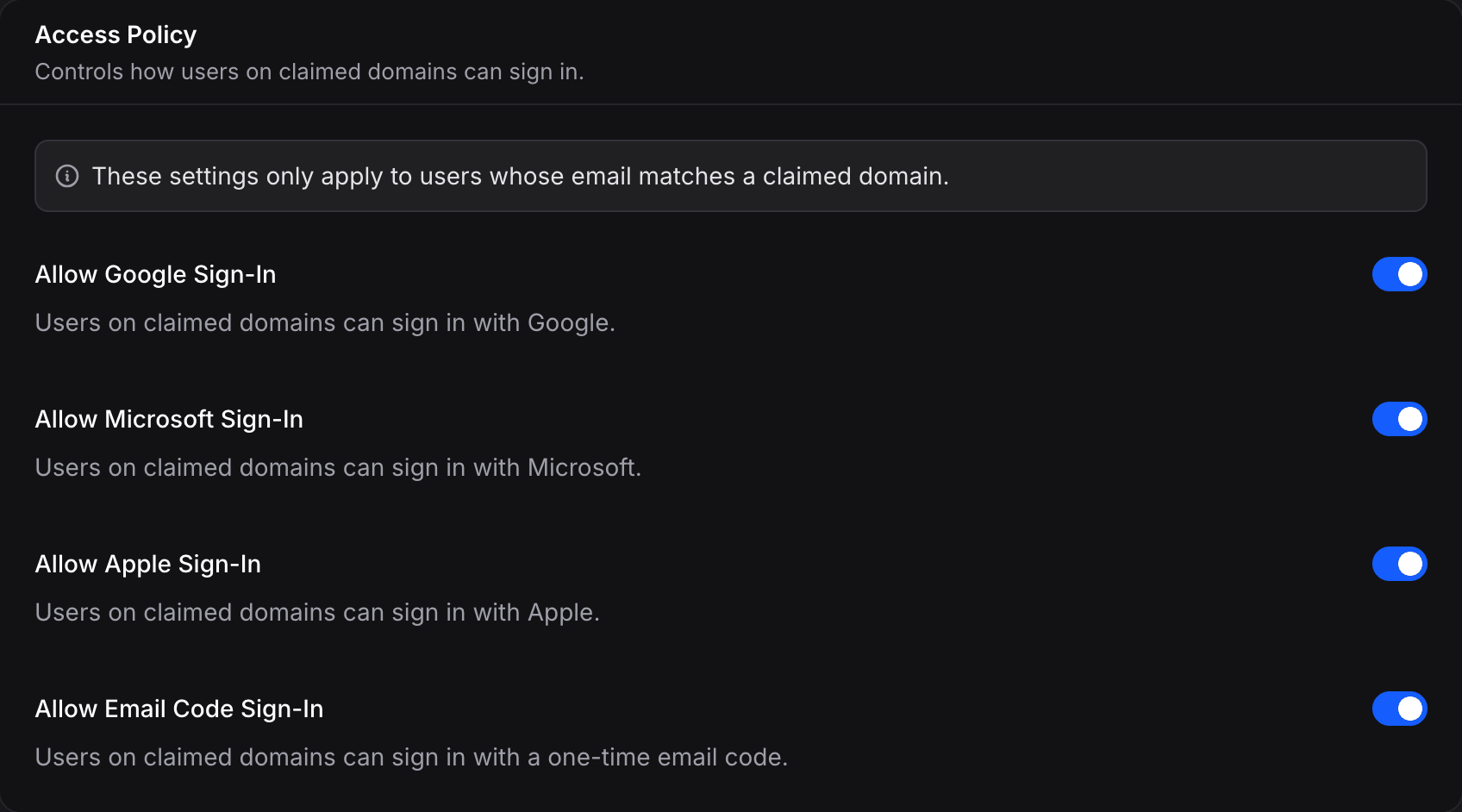
The Access Policy sits at the top of the SSO settings page (useinvent.com/o/settings/sso). It is a four-toggle form that saves automatically as each toggle is changed; there is no separate save button. All four toggles default to on when an organization is first created.Policy Toggles
Allow Google Sign-In
When on, users on your verified domain can sign in to Invent using Google. When off, Google sign-in is rejected for users on your verified domain with the message: “Google sign-in is not enabled for your domain, please use SSO instead”.Allow Microsoft Sign-In
When on, users on your verified domain can sign in to Invent using Microsoft. When off, Microsoft sign-in is rejected for users on your verified domain with the message: “Microsoft sign-in is not enabled for your domain, please use SSO instead”.Allow Apple Sign-In
When on, users on your verified domain can sign in to Invent with Apple. When off, Apple sign-in is rejected for users on your verified domain with the message: “Apple sign-in is not enabled for your domain, please use SSO instead”.Allow Email Code Sign-In
When on, users on your verified domain can sign in using a one-time email code sent to their inbox. When off, email-code sign-in is rejected for users on your verified domain with the message: “Email code sign-in is not enabled for your domain, please use SSO instead”.When Do the Toggles Take Effect?
The toggles on this page become enforced against sign-in attempts only when both of the following are true:- The user’s email domain matches a verified SSO domain on your organization.
- Your organization has at least one enabled SSO profile that users on that domain could use to sign in.
acme.com while no SSO option is actually configured, since doing so would leave users on that domain with no way to sign in at all. Configure an SSO profile first, confirm that the end-to-end flow works, then tighten the policy.
Typical Setups
SSO with alternatives
All four toggles on. SSO is presented as the preferred option on the sign-in page, but users can still sign in with Google, Microsoft, or an email code if they prefer.
Best for mixed workforces, gradual SSO rollouts, and organizations preserving legacy accounts during a transition.
SSO only
All four toggles off. Your team must sign in through SSO. Every other method is blocked for users whose email matches a verified domain.
Best for strict security postures, SOC 2 or ISO 27001 compliance requirements, and regulated environments.
SSO with a managed provider
Allow Google, Microsoft and/or Apple on, email code off. Users must authenticate through a managed identity, either your SSO provider or Google/Microsoft, but one-time email codes are blocked.
Best for Google Workspace or Microsoft customers who want Google or Microsoft sign-in as a secondary managed option.
SSO with email code
Allow Google, Microsoft and Apple off, email code on. One-time email codes remain available as a backup in case your identity provider has an outage.
Best for resilience, since email codes continue to work even when your identity provider is unavailable.
Safety Rails
”No login methods allowed” warning
If you turn all four toggles off, Invent displays an inline warning in the settings UI that reads: “Google, Microsoft, and email code sign-in are disabled. These settings only take effect when an SSO provider is configured. Otherwise all methods remain available.” Turning all four toggles off is a valid configuration, but it only produces a visible behavior change once an SSO profile is enabled. At that point it effectively makes SSO the only way for users on your verified domains to sign in. The warning serves as a reminder to verify that the SSO profile is fully operational before committing to this posture, so that no one is accidentally locked out.Verified domain notice
The Access Policy card displays a persistent note that reads: “These settings only apply to users whose email matches a claimed domain.” Users whose email does not match any of your verified domains are never affected by these toggles, regardless of their values.Changing the Policy
Each toggle saves immediately when it is flipped. There is no separate save button. Changes take effect on the next sign-in attempt. Existing sessions are not revoked automatically and continue until they expire on their own or the user signs out.How It Relates to Other Settings
The three SSO settings each play a distinct role:- SSO Domains define who the Access Policy applies to. The policy only affects users whose email matches a verified domain on your organization. Domains alone unlock auto-join, default roles, and profile sync for all sign-in methods, even without an SSO profile.
- SSO Profiles define what identity provider users are sent to when they choose SSO. Profiles are optional; they are only required if you want to authenticate through an external identity provider.
- Access Policy defines what alternatives users on verified domains may use besides SSO. The toggles only take effect once an SSO profile is enabled, at which point they let you force your team through the identity provider and block the alternatives.