

SSO Domains require a Business or Enterprise plan. View plans
The Domains Table
Each verified domain shows:Claiming a Domain
- Go to Settings → Sign-In & SSO (useinvent.com/o/settings/sso).
- In the Email Domains section, click Claim domain.
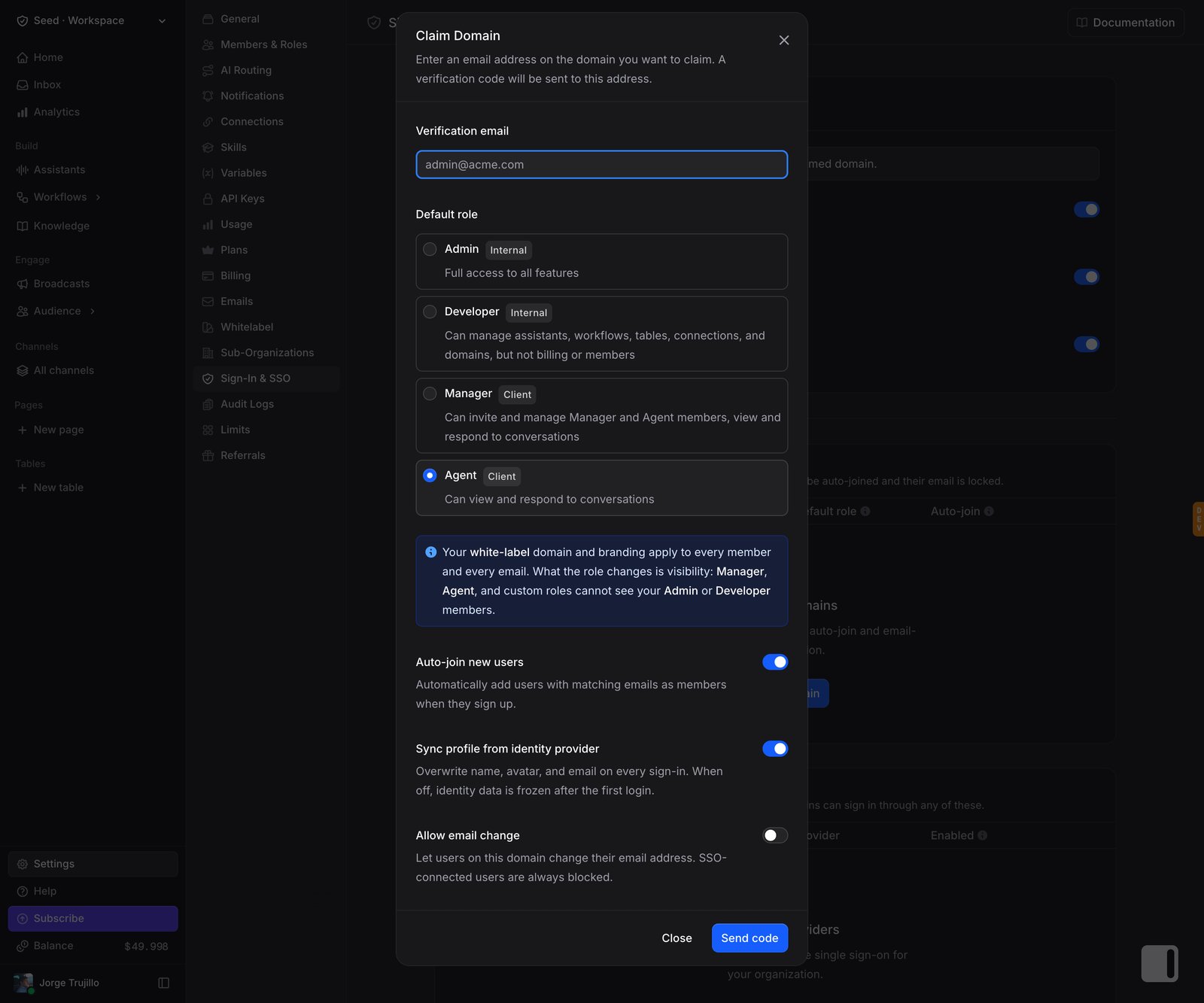
- Fill in the form:
- Verification email: an email address on the domain you want to claim (for example,
admin@acme.com). The 6-digit verification code is sent to this address and becomes the domain’s verification of record for future sensitive operations, such as deletion. - Default role: the role assigned to users who auto-join through this domain. Choose from Admin, Developer, Manager, or Agent. Defaults to Agent.
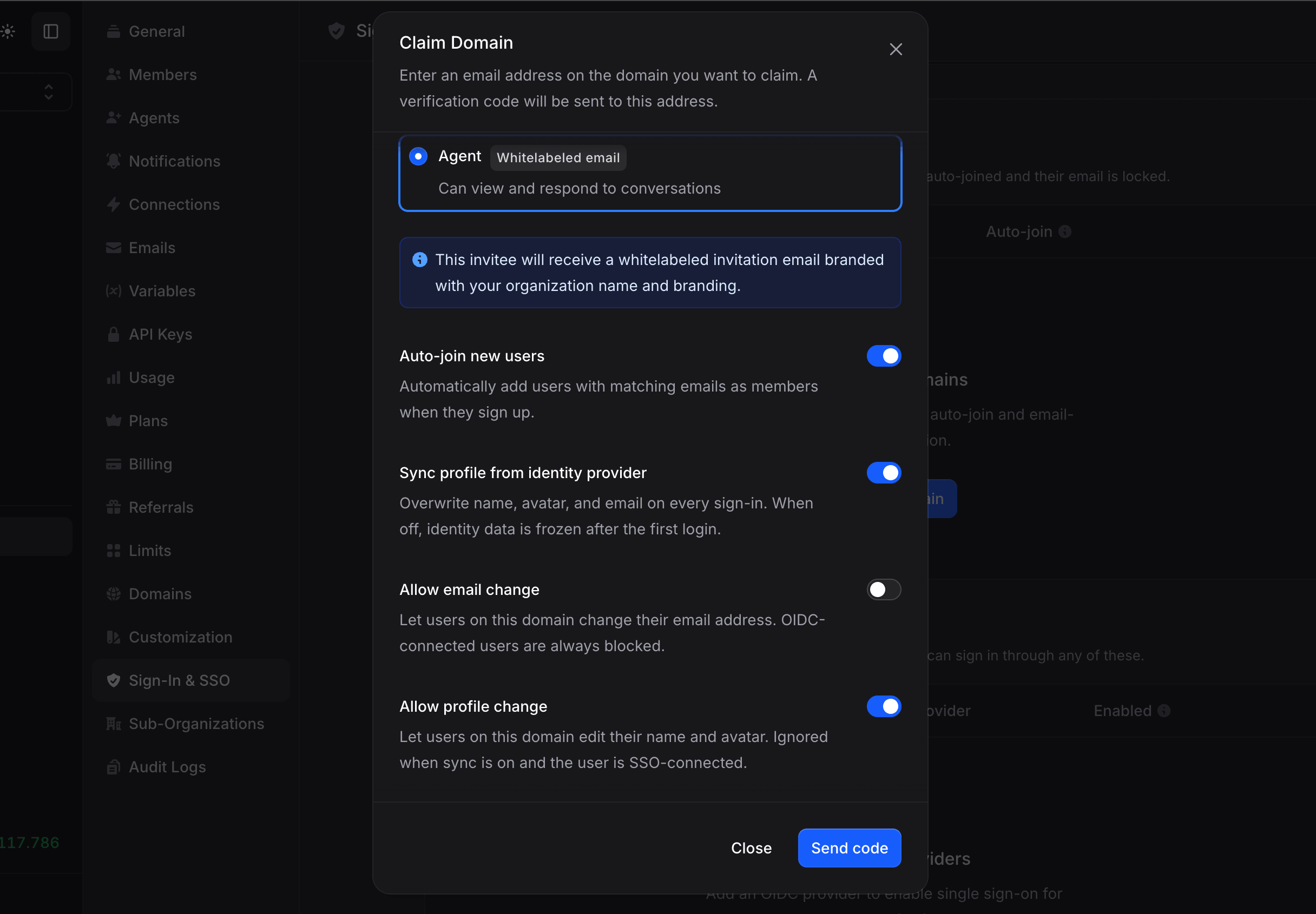
- Auto-join new users: automatically add users who sign up with an email on this domain as members of your organization. Defaults to on.
- Sync profile from identity provider: refresh the user’s name, avatar, and email from your identity provider on every sign-in. Defaults to on.
- Allow email change: permit users on this domain to change their own email address from the user settings page. Defaults to off.
- Allow profile change: permit users on this domain to change their own name and avatar from the user settings page. Defaults to on.
- Verification email: an email address on the domain you want to claim (for example,
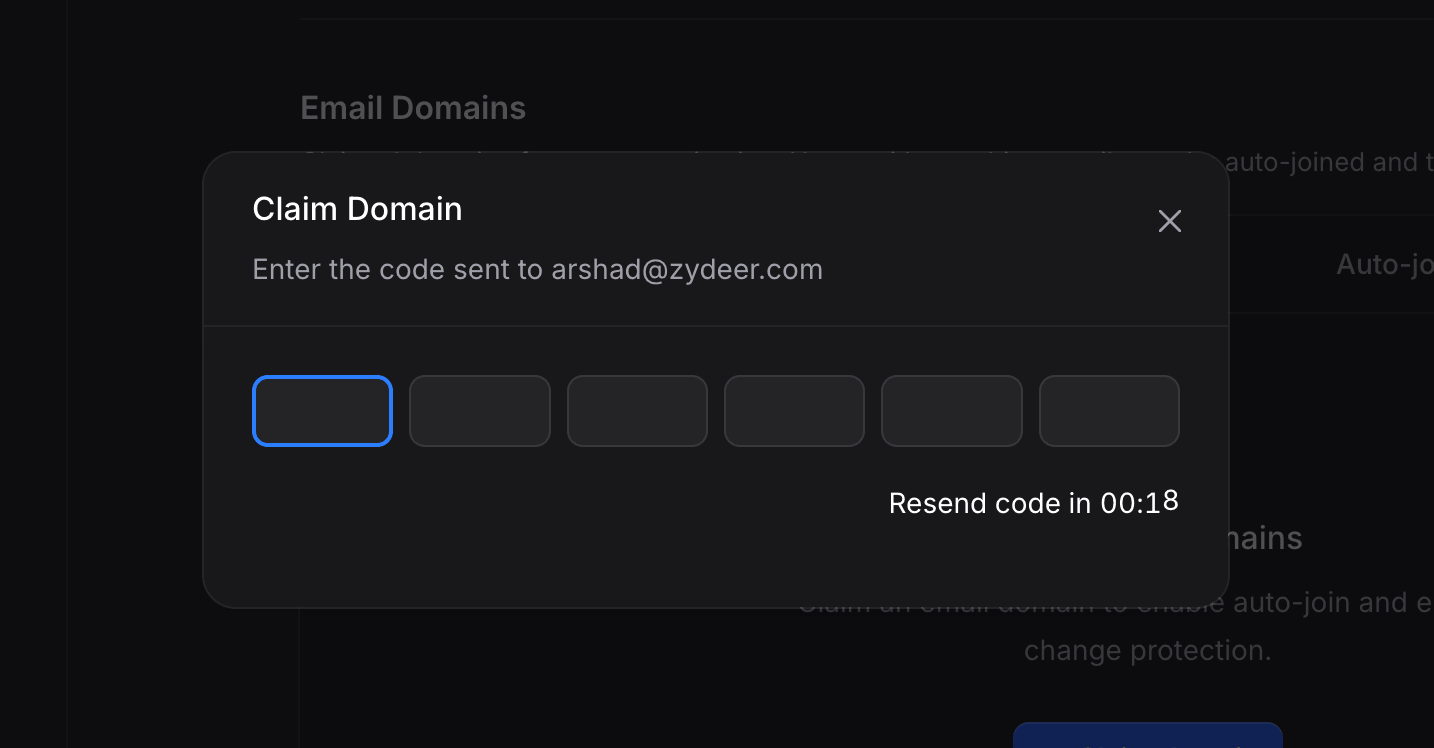
- Click Send code. A 6-digit verification code is emailed to the verification address.
- Enter the code to complete verification and claim the domain.
Domain Settings Explained
Default Role
Every user who auto-joins through this domain is assigned this role on creation. The options match the standard Invent member roles:- Admin: full access to the organization, including SSO, billing, and member management.
- Developer: technical features such as assistants, API keys, and integrations.
- Manager: customer-facing operations, including the inbox, contacts, and segments.
- Agent: view and respond to conversations.
Auto-Join
When on, any new user who signs up with an email matching this domain is automatically added to your organization with the Default Role set above. Auto-join applies to every sign-in method, not just SSO. A user who signs up with Google using their@acme.com email is auto-joined in exactly the same way as a user who signs up through your SSO provider. The trigger is the verified email domain, not the authentication method.
Sync Profile
When on, Invent refreshes the user’s name, avatar, and email from the claims returned by your identity provider on every SSO sign-in. This ensures that Invent’s view of each user stays consistent with your directory of record as names change, photos are updated, or email addresses are reassigned. When off, these identity fields are written once on first sign-in and are never subsequently overwritten from the identity provider. Existing users will keep whatever name, avatar, and email they already have in Invent regardless of what the identity provider returns.Allow Email Change
Controls whether users on this domain may change their own email address from the user settings page.When Sync Profile is on, users connected to an identity provider (OIDC) are always blocked from changing their email, regardless of this flag. Their email is owned by the identity provider and any change would be overwritten on the next sign-in.When Sync Profile is off, this flag applies uniformly to every user on the domain, including identity-provider-connected users. The Invent UI reflects this by disabling the email field for users who are blocked and surfacing a tooltip explaining which system manages their identity.
Allow Profile Change
Controls whether users on this domain may change their own name and avatar from the user settings page. The rules mirror Allow Email Change: when Sync Profile is on, identity-provider-connected users are always blocked regardless of this flag, because any edit would be overwritten by the identity provider on the next sign-in. When Sync Profile is off, this flag applies uniformly to every user on the domain.Editing a Domain
Click the ⚙️ Settings icon on any domain row to open the domain settings dialog.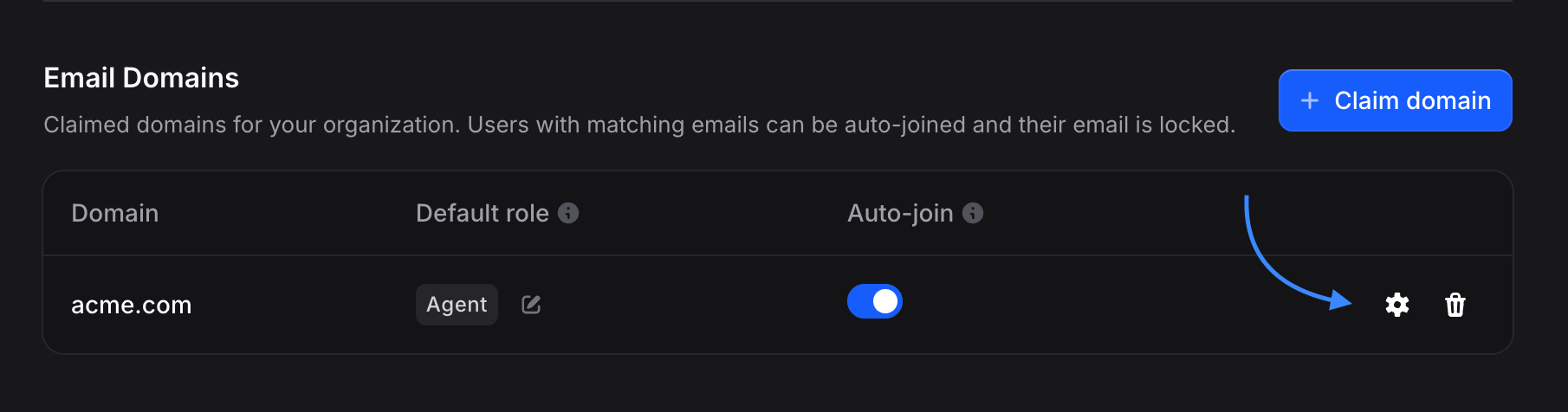
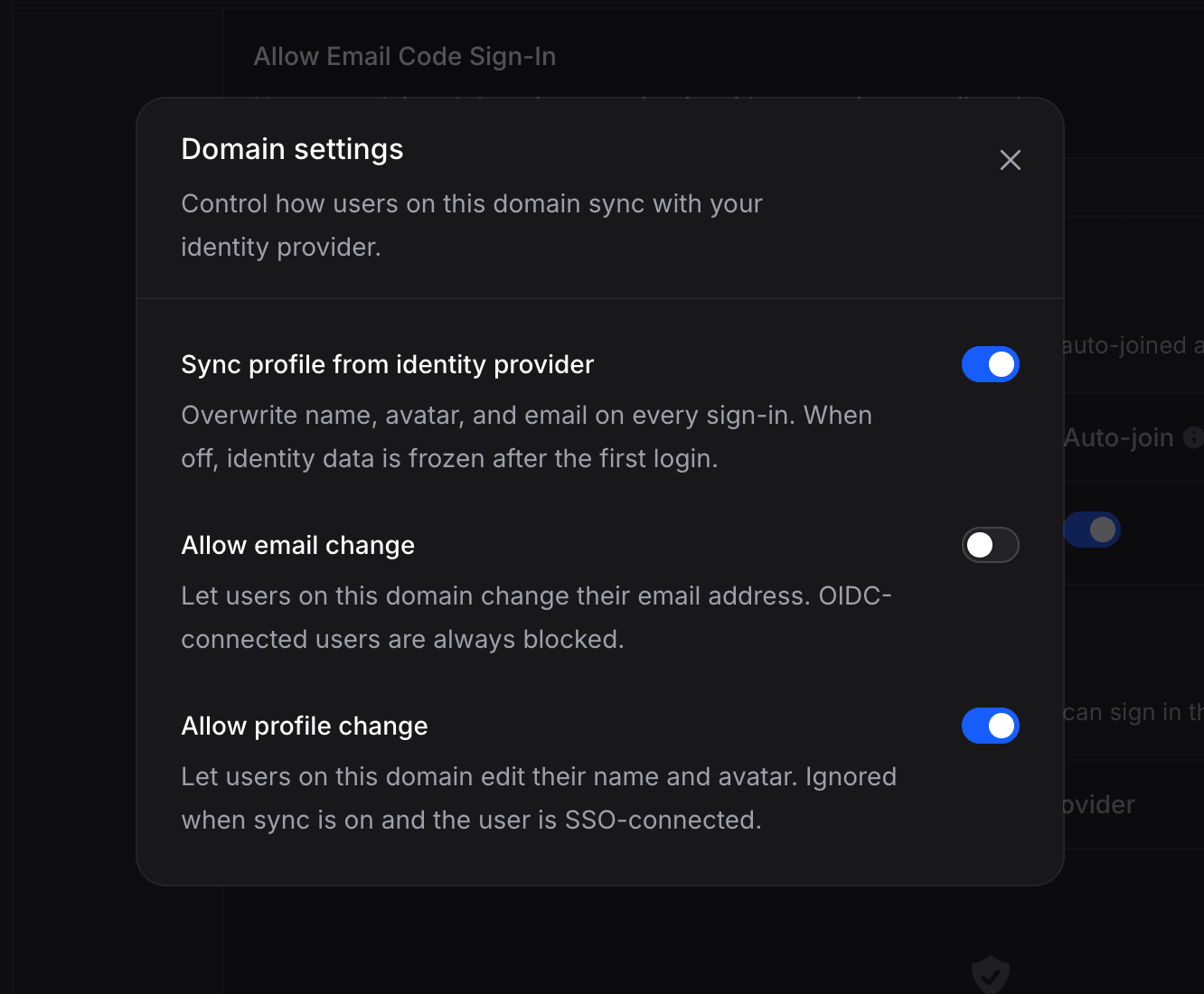
- Sync Profile
- Allow Email Change
- Allow Profile Change
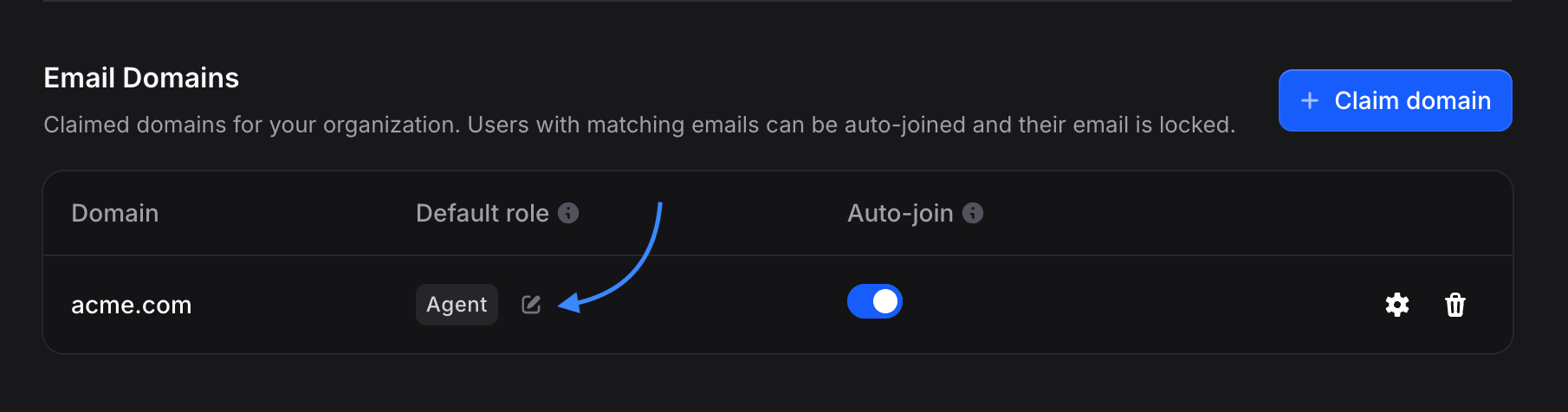
- To change the Default Role, click the pencil icon next to the role badge on the row.
- To change Auto-Join, flip the toggle switch directly on the row.
The domain itself (for example,
acme.com) and its verified state are immutable after claiming. If you need to change the domain value, delete it using the flow below and claim the new domain from scratch.Deleting a Domain
Deleting a domain is a sensitive operation and is protected by a second round of email verification. Even organization admins cannot remove a domain with a single click.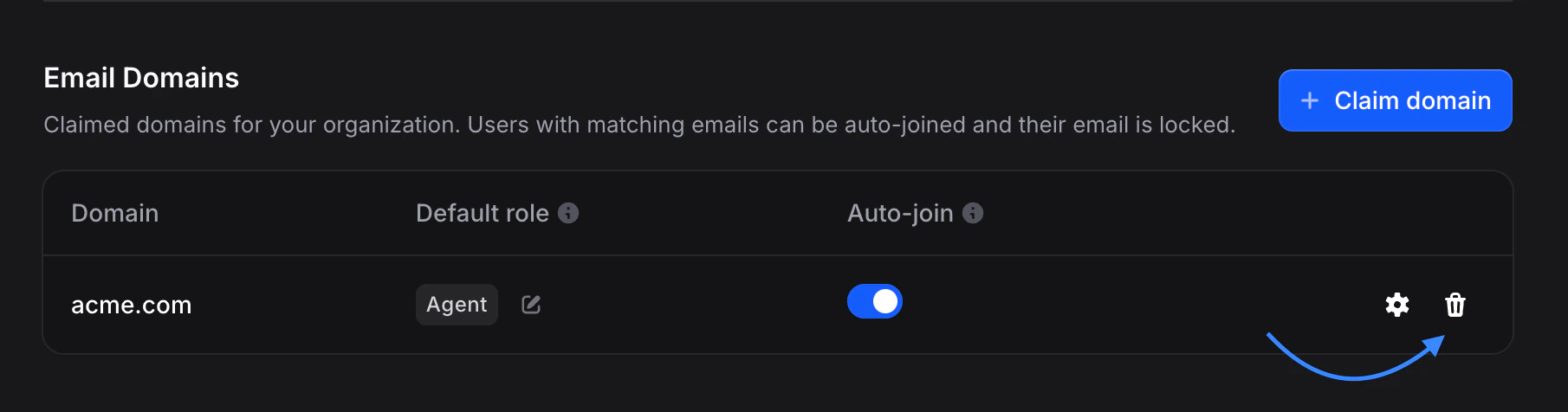
- Click the 🗑️ Delete icon on the domain row.
- Click Send deletion code. A 6-digit code is emailed to the original verification address and to every admin on your organization, so that more than one person is aware of the deletion attempt.
- Enter the code in the confirmation dialog to complete the removal.
Relationship with SSO Profiles
Domains and profiles are separate concepts that are linked at sign-in time:- A user enters their email on the Invent sign-in page.
- Invent looks up the email’s domain. If it matches a verified domain on any organization, Invent resolves to that organization.
- Invent then lists every enabled SSO profile belonging to that organization. Those profiles become the identity-provider options the user sees.
Troubleshooting
The verification code is reported as invalid
The verification code is reported as invalid
The code is 6 digits long and expires after 10 minutes from the moment it was sent. If the code expired, click Resend on the verification screen to receive a new one. If you copied and pasted the code, check that no whitespace or trailing characters were included.
'This domain is already claimed by another organization'
'This domain is already claimed by another organization'
Another Invent organization has already verified this domain. If you believe your organization is the rightful owner, contact Invent support with documentation that demonstrates ownership of the domain.
The verification email never arrived
The verification email never arrived
Check your spam folder and any organization-wide email filters that may be blocking messages from external senders. The sender address is the
from address configured for your organization, or Invent’s default if none is configured. If the email still does not arrive, try claiming the domain again with a different mailbox on the same domain.Can I verify a subdomain?
Can I verify a subdomain?
Yes.
team.acme.com and acme.com are treated as entirely separate domains. Only users whose email exactly matches a verified domain will be matched by that domain’s settings. Claiming acme.com does not implicitly cover team.acme.com, and vice versa.