

What the agent does in Slack
- Answers when you mention it. Mention the agent in a channel and it replies in a thread under your message.
- Follows the thread. Once the agent answers in a thread, it reads every new reply there. No need to mention it again.
- Joins an existing thread. Mention it in a reply to any thread and it starts from there.
- Reads the conversation. When your request depends on earlier messages in the thread, the agent reads them in Slack.
- Sees files. Images and documents you attach reach the agent. It can also open files shared earlier in the thread.
- Shows it is working. While it thinks, the thread shows the agent’s name with “is thinking…”.
- Replies as itself. Replies are posted with the agent’s name and picture.
Before you start
- Permission to manage agents in Invent, to open the agent’s Channels tab and connect a channel.
- Permission to manage connections in Invent, if your organization has no Slack connection yet. Without it, you can only pick a Slack connection someone else already added.
- A Slack account in the Slack workspace you want to connect.
Some Slack workspaces only let admins approve new apps. If yours does, Slack asks you to request approval instead of showing Allow. Ask your Slack admin to approve the app, or send them a connection link (see step 2).
Connect Slack
1
Open the agent's Channels tab
In the sidebar, click Agents and open your agent. Go to the Channels tab, find Slack Bot and click Connect.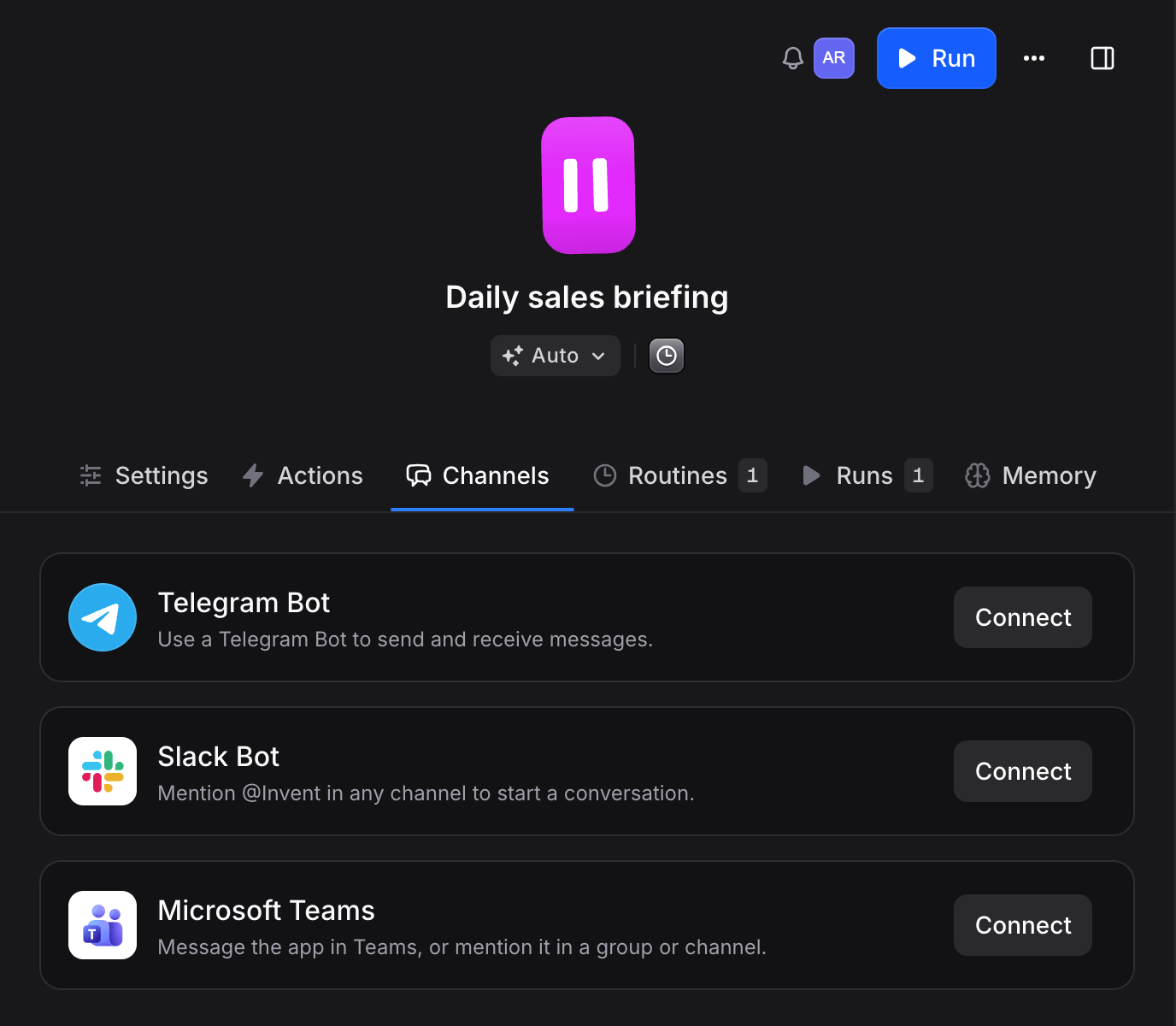
2
Connect your Slack workspace
If your organization has no Slack connection yet, Invent opens the Slack sign-in window for you. If it doesn’t open, click Continue to Slack. In Slack, pick your Slack workspace and click Allow. The window closes and your workspace is picked in Connection.Already connected Slack for another agent? Pick that workspace in Connection instead. To add another Slack workspace, choose New Connection in the list.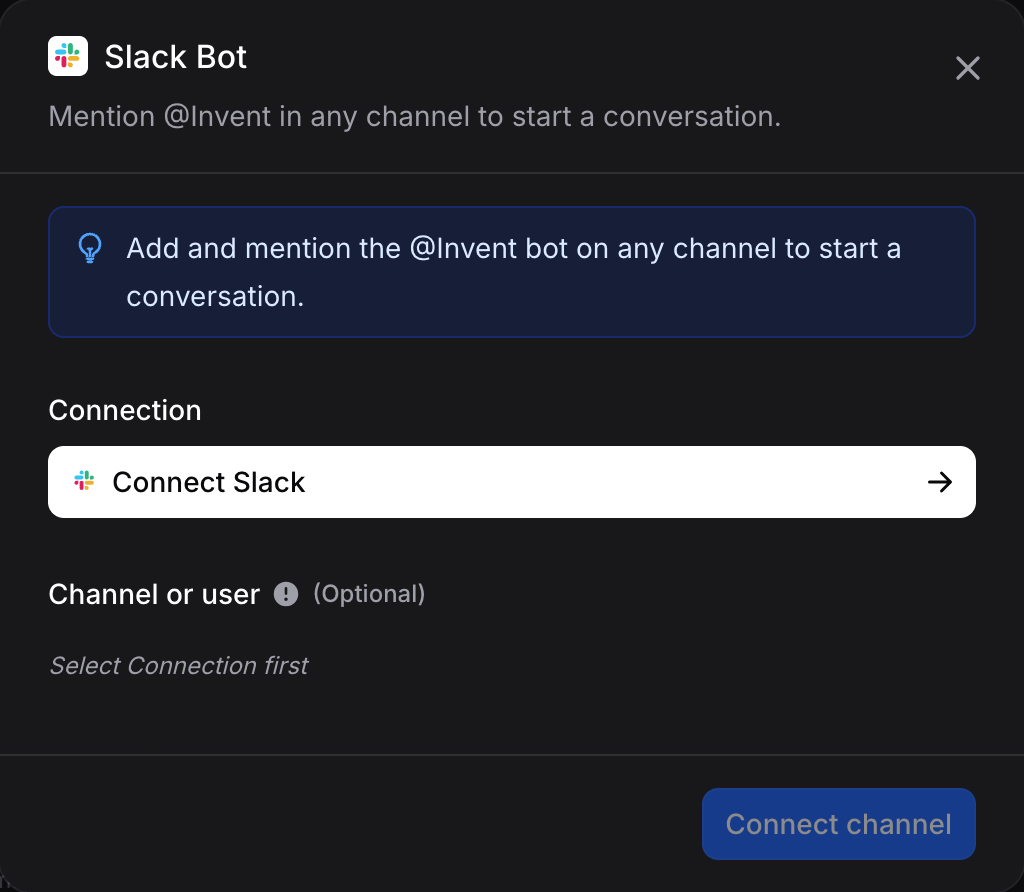
3
Choose where the agent listens
Under Channel or user, keep Any channel or user so the agent answers anywhere it is mentioned and in direct messages. Or pick one Slack channel, or one person to answer only their direct messages.
4
Click Connect channel
Click Connect channel. Slack now shows on the agent’s Channels tab.
5
Add the app to your Slack channels
In Slack, add the Invent app to each channel where you want to use it, for example by typing
/invite @Invent in the channel. Private channels always need this step.Talk to the agent
In a channel
Mention the app in a message, like@Invent what did we sell yesterday?. The agent replies in a thread under your message. Keep talking in that thread. Every reply reaches the agent, from you or anyone else, without a new mention.
You can also mention the app in a reply to a thread that is already going. The agent joins that thread and can read the messages before it.
A message in a channel that doesn’t mention the app, outside a thread the agent is in, never reaches the agent.
In a direct message
Open a direct message with the app and write to it. No mention needed. The agent answers in a thread under your message. Reply in that thread to continue. A new message outside the thread starts a new conversation.Buttons
Sometimes the agent offers choices as buttons under its reply. Click one to answer.When a conversation starts over
A Slack thread stays one chat in Invent while people keep using it. After 24 hours without a message, the next message in the thread starts a new chat. The agent still follows the thread.Who can talk to the agent
Only members of your Invent organization. When someone writes to the agent in Slack, Invent finds their account in one of two ways:- Their Slack email matches an active member’s email. Invent links them on the spot and the agent answers.
- They linked their Slack account before. The agent answers right away.
Permissions requested from Slack
When you connect, Slack asks you to allow these permissions:Assistants already on Slack
New Slack setups go on agents. Assistants no longer offer Slack in their Channels tab. An assistant that already answers in Slack keeps working as before. If the same Slack connection also has an agent, members of your organization reach the agent, and everyone else stays with the assistant. They don’t get a connect link.Troubleshooting
I mention the agent but nothing happens
I mention the agent but nothing happens
Check these in order:
- The Invent app is in the channel. Add it with
/invite @Invent. - The Slack channel is turned on in the agent’s Channels tab.
- Channel or user includes this channel. If you picked one channel, the agent ignores the others.
- You are a member of the Invent organization. If not, look for the private Connect account message from the app.
I got a Connect account message
I got a Connect account message
Invent couldn’t match your Slack account to a member. This happens when your Slack email differs from your Invent email. Click Connect account and sign in to Invent. You only do this once.
Two agents answer the same message
Two agents answer the same message
Each agent connected to the same Slack workspace with Any channel or user answers. Pick a specific channel for one of them. An agent set to a specific channel takes that channel over from agents set to Any channel or user.
This connection is already added to this channel
This connection is already added to this channel
The agent already has Slack on this Slack workspace with the same Channel or user. Pick a different channel, or edit the one you have.
Can the agent read every channel in our Slack?
Can the agent read every channel in our Slack?
No. It only receives messages from channels and direct messages the app is part of, and only messages that mention it or belong to a thread it already answers in.
Can I connect an assistant to Slack?
Can I connect an assistant to Slack?
Not anymore. Slack is for agents, which work for your team. Assistants that were already on Slack keep working.