

Where to find it
On a computer, Home in the sidebar is Ask Invent. It opens on What would you like to do? with a message box, suggestions by area (Inbox, Assistants, Broadcasts, Audience, Knowledge, Agents and Tables) and, under For you, things that need you, like conversations that need a human.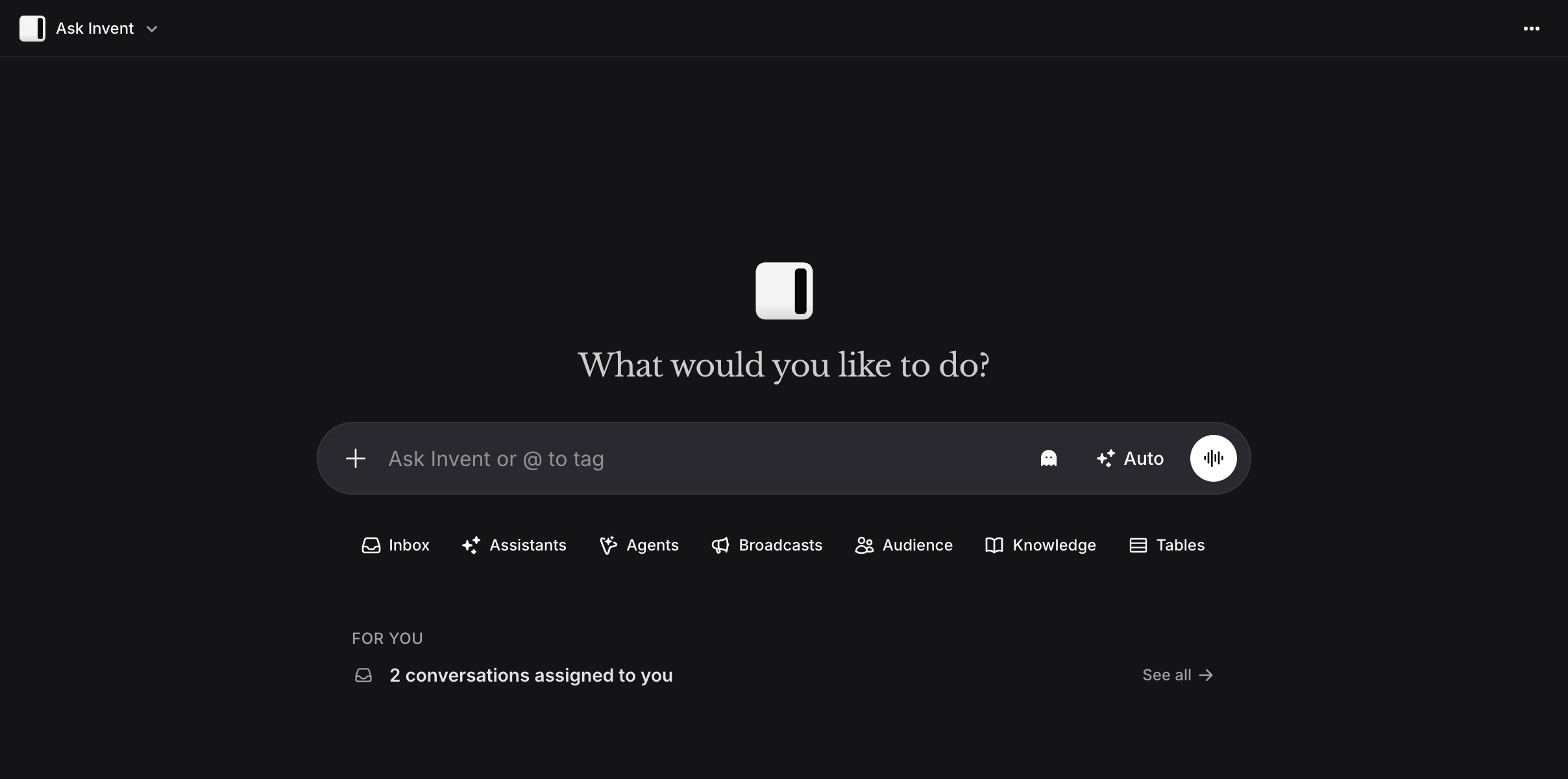
- An Inbox conversation: the panel next to the conversation has an Ask Invent tab, with suggestions like Summarize this conversation and Draft a reply.
- Search: type a question in the search and pick Ask Invent to start a chat with it.
On your own domain, the chat is called Ask AI and never shows the Invent name.
What you can ask
Ask Invent can do what you can do in the app, in plain words. A few examples:
Not sure where to start? Click What can you do? in the suggestions.
Ask Invent acts as you. It can only do what your role allows: if you can’t manage assistants, it can’t either. Billing questions need a member who manages billing. Agent questions need Agents in your organization.
Approvals
Before a change, Ask Invent shows an approval card with what it wants to do. Click Yes to go ahead or No to stop. When it has several changes ready at once, answer each one, or click Yes to all, then Confirm.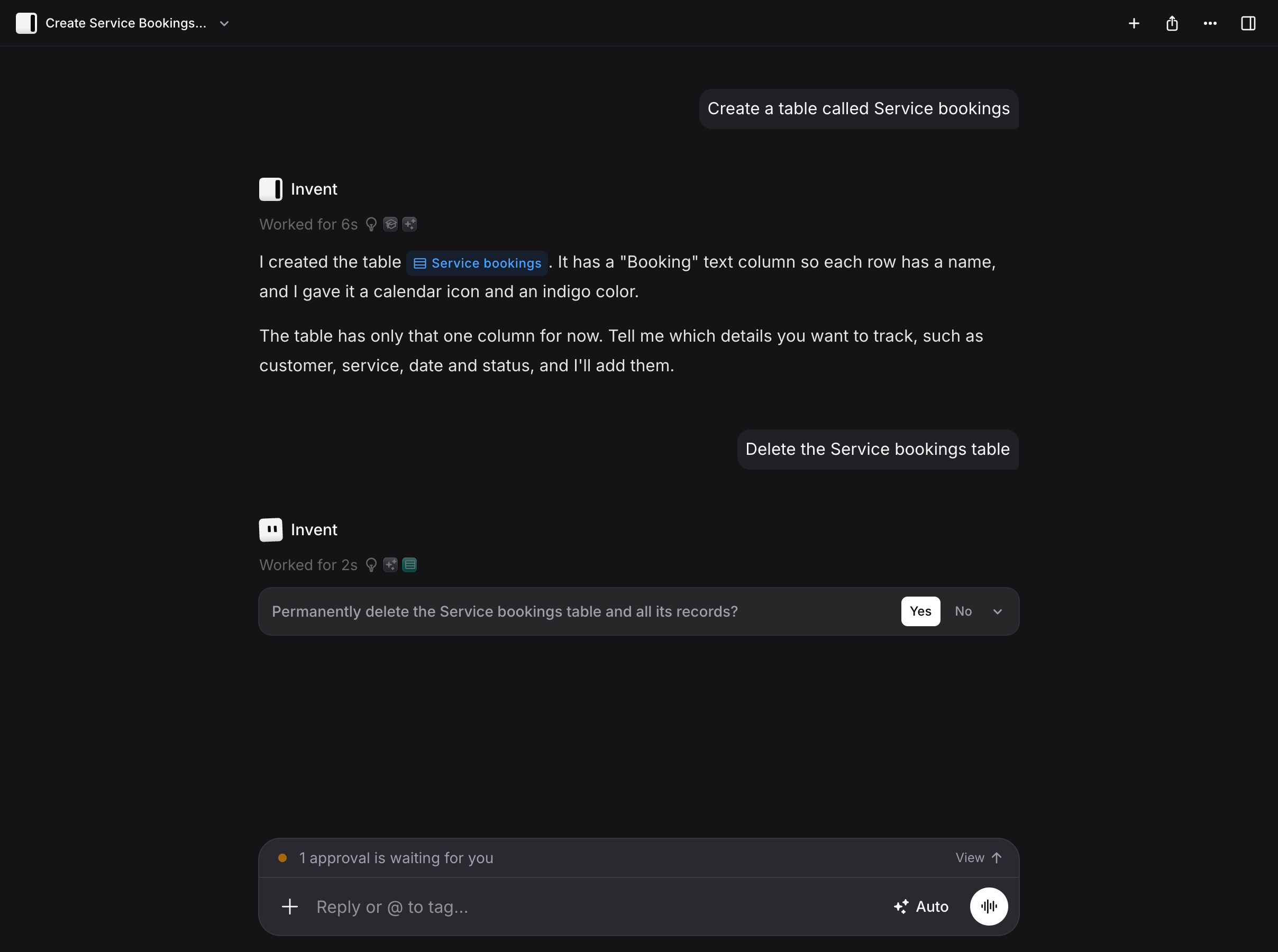
Approval Mode
Choose how often it asks. In the message box, click the model button, then Approval Mode:
Some changes always ask, whatever the mode. For example: deleting a table, a field, an assistant, an agent or a knowledge source, scheduling a broadcast, inviting a member or changing roles, changing spending limits, and connecting or removing an app.
If you don’t answer, the approval waits for you in Tasks. If you haven’t seen it, you also get an email and a push notification.
Questions and answers
When Ask Invent needs something from you, it asks in the chat:- A yes or no question: click Yes or No.
- A few questions: pick an option or type your own in Something else…, then Next and Submit. Skip all skips them.
- An app to connect: click Connect, or No if you don’t want to.
- Files to share: for Google Drive or Sheets, click Choose and pick the files or folders.
Tag things with @ and /
In the message box, type@ to point at something exact:
- Members and agents show up right away.
- Type a name to also find routines, tables, contacts, assistants and records.
/ in an empty message box for the same menu, plus Add photos and files.
Your chats
Every chat is saved. To find one:- In the sidebar, switch from Menu to Chats at the top. You see New chat and your past chats. If you manage agents, they show there too.
- In a chat, click its title at the top for New chat, Talk to an agent, your pinned chats and your recent ones.
Private or shared
A new chat is private: only you can see it. To bring in teammates, click Share this chat:- Add people… adds members to the chat.
- Visibility sets who else can open its link: Only people in this chat, anyone at your organization can read, or anyone at your organization can write.
Who can use it
Every member of the organization can use Ask Invent. What it can do for each person follows their role. Ask Invent is a module. An admin can turn it off in Modules. Then Home shows the dashboard, and Tasks and Routines are hidden too, since they come with Ask Invent.Billing
Ask Invent uses AI, so each reply is paid from your organization’s balance, like your assistants’ replies. A reply costs what it uses: the model, and how much it reads and does. A quick question costs less than a job that goes through hundreds of records. What you spend counts toward your member limit if your organization set one. See Pricing and plans.FAQ
Can Ask Invent message my customers?
Can Ask Invent message my customers?
Yes, when you ask it to reply in an Inbox conversation. Set Approval Mode to Always ask if you want to approve every reply first.
It says it can't do something
It says it can't do something
Your role may not allow it, the module may be off, or the app it needs is not connected. It asks you to connect an app when that is the only thing missing.
Can I talk to one of my agents here?
Can I talk to one of my agents here?
Yes. Click the chat title, then Talk to an agent, and pick one to start a chat with it. See Agents.
Where are approvals I missed?
Where are approvals I missed?
In Tasks, under Needs you. What you already answered is under Responses.
Can my team see my chats?
Can my team see my chats?
No, unless you share them. A new chat is private.
Can it work with my tables?
Can it work with my tables?
Yes. It can create tables and views, and add, change or search records. See Tables.