

Supported Channels
Calling turns on by itself when you connect one of these channels. There is nothing extra to set up in Invent.
Call Settings
Open your assistant, go to Settings, and find Voice Calls.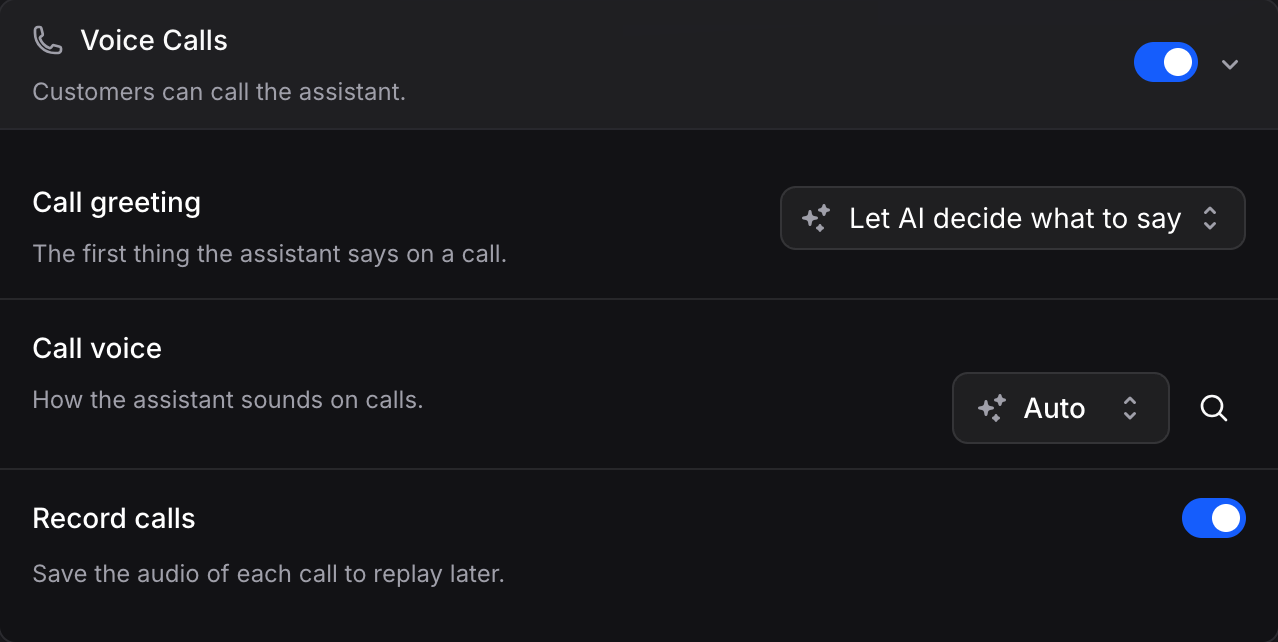
How a Call Works
1
The customer calls
The assistant answers right away and greets the caller.
2
The assistant talks and works
It answers questions, looks things up and runs its actions, the same as in a chat. You can follow the live transcript in the Inbox.
3
Your team can step in
Open the conversation and click Take over to talk to the customer yourself. Click Let AI talk to hand the call back.
4
The call ends
The transcript and the recording stay in the conversation. The customer can keep writing in the same chat.
Calling a Customer
The assistant can call a customer when it makes sense, for example to confirm a booking. Your team can also start a call from the Inbox: open the conversation, click Call, and pick:- AI answers: the assistant talks with the customer.
- AI answers, you listen: you hear the call live and can take over at any time.
- The customer must allow calls first. The first time, Invent sends the customer Meta’s request to allow calls. Once they accept, call again.
- The customer must have written in the last 24 hours. Outside that window, the Call button tells you to wait until the customer writes again.
Pricing
Calls cost $0.06 per minute, plus the AI messages the assistant uses to think and reply during the call. They come out of the same balance as your messages and broadcasts. Twilio and Telnyx bill their own carrier minutes on your account with them. See Usage and Limits.- Meta only allows calling on numbers with a messaging limit of 2,000 or more customers a day. If your number is below that, messages keep working and calls start once Meta raises your limit.
- The number must be connected through the API only. A number you also use in the WhatsApp Business app (coexistence) cannot take calls.
- Customers call you with the call button in your WhatsApp chat.
- Meta does not let numbers from the United States, Canada, Egypt, Vietnam or Nigeria call customers. Customers can still call those numbers.
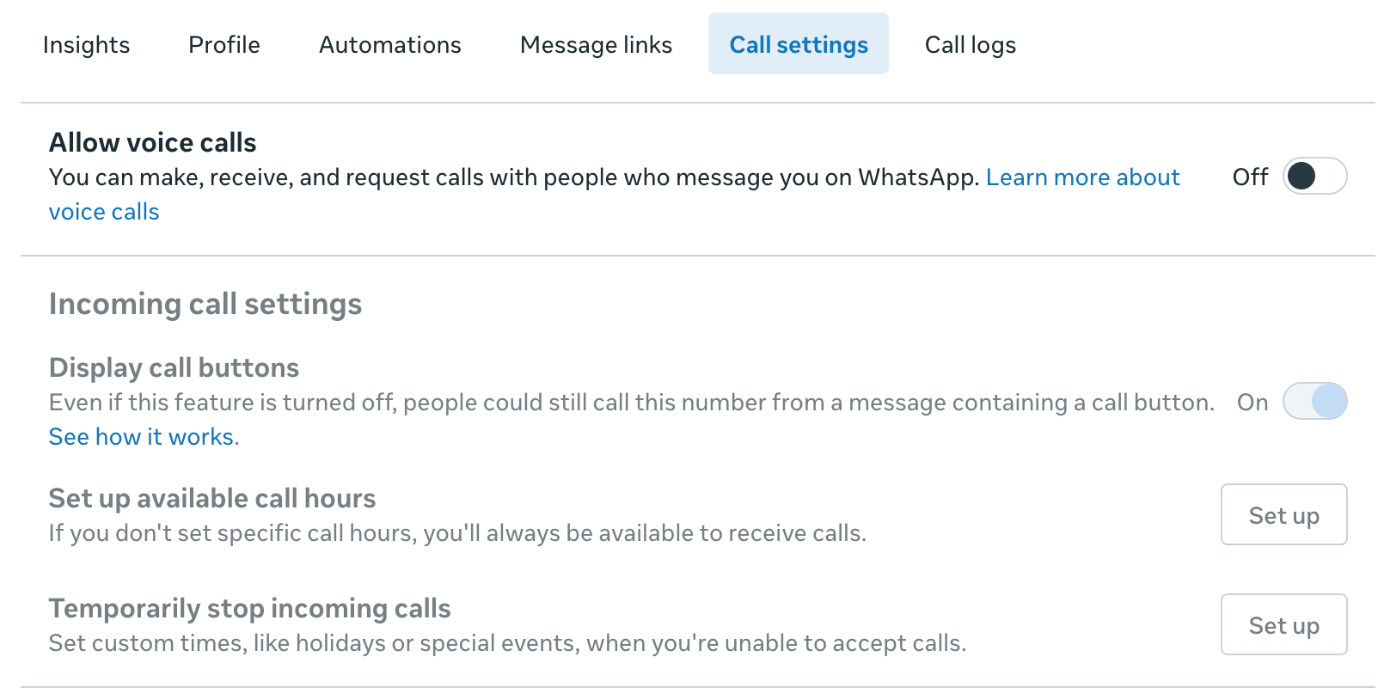
Messenger
Connect your Page as shown in the Messenger guide. Invent turns on calling for the Page when you save the channel. Meta keeps a few call settings of its own in Meta Business Suite, under Inbox › Inbox settings › Calls: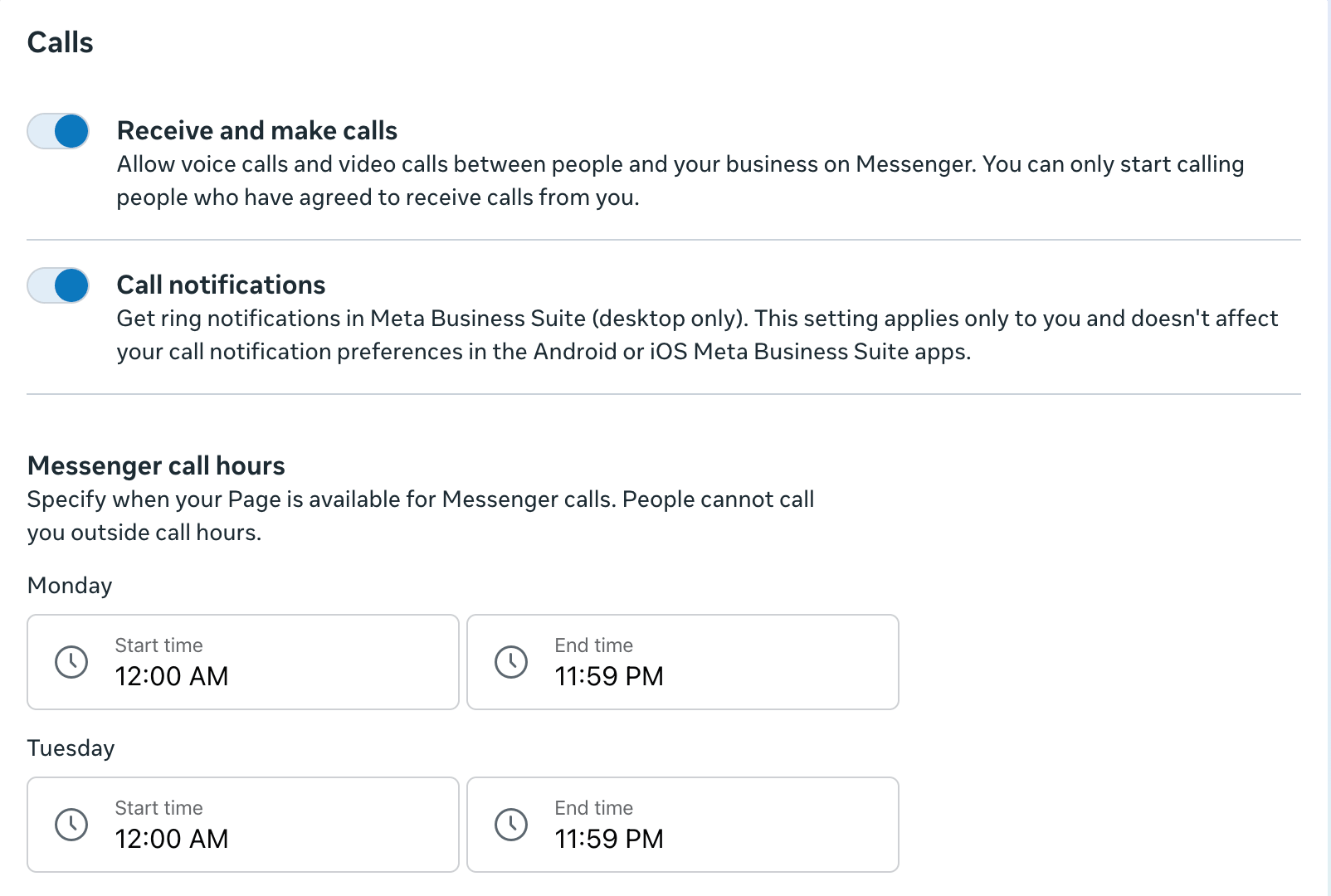
Messenger business calling is only available in some countries. If your Page is outside them, Meta refuses calling and your Page keeps working for messages.
Twilio
Connect your Twilio account and pick the number for your assistant. When you save the channel, Invent points the number’s incoming calls at your assistant.- The number must be able to make and receive voice calls.
- If you turn Voice Calls off, Invent puts back the number’s previous call settings.
Telnyx
Connect your Telnyx account and pick the number for your assistant. When you save the channel, Invent connects the number’s incoming calls to your assistant.- The number must be able to make and receive voice calls.
- If you turn Voice Calls off, Invent puts the number back on its previous connection, as long as nobody moved it in Telnyx in the meantime.
Troubleshooting
Calls ring but the assistant never answers
Calls ring but the assistant never answers
Check that Voice Calls is on in the assistant’s settings and that AI replies are on for the conversation. Calls are turned down while AI replies are paused.
WhatsApp calls never reach the assistant
WhatsApp calls never reach the assistant
Your number may be below Meta’s 2,000 messaging limit. Check the limit in WhatsApp Manager. Messages keep working in the meantime.
Messenger customers cannot call at certain times
Messenger customers cannot call at certain times
Check Messenger call hours in Meta Business Suite. Meta blocks calls outside those hours before they reach the assistant.