

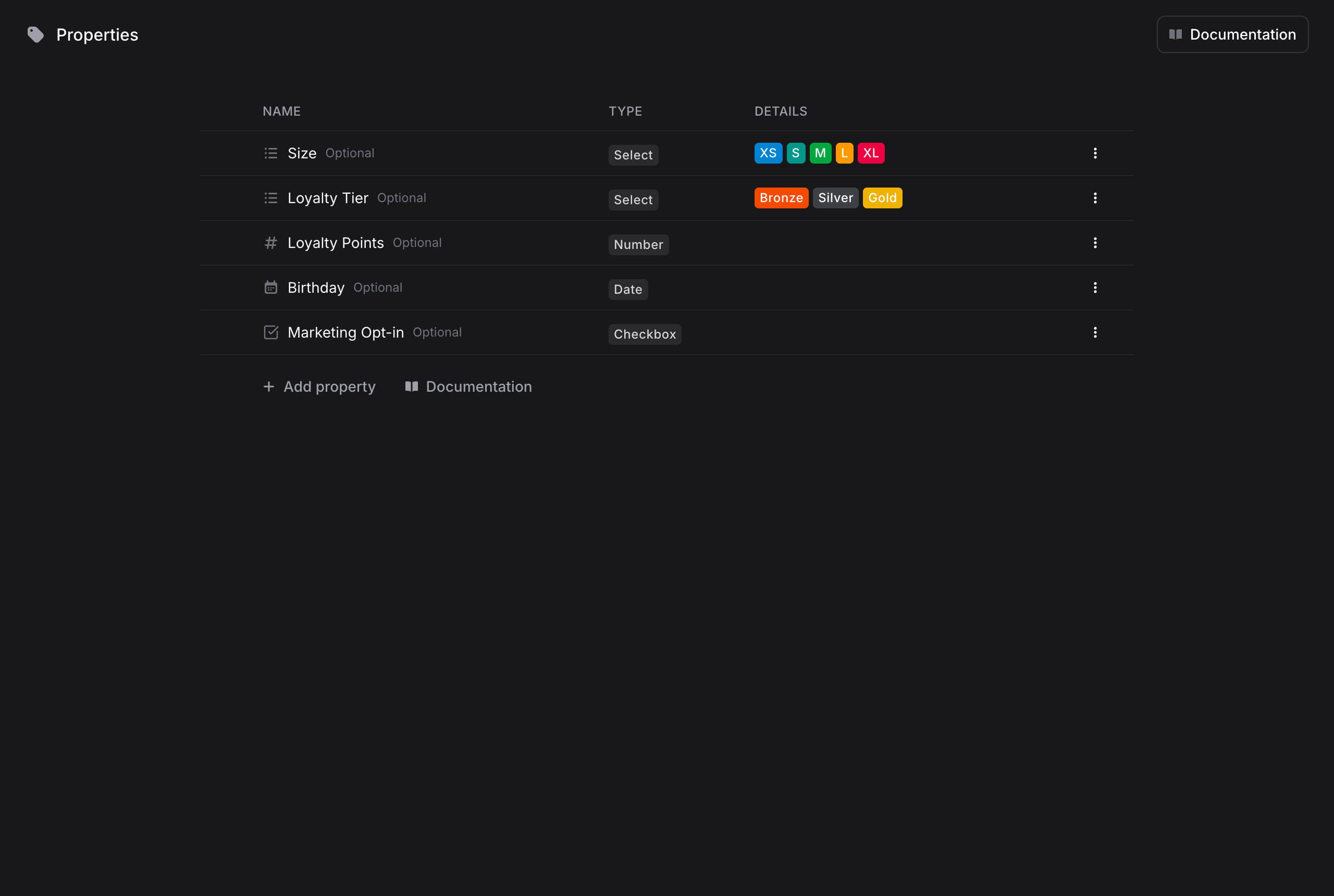
Only admins and developers can create or edit contact properties. Other members see the values on contacts but cannot change the property definitions.
Property Types
Adding a Property
1
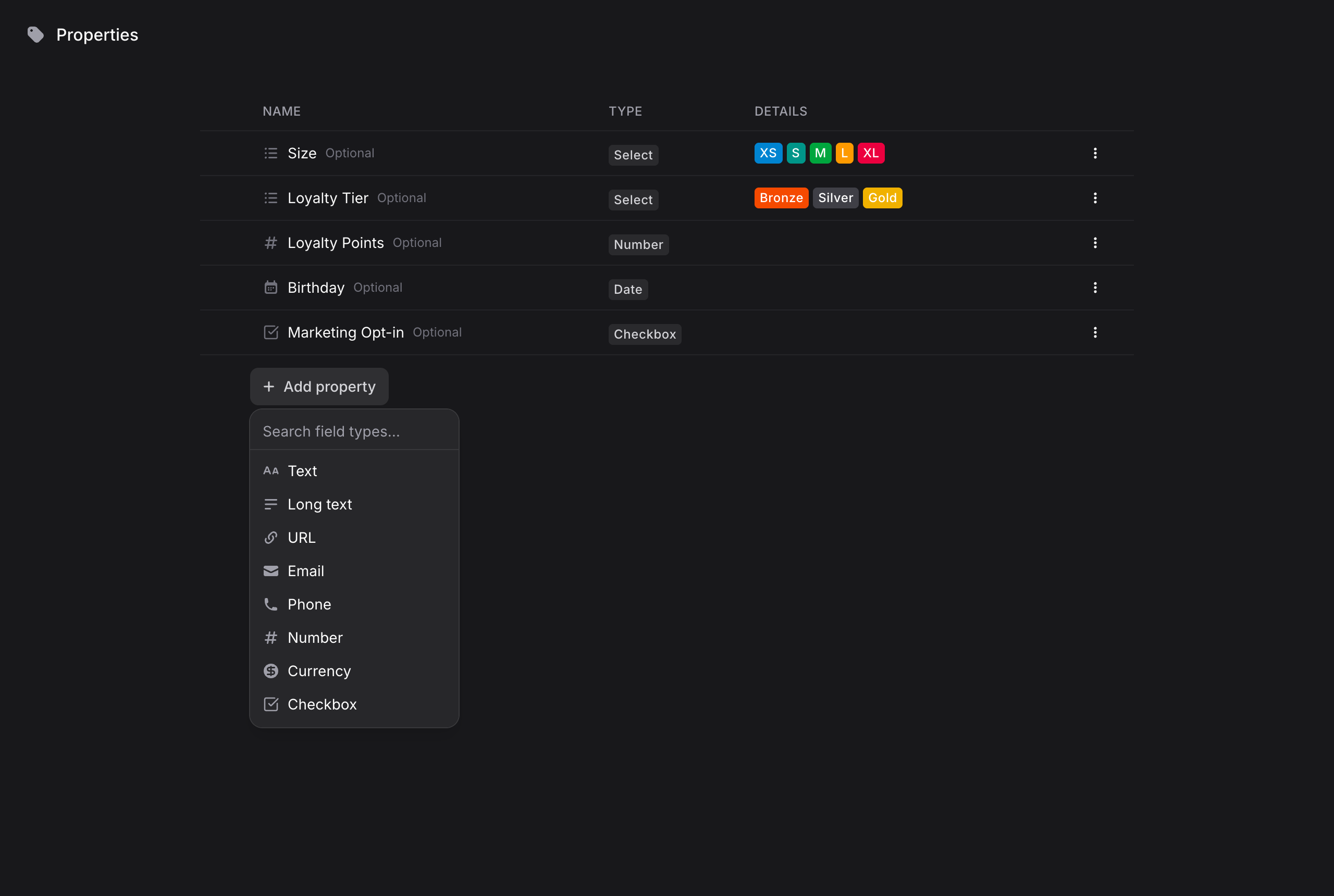
Click + Add property
A menu opens where you can search and pick the property type.
2
Pick a type
Choose the type that matches the data you want to store. For Select and Multi-select, you define the list of options, each with its own color.
3
Name it
Give the property a clear name (e.g., “Loyalty Tier”). The property immediately appears on every contact profile.
Each assistant can have up to 32 contact properties. Once you reach the limit, remove an existing property before adding another.
Managing Properties
From the Properties page you can:- Rename a property by clicking its name
- Reorder properties by dragging the handle that appears on hover. The order here is the order shown on contact profiles
- Edit options via the three-dot menu: change the option list of a Select property, tweak formatting, or delete the property
Properties on the Contact Profile
Every property appears in the Properties section of the contact profile panel, where you can view and edit values inline.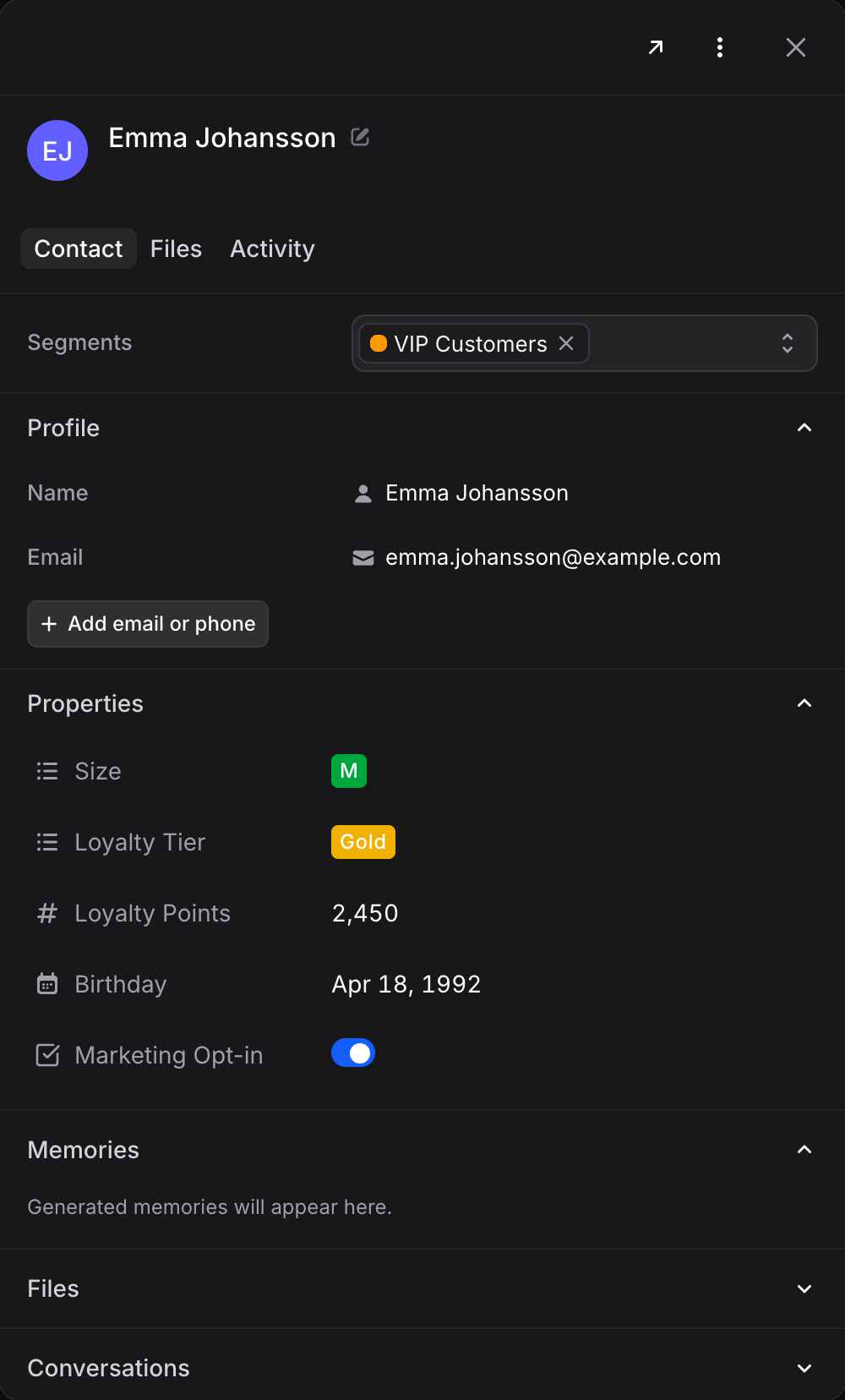
Let Your Assistant Fill Properties
Properties become really powerful combined with your AI assistants. With the Contact Properties capability switched on, an assistant saves contact details (name, email, phone, and any custom properties it may edit) directly to the contact profile as it learns them in conversation. For example, when a customer mentions they usually wear a size M, the assistant can set the “Size” property on their contact, no manual data entry needed. To enable it:1
Open the assistant's settings
Go to Assistants, pick your assistant, and scroll to the Contact Properties section of the Settings tab.
2
Turn on the switch in the card header
This lets the assistant save contact details directly to the contact profile. Name, Email and Phone are locked System rows, always available to the assistant; each channel decides which of them it may fill in.
3
Set the Access per custom property
Each custom property starts as None. Choose what the assistant may do with it:
- None: The assistant cannot see this
- Read: The assistant can read this
- Edit: The assistant can read and update this
4
Save changes
Click Save changes. The assistant applies the new access on its next conversation.
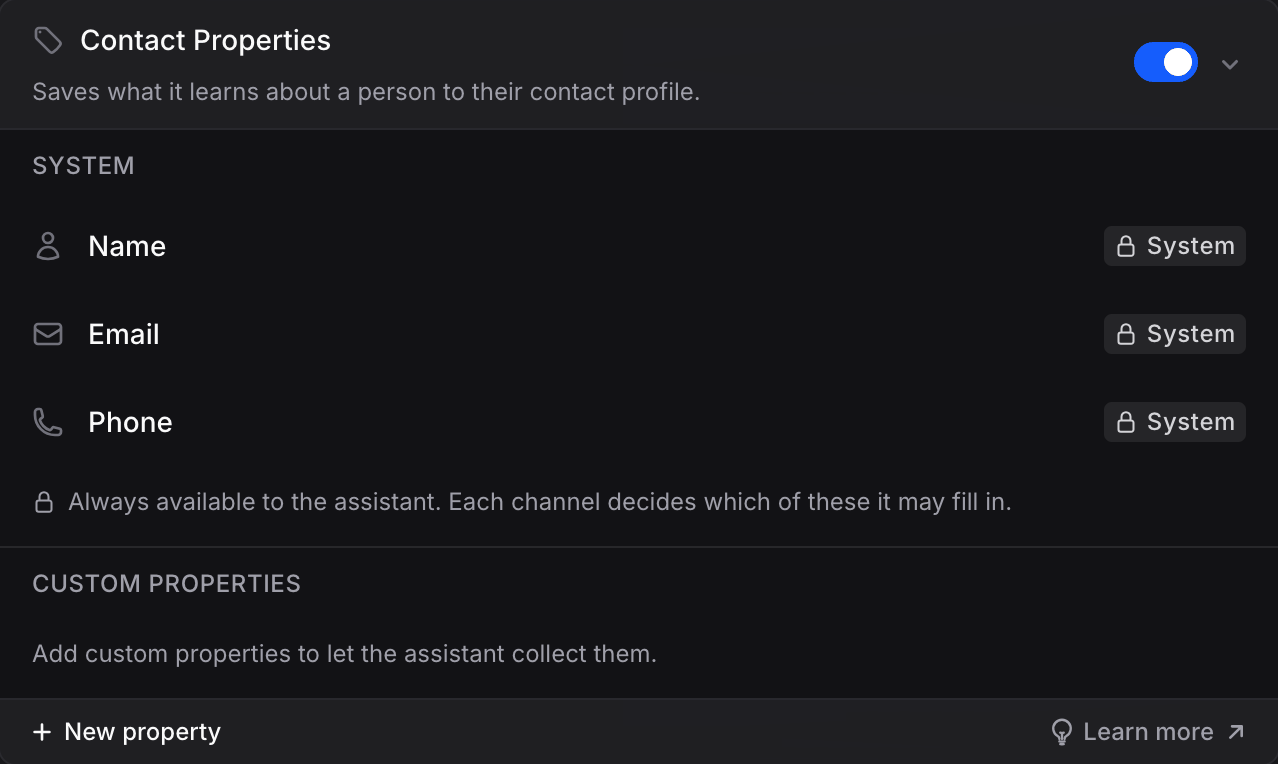
Access is per assistant, so a support assistant can update a “Size” property while a billing assistant cannot even see it. See Assistant Configuration for the rest of the assistant settings.
Setting Values via the API
Developers can set property values programmatically when creating or updating contacts through the API, using the property keys defined on this page.Best Practices
- Start small: A handful of properties your team actually fills beats a long list of empty fields
- Prefer Select over Text for anything with known values: options keep data consistent and filterable
- Name properties for humans: “Loyalty Tier” is better than “tier_lvl”
- Pair with assistants: Let the AI keep properties up to date automatically with the Contact Properties capability
Next Steps
Segments
Group contacts for targeted broadcasts
Assistant Capabilities
Explore what your assistant can understand and respond with