

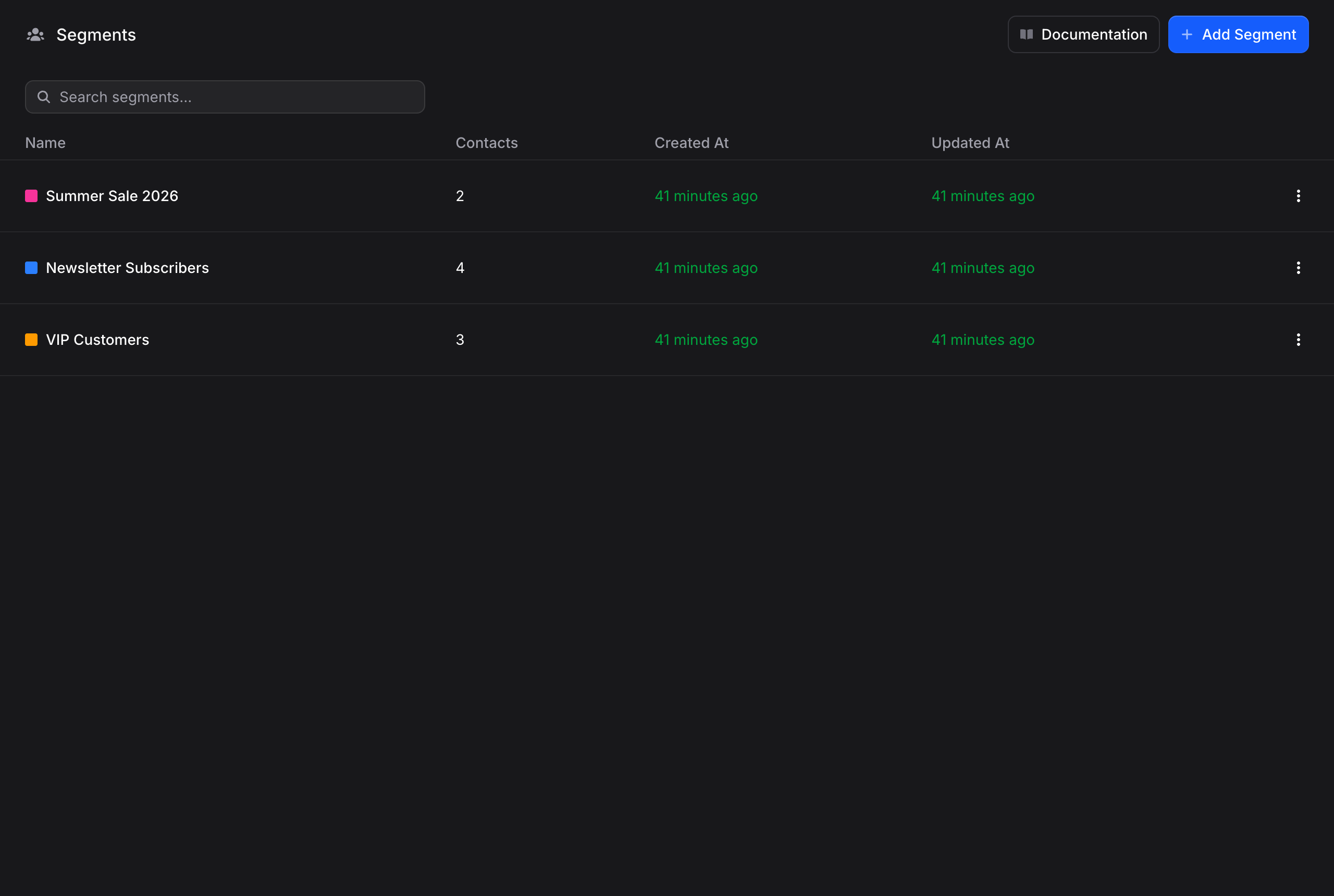
- Color and Name: The segment’s color dot and name
- Contacts: How many contacts are in this segment
- Created At: When the segment was created
- Updated At: When the segment was last modified
Creating a Segment
1
Click + Add Segment
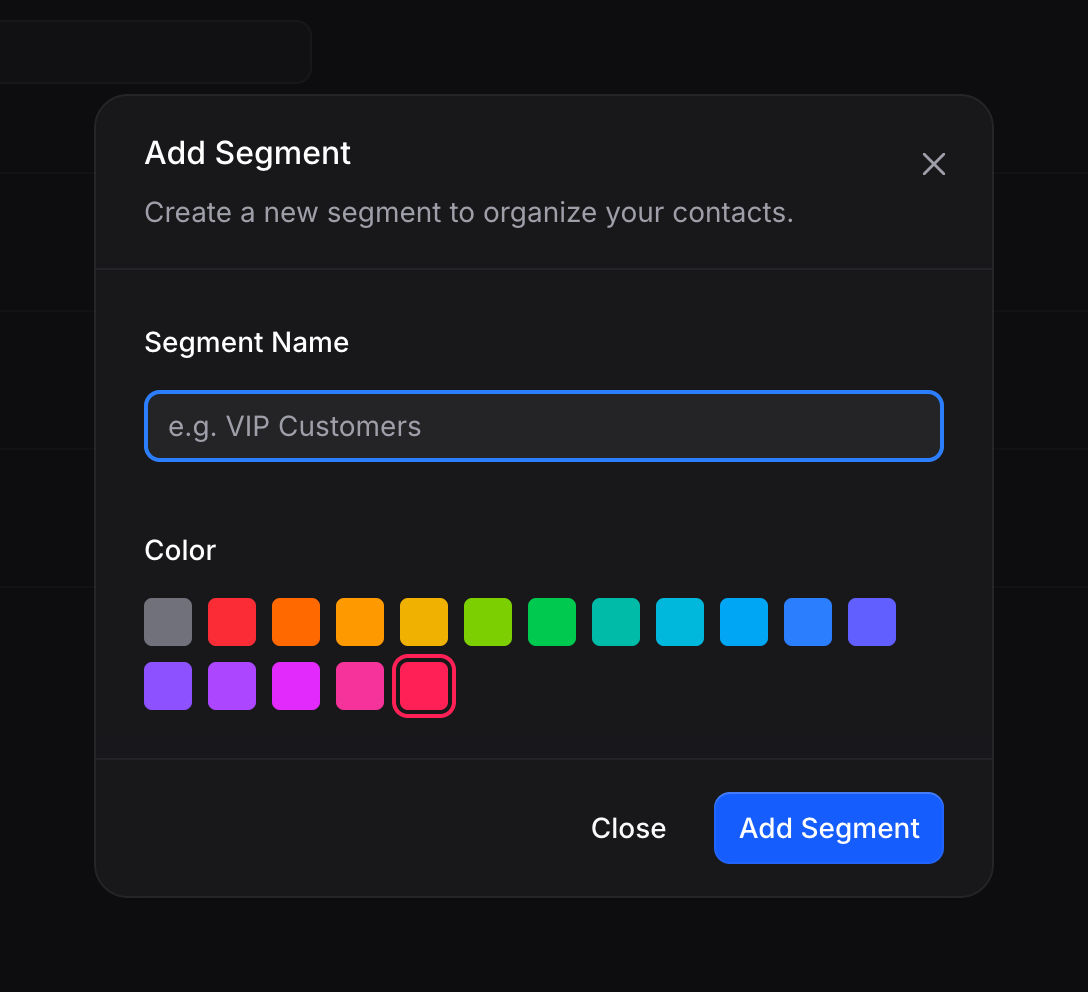
A dialog appears with fields for the segment name and color.
2
Enter a segment name
Give your segment a descriptive name (e.g., “VIP Customers”, “Product Updates”, “Beta Users”).
3
Pick a color
Choose a color from the palette. The color appears as a dot next to the segment badge throughout the app, making it easy to visually distinguish segments in the contacts list, contact panel, and filters.
4
Click Add Segment
Your new segment is created. It starts with 0 contacts.
Managing a Segment
Click on any segment to see the contacts within it.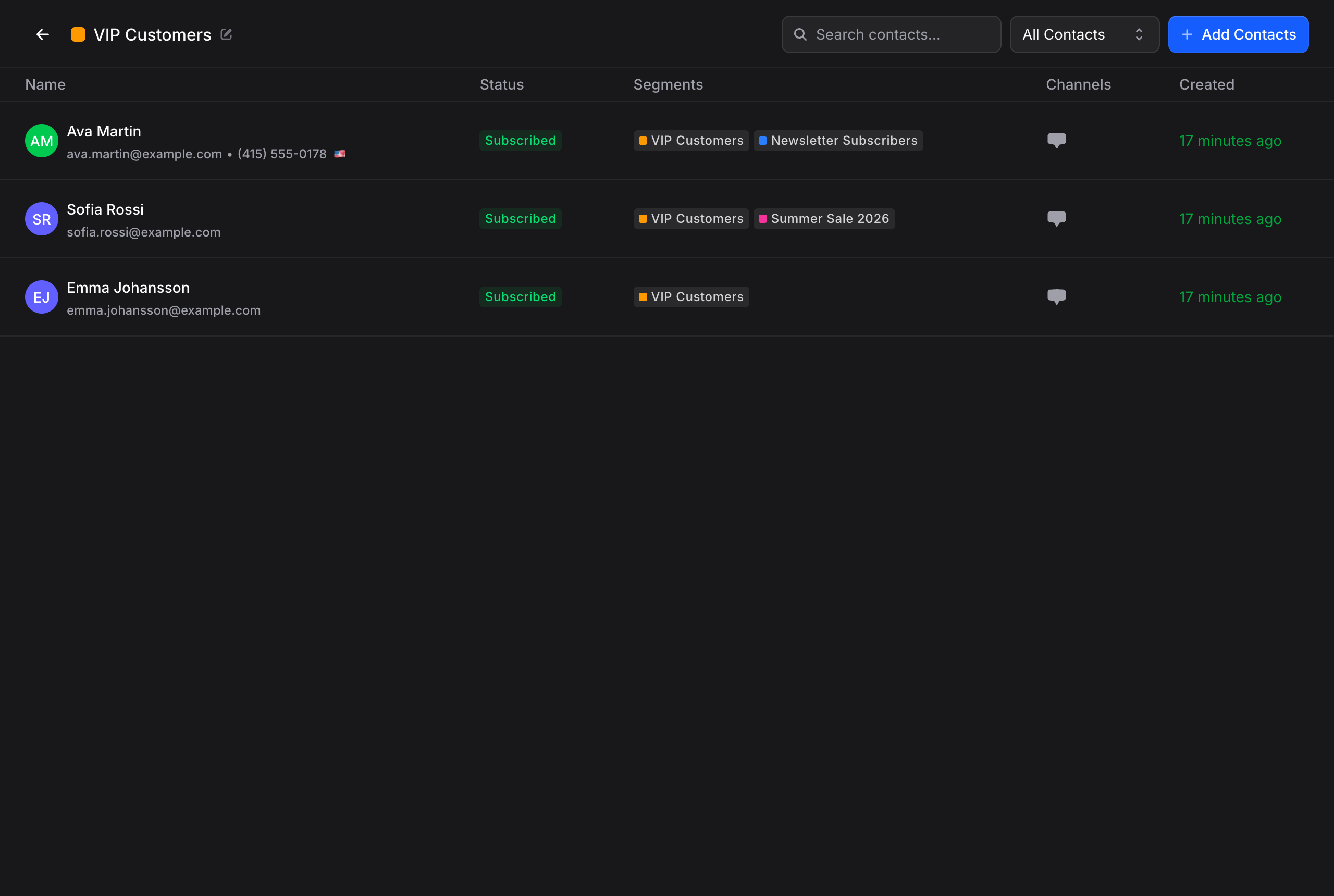
- Search contacts within the segment
- Add contacts to the segment (manually or via import)
- Rename the segment by clicking its name in the header
- Change the color by clicking the color dot next to the name
How Contacts Get Added to Segments
Contacts can be added to segments in several ways:- When adding a contact manually: Select segments during creation
- When importing contacts: Assign all imported contacts to a segment
- From the contact profile: Add or remove segments from the profile panel
- From within a segment: Click + Add Contacts while viewing a segment
Best Practices
- Create segments early: Set up segments like “Promotions”, “Product Updates”, and “VIP” before you start broadcasting. This makes targeting much easier later
- Use descriptive names: “Beta Users - iOS App” is better than “Group 1”
- Keep segments clean: Regularly review and remove contacts who are no longer relevant
- Combine with broadcasts: Segments are most powerful when used with broadcasts to send targeted messages to the right people at the right time
Next Steps
Broadcasts
Send targeted messages to your segments via WhatsApp and more
Properties
Store custom data on every contact with properties