

This guide builds on a channel you have already connected. If Messenger or Instagram is not connected yet, start with the Messenger guide or the Instagram guide.
Where It Works
Before You Start
- A connected channel. The Page or Instagram account must already be answering direct messages. See the Messenger guide or the Instagram guide.
- A post to use it on. Any post on the connected Page. The feature reads comments across the whole Page, so you do not select posts one by one.
- A word to ask for. Pick one short word people would not type by chance, like
INFO,GUIDEorPRICE.
Turn It On
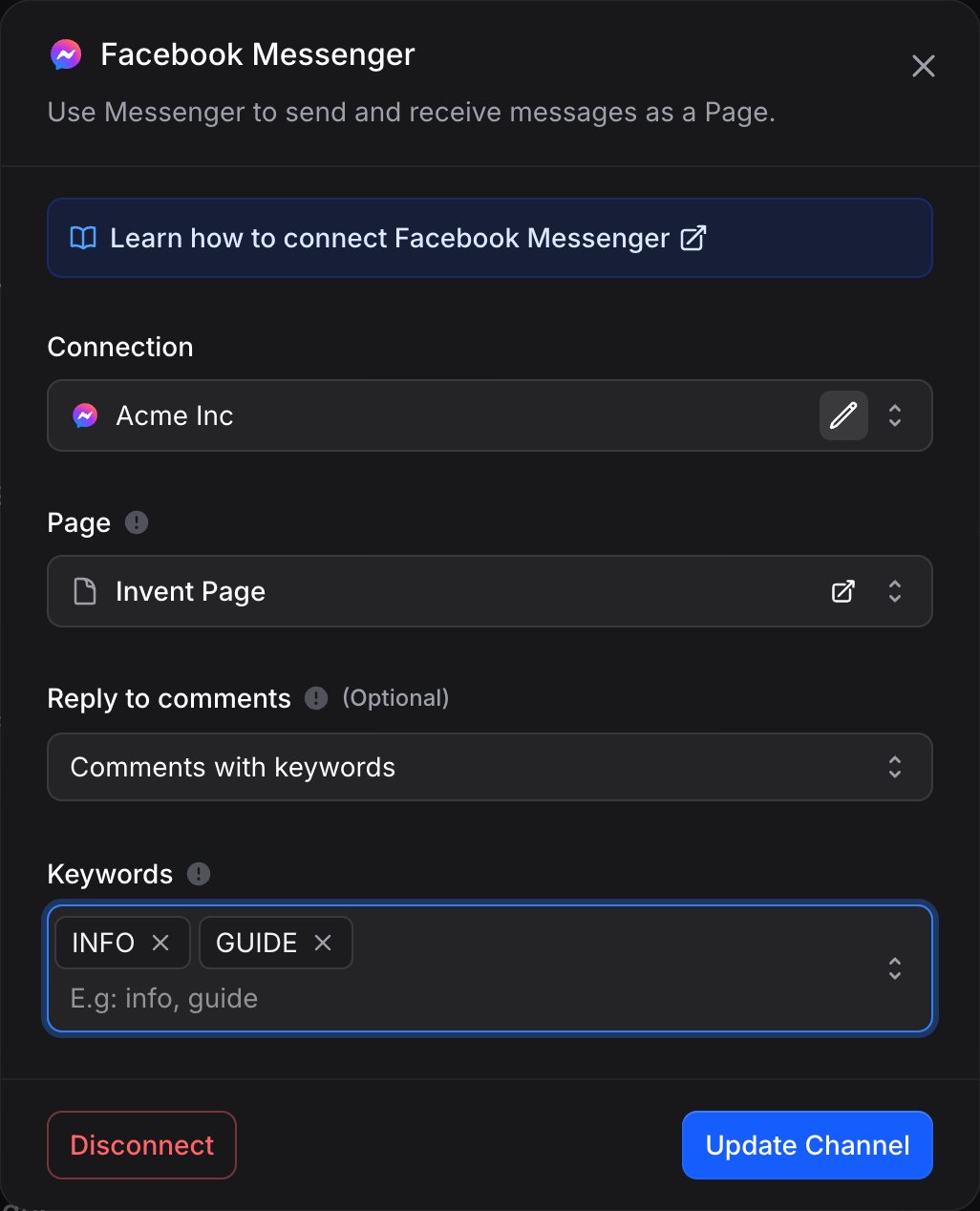
- Open your assistant’s Channels tab.
- Click Manage on the connected channel (Facebook Messenger or Instagram).
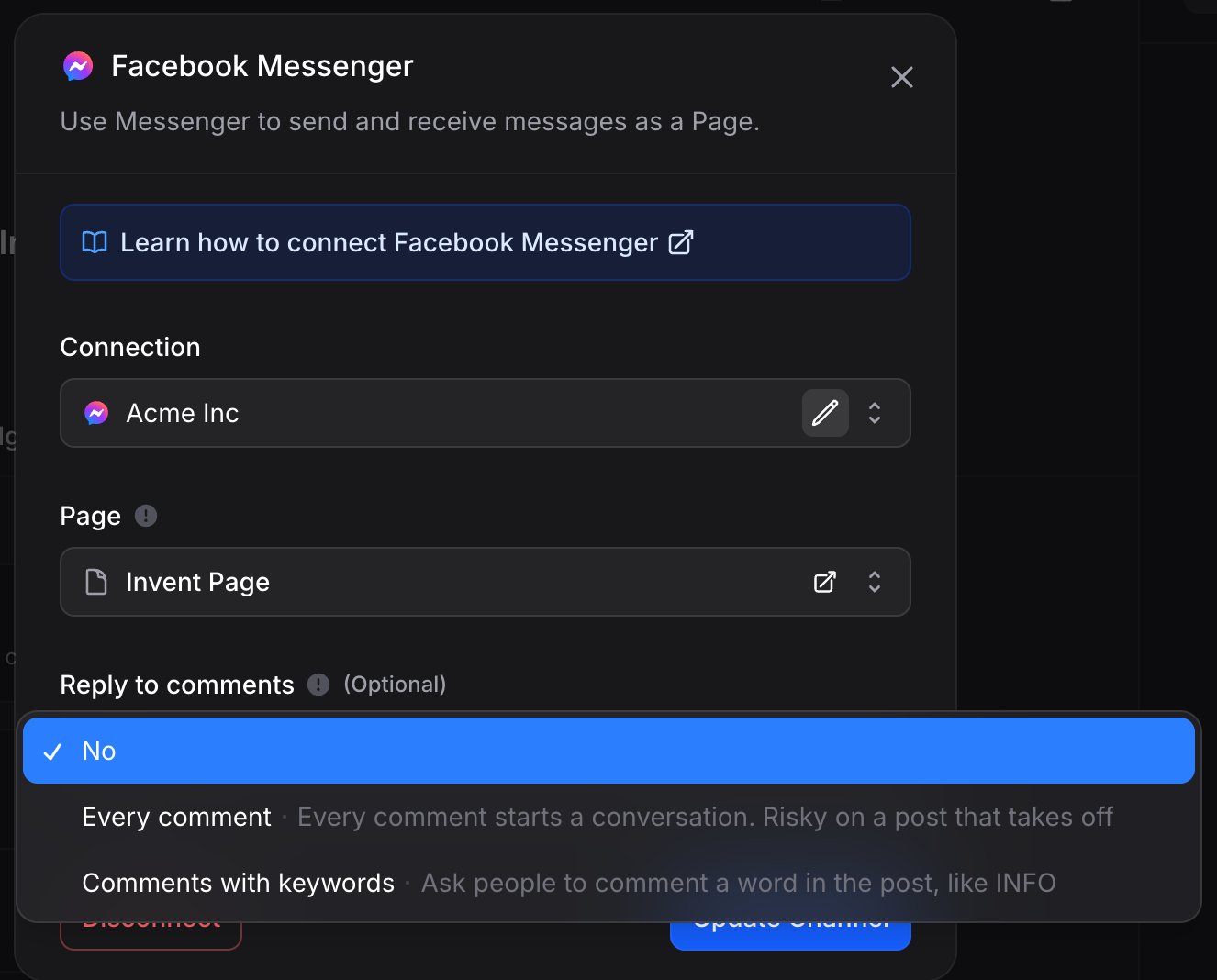
- Set Reply to comments to Comments with keywords.
- Add your words under Keywords. Press Enter after each one.
- Save.
GUIA, guía and Guia all match the same keyword.
Keywords or Every Comment
What Happens Next
When someone comments a keyword, your assistant sends them one private message. That message is the whole conversation until they answer.
The first message is a single text message. It cannot carry files, buttons or option lists, because the platform allows exactly one message before the person replies. Your assistant knows this and writes accordingly: it does the work first, then answers in one message, and invites the person to reply if it needs anything else.
Once they answer, everything is available again: files, buttons, follow-ups, and your team taking over from the Inbox.
One reply per comment, within 7 days. If the same person comments a second time on another post, that is a new comment and gets its own reply. If someone comments but never answers, no further message can be sent to them until they do.
When Someone Already Has a Chat
If the person messaged you in the last 24 hours, the conversation is already open. In that case your assistant answers the comment as a normal message in the existing chat, with everything available: files, buttons, several messages if it needs them. It also stays in the same conversation. A comment never starts a second chat with someone you are already talking to.What the Assistant Knows
The comment reaches your assistant as part of the conversation, quoted, so it can answer the actual question rather than send a canned reply. Your Instructions, Knowledge and Actions all apply exactly as they do in a normal chat. Nothing extra to configure: if your assistant can answer the question in a DM, it can answer it from a comment.Best Practices
Pick words people would not type by chance
Pick words people would not type by chance
INFO, GUIDE, PRICE and START work well. Avoid thanks, nice, wow, love or your brand name: those show up in normal comments and turn every conversation into an unwanted message.Ask for the word in the post itself
Ask for the word in the post itself
In the video, the caption and the on-screen text. People follow a clear instruction, and the comments you get are from people who actually want the answer.
Do not lead with a bare link
Do not lead with a bare link
A first message that is only a URL reads as spam to both people and platforms. Answer the question, then offer the link once the person replies and the conversation is open.
Keep public replies human
Keep public replies human
Comment replies here are private. If you also reply publicly under the comment, vary the wording. Identical public replies repeated dozens of times is the pattern platforms look for.
Troubleshooting
I commented the keyword and nothing happened
I commented the keyword and nothing happened
Work through these in order:
- Your own comments are ignored. A comment from the connected Page or account never starts a conversation. Test from a different profile.
- Check the word. The comment must contain one of the keywords you saved. Extra words around it are fine.
- Re-save the channel. Channels connected before this feature shipped need one save to start receiving comments. Open the channel settings and click Save, with no other change.
- Check the assistant is on for that conversation. If a team member took the conversation over, or AI replies are off, the comment still arrives in the Inbox but no automatic answer is sent.
The comment shows in the Inbox but no reply was sent
The comment shows in the Inbox but no reply was sent
That is the AI switch. When AI replies are off for a conversation, or a team member has taken it over, the comment is recorded and left for a person to answer. Anyone on the team can reply from the Inbox, and that reply goes out as the private message.
A comment that was deleted quickly never arrived
A comment that was deleted quickly never arrived
Meta only notifies us about comments that still exist when the notification is sent. A comment deleted a few seconds after it was posted may never reach us at all. Nothing is wrong on your side.
The person never got a second message
The person never got a second message
That is the platform rule, not a failure. Until the person answers your first message, nothing else can be sent to them. This is also why your assistant invites a reply instead of promising a follow-up.
Every comment got a message and people are complaining
Every comment got a message and people are complaining
Switch Reply to comments to Comments with keywords and add a word. Messaging everyone who comments is the behavior that gets accounts restricted, and a single post that performs well can turn it into hundreds of unwanted messages. Ask for the word in the post instead.
Next Steps
Messenger
Connect a Facebook Page if you have not yet
Connect an Instagram account if you have not yet
Inbox
See where the comment and the conversation land
Knowledge
Give the assistant the answers people ask for in comments
Tracking
See which posts bring conversations in