

Microsoft Teams is coming soon. It waits on Microsoft’s approval of the Invent app in the Teams store, so most organizations see a Coming Soon badge instead of Connect for now. The steps below show how it works once it opens.
New to channels? Start with the Channels Overview to see the universal connect flow that every channel shares. This guide walks through the Teams-specific steps on top of that flow.
Before You Start
You need:- A Microsoft 365 account in the Teams organization you want to connect. The connection is created by signing in with Microsoft, and the channel list is read from the teams you belong to.
- The Invent app installed in Teams, from the Microsoft Teams app store. Without the app, Teams has nowhere to deliver messages.
- Assistant manager access in Invent, so you can open the assistant’s Channels tab.
Step 1: Install Invent in Teams
Open Teams, go to Apps, search for Invent and click Add. Add it to yourself for direct messages, or to a team so it can be mentioned in that team’s channels. A Teams admin can also add it for the whole organization from the Teams admin center.The app and the connection do different jobs. The app puts the assistant in a chat, the connection tells Invent which assistant answers there. Both are needed.
Step 2: Open the Teams Connect Dialog
From your assistant’s Channels tab, find Microsoft Teams in the list and click Connect. The connect dialog opens.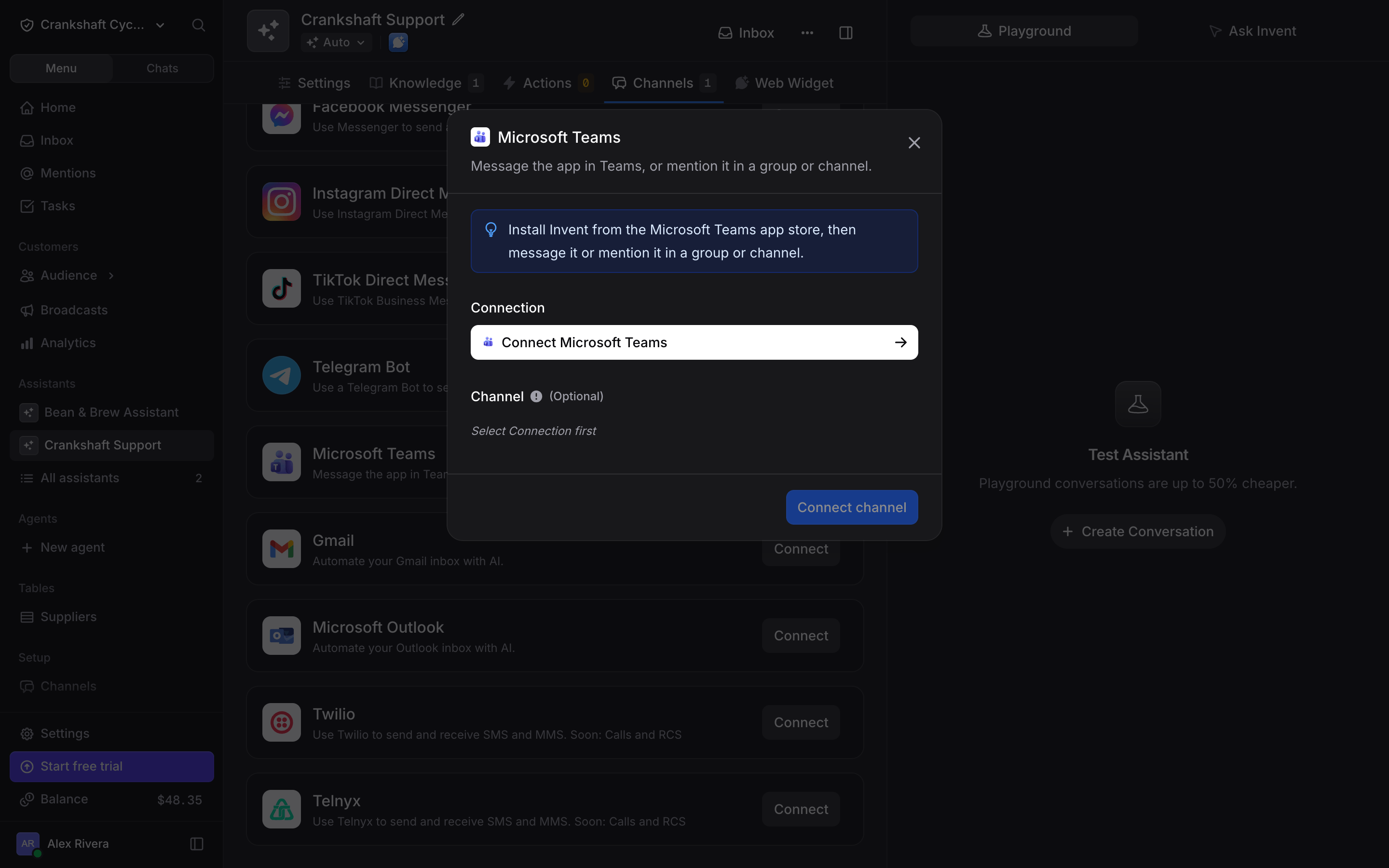
- Connection: the link to a Teams workspace, created by signing in with Microsoft. If this is your first Teams connection, the field shows a Connect Microsoft Teams button that starts the sign-in (covered in the next step). If you have already connected Teams for another assistant, your existing connections are listed in the dropdown, with a + New Connection button at the top to add another; reuse one and skip to Step 4.
- Channel: where the assistant listens. Disabled until a connection is selected.
Step 3: Sign In with Microsoft
Click Connect Microsoft Teams (or + New Connection in the dropdown when a connection already exists). Microsoft’s standard sign-in opens in a popup. Sign in with the account that belongs to the Teams workspace and accept the permissions: Invent reads your profile, the teams you are in and their channel names, the files you can open and your chat messages. It uses them to pick up files people share with the app in channels and group chats. Messages themselves arrive through the Teams app. When you are done, the popup closes and Invent asks you to name the connection (for example, “Acme Teams”). Click Create. The connection is stored in Settings → Connections, where you can rename or disconnect it at any time.Step 4: Pick a Channel
Back in the connect dialog, your new connection is already selected. Open the Channel dropdown:- Any channel (the default): the assistant answers direct messages, and any group chat or channel where it is mentioned.
- A specific channel, listed as Team › Channel: the assistant answers only in that channel.
Several assistants on one organization. You can bind the same Teams connection to more than one assistant. Two assistants on Any channel both receive every message and both reply; the connect dialog and the channel list flag this with a warning that names the other assistant (also replies on this channel). An assistant bound to a specific channel takes that channel over: there, the Any channel assistants stay quiet, and everywhere else they keep answering. Give each assistant its own channel with the Channel field when they should not overlap.
Step 5: Send a Test Message
In Teams, open a chat with the Invent app and send a message. In a channel, @mention the app. The reply arrives in Teams, and the conversation shows up in your Inbox with the Teams badge on the contact avatar.How the Assistant Behaves in Teams
- Direct messages: every message reaches the assistant, no mention needed.
- Channels: the assistant answers when it is @mentioned. It then keeps following that thread, so replies inside the thread reach it without a new mention.
- Group chats: only messages that @mention the app reach the assistant.
- Buttons: Options arrive as tappable buttons, up to 6 per message.
- Formatting: Teams shows bold, italic, code, links, lists and quotes. Headings and images in a reply are rewritten into text that Teams can show.
- Typing indicator while the assistant writes, and emoji reactions on messages, limited to the emoji Teams supports.
- Files sent by the assistant arrive as attachments.
- Files people share reach the assistant in direct messages, channels and group chats. In channels and group chats it reads the files that the person who connected Teams can open. A connection made before October 2026 needs a Reconnect first.
Reusing a Connection Across Assistants
Once a Teams connection exists in your organization, any assistant can pick it up from the Connection dropdown without signing in again. Give each assistant its own channel with the Channel field, or bind one assistant to Any channel: two assistants on the same channel both reply, see Step 4. Manage every connection centrally from Settings → Connections:- Rename a connection to something more descriptive.
- Disconnect a connection to revoke access. Every assistant channel bound to it stops.
Troubleshooting
The assistant never replies in Teams
The assistant never replies in Teams
Two common causes:
- The Invent app is not installed in Teams, or not added to the team you are writing in. Install it from Apps in Teams (Step 1).
- You wrote in a channel or group chat without mentioning the app. Type
@Inventin the message, or open a direct chat with the app.
The channel I want is not in the dropdown
The channel I want is not in the dropdown
The list shows the channels of the teams the signed-in account belongs to. Join the team with that account, then open the dropdown again. If you signed in with a different account than the one in the team, create a new connection with the right account.
My reply lost its headings or images
My reply lost its headings or images
Teams does not show markdown headings or inline images in bot messages. Invent rewrites headings as bold lines and drops what Teams cannot show, so the text still reads well. Keep instructions simple: short paragraphs, bold for emphasis, and links.
The connection shows an 'Inactive' badge
The connection shows an 'Inactive' badge
The Microsoft sign-in has expired or was revoked. Open Settings → Connections, find the Teams connection, click Fix (or Edit), then Reconnect inside the dialog to sign in again.
Next Steps
Channels Overview
The universal connect flow and every other channel
Inbox
Watch the AI work and jump in when needed